PDF Expert 3.13.4 — download for Mac
PDF Updated
Opens contracts, marks up drawings, and signs forms before lunch.
Screenshots
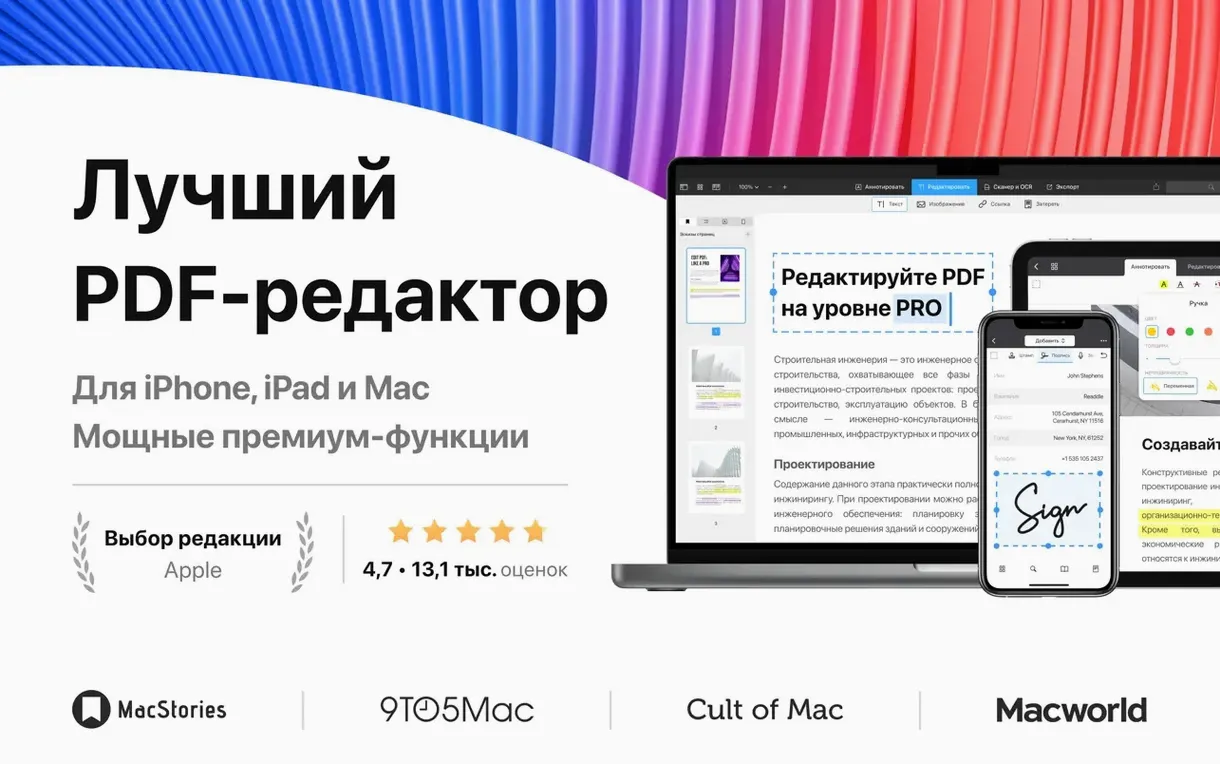
PDF Expert is the kind of tool that gets used daily in an office, not just opened once a month. It is for the person who reviews contracts, marks up drawings, or needs to sign a form before lunch. The current version is 3.11.1 (1146), and it runs on macOS 12 and later on both Intel and Apple Silicon.
- Open a PDF and read it. The interface is clean, so you spend time on the document, not the toolbar.
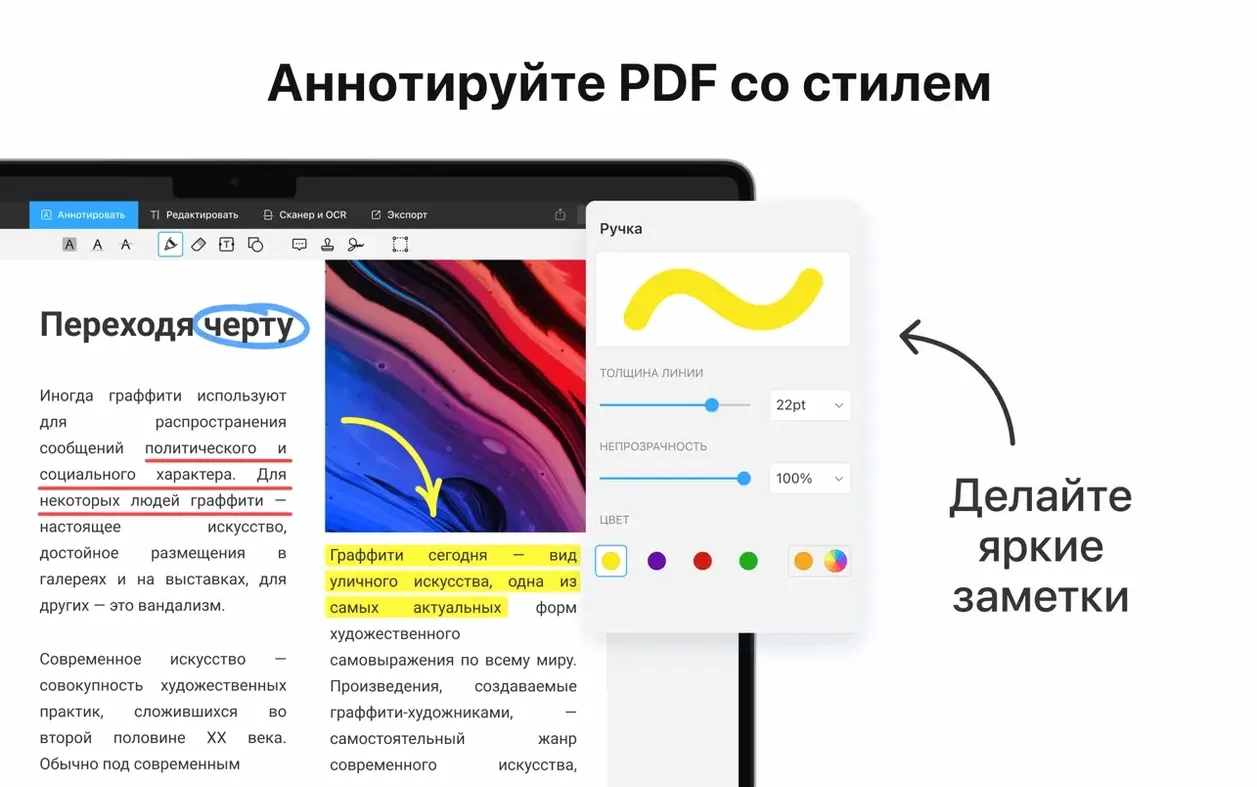
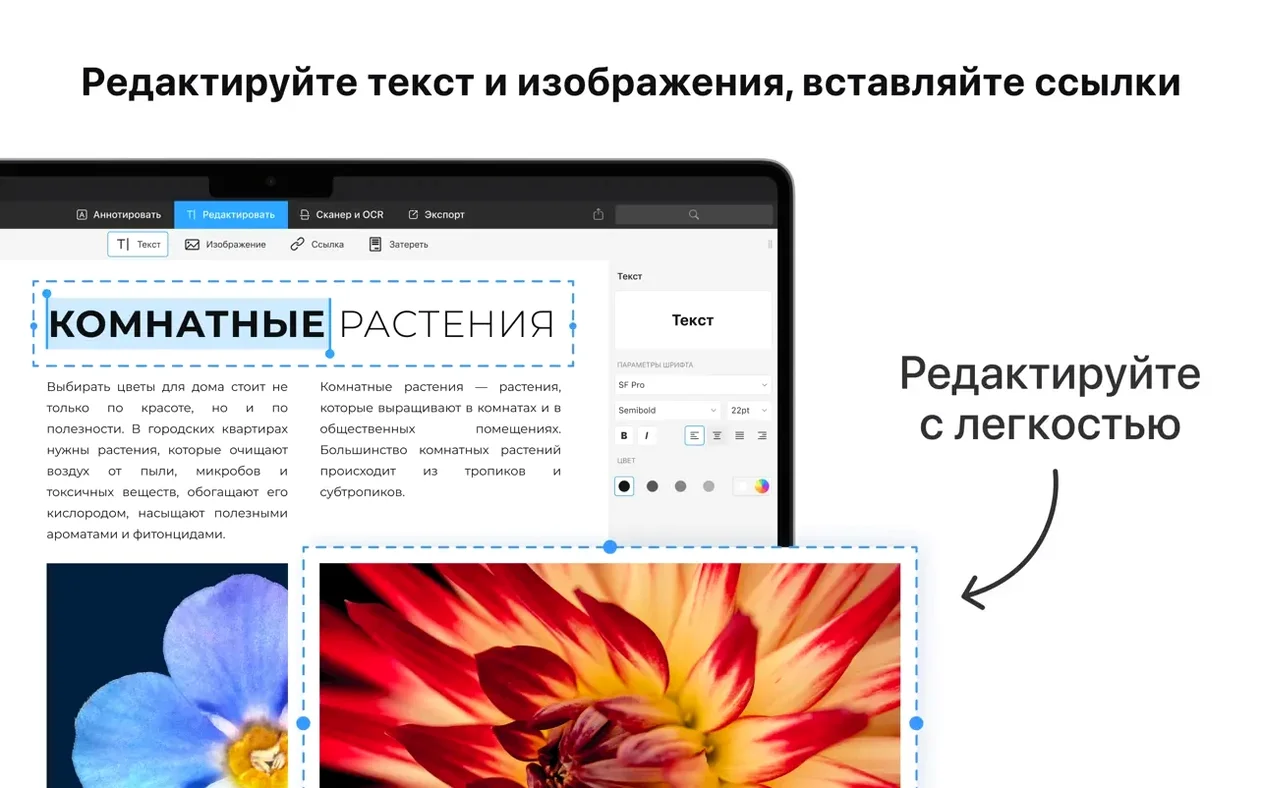
- Annotate: highlight text, add notes, or draw. If you need to point at something specific, add a link or an image edit.
- Fill out forms. Type directly into fields, save, and send back. No printing required.
- Organize: create a table of contents for a long report, or set a password on a document that should stay private.
That workflow covers most of what a project manager or an administrator handles in a week. The app is available in ten languages, including English, German, French, and Japanese, so it fits into teams that work across borders.
Opens 30-page agreements before a 10 a.m. meeting
Tuesday morning. You have a 30-page subcontractor agreement that needs your comments before the 10 a.m. meeting. You double-click the PDF, and it opens in PDF Expert. The document loads without that pause where you wonder whether the app is going to respond.
You start at the top, reading the scope-of-work section. A clause catches your eye — the wording on change orders is too vague. You select the sentence, add a sticky note in the margin that says "Needs a cap on cost overruns." Then you move on. Two pages later, a table lists material quantities. You realize a number is off by a factor of ten, so you use the text edit tool to correct it directly, and the font stays consistent with the rest of the document. No re-export, no awkward mismatch.
By the time you reach page 15, you have added four highlights, two notes, and one text correction. You open the table of contents panel, glance at the structure to confirm nothing was skipped, and save. The file goes back to the shared drive with your annotations baked in. Seven minutes, done.
That same session could have included signing a signature block — the signature tool stores your last used signature, so you place it in two seconds — or merging that agreement with a one-page addendum before sending it out. The point is that the app stays out of the way. You are not hunting for a menu or waiting for a dialog box to close.
Suits project managers reviewing contracts
Not every Mac user needs a PDF editor. MacOS Preview handles basic reading, and Apple Notes covers light annotation. But three kinds of people will get their money's worth from PDF Expert.
- The project manager or architect who reviews drawings and specs daily. You need to mark up a plan, add a note about a beam placement, and send it back without converting formats. Text editing and link insertion make that possible without leaving the app.
- The legal or compliance reviewer who works with contracts, NDA forms, and signature-ready PDFs. Filling forms and storing a signature saves the back-and-forth of print-sign-scan. Password protection also means you can send a sensitive document without worrying about where it lands.
- The cross-platform office worker who starts a document on a Mac at a desk and finishes it on an iPad in a meeting. The Handoff feature between devices is not a gimmick — it means the annotations you made on the train appear when you open the same file on the desktop later.
If you only read PDFs once a week and never edit or sign them, the built-in macOS tools are enough. But if your week involves even two or three of the tasks above, PDF Expert pays for itself in time saved.
Sits between Adobe Acrobat and basic viewers
Most Mac PDF editors fall into one of two camps: the all-in-one suites that try to replace your entire document workflow, or the stripped-down viewers that cannot edit text at all. PDF Expert sits in the middle.
Adobe Acrobat Reader is the obvious comparison. PDF Expert offers the same core editing features without the upsell screens, and its interface follows macOS conventions more closely. You do not need to learn a different logic for the toolbar.
Foxit PDF Editor is fast and handles forms well, but its Mac version has lagged behind the Windows version for years. Updates come less frequently, and the font rendering on Apple Silicon was inconsistent in earlier releases. PDF Expert's support for both Intel and Apple Silicon is current, and the app has been updated regularly since the M1 transition.
Preview (macOS built-in) is free and very fast for reading, but it cannot edit text, add links, create a table of contents, or set passwords. It also lacks any form-filling beyond clicking a checkbox. If your work involves any of those tasks, you need a real editor. PDF Expert is the one that covers every common office PDF task without the overhead of a suite.
Workflow: from a Word file to a signed, password-protected PDF
This is a real sequence I run once a week when a client sends a .docx scope statement that needs to become a deliverable.
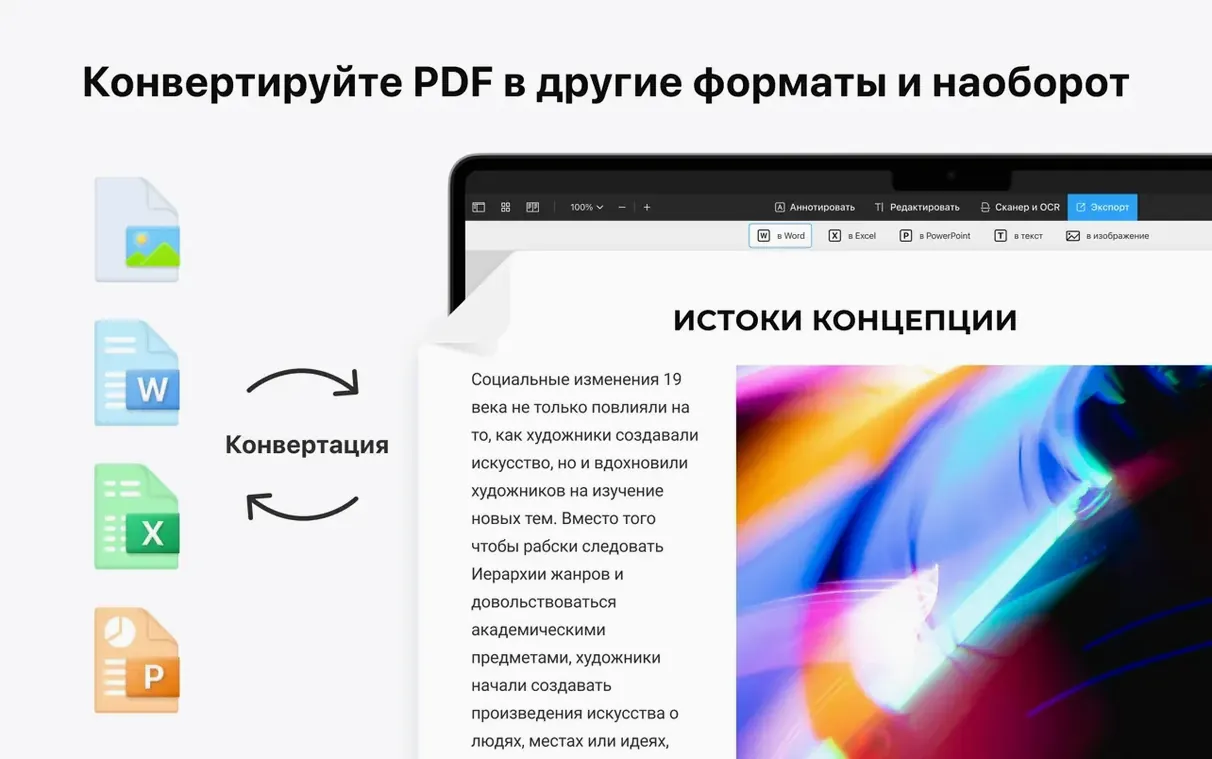
- Open the Word file in PDF Expert. The app handles the conversion from Word, Pages, and Docs files — no need to export from Word first.
- Check the converted PDF. The headings imported correctly, but the body text has a widowed line at the bottom of page two. Use the text edit tool to shorten the last paragraph by a few words so the page break is clean.
- Add a link in the table of contents for each major section: Scope, Schedule, Payment. Each heading gets a hyperlink to its own page so the reader can jump around.
- Create a table of contents panel so the navigation is visible at a glance. That takes about ten seconds.
- Scroll to the signature block at the end. Click the signature tool, place the saved signature, add today's date from the date field.
- Set a password. Go to the document protection settings, enter a passphrase, save. The file now opens only for someone who has the password.
- Send the file. It is a single PDF, ready for the client, with navigation, a signature, and protection — all done in PDF Expert without touching another app.
That entire workflow takes about four minutes, and the result looks professional because the fonts and layout stayed native throughout. The alternative — opening Word, exporting to PDF, opening Preview, annotating in a different tool, signing in yet another — would take twice as long and risk formatting errors at each handoff step.
This is why PDF Expert stays on my dock. It handles the tasks that come up repeatedly, and it handles them in one place, without extra steps. For anyone who works with contracts, specifications, or forms on a Mac, that is the kind of tool that becomes invisible — you stop thinking about the software and just get the work done.
No release notes filed for 3.13.4. They are added here when a build changes how the program behaves.
| macOS | macOS 12 or later |
|---|---|
| Processor | Apple Silicon, Intel 64-bit |
| Download | 128 MB |
- macOS 12 or later
- Intel or Apple Silicon
- No activation required
How to install, in order
- Open the downloaded disk image.
- Drag the app to the Applications folder shortcut.
- After copying finishes, launch the app from Launchpad.
- On first launch, close the sign-in screen if it appears; it will activate automatically on the next launch.
Comments and corrections 0
Sign in or open a free account to leave a comment.
No comments or corrections yet.