PDFelement Pro 12.1.28 — download for Mac
PDF Intel processors only Updated
Processes scanned documents with OCR and batch-edits PDFs for the office.
Screenshots
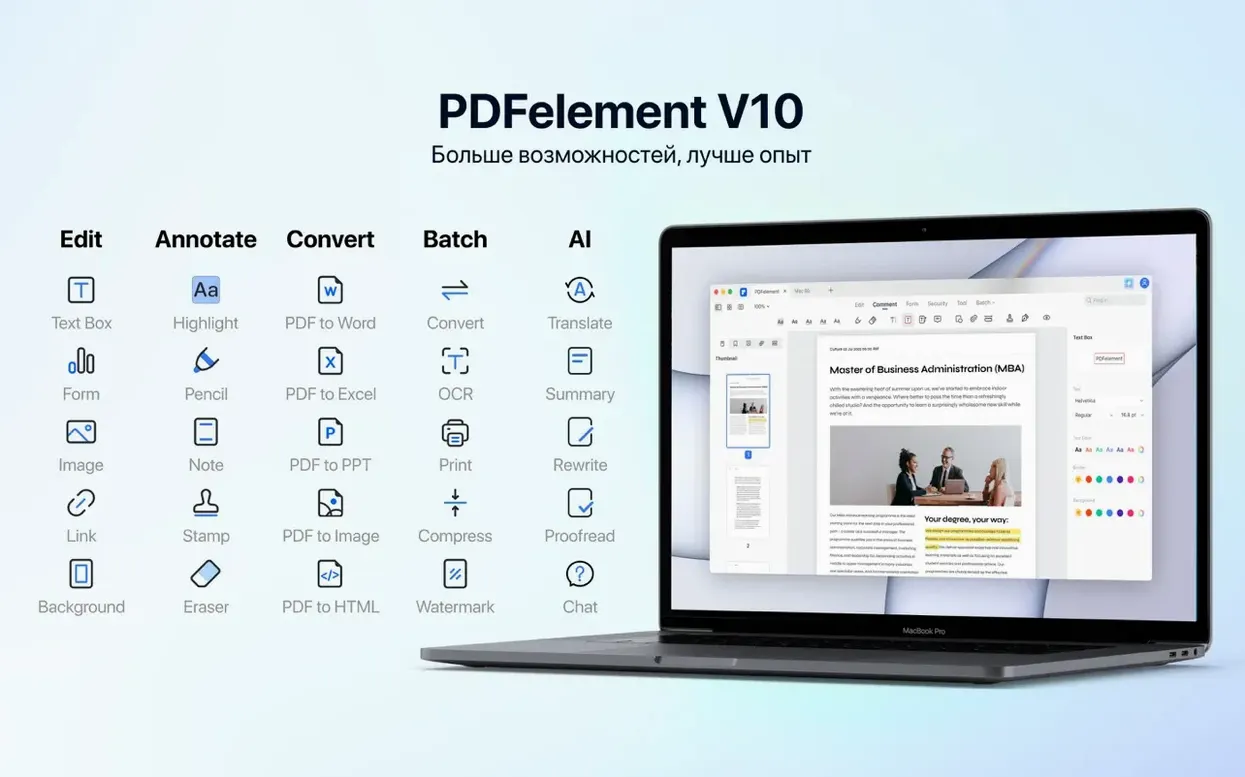
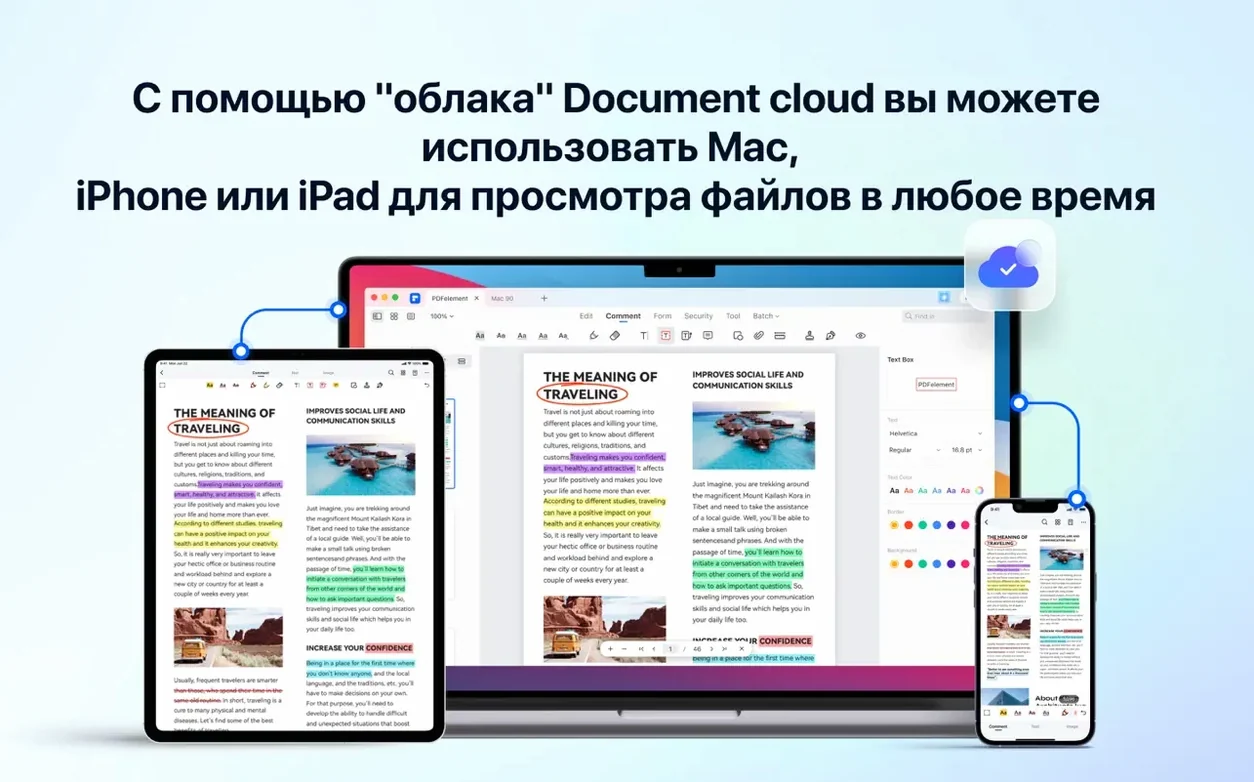
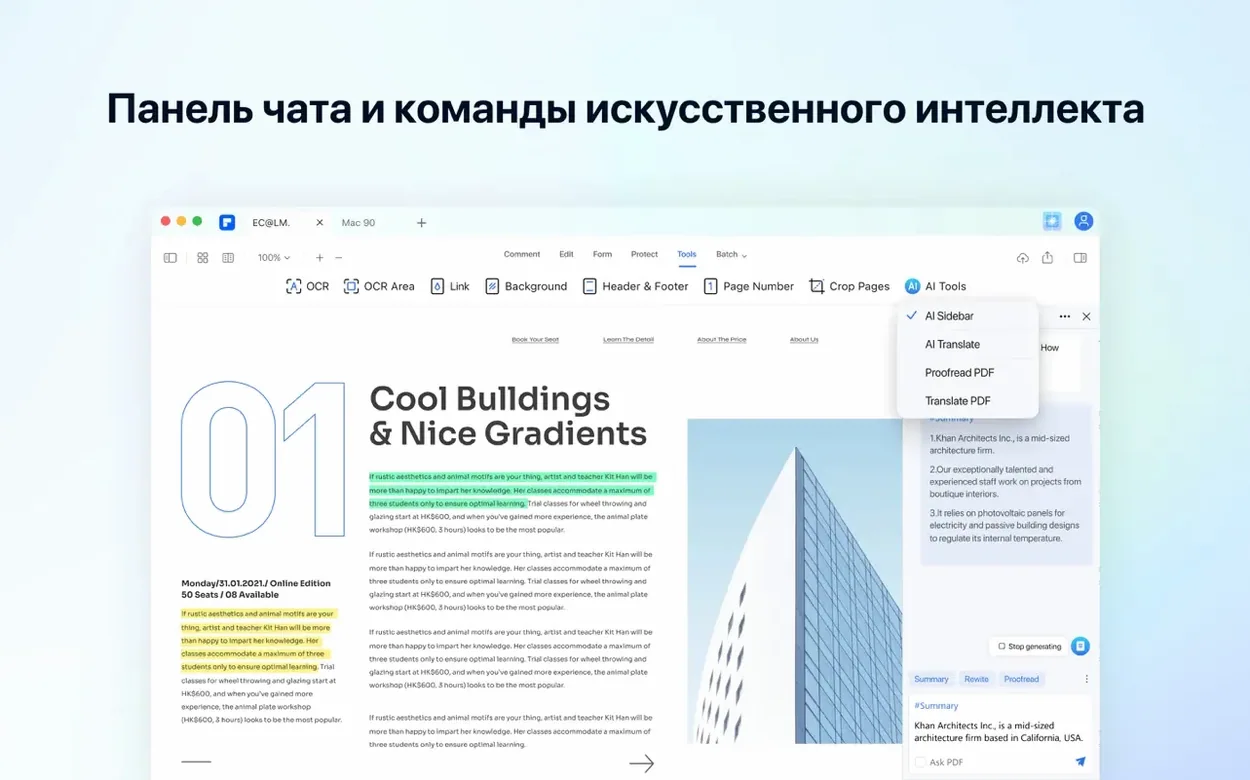
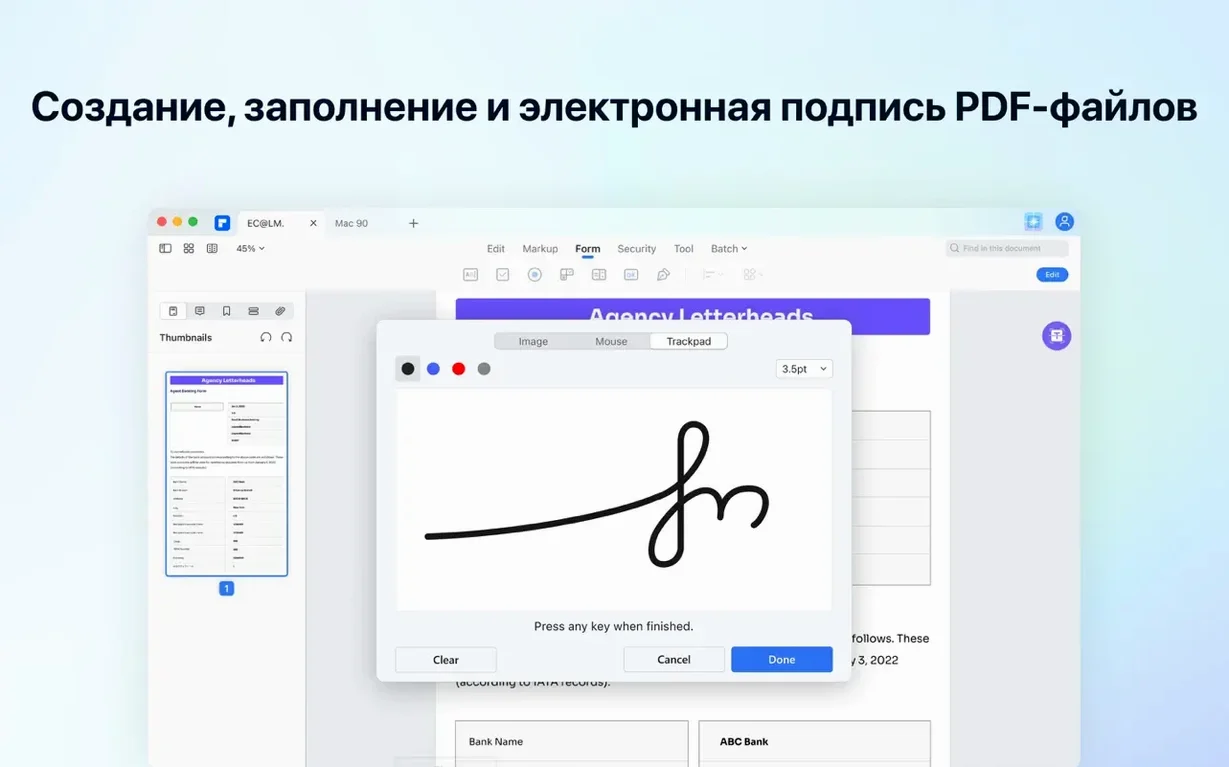
PDFelement Pro runs on Intel-based Macs with macOS 11 or later. No Apple Silicon version is listed, but the app will run under Rosetta 2 on M-series machines. The full package includes OCR for 29 languages, batch processing, PDF/A output, form creation, redaction, and AI-powered tools for translation, summarization, and answering questions about document content.
OCR Support for Scanned and Sensitive Documents
- Can I edit scanned documents? Yes — the built-in OCR engine recognizes text in 29 languages and converts scanned pages into editable PDFs.
- Does it handle sensitive data? It includes a redaction tool to permanently remove text and images from PDFs.
- What about archiving? Export to PDF/A format for long-term document storage.
- Can I process multiple files at once? Batch operations allow you to convert, OCR, or apply actions to many documents in one pass.
Who Uses It in an Office
Legal teams use redaction and OCR. Accounts departments batch-convert invoices. Project leads sign contracts and merge proposals. The AI side panel is a quick reference for anyone who needs to shorten a clause or translate a paragraph without leaving the document.
Mac Compatibility: Intel and Apple Silicon via Rosetta 2
PDFelement Pro version 12.1.28 with OCR runs on any x86 64-bit Mac that has macOS 11 or later installed. If you are on an Apple Silicon Mac (M1 or M2), the software runs via Rosetta 2, and Wondershare states that versions 9 through 12 support those chips natively. The application interface is available in eleven languages including English, German, French, Spanish, Portuguese, and Japanese, so you can switch to your preferred language without extra downloads.
The installer comes as a disk image. You mount it, run a single Terminal command to bypass Gatekeeper, then drag the app to your Applications folder. The process takes a few minutes and does not require any special system tweaks beyond that. Once installed, the app launches like any other Mac application. You will find the main toolbar organized around the core functions: Edit, Convert, OCR, Annotate, Sign, and the AI tools panel.
OCR works offline — your document pages are not sent to a remote server. For scanned documents, the recognition runs locally and supports 29 languages. Batch operations process multiple files in sequence, so you can set a folder of invoices to convert to searchable PDFs and walk away.
Failing to Run OCR on Scanned PDFs
The most common slip is skipping the OCR step on scanned documents. New users open a scanned PDF and try to select text directly, then assume the software cannot edit it. You need to run the OCR function first — once the text layer is recognized, editing and copying work as expected.
Another frequent error is using redaction without checking the preview. Redaction permanently removes content; you cannot undo it. Beginners sometimes highlight a full page, apply redaction, and later realize they removed margins or headers they needed. Always verify the redaction preview before confirming.
Some people also overlook the PDF/A export option when archiving documents. They save as a standard PDF, then wonder why the file does not meet long-term storage requirements. If you are filing contracts or records, select PDF/A from the export menu.
Lastly, users on Apple Silicon Macs sometimes try to install the Intel version and get confused when macOS prompts them about architecture. The app runs fine under Rosetta 2, but you must agree to the compatibility layer prompt the first time you launch it. Denying that prompt prevents the app from opening.
OCR Walkthrough: Portuguese Construction Contract
Tuesday morning. A project coordinator opens PDFelement Pro and loads a 120-page construction contract that arrived as scanned images from the contractor. First action: run OCR. The dialog asks for the document language — Portuguese in this case — and starts recognition. After a few minutes, every page becomes searchable and selectable.
The coordinator needs to extract the payment schedule from pages 45 through 52. Using the annotation tools, they highlight the relevant table and add a sticky note asking the quantity surveyor to verify the rates. They then switch to the Edit mode, correct a typo in the project name on page 3, and flatten the annotations so the client sees a clean copy.
Next, the coordinator converts the payment schedule pages to a separate Excel file using the Convert feature. The output is not perfect — table structures in PDFs rarely convert cleanly — but it gives a usable spreadsheet that saves an hour of manual data entry.
Before sending the document, they apply Bates numbering to the full contract for legal tracking. The numbering tool adds a prefix and sequential digits to each page footer. Then they export the final version as PDF/A and close the app. Total hands-on time: under twenty minutes.
Handwriting vs. Printed Text in OCR
People often wonder if OCR works on handwritten notes. The engine is designed for printed text in supported languages. Handwriting recognition is not listed, so typed documents and standard fonts are the safe bet.
Another common question is about file size. PDFelement Pro processes large files — multi-hundred-page contracts with embedded images — without complaint, as long as your Mac has enough free disk space for the temporary files that batch operations generate. The app does not stream data to the cloud, so everything stays local.
Users also ask whether the AI tools require an internet connection. The AI features such as summarization, translation, and question answering appear to use local or bundled models based on how the app functions offline after installation.
Finally, some people are not sure if they need the Pro version or the standard one. The Pro edition adds OCR, batch processing, PDF/A export, form creation, and redaction. If you regularly work with scanned documents or need to process sets of files, Pro is the logical choice. For occasional viewing and light annotation, the standard version would be enough.
- OCR is included in this build.
| macOS | macOS 11 or later |
|---|---|
| Processor | Intel 64-bit |
| Download | 807 MB |
- macOS 11 (Big Sur) or later
- Intel 64-bit processor
Questions about PDFelement Pro
What languages does the OCR support?
OCR supports 29 languages including English, French, German, Spanish, Italian, Portuguese, Dutch, Russian, Arabic, Simplified Chinese, and Japanese.
Can I use PDFelement Pro on an Apple Silicon Mac?
The app is built for Intel Macs. It runs on Apple Silicon via Rosetta 2, but there is no native ARM version listed.
How to install, in order
- Mount the disk image and run Open Gatekeeper friendly.
- Press Enter in Terminal to bypass Gatekeeper.
- Drag the app to the Applications folder.
- Open the app from Applications when it is ready.
Comments and corrections 0
Sign in or open a free account to leave a comment.
No comments or corrections yet.