PDF Reader Pro 6.5.0 — download for Mac
PDF Updated
Runs an eSign workflow across multiple drawings without leaving the app.
Screenshots
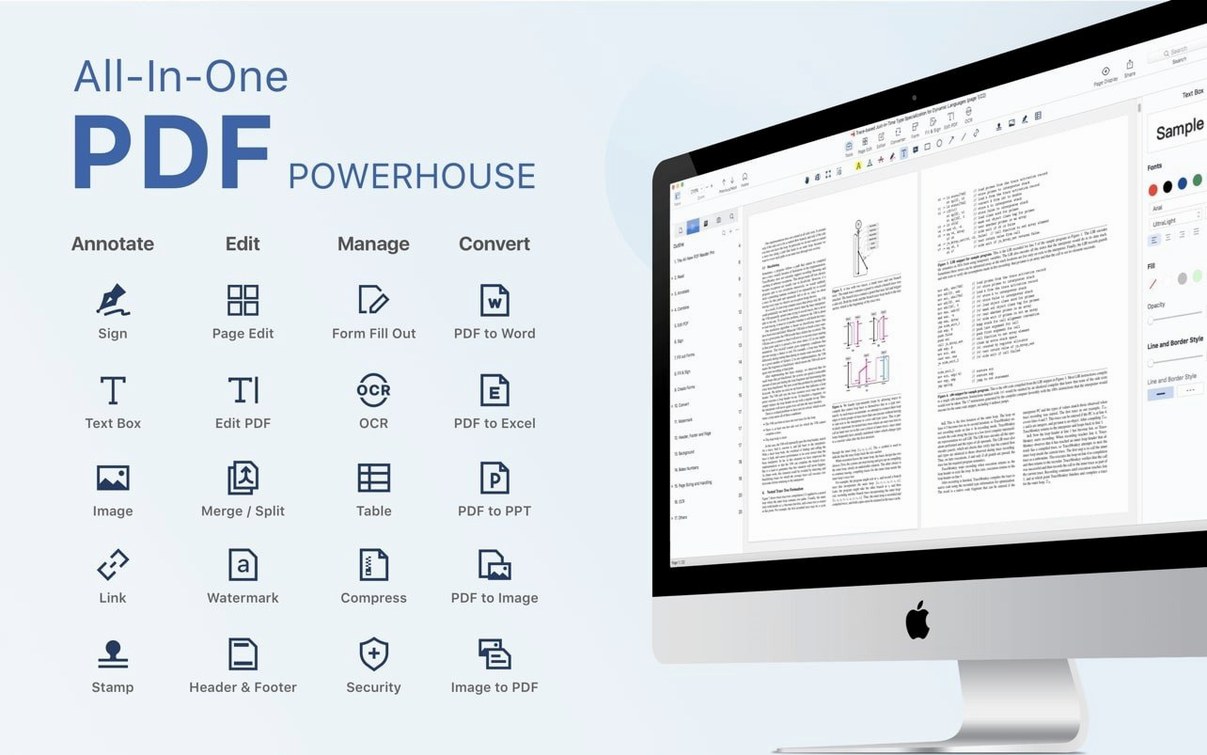
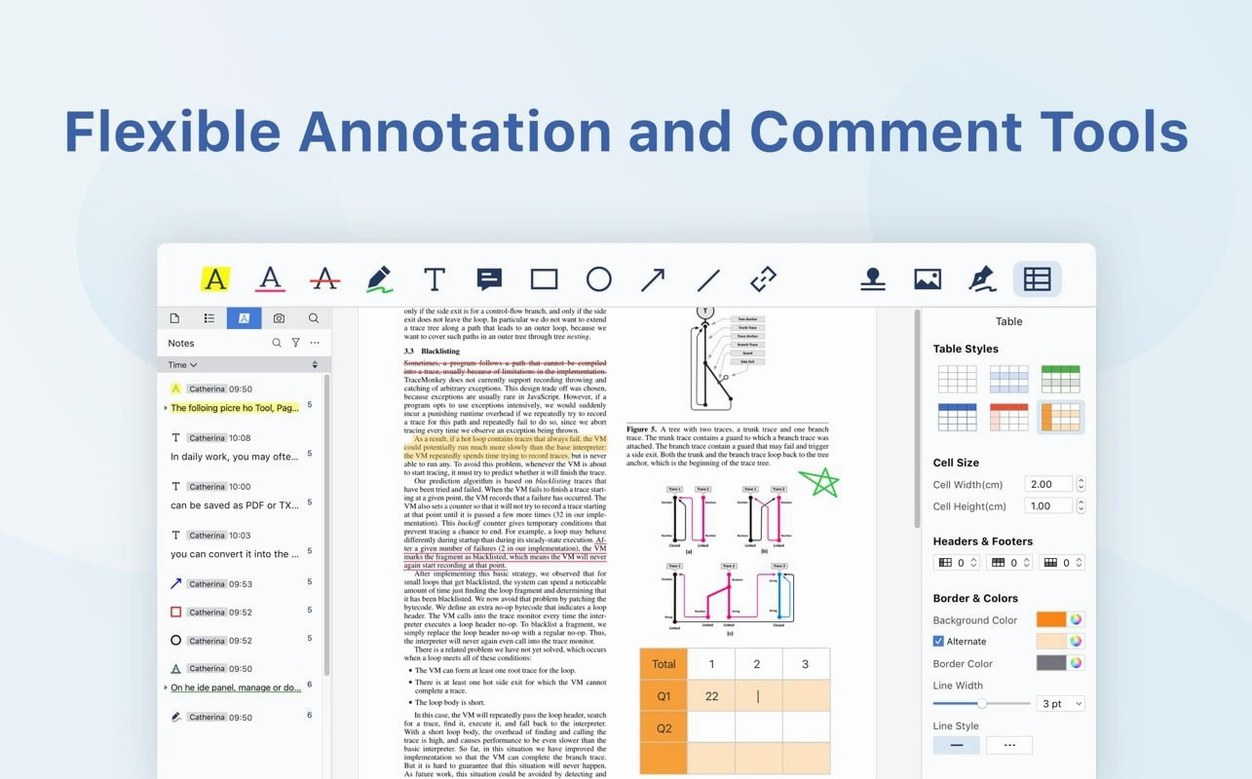
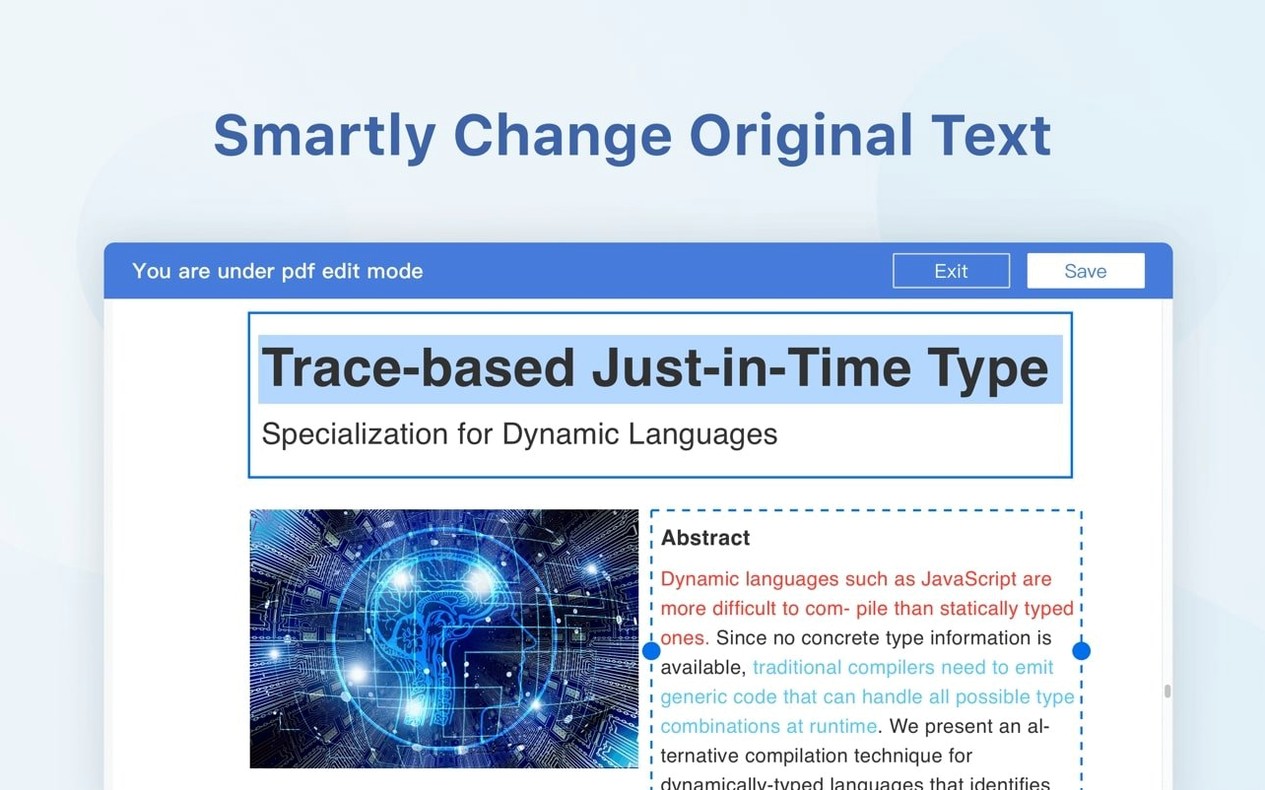
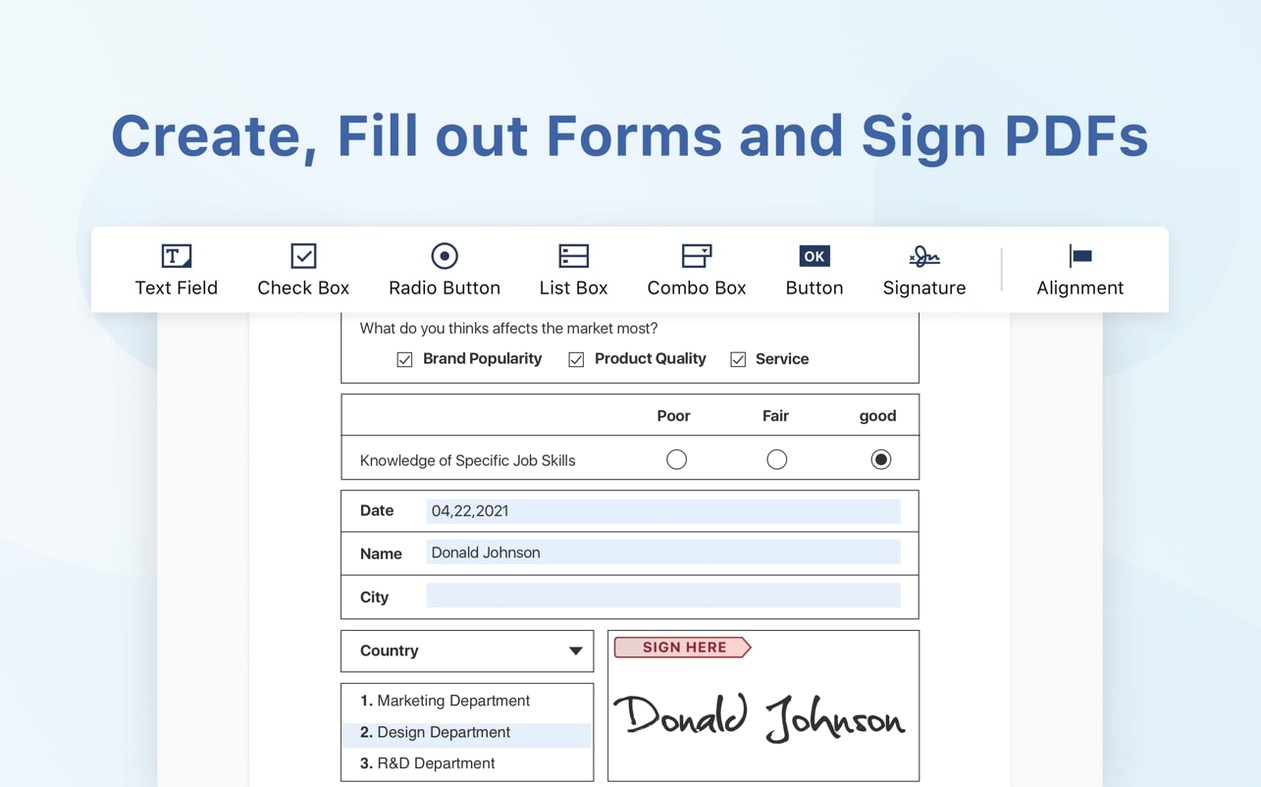
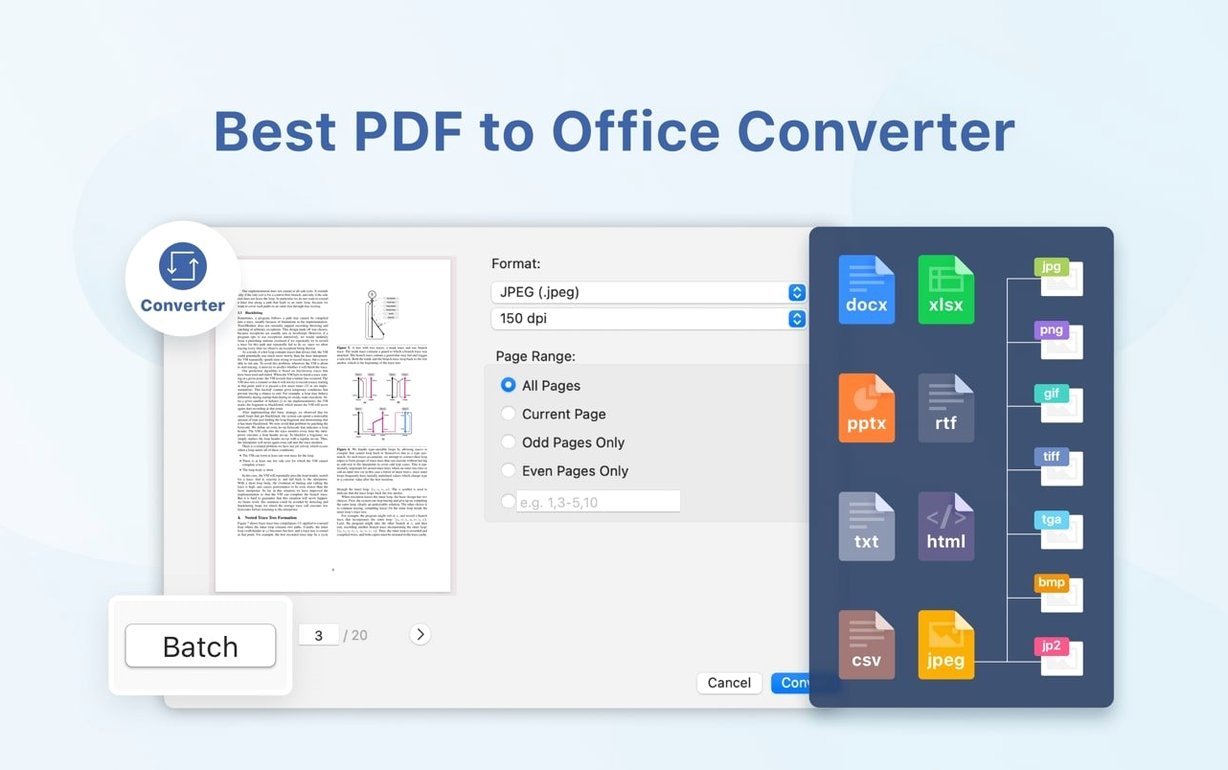
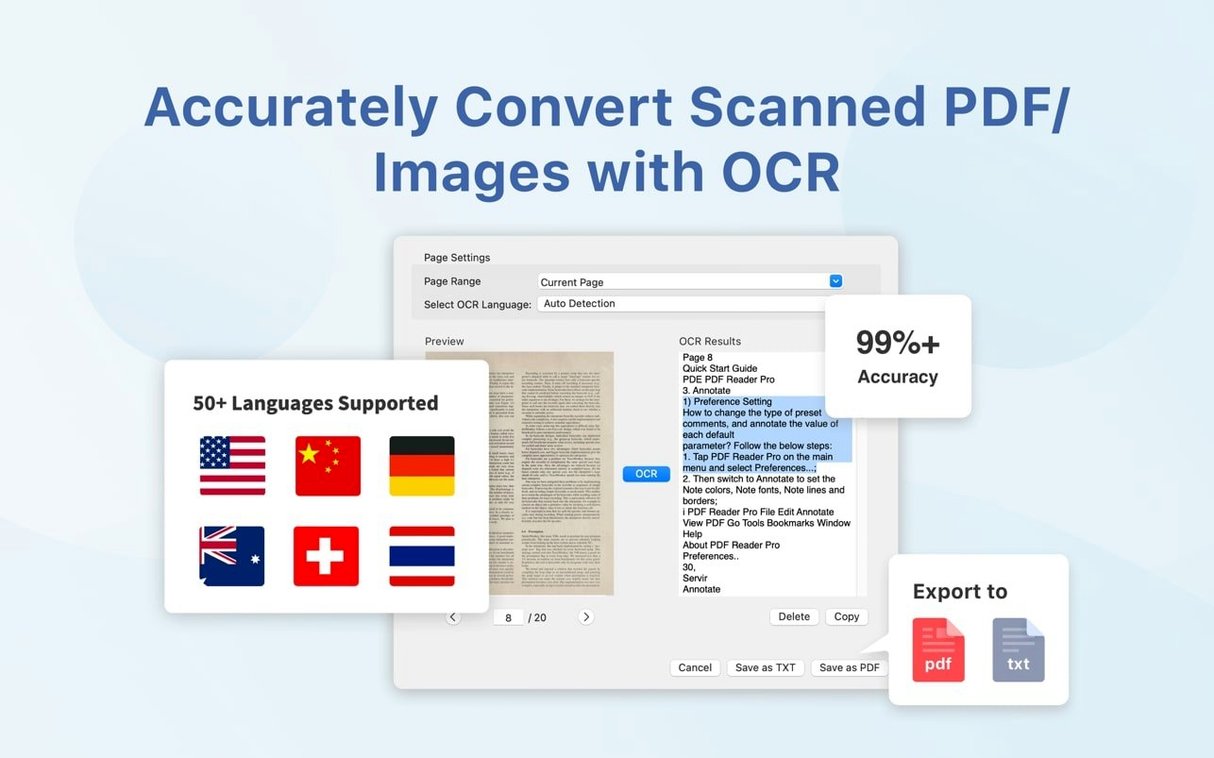
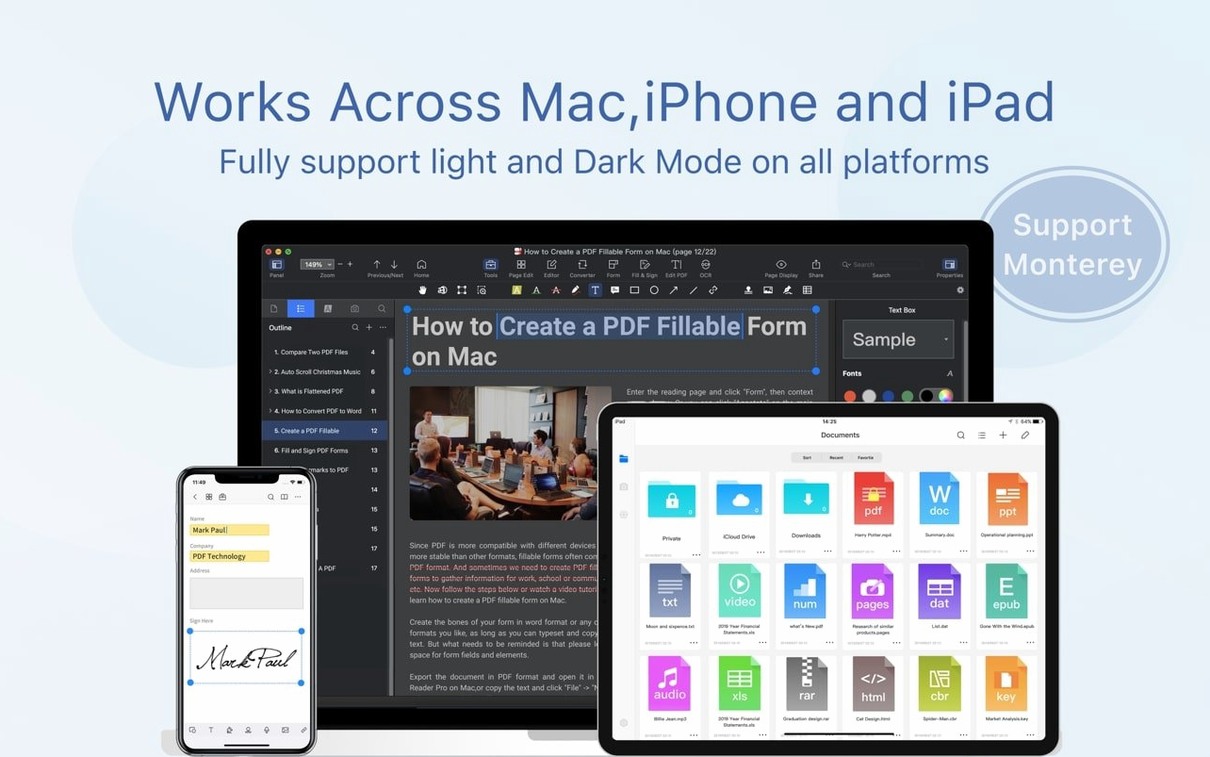
When you need to run an eSign workflow across a dozen drawings, PDF Reader Pro for Mac Premium keeps the chain intact. Version 5.3.0 added signature fields and online signing, so you can place a signature block, send it, and wait for the ink without leaving the app.
Can it handle OCR on scanned documents?
Yes. The same 5.3.0 update improved OCR and conversion quality. If you work with scanned contracts or legacy drawings, the app can turn them into searchable, selectable text — no separate plug-in needed.
How do batch operations work?
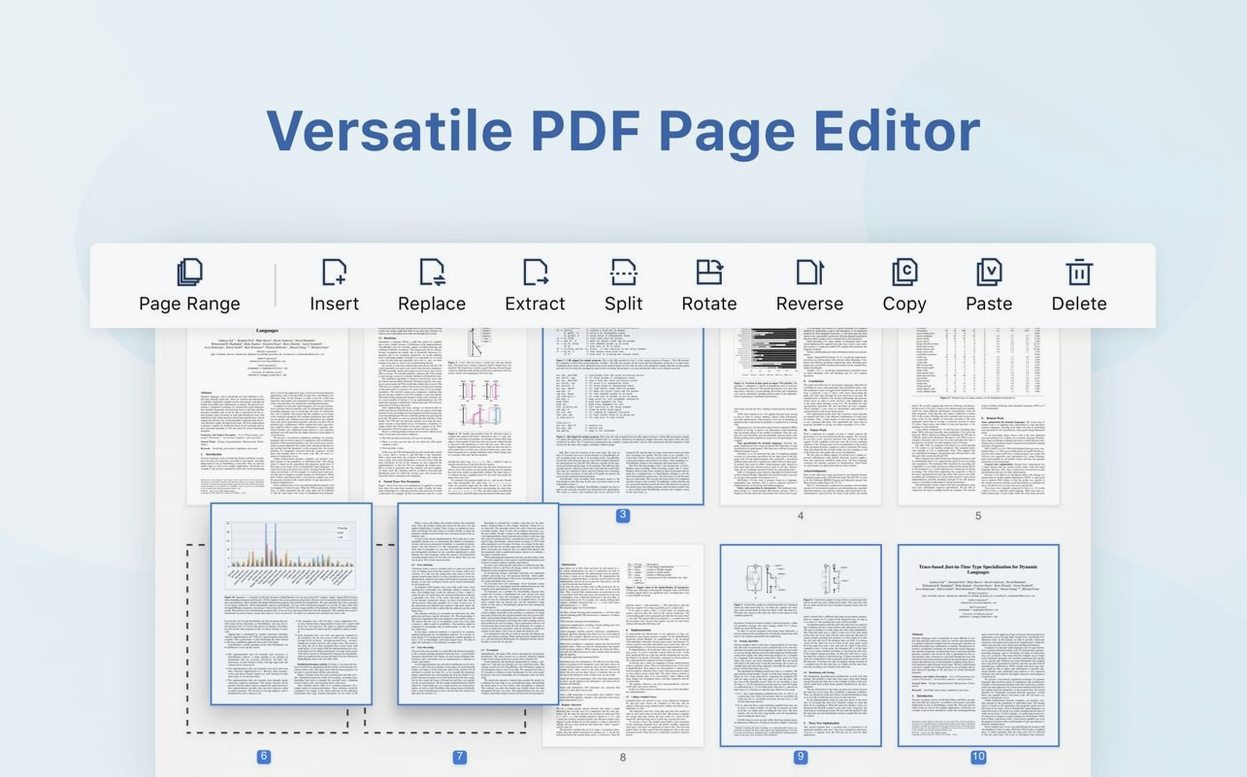
Merge, split, or convert multiple files in one pass. The app handles the queue while you move to the next task. For recurring jobs, the bookmark and annotation tools let you mark up a master PDF and reuse the structure.
Does it sync with cloud storage?
Dropbox sync is built in. Open a PDF from your team’s shared folder, annotate it, and the changes stay linked. No manual export step.
Presentation mode — useful for reviews?
Adds Text-to-Speech and Presentation Mode
PDF Reader Pro sits between them. Compared to something like PDFpen, the annotation and form-filling tools are similar, but PDF Reader Pro adds text-to-speech and presentation mode — features you do not usually see outside dedicated presentation software. Against a basic Mac app like Preview, there is no contest: Preview can fill a form if the fields are prepared, but it cannot add signature fields, run OCR, or merge documents.
For users who also work with Microsoft Office files, the export pipeline matters. PDF Reader Pro can write to Word, Excel, PowerPoint, RTF, HTML, plain text, images, and CSV. Few apps at this level cover that many export formats without requiring a separate converter. The Dropbox sync is another differentiator — most editors either ignore cloud storage or limit it to their own cloud service.
eSign Workflow Added in March 2026
Version 5.3.0, released in March 2026, added the eSign workflow: you can now insert a signature field, assign it to a recipient, and process the signed document online. Before that, digital signing required exporting, signing in another app, and re-importing. The same update also improved OCR accuracy and conversion quality, which means scanned tables and multi-column layouts come through cleaner than in earlier builds.
Version 6.0.0 is the current release. The jump to version 6 signals that PDF Technologies has folded those eSign and OCR improvements into a stable base. For everyday use, the difference between 5.2.x and 6.0.0 is that you can skip the export-sign-import loop entirely for most contract and drawing workflows.
Best for Architecture and Engineering Document Reviewers
Document reviewers in architecture or engineering firms benefit most. They deal with large PDF sets, need annotation and bookmark tools to keep versions organized, and often need to export a marked-up drawing back to a format their CAD or office suite can open. The merge and split functions let them break a 200-page bid set into smaller review batches, then reassemble the final version with corrected pages.
Office workers who handle contracts, NDAs, or compliance forms also save time with the form-filling and eSign features. If your week includes five or more PDF forms that need signatures from other people, the built-in signature field workflow replaces a back-and-forth of printing, scanning, and emailing.
Anyone who reads PDFs aloud — proofreaders, language tutors, accessibility checkers — will use the text-to-speech function more than they expect. It is not a replacement for a screen reader, but it catches awkward phrasing during a read-aloud pass.
Runs on Intel and Apple Silicon Macs
The app runs on macOS 11 and later. It supports both Intel-based Macs (x86 64-bit) and Apple Silicon models (ARM), so whether you are on a MacBook Air M2 or an older MacBook Pro, it installs without extra configuration. The disk image is mounted and opened through a Gatekeeper-friendly process: a single Enter command in Terminal bypasses the security block, then you drag the app into Applications and launch it. No background services or helper apps are installed — the editor runs as a standalone application.
The interface supports eleven languages: English, Russian, German, Spanish, Italian, French, Dutch, Polish, Japanese, and both Traditional and Simplified Chinese. The language setting is persistent across sessions, so you set it once and it stays.
Presentation mode fills the screen and advances like a slide deck. Good for walk-throughs with a client who does not want to see your toolbars.
No release notes filed for 6.5.0. They are added here when a build changes how the program behaves.
| macOS | macOS 11 or later |
|---|---|
| Processor | Apple Silicon, Intel 64-bit |
| Download | 326 MB |
- macOS 11 or later
- Intel (x86 64-bit) or Apple Silicon (ARM)
Questions about PDF Reader Pro
What macOS versions does PDF Reader Pro support?
It runs on macOS 11 and later, and supports both Intel and Apple Silicon Macs.
How to install, in order
- Mount the disk image and open Gatekeeper Friendly.
- Press Enter in Terminal to bypass Gatekeeper.
- Drag the app into the Applications folder.
- Launch the app from Applications.
Comments and corrections 0
Sign in or open a free account to leave a comment.
No comments or corrections yet.