Topaz Gigapixel AI 1.5.1 — download for Mac
AI Tools Updated
Upscales low-resolution images while removing pixelation and artifacts using trained AI models.
Screenshots
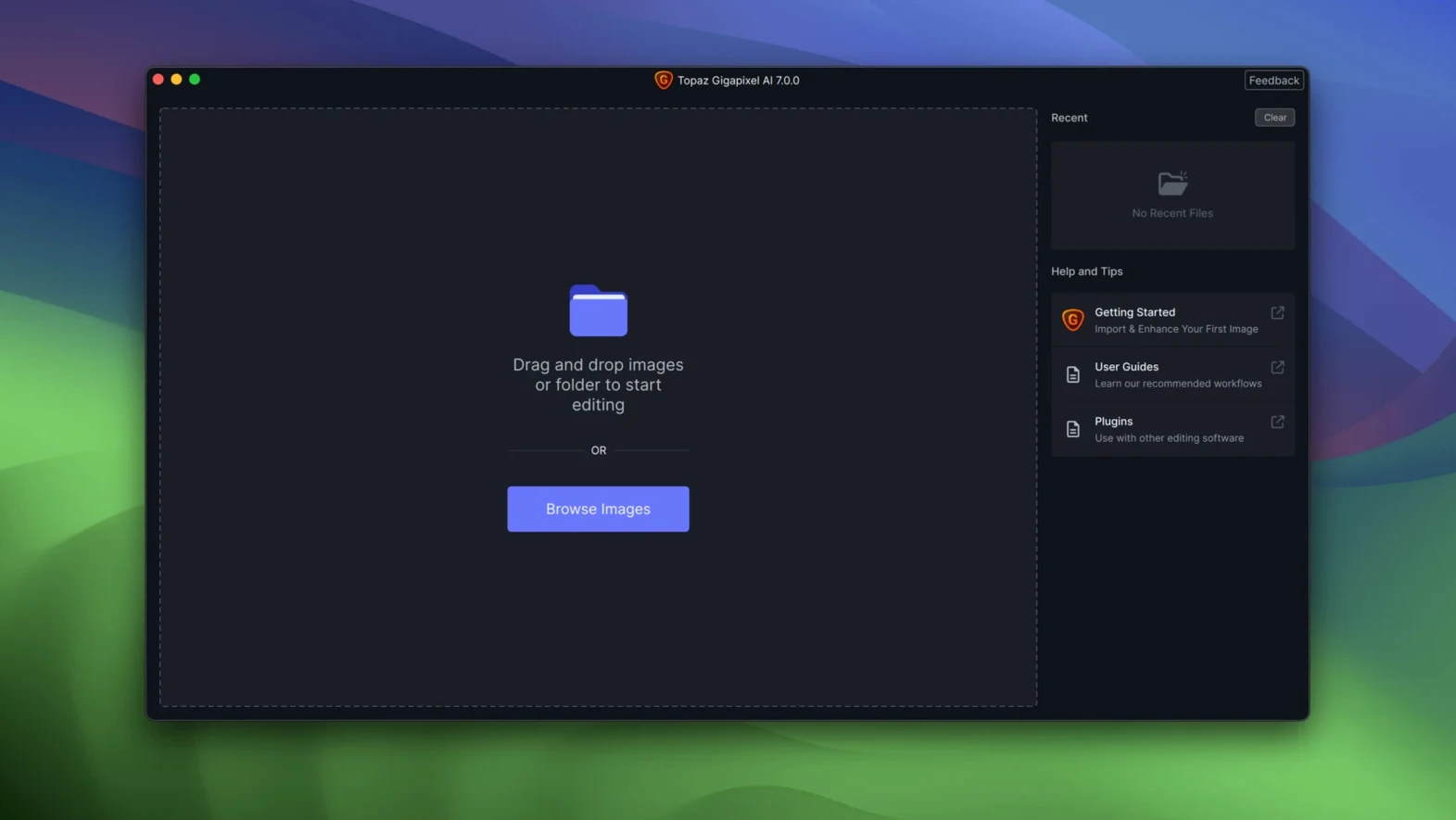
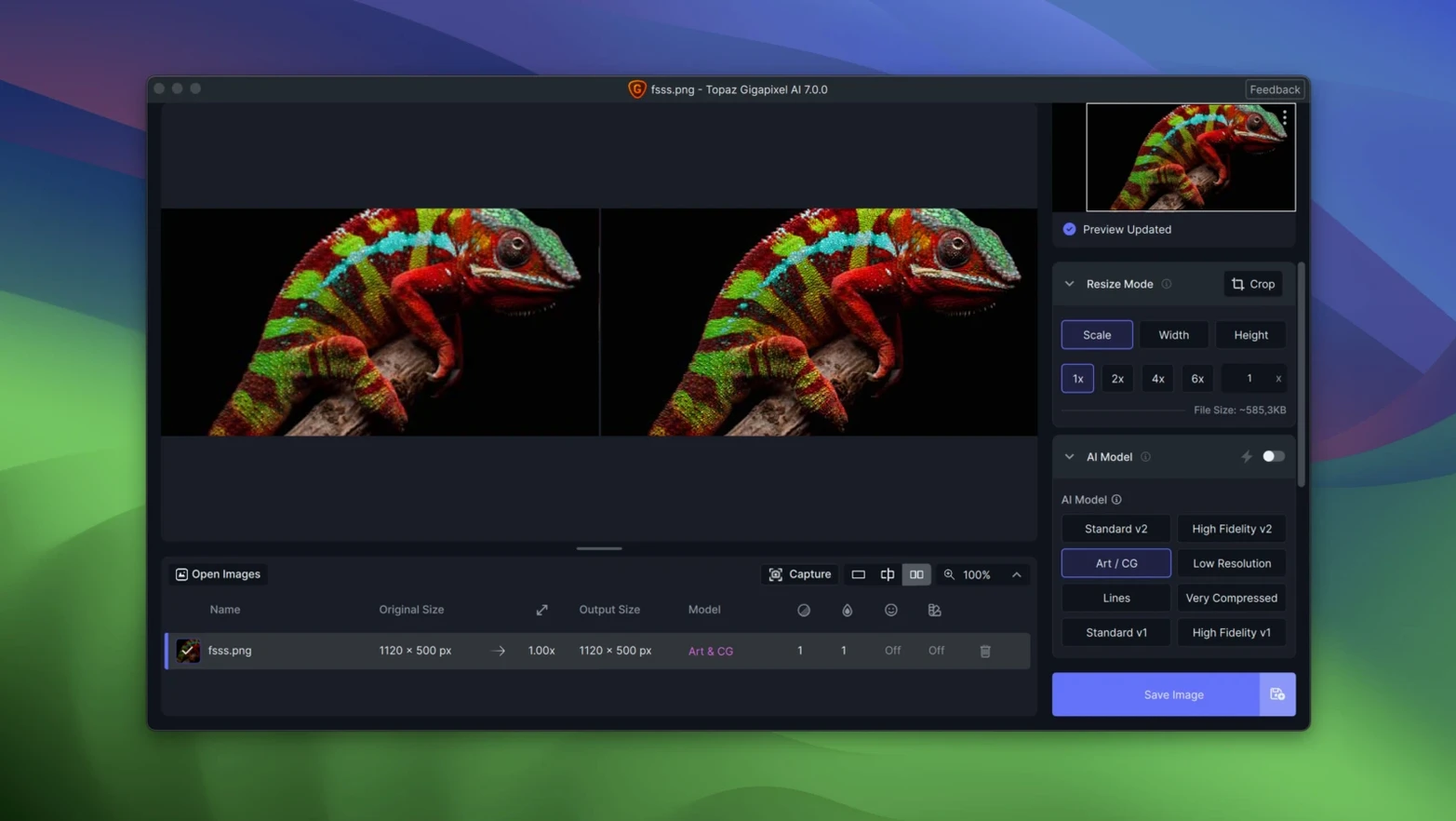
Topaz Gigapixel AI 1.3.5 runs on Apple Silicon and Intel 64-bit Mac computers with macOS 12 or later. For experienced users who work with tricky source material, these are the features that matter most.
Model-level artifact removal — The app can strip pixelation and compression artifacts from JPEGs and web grabs before upscaling, not after.
Portrait recovery mode — Low-resolution faces get detail reconstruction that keeps skin texture and edges natural at 4× and 6× scales.
Line art and PNG cleanup — Scanned linework or low-quality PNGs with heavy anti-aliasing are cleaned up as a separate pass before enlargement.
Lossless enlargement — Output retains original color depth and alpha channels when source files are clean; no quality trade-off at moderate scales.
Set up a repeatable workflow before production files
Once Topaz Gigapixel AI 1.3.5 is installed and the activation is applied, take a few minutes to set up a repeatable workflow rather than jumping straight into production files.
Check the architecture package
The installer includes separate builds for ARM and Intel. If your machine is Apple Silicon, use the ARM package. On an older Intel Mac, install the x86 build. Running the wrong one works but wastes time on compatibility overhead.
Batch process a test folder
Drop a folder of six to eight JPEGs into the app — typical web images at 800–1200 pixels wide. Run them through the default upscaling model at 2×. Check the output for compression cleanup. This tells you two things: whether the default model matches your source material, and how the batch queue behaves with mixed files.
Save presets for frequent source types
If you regularly upscale old photos, web grabs, or line art, configure the model and artifact removal once per type and save it. Later runs are one-click: load folder, apply preset, export.
Restoring a jagged 300 × 300 PNG logo from a defunct agency
Ana runs a small brand studio. A client sends a logo as a 300 × 300 pixel PNG — the only surviving file from a defunct agency. The edges are jagged, the anti-aliasing is heavy, and the client wants the logo at 1800 × 1800 for a storefront sign.
Ana opens the PNG in Topaz Gigapixel AI 1.3.5. She runs the line art cleanup pass first, which removes the anti-aliasing blur and sharpens the edges without introducing new artifacts. Then she applies a 6× upscale. The output is clean enough to trace in Illustrator. Total time: under two minutes. The alternative — manually reconstructing the logo — would have taken an afternoon.
Drag source files from Finder or Preview into the batch queue
Topaz Gigapixel AI works as a standalone desktop app, not a plug-in. That means you drag source files from Finder, Preview, or your photo library manager directly onto the app window or into its batch queue.
For retouchers who use Capture One or Lightroom, the workflow is: export a JPEG or TIFF at the original resolution, process it in Gigapixel AI, then bring the enlarged file back into the catalog. The app preserves alpha channels and color depth, so layered TIFFs from Photoshop remain editable after upscaling.
macOS 12’s native file tagging and smart folders work well here. Point a smart folder at your Gigapixel AI output directory tagged with a keyword like upscaled, and every processed image lands in the same Finder view without manual sorting.
Drops macOS 11 support, runs natively on macOS 12 and Apple Silicon
- macOS 12 baseline — Earlier builds of Gigapixel AI required macOS 11. Version 1.3.5 drops support for older systems and runs natively on macOS 12 and later, which avoids compatibility warnings on current machines.
- Apple Silicon and Intel support in one release — The package includes both architectures. You no longer need to track down a separate build for an M-series Mac if your office has mixed hardware.
- Activation bundled — The package includes activation, so there is no separate license file to manage or misplace during setup.
These changes matter most in shared-office setups where a project manager or studio coordinator handles the install across several machines. One download, one installer, one activation step — no per-machine tweaks.
The 1.5.1 update brings stability improvements and under-the-hood adjustments to the upscaling engine.
| macOS | macOS 13 or later |
|---|---|
| Processor | Apple Silicon, Intel 64-bit |
| Download | 372 MB |
- macOS 13 or later
- Apple Silicon and Intel 64-bit
Questions about Topaz Gigapixel AI
Can Topaz Gigapixel AI remove compression artifacts from old JPEGs?
Yes, version 1.3.5 includes model-level artifact removal that strips pixelation and compression artifacts before upscaling.
How to install, in order
- Install the selected architecture package TopazGigapixel.pkg.
- Open Patch.command and enter the Mac password.
Comments and corrections 0
Sign in or open a free account to leave a comment.
No comments or corrections yet.