Topaz Photo AI 2.1 — download for Mac
AI Tools Intel processors only Updated
Enhances photo quality with AI tools for sharpening, denoising, and content-aware object removal.
Screenshots
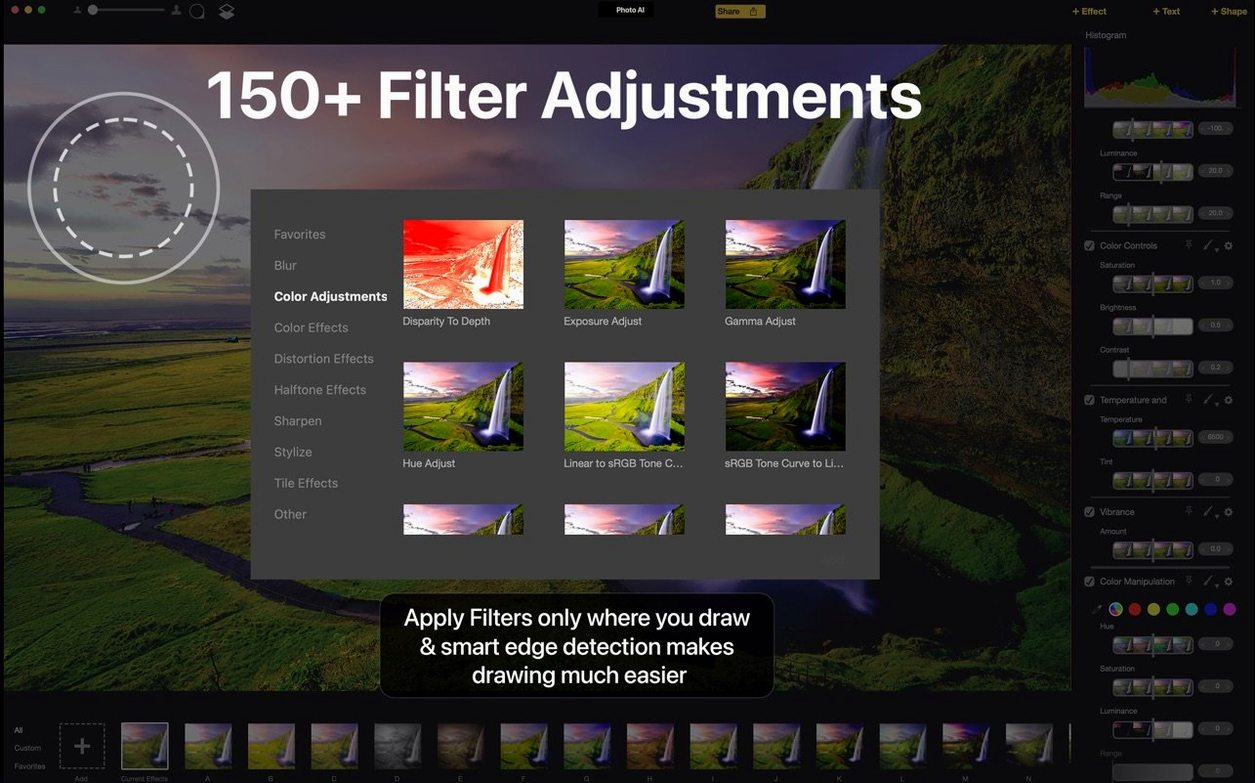
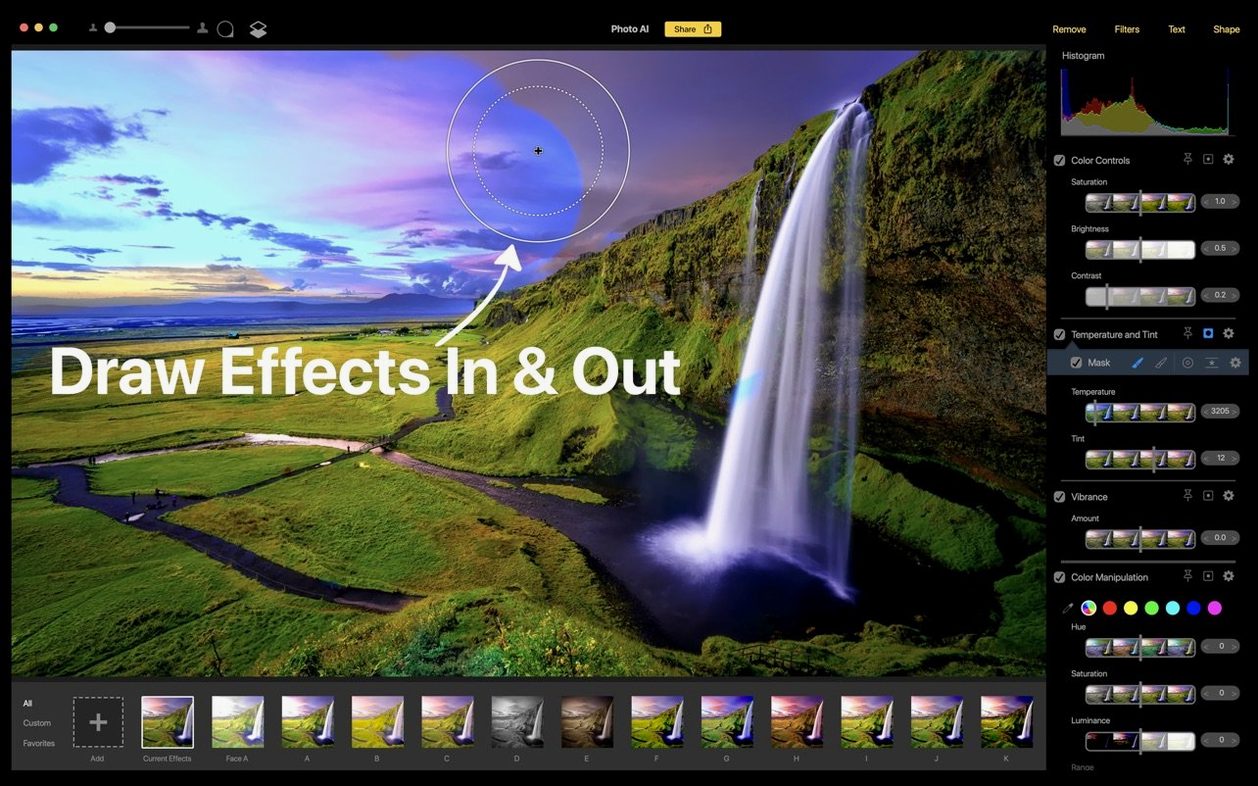
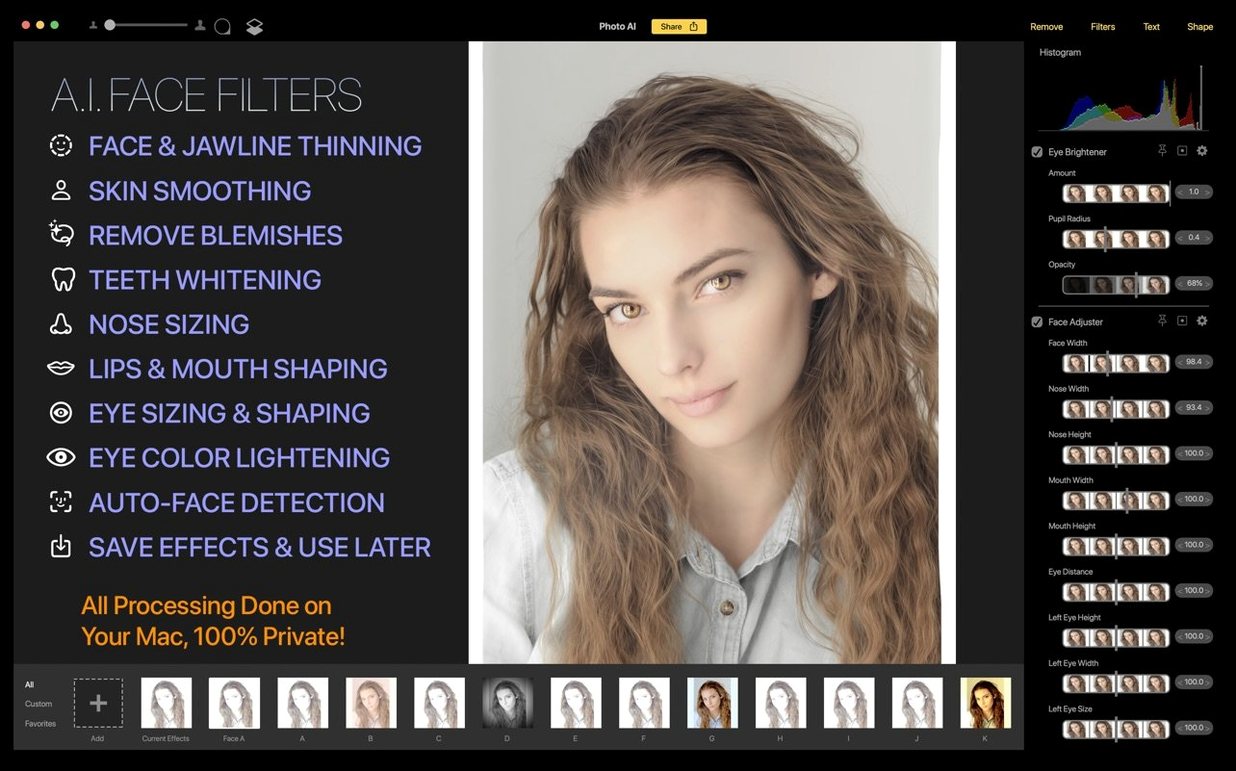
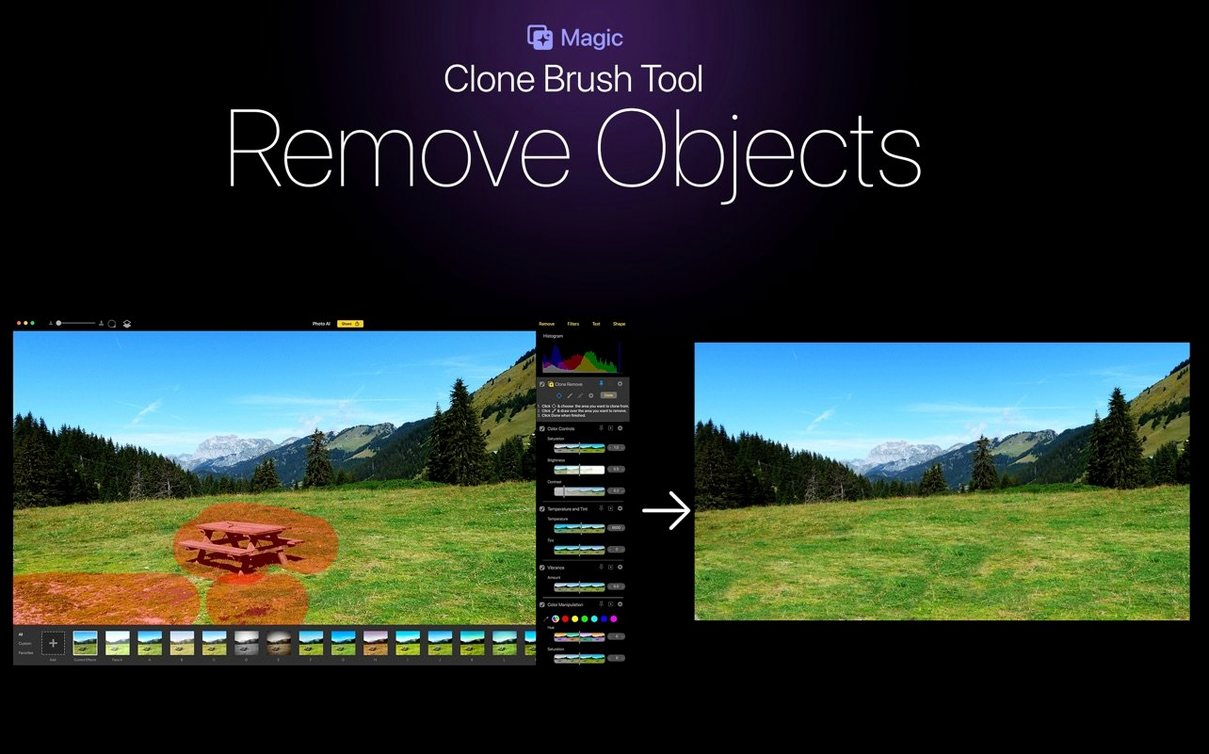
Topaz Photo AI is a desktop photo editor for macOS that uses AI-based enhancement tools to improve image quality and perform complex edits.
What makes the object removal tool different from basic clone stamps?
Content-aware object removal analyzes the surrounding pixels and reconstructs the area without visible seams, saving you the manual work of layering and blending.
How many filters and controls does the app include?
Over 150 filter and effect controls are available, covering everything from noise reduction and sharpening to color grading and creative effects.
Does it support adding text or shapes?
How Topaz Photo AI Compares With Similar Mac Apps
Photo editors on macOS fall into a few camps. Topaz Photo AI sits in the AI-assisted category, which sets it apart from both traditional pixel editors and lightweight batch processors. Here is how it stacks up against two other common options.
Automates Object Removal vs. Photoshop Manual Work
Photoshop has been the standard for decades. Its object removal tool and content-aware fill work well, but they require practice to get consistent results. Topaz Photo AI automates more of that process. The AI analyzes the image and makes decisions about what to keep and what to replace, which reduces the number of manual layers and masks. Photoshop offers far more control over every detail, but that control comes with a steeper learning curve. For a project manager editing headshots or site photos after hours, Topaz Photo AI gets the job done with fewer steps.
Processes Locally on Mac Unlike Luminar Neo's Creative Focus
Luminar Neo also uses AI for sky replacement, portrait enhancement, and object removal. Both apps process images locally on the Mac, so no internet connection is required for the heavy lifting. Luminar Neo focuses more on creative effects and sky swaps, while Topaz Photo AI keeps the emphasis on restoration and correction. The face filters and content-aware removal in Topaz Photo AI feel more tuned for fixing problems than for adding drama. If your work involves cleaning up event photos or preparing images for reports rather than building fantasy landscapes, Topaz Photo AI is the more direct tool.
Limited AI Features Next to Capture One's Color Grading
Capture One is a professional raw editor and tethering tool used by studio photographers. Its AI features are limited compared with Topaz Photo AI. Capture One excels at color grading and file management, but object removal and face retouching are not its strengths. Topaz Photo AI fills that gap. You can process a raw file in Capture One, then send it to Topaz Photo AI for cleanup and restoration. The two apps complement each other well.
Avoid Overprocessing Every Image With One-Click AI
New users tend to treat the AI as a one-click fix for everything. That approach works for some images, but it also causes a few common problems.
- Overprocessing every image. The AI will apply sharpening and noise reduction to every photo unless you adjust the sliders. Beginners often leave the defaults on, which makes landscapes and portraits look unnatural. Dial back the effect strength for each image instead of trusting the automatic settings.
- Using object removal on complex backgrounds. The content-aware tool handles simple backgrounds well — a power line against a clear sky, for example. Beginners try to remove large objects from busy textures like grass or brick walls and expect a perfect result. The AI is good but not magic. For complex areas, break the removal into smaller passes or combine it with the clone tool from another editor.
- Ignoring the non-destructive workflow. Topaz Photo AI supports non-destructive real-time editing. Beginners sometimes save over the original file or apply edits permanently without keeping a backup. The non-destructive mode means you can revisit adjustments later. Use it.
- Applying face filters to every portrait. The face filters smooth skin and adjust features automatically. On some portraits that is useful. On others it removes natural texture and makes people look plastic. Apply face filters selectively, and reduce the strength to keep skin detail.
Requires macOS 11 and Intel 64-Bit Architecture
Topaz Photo AI version 2.1 requires macOS 11 or later. It runs on Intel 64-bit architecture. That means it works on Macs with Intel processors running Big Sur or newer. It supports English and Simplified Chinese interfaces. The disk image mounts like any other macOS installer. You bypass Gatekeeper in the terminal, drag the app to Applications, and open it once the copy finishes. The process is straightforward and does not require special permissions beyond the Gatekeeper bypass.
Handle Predictable Issues With These Fixes
Users run into a few predictable issues when working with Topaz Photo AI. Here is how to handle them.
Gatekeeper Blocks App Until Terminal Command Entered
Gatekeeper blocks apps that are not signed by Apple or an approved developer. The installer includes a Gatekeeper-friendly opener script, but you still need to press Enter in the terminal command to allow the bypass. If the app does not start, run the bypass step again. Make sure the app is in the Applications folder before launching it.
Object removal leaves artifacts
Large removals on busy backgrounds sometimes leave smudges or repeating patterns. Select a smaller area and remove it in sections. You can also use the shape tool to draw a rough selection around the object, which helps the AI focus on the exact area.
Face filters do not apply evenly
If the face filter affects only part of the face, check that the subject is well lit and facing the camera. Profile shots and low-light images confuse the detection model. Adjust the exposure in the raw editor first, then apply the filter.
The app becomes slow on large files
Topaz Photo AI processes images locally, which means your Mac does all the computation. Large raw files from high-megapixel cameras take more time. Close other applications that use GPU resources. If you work with many large images, consider using the app on single images rather than batch processing.
Fits Into Workflow as a Specialist Tool for Raw Editors
Topaz Photo AI is not a replacement for a full workflow — it is a specialist tool that fits into your existing system.
With a raw processor. Most photographers edit raw files in Capture One, Lightroom, or the built-in macOS Photos app. Export the image as a TIFF or PSD, open it in Topaz Photo AI for object removal and face retouching, then save the result back into your library. The non-destructive editing means you can save a copy without flattening the original layers.
With macOS file management. The app respects the standard macOS file system. You can drag and drop images from Finder into the workspace. Organize your images in folders and use Finder tags or colors to mark which ones need AI cleanup. The app reads common formats from the file system without requiring an import step.
With external drives and NAS. If you store your photo library on an external SSD or a network-attached drive, Topaz Photo AI opens images from those locations. Processing happens on the Mac, so the speed depends on the drive connection as much as the app itself. For best results, copy images to the internal drive before editing, then move the finished files back.
With macOS keyboard shortcuts and trackpad gestures. The app supports standard macOS interactions. Use Command-Z for undo, Command-S for save, and trackpad gestures for zooming and panning. The interface follows macOS conventions, so you do not need to learn a new set of shortcuts.
With screen capture tools. Project managers who prepare documentation or reports can capture screenshots in macOS, then open them directly in Topaz Photo AI to remove annotations, arrows, or UI elements before including them in a document. The content-aware removal works well on screen captures because the backgrounds are usually simple gradients or solid colors.
Yes, the current version includes text and shape addition, so you can annotate or design within the same workspace without switching to another app.
| macOS | macOS 11 or later |
|---|---|
| Processor | Intel 64-bit |
| Download | 36 MB |
- macOS 11 or later
- Intel 64-bit Mac
Questions about Topaz Photo AI
Does Topaz Photo AI run on Intel Macs?
Yes, it runs on Intel 64-bit Macs with macOS 11 or later.
What languages does the interface support?
English and Simplified Chinese.
Are there in-app purchases?
Yes, the current version includes built-in purchases for additional model packs.
How to install, in order
- Mount the disk image and open the Gatekeeper-friendly installer.
- Press Enter in Terminal to bypass Gatekeeper.
- Drag the app into the Applications folder.
- Open the app when the copy finishes.
Comments and corrections 0
Sign in or open a free account to leave a comment.
No comments or corrections yet.