Deep Glow 1.6 — download for Mac
Mac Apps Updated
Simulates realistic light blooms with inverse-square falloff for motion graphics.
Screenshots
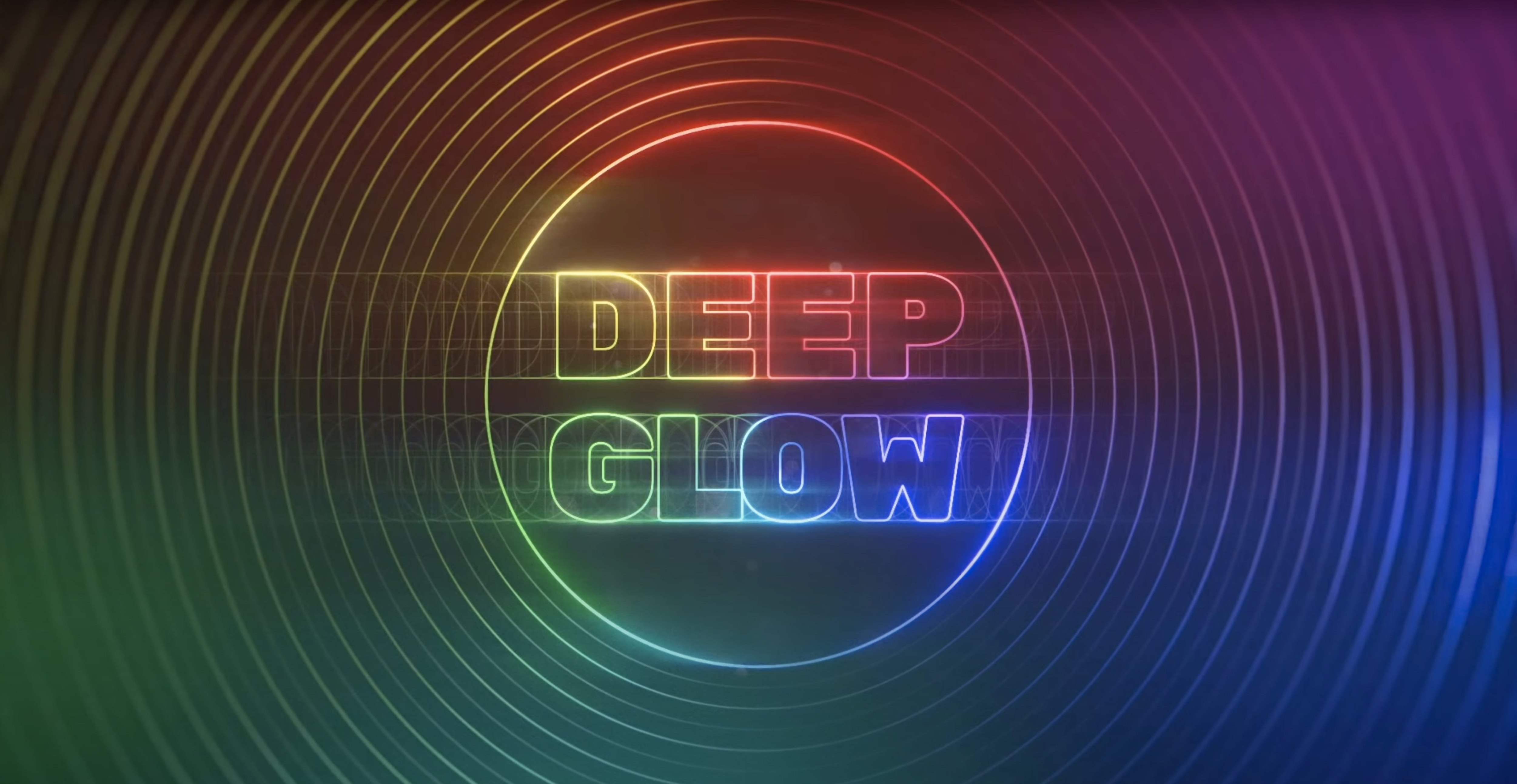
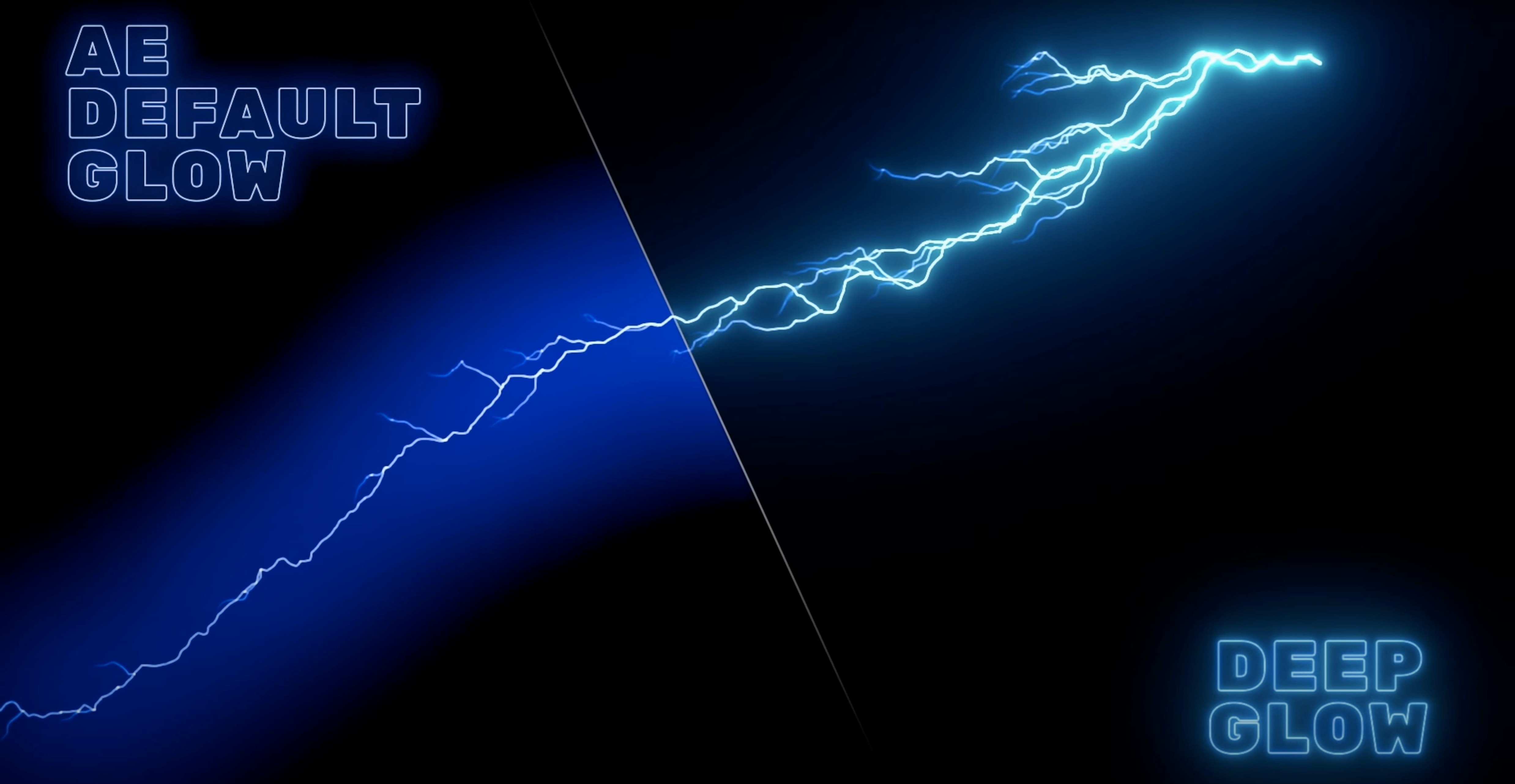
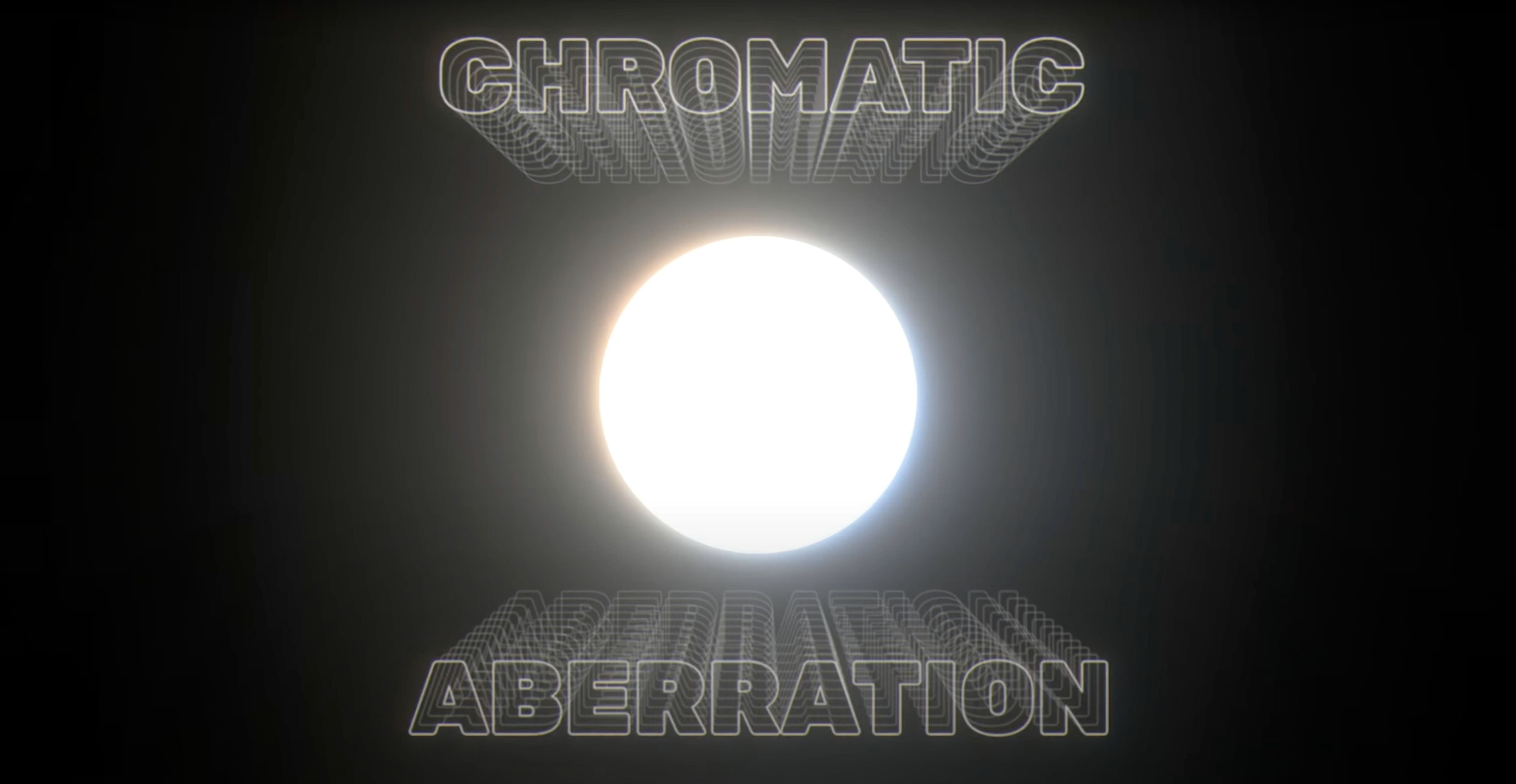
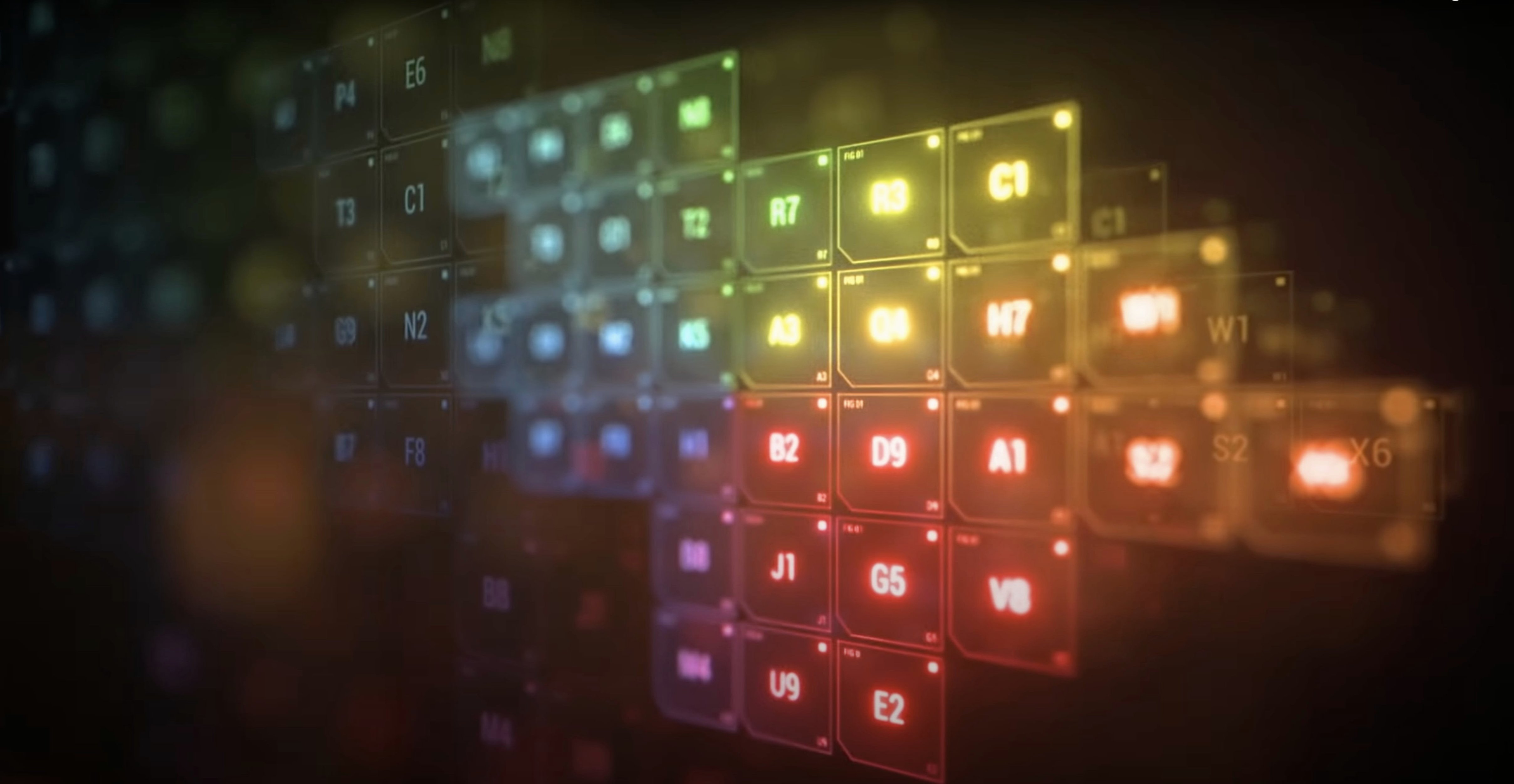

Standard glow effects in After Effects fall off linearly, which doesn't match how light behaves in the real world. Deep Glow simulates inverse-square falloff instead, giving you glows that look more natural and dimensional.
Realistic Light Blooms That Fade Naturally
- Creating realistic light blooms that fade naturally at the edges
- Adding grainy or stylized glow looks with quality and downsampling controls
- Working in non-linear color spaces without banding or clipping
- Keeping render times low — GPU acceleration handles the heavy math
Intel and Apple Silicon Mac Support
- Current release is version 1.6; works on both Intel and Apple Silicon Macs
- Plugin Everything provides a standard disk-image installer
- Interface is in English only
- Designed exclusively for Adobe After Effects
Works With After Effects 2024 and 2025
Does Deep Glow work with After Effects 2024 or 2025? Yes — it installs as a standard plugin and shows up in the Effects panel under Plugin Everything. The installer places the plugin files into your After Effects plugins folder automatically, and it does not depend on any particular version of After Effects beyond what the host system supports. If you have had trouble with older plugins that stopped working after an AE update, this one generally holds up because Plugin Everything keeps the install method consistent and avoids deep system hooks.
Will it slow down my timeline scrubbing? Deep Glow uses GPU acceleration, which means the rendering of the effect is offloaded from the main processor. On typical motion-graphics comps with one or two glow layers, the effect previews without noticeable delay. The downsampling and quality controls let you drop the preview resolution further while you are still building the scene, then switch to full quality for the final render.
Is it safe to use alongside other glow plugins? No conflicts are known. Deep Glow registers its own unique effect identifier in After Effects, so it does not overwrite or interfere with existing glow tools, third-party or built-in. You can apply it on the same layer as other effects in the stack without issues.
Does it work in 16-bit or 32-bit projects? Yes. The plugin is designed for non-linear color spaces and handles higher bit depth comps without banding. That is one of the main reasons to use it over After Effects' native glow, which can break up in 32-bit projects.
Plugin Missing From Effects Panel Fix
The plugin does not show up in the Effects panel after installation. This usually happens when the installer placed the files in the wrong plugins folder. After Effects scans the Plug-ins folder inside the application directory, but if you have multiple versions of After Effects installed, the installer might target the wrong one. Check /Applications/Adobe After Effects [version]/Support Files/Plug-ins/ and look for a folder named Plugin Everything. If it is missing, copy it manually from the mounted disk image.
The effect appears but produces no visible glow. The most common cause is the layer having zero opacity or a mask that blocks the alpha channel. Deep Glow reads the alpha to determine where the glow starts. If the layer is fully transparent or the source does not have a bright region, the plugin has nothing to work with. Add a small white point or increase the source brightness temporarily to confirm the effect is active, then adjust the source material.
GPU acceleration does not seem to make a difference. Check that your Mac is using the dedicated GPU for After Effects, not the integrated graphics. On MacBook models with switchable graphics, you can set After Effects to prefer the high-performance GPU in System Preferences under Energy Settings or in the graphics control panel. The plugin does not report GPU usage, so look for faster export times as evidence it is working.
Grainy results look too noisy even at low quality settings. The downsampling and quality controls in Deep Glow let you reduce the internal resolution of the glow calculation, which saves time but can introduce noise. If you are going for a stylized grain look on purpose, you can use the lower settings and it will remain consistent across frames.
Blend Glow Back With Original Layer
- The plugin includes compositing controls that let you blend the glow back with the original layer using standard blend modes. You do not need a separate layer stack or adjustment layer for this.
- Downsampling and quality controls are separate sliders. You can set downsampling low for fast previews while keeping quality high for export, or vice versa, depending on what you need in the moment.
- The glow falloff uses inverse-square math, which means bright areas look punchy while the edges fade out smoothly. This is the main reason the plugin looks more natural than After Effects' built-in glow.
- You can create grainy, stylized glow results by turning the quality down and the grain up — useful for retro video looks or VHS-style effects.
- The interface stays in English, but the controls are short labels with sliders, so language is not a barrier even for non-native speakers.
Real-World Scenario: A Motion Designer Prepping a Product Launch
Mariana works at a small motion-design studio in Porto. She has a client brief for a tech product launch — a 30-second animation with a glowing logo that fades into a light bloom behind the product. She opens After Effects, imports the logo as a PNG, and applies Deep Glow from the Effects panel. She sets the inverse-square falloff to a moderate radius so the glow spreads evenly behind the logo without washing out the text.
The client wants a final render at 4K, but Mariana needs to show rough drafts to the client within two hours. The compositing controls let her blend the glow using Screen mode, so the logo stays crisp while the bloom feels natural.
The inverse-square falloff is what sells the effect — the light falls off smoothly instead of hitting a hard edge, which matches the real product photography that the client will insert later. Mariana finishes the job in one pass because she does not have to stack multiple glow layers or fake the falloff with masks.
Start With 30–50 Pixel Radius
When you first open Deep Glow on a new project, the default radius might be too small to see any effect. Set the radius to something like 30 to 50 pixels to get a visible bloom, then adjust smaller or larger based on your composition. The inverse-square falloff means a small radius looks tight and realistic, while a large radius creates a soft ambient spread.
Turn on GPU acceleration from the plugin settings if it is not already enabled. On most Mac setups it activates by default, but it is worth checking before you start previewing heavy comps.
This keeps the preview responsive.
No release notes filed for 1.6. They are added here when a build changes how the program behaves.
| Processor | Apple Silicon, Intel 64-bit |
|---|---|
| Download | 3 MB |
- macOS (version not specified by developer)
- Intel or Apple Silicon
- Adobe After Effects
- Interface: English
How to install, in order
- Mount the downloaded disk image.
- Run the standard installer.
Comments and corrections 0
Sign in or open a free account to leave a comment.
No comments or corrections yet.