Dorico Pro 6.2.40 — download for Mac
Mac Apps Updated
Composes and engraves sheet music with a guided setup for new users.
Screenshots
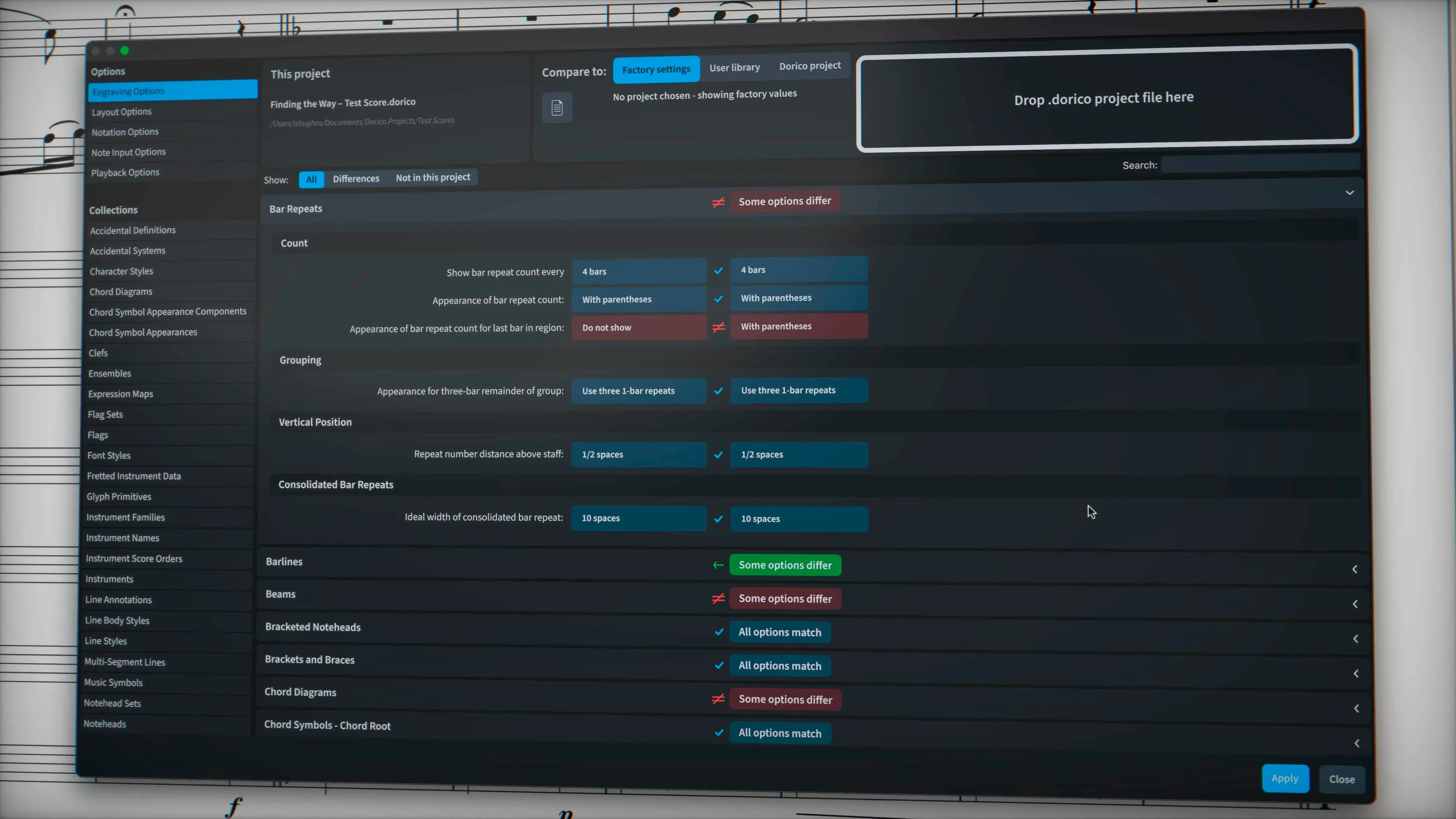
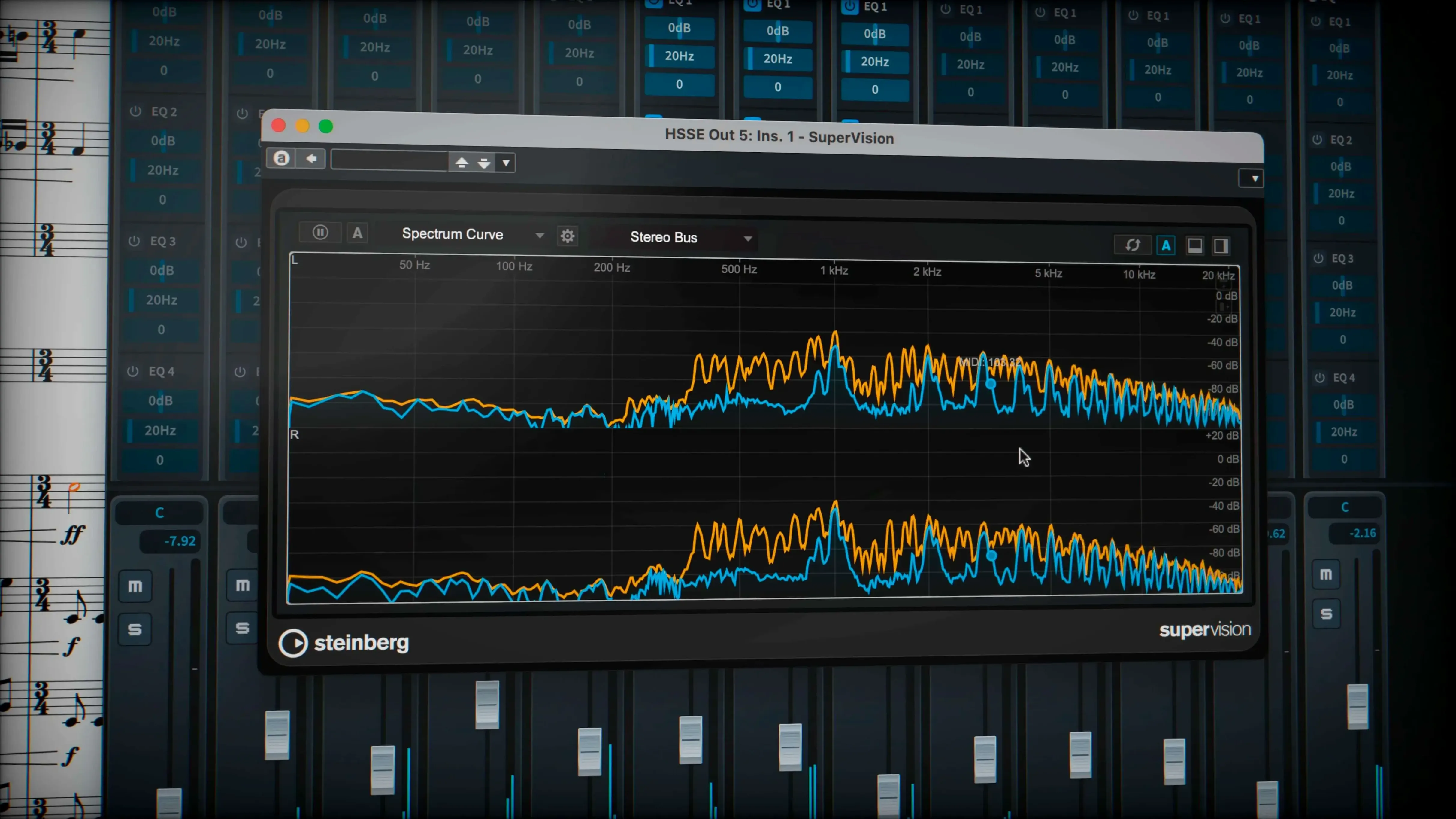
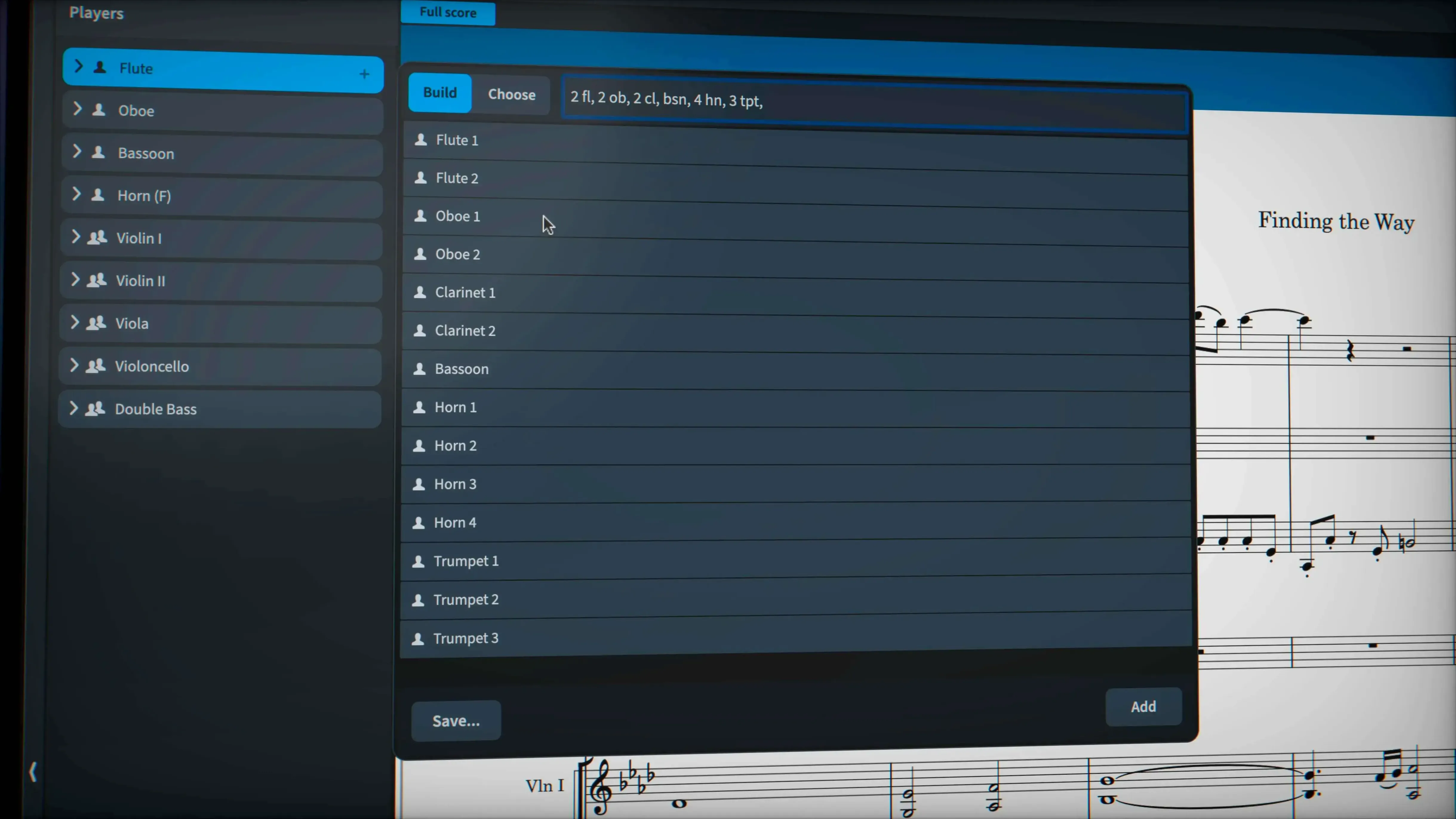
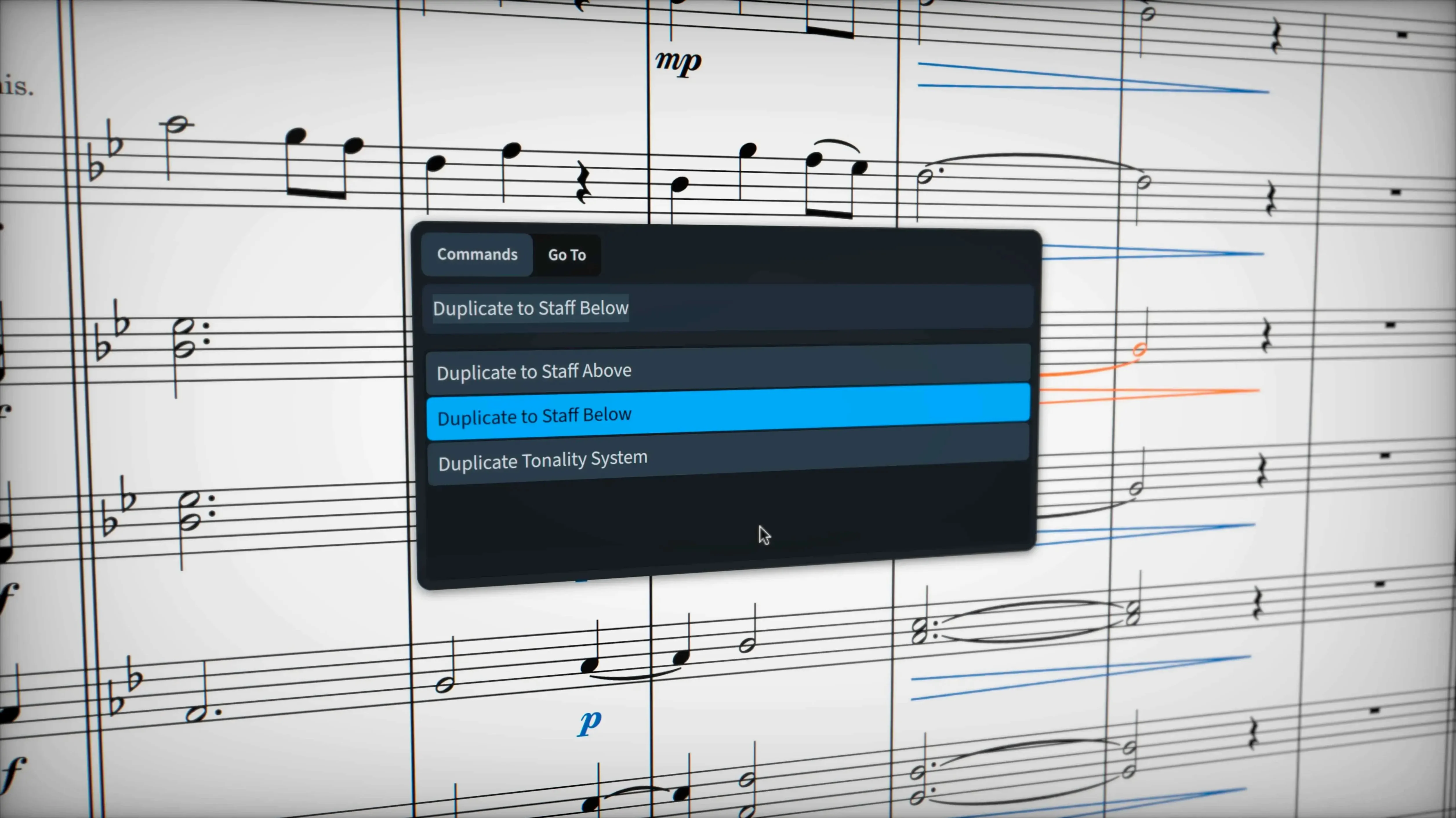
Dorico Pro is Steinberg’s music notation software for composing, arranging, engraving, and playback. For a newcomer, the first session can feel dense — here’s what to try first to see how it works.
Setup Assistant Gets You a Score in Under a Minute
- Start with the Setup Assistant. It walks you through project type, instruments, and key/time signatures. You’ll have a basic score in under a minute.
- Enter notes with the mouse or keyboard. Click to place a note, then adjust pitch with arrow keys. The note input bar shows duration and accidental options.
- Play back what you wrote. Hit the space bar. Dorico includes almost 1,500 built-in sounds, so playback sounds realistic from the start.
- Drag a note to change its rhythmic position. Dorico handles tuplets across beats and microtonality without workarounds — try shifting a note into a different beat.
- Use the Engrave mode. Switch to Engrave mode to adjust spacing, slurs, and collisions. Automatic page layout with collision avoidance handles most of the work.
MusicXML import and export
Dorico can exchange data with other programs through MusicXML, MIDI, and PDF. The current version addresses MusicXML import and export issues, so transferring a project from another notation app should preserve note positions, articulations, and chord symbols. It also improves handling of hidden notes and adds support for exporting sustain and sostenuto pedal lines. For newcomers, this means you can start a score in another program and finish it in Dorico without losing detail.
Clicking Every Note Slows You Down
Most first-time users run into the same few problems. Knowing them early saves time.
- Overusing mouse entry for everything. Clicking every note is slow. Learn the note input shortcuts (duration numbers, pitch by letter) from the start. Pop-up tooltips show the keys — spend ten minutes practicing and it sticks.
- Skipping the Setup Assistant. It is tempting to close it and add instruments later. That works, but you lose the automatic staff spacing and page layout that the assistant sets up. Let it build the template first.
- Editing engraving before the music is finished. Engrave mode is powerful, but adjusting slurs and page breaks while you are still moving sections around means redoing the work. Write the notes first, engrave last.
- Ignoring the Play mode Track Inspector. For instruments routed to Cantai, the independent voice playback toggle lives in the Track Inspector. Beginners overlook it and wonder why playback sounds flat. Enable it to hear separate lines within the same instrument.
- Forgetting the undo stack. Dorico has deep undo. When a layout shift hides notes or brackets, press Cmd+Z instead of digging into settings. Most accidental deletions reverse cleanly.
Complex Rhythms and Microtones Work Natively
Dorico Pro suits different Mac users for different reasons. The strongest fit depends on workflow.
- Composers who write complex rhythms. Tuplets across beats, microtonal accidentals, and music without stems all work natively. No workarounds or hidden layers. For film and contemporary classical work, this removes a major friction point.
- Music educators preparing ensemble scores. The automatic collision avoidance and page layout save hours of manual spacing. Export to PDF for student parts. The built-in playback with nearly 1,500 sounds helps students hear what the score should sound like.
- Engravers and copyists. Engrave mode gives fine control over glissando lines, trill wiggle glyphs, and line style overrides. Tuplet brackets and numbers that are hidden by engraving options now export correctly. For professional engraving, the detail matters.
- Producers who sketch with MIDI. The sequencer-style MIDI editor with piano-roll view lets you switch between notation and MIDI data. Draw sustain and sostenuto pedal lines, route instruments to VST 3 effects processors, and export MusicXML to a DAW if needed.
MusicXML and MIDI Exchange With Other Apps
Dorico does not replace a DAW, a sampler host, or a PDF reader. It works alongside them.
- MusicXML and MIDI exchange. Export to MusicXML for Finale, Sibelius, or MuseScore. Import MIDI from your DAW for scoring. The latest update improved MusicXML import and export again, so chord symbols, hidden notes, and pedal lines transfer reliably.
- VST 3 instruments and effects. Dorico loads third-party VST 3 instruments and includes 30 VST 3 processors. Route a piano to one processor and strings to another without leaving Play mode.
- PDF output for publishing. Print or export parts as PDF. macOS handles the rest — share via iCloud, open in Preview, or send to a printer directly.
- Drag and drop from Finder. Drop MIDI or MusicXML files onto the Dorico icon to open them. No import dialog needed for quick edits.
- macOS window management. On a MacBook Air, splitting the screen between Dorico and a reference PDF works well. Switch between Write mode and Engrave mode with Cmd+E and Cmd+W.
Day One: Write Eight Bars and Play Them Back
- Day one: run the Setup Assistant and enter one page of notes. Do not try to learn every mode. Just write eight bars, play them back, and adjust one note with the mouse. That is enough to see the basic flow.
- Day two: open a MIDI file from another project. Import it, assign instruments, and play back the result. This shows how Dorico interprets MIDI data and where you might need to clean up notation manually.
- Day three: switch to Engrave mode and adjust one page break. Move a system, fix a collision, and toggle the glissando line style for one note. See how the automatic layout responds before you change defaults.
- Keep the Setup Assistant template. If you start a new project, reuse an existing template rather than adding instruments manually. Consistency in staff spacing and layout saves time across scores.
- Use the built-in playback to check your work. Even if you do not plan to use the sounds for a final mix, playback catches wrong notes and rhythmic errors faster than reading the score.
Steinberg has published version 6.2.40 of Dorico Pro. The full list of adjustments can be found in the official release notes on the developer's site.
| macOS | macOS 12 or later |
|---|---|
| Processor | Apple Silicon, Intel 64-bit |
| Download | 584 MB |
- macOS 12 or later
- Apple Silicon or Intel 64-bit processor
Questions about Dorico Pro
Can I import a score from another notation program?
Yes. Dorico supports MusicXML, MIDI, and PDF import. The current version addresses MusicXML import and export issues, so your note positions, articulations, and chord symbols transfer cleanly.
Does Dorico include sounds for playback?
Yes. It includes almost 1,500 built-in sounds, so playback sounds realistic without any additional setup.
What types of notation does Dorico support?
It supports complex chord symbols, percussion notation, non-piano notation, microtonality, and music without stems — all without workarounds.
How to install, in order
- An installation and activation guide is included in the package.
Comments and corrections 0
Sign in or open a free account to leave a comment.
No comments or corrections yet.