
Ugoku Sushi Bar 1.1.1 — download for Mac
Games Updated
Crafts sushi rolls and upgrades ingredients for waiting customers.
Screenshots
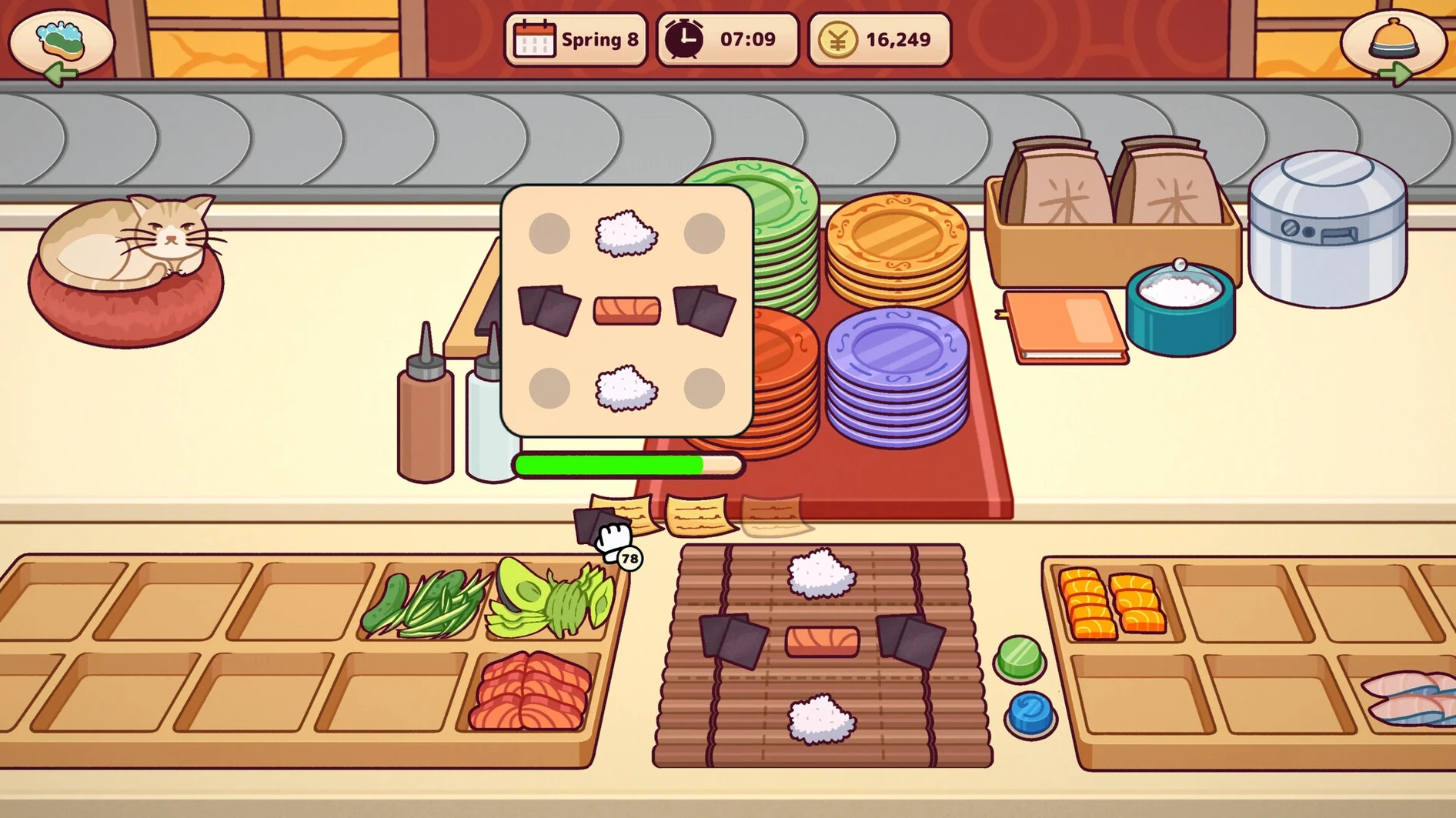
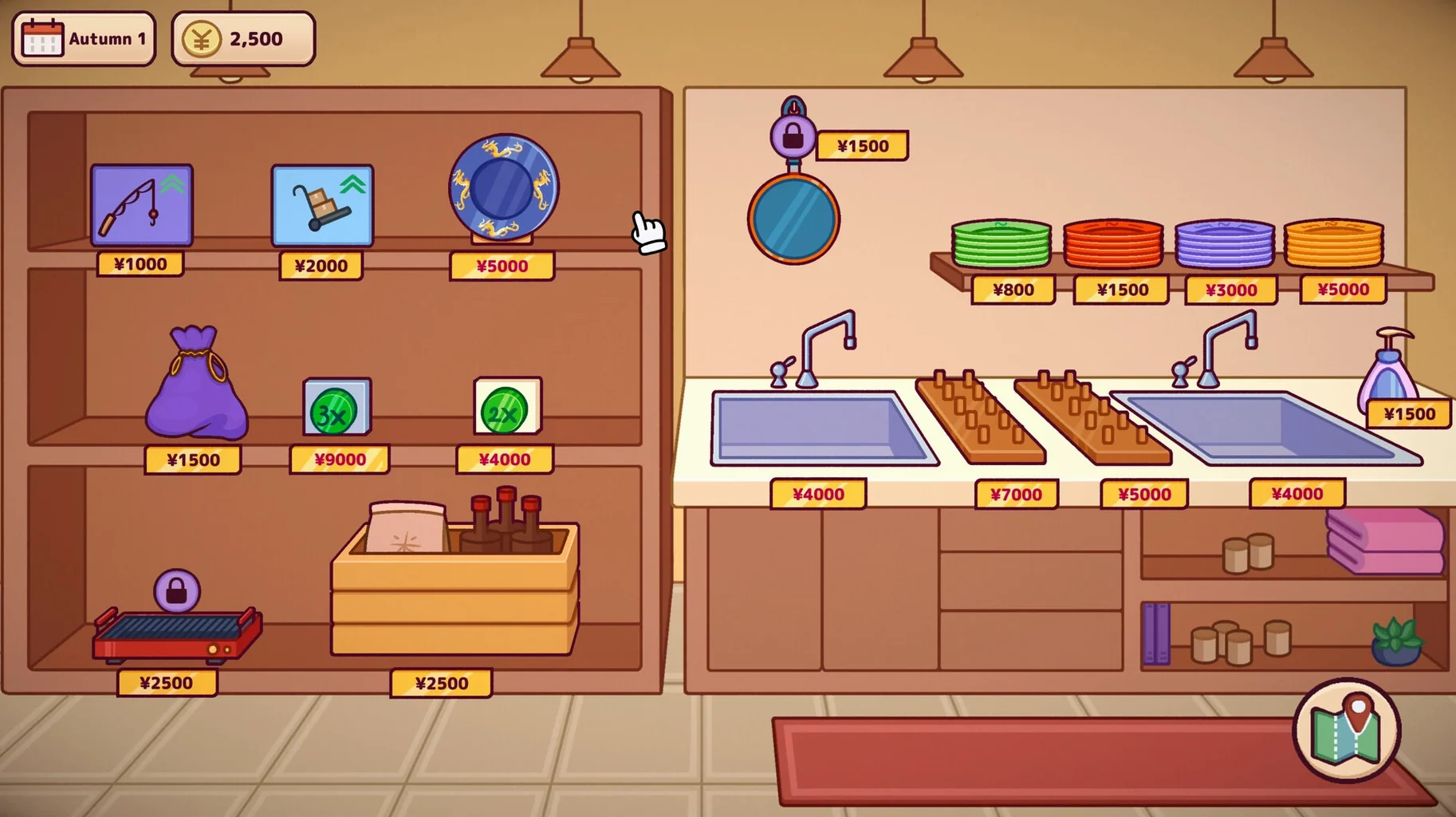


You walk into your sushi bar at 9 AM. A customer in a business suit sits at the counter, but his order is for a plate of salmon rolls with extra wasabi — a combination you haven’t unlocked yet. You head to the crafting table, combine rice, fish, and nori, and add the wasabi upgrade. Two minutes later, the plate glides down the conveyor belt. He eats, pays, and leaves a tip. Another day begins.
Take Orders and Craft Over 100 Sushi Recipes
- Take orders and serve plates. Customers appear at the conveyor belt. You match their requests by grabbing finished plates from the belt or crafting fresh ones.
- Craft sushi at the table. Over 100 recipes are available. You combine ingredients, unlock new recipes, and decide which plates to keep in stock.
- Meet regular customers. Some faces return. They remember your service and order their favorites — or something new.
- Upgrade the kitchen. Better equipment means faster crafting, more ingredients per session, and higher tips.
- Handle the unexpected. Unusual customers — a ninja, a robot — show up with strange demands. You adapt.
Managing the Conveyor Belt
Every plate you send out travels the belt until someone takes it or it loops back. Dirty cups and plates pile up if you don’t clear them quickly. The version 1.1.1 fixes a bug where a stray cup could freeze the day, and another that ate your plate inventory. It’s a small detail, but it makes the difference between a smooth shift and a frustrating one. The game runs on macOS Tahoe and M4 Macs, so it works on recent hardware without tweaks.
A Morning Shift, Step by Step
You open the game from Launchpad. The day starts with a stack of orders on the left side of the screen. Your first customer wants tuna maki — a recipe you know well. You walk to the crafting table, select rice, tuna, and a sheet of nori. The animation shows your character rolling the maki by hand. When it’s done, you place it on a plate and send it to the belt.
The plate passes the first few seats. No one takes it. Another customer, a woman with a hat, flags it down as it rounds the corner. She eats, leaves the plate, and a new order pops up: salmon nigiri with a side of pickled ginger. You unlock ginger as an ingredient earlier that week, so you craft it fresh. The belt keeps moving. Dirty plates and cups accumulate at the end of the line. You clear them between orders. If you let them stack, the belt jams and orders back up.
Halfway through the shift, a ninja customer sits down. He orders something called “Dragon Roll” — a recipe you haven’t made before. You check the recipe book. It requires eel and avocado, both unlocked but never combined. You try it at the table. It works. The ninja eats silently and leaves a large tip. The regulars begin to filter in around lunchtime. One of them asks for the same thing he ordered yesterday. You remember it because you served him last week. Another regular asks for something new. You experiment again.
The shift ends when the last customer leaves. You see a summary of earnings, tips, and new recipes discovered. Then you close the game or start the next day.
Fits Lunch-Break Simulation Fans
This game fits a few kinds of Mac users. First, anyone who likes simulation games but wants something shorter than building a farm or a city. A single shift takes ten to fifteen minutes, so it works during a lunch break or between project meetings. Second, people who enjoy crafting systems — combining ingredients to unlock new recipes is like a puzzle that rewards experimentation. Third, players who prefer games without combat, timers, or high scores. There is no fail state. If you serve the wrong plate, the customer leaves, and you try again.
People who already own games in the RDI Strategy Games series will recognize the tone. It is casual but not mindless. The unusual customers — ninjas, robots, business executives — add variety without pressure. The game also works for anyone learning Japanese cuisine vocabulary, since the recipes use real names like “unagi” and “tamago.”
Offline Gameplay in Your Applications Folder
No Internet, No Account, No Login Needed
No. Once the game is copied to your Applications folder, it runs entirely offline. No activation, no account, no login.
Supports Intel and ARM Macs
The game supports both ARM and x86 64-bit architectures. It was tested on macOS Tahoe and a 2024 Mac mini with M4, but the Intel build is included. If your Mac runs macOS and has a 64-bit processor, it will run.
Learn Drag-and-Drop Controls in Five Minutes
About five minutes. The interface uses drag and drop: drag ingredients to the table, drag finished plates to the belt. The recipe book lists all discovered combinations. There is no tutorial text to click through.
Twelve Languages Switchable in Settings
Yes. The game includes twelve languages: English, Russian, German, Spanish, Traditional Chinese, Simplified Chinese, Korean, Polish, Portuguese, Turkish, French, and Japanese. You can switch it in the settings menu before starting a shift.
Drag Disk Image to Applications Folder
Open the downloaded disk image. Drag the application into the Applications folder alias. After the copy finishes, open Launchpad and click the game icon. That is the whole process.
- Fixed an issue where the day would not end if a dirty cup moved past the end of the conveyor belt.
- Fixed an issue that could permanently reduce the available stock of plates and cups.
| Processor | Apple Silicon, Intel 64-bit |
|---|---|
| Download | 403 MB |
- macOS (version unspecified)
- Intel or Apple Silicon processor
Questions about Ugoku Sushi Bar
What language options are available?
The game supports Russian, English, German, Spanish, Traditional Chinese, Simplified Chinese, Korean, Polish, Portuguese, Turkish, French, and Japanese.
How many sushi recipes can I craft?
There are over 100 sushi recipes to discover and craft at the preparation table.
Does the game run on Apple Silicon Macs?
Yes, the build is tested on a 2024 Mac mini with M4 and macOS Tahoe. It works on both Intel and Apple Silicon Macs.
How to install, in order
- Open the downloaded disk image.
- Drag the app into the Applications folder alias.
- Once copying finishes, launch the app from Launchpad.
Comments and corrections 0
Sign in or open a free account to leave a comment.
No comments or corrections yet.