
Aiarty Image Enhancer 3.14 — download for Mac
Mac Apps Updated
Reconstructs detail in old JPEGs or high-ISO raw exports by reducing noise and softening edges.
Screenshots
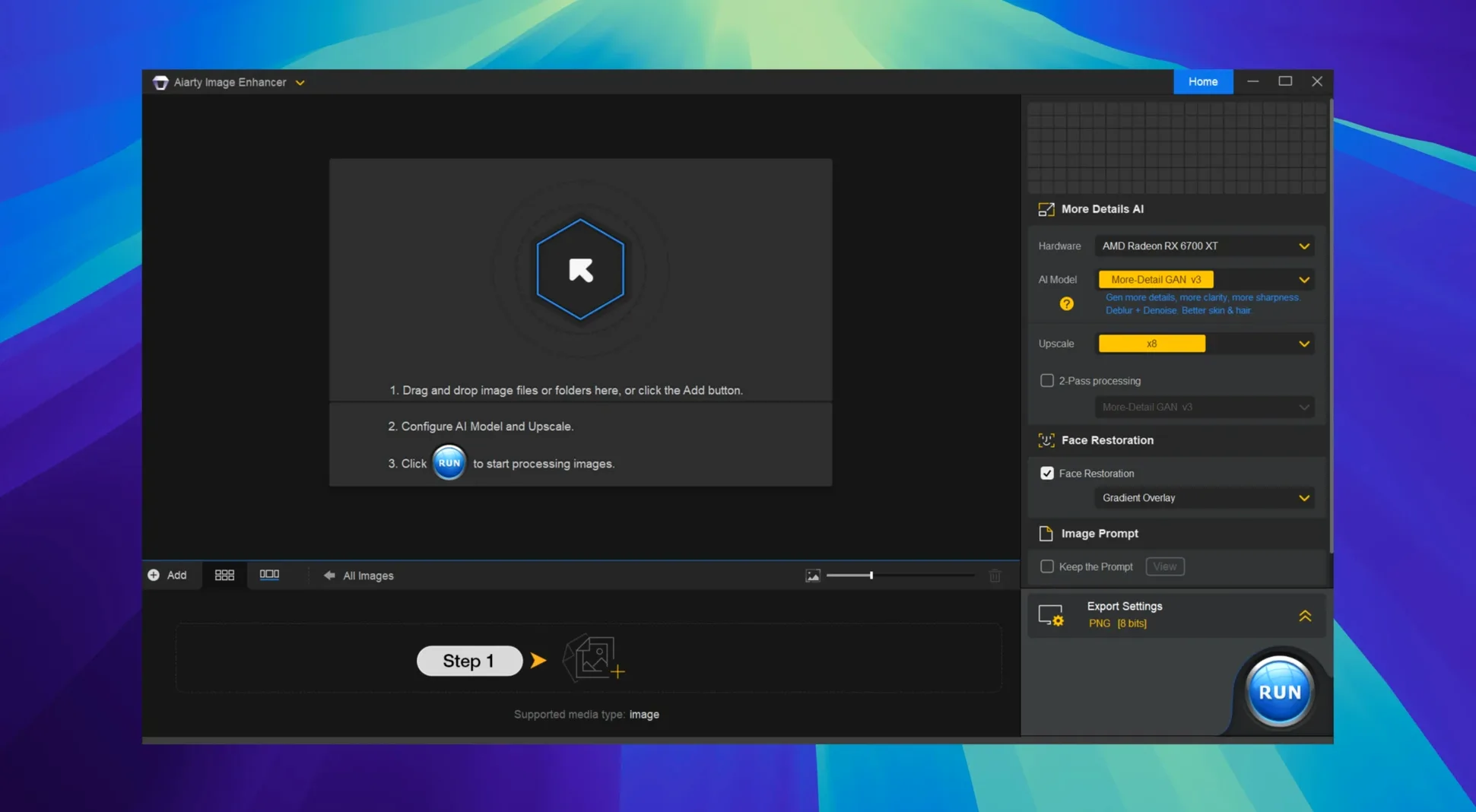
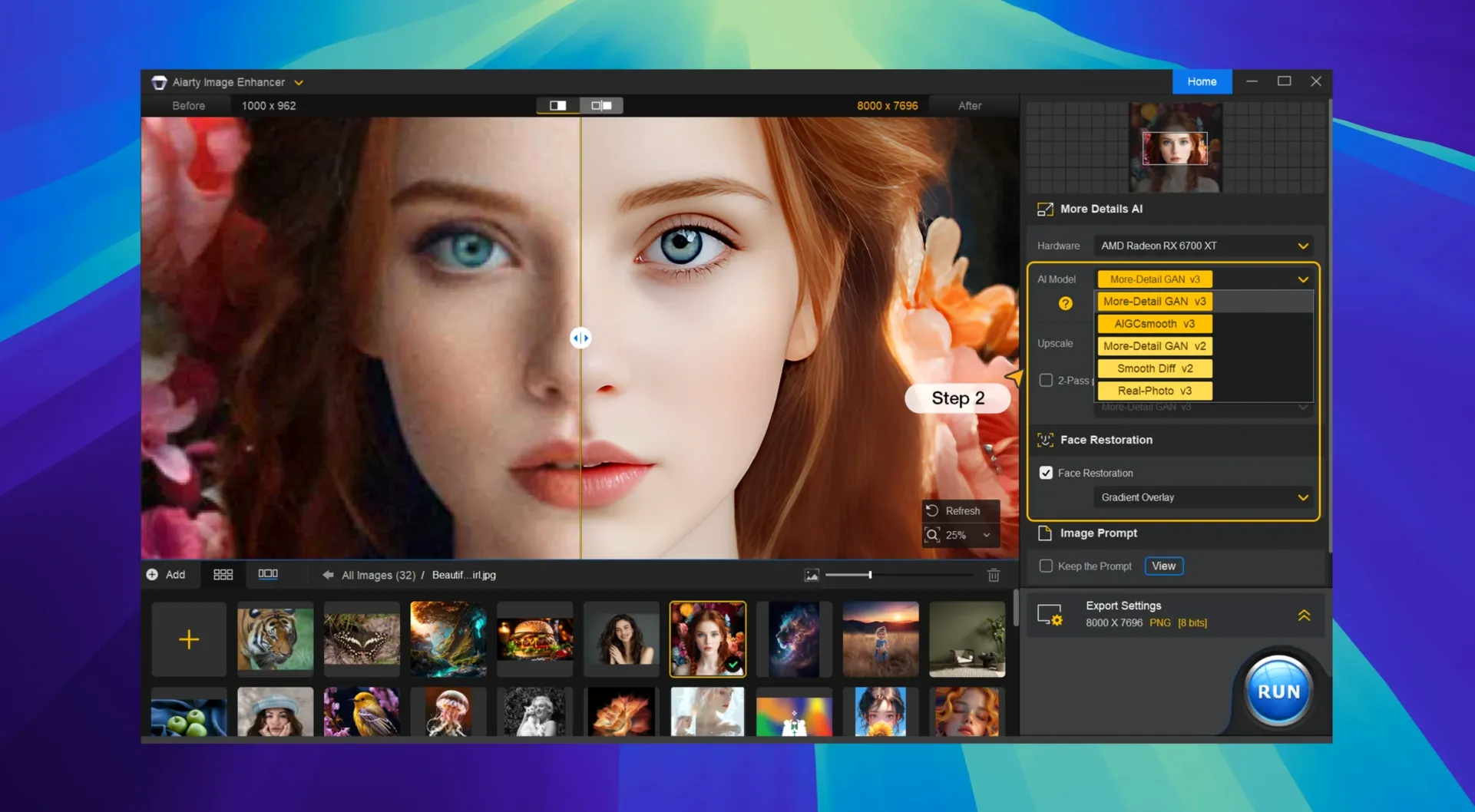
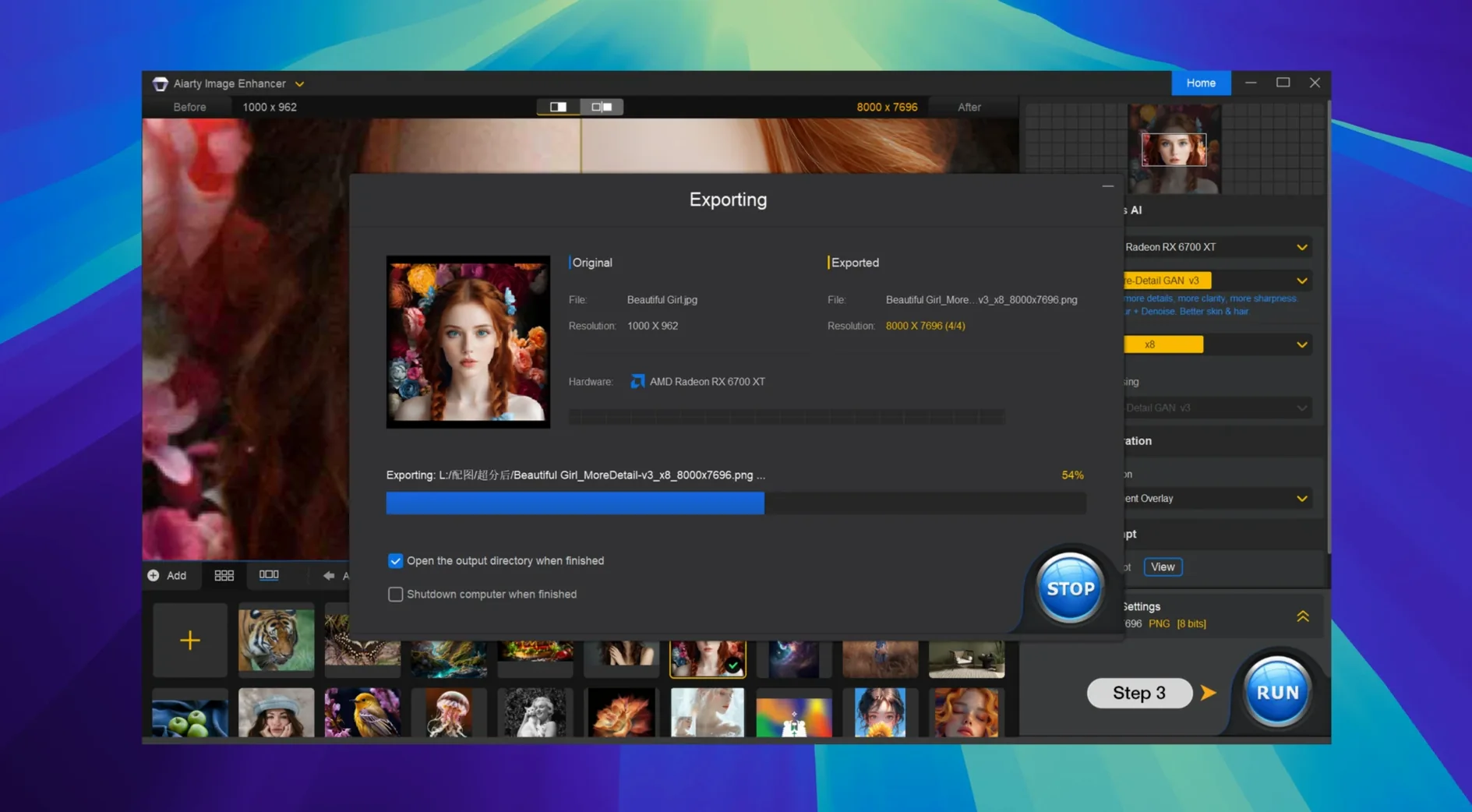
Aiarty picks up where a basic photo viewer or raw editor leaves off. Where those tools show noise and soft edges, Aiarty reconstructs detail.
Clean up noise and artifacts
Run a batch of old JPEGs or high-ISO raw exports through the denoising engine and watch grain turn into smooth surfaces without the plastic look that cheaper sharpeners leave behind.
Restore and deblur
Scanned prints with soft focus or motion blur become usable again. The restoration model pulls back facial features and text that looked lost.
Upscale to 32K
Enlarge a cropped TIFF to 32K resolution for print or display. The app builds new pixels from learned patterns, not simple interpolation, so fabric textures and hair stay natural at extreme sizes.
Set Output Format to TIFF or WebP
The defaults get you usable results, but a few changes save time over a project week. Open the preferences and set the output format to your storage chain — TIFF for work you will edit again, JPEG or WebP for final exports. Choose a folder structure that matches how you archive projects; date-stamped subfolders keep related images together without manual sorting later.
Under the processing section, switch the model selection to "Auto" only if you work on varied images in one batch. If you know every file in a folder needs the same treatment — say, all are noisy raw files from a dim event — lock the model to "Denoise" so the app does not waste cycles guessing. Turn on EXIF metadata retention in version 3.14 if you rely on camera data for cataloging.
What runs where
Aiarty Image Enhancer 3.14 runs on macOS 11 and later. It works on Apple Silicon Macs natively and on Intel 64-bit models under Rosetta 2 when needed. The disk image mounts like any standard Mac installer. After mounting, you bypass the Gatekeeper block through Terminal with a single Enter press, then drag the application to your Applications folder. If you use an Intel Mac with an incompatible version, the Rosetta flag and a VPN connection resolve the launch.
The interface ships in English, German, Traditional Chinese, Simplified Chinese, and Japanese — pick your language from the settings panel on first run and the menus adapt immediately.
32K Output Ceiling vs. Topaz Photo AI
Among Mac image enhancers, three alternatives cover similar ground. Topaz Photo AI handles denoising and sharpening with models trained on specific camera profiles. It offers subject detection and face refinement, but it does not reach the 32K output ceiling that Aiarty claims for extreme enlargement. Gigapixel AI specializes exclusively in upscaling and has a proven record with small JPEGs from early digital cameras, though it lacks the deblurring and restoration modes Aiarty bundles in one app. ON1 NoNoise AI focuses on raw noise reduction and integrates tightly with Lightroom Classic, but its upscale range stays below what Aiarty advertises.
Aiarty image enhancer for Mac differentiates itself with a combined workflow — denoise, deblur, restore, and upscale from a single interface without switching between separate tools or buying multiple licenses. The raw file support and Lightroom Classic workflow improvements in version 3.14 make it a candidate for photographers who edit inside Adobe's ecosystem but want a dedicated post-processing pass.
EXIF Metadata Access and Lightroom Workflow
Three details in version 3.14 save a few minutes each day. First, the EXIF metadata access means you can view camera and lens information inside the app without opening a separate viewer. Second, the Lightroom Classic workflow enhancement lets you send images to Aiarty and receive them back in the same catalog spot, reducing the import-export dance. Third, the raw support covers the common raw formats, so you do not need a preliminary conversion before enhancement.
For anyone running a high-volume photo job — event retouching, product photography, archive restoration — those seconds per image add up to time better spent on composition and color grading.
Batch Concurrency for Regular Editing Rhythms
Beyond the output folder and model selection, a handful of preferences make a real difference once you settle into a regular editing rhythm. Head to the processing panel and set the batch concurrency to match your usual workload — if you process fifty images at a time, keep the queue single-file to avoid overwhelming the neural engine. For smaller batches of five to ten files, raise the concurrency so the app works through them in parallel.
In the preview section, toggle the side-by-side comparison view on by default. It shows the original alongside the enhanced result without toggling layers or switching windows, which helps when you are fine-tuning the denoising strength across a series of similar exposures. If you work with raw files, set the default input format to raw so Aiarty skips the intermediate TIFF step and loads the sensor data directly.
Under the export rules, enable the timestamp suffix in the file name. That way, even if you run the same image through two different enhancement passes, the output files never overwrite each other — a small safeguard that prevents lost work when you experiment with the restoration versus upscale models on the same source.
Batch Denoise 30 Raw Files in One Drag
Consider a typical Tuesday morning: you have thirty raw files from a weekend interior shoot that need denoising and a slight brightness lift. Open Aiarty, drag the folder into the batch queue, lock the model to denoise, and let it process while you answer email. The app does not demand your attention during the run, so you can leave it in the background and check results when the queue finishes.
For the occasional client who sends old JPEGs from a phone camera, the restoration model handles the softness and compression artifacts without forcing you to switch apps. The 32K upscale capability sits there for the rare large-format print order, but most days you work at standard output sizes and never touch it.
Aiarty image enhancer for Mac users who split time between Lightroom Classic and a standalone editor will appreciate the EXIF retention and the catalog-aware handoff in version 3.14. It closes a gap that used to require manual metadata re-entry after enhancement.
No release notes filed for 3.14. They are added here when a build changes how the program behaves.
| macOS | macOS 11 or later |
|---|---|
| Processor | Apple Silicon, Intel 64-bit |
| Download | 129 MB |
- macOS 11 or later
- Apple Silicon or Intel 64-bit Mac
Questions about Aiarty Image Enhancer
Does it work as a Lightroom Classic plug-in?
Version 3.14 adds workflow improvements for Lightroom Classic, so you can send images directly from your catalog to Aiarty for enhancement.
What image formats can it load and save?
It handles JPEG, PNG, TIFF, WebP, BMP, and AVIF files.
How to install, in order
- Mount the disk image and open the Gatekeeper-friendly launcher.
- When Terminal appears, press Enter to clear the Gatekeeper block.
- Drag the app icon into your Applications folder.
- Launch the app from Applications. If it doesn't open on Apple Silicon, switch to Rosetta mode and ensure your VPN is active.
Comments and corrections 0
Sign in or open a free account to leave a comment.
No comments or corrections yet.