
AIMP 5.40.2675 — download for Mac
Mac Apps Updated
Organizes and plays large local music collections with detailed library control and format support.
Screenshots
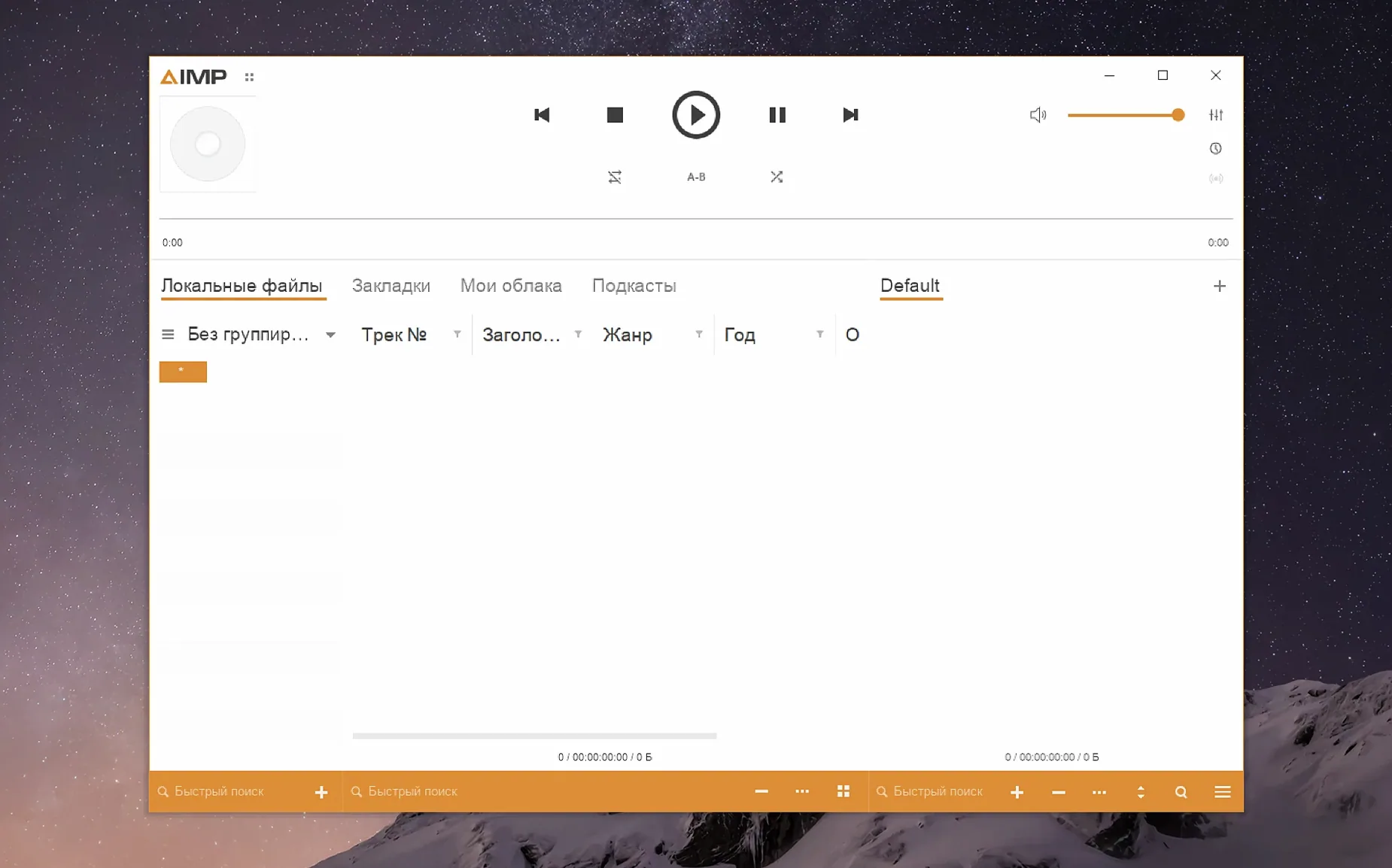
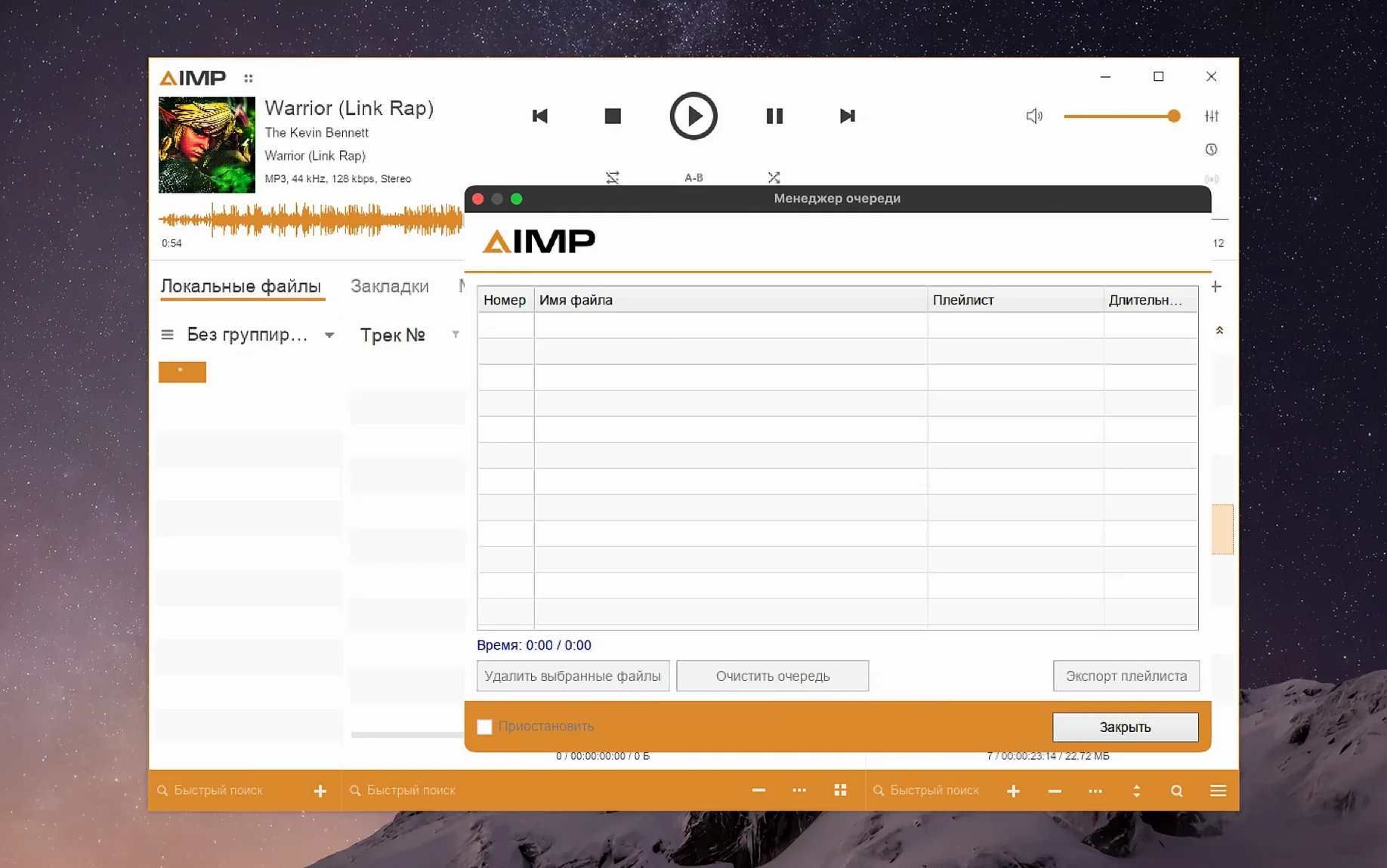
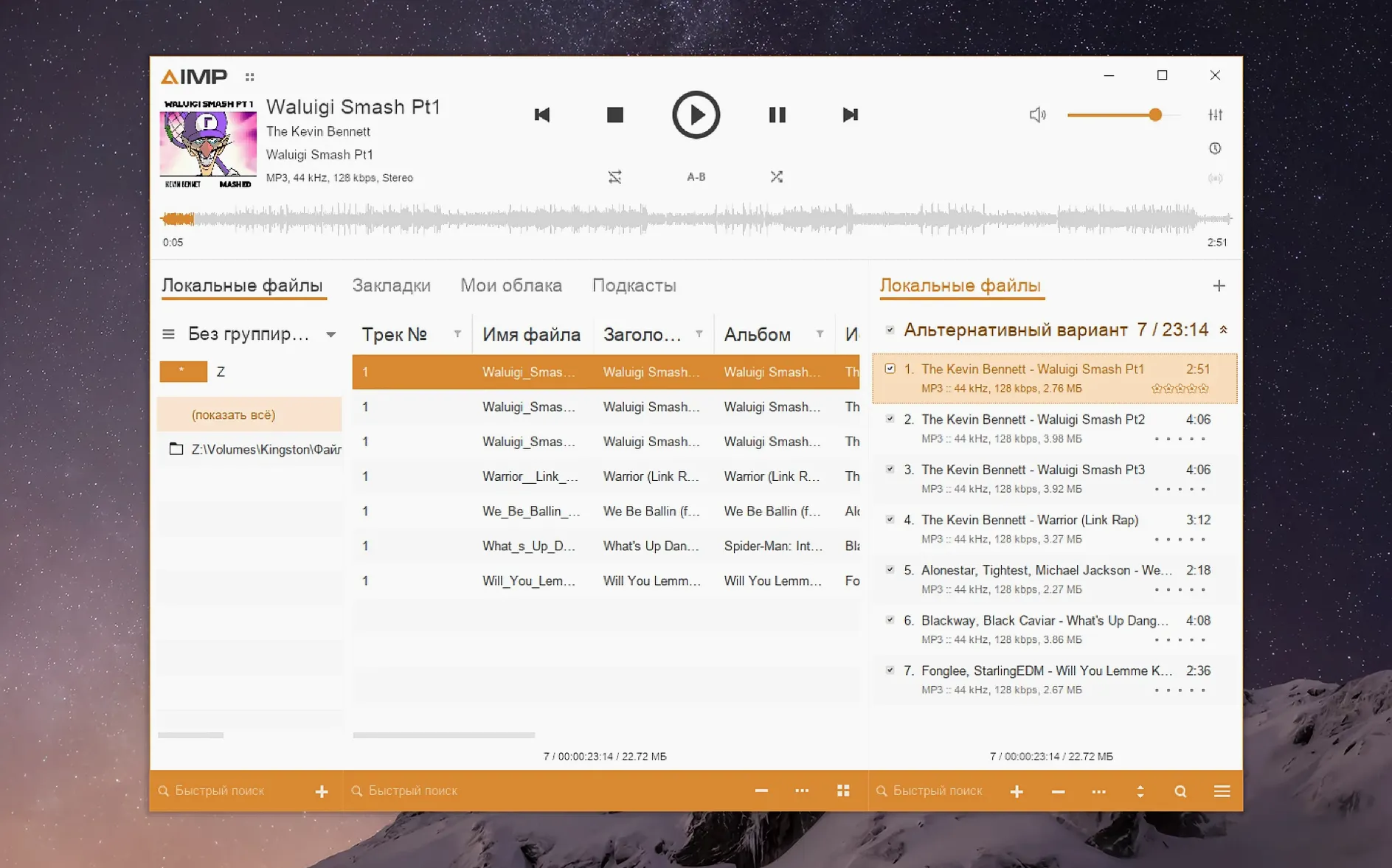
People who maintain large, meticulously organized local music collections often find default players too simplistic. AIMP is a Windows and Android audio player, packaged here for macOS, that puts library control and format support first.
Organize a library that makes sense
Skip the default grouping and build a tree that matches how you browse. Right-click the grouping area to add folders, then drag your music in. The library scans tags quickly, and the alt-click collapse issue was fixed in version 5.40.2675, so nesting large collections now works without disappearing nodes. Switch the view to show album art or a detailed table with bitrate and sample rate columns—useful for spotting lossless files. The playlist manager no longer flags content as modified simply because the playing track changed, which means fewer false prompts to save when you close the app.
Shape the sound and the look
Open the equalizer and try the 18-band interface. AIMP includes a solid set of presets, but creating a custom curve for your headphones takes about a minute. The waveform seekbar now calculates faster, so you see the track outline almost instantly when loading a long FLAC file. For the interface, if the default Wineskin window feels small, scale it through the graphics tab in the config utility—values between 122 and 144 dpi usually match Mac displays well.
Smaller buffer for lossless on an external DAC
A fresh AIMP install works fine out of the box, but a few adjustments make it feel native. Open the playback settings and check the output buffer size. If you listen to lossless files on an external DAC, a smaller buffer reduces the delay when skipping tracks. The libVorbis conflict fix in version 5.40.2675 means third-party plugin users can now trust the internal decoder without worrying about interference—worth verifying if you use custom DSP plugins.
In the library settings, disable auto-scan on startup if your collection lives on an external drive. That way AIMP only indexes when you tell it to, which keeps launch times predictable. The tag editor has a useful batch mode: select multiple files, edit the artist or album field, and the change applies to every track at once. The unnamed MP4 field parser error from earlier builds is gone, so tagging gapless albums no longer throws false errors.
Set your language early. AIMP ships with twenty-three interface languages including English, Russian, German, Japanese, and Arabic. If you work in a multilingual office, switching the menu to match your team's preference takes one dropdown change.
AIMP vs. native macOS players
Vs. Strawberry
Strawberry focuses on CD ripping and musicbrainz metadata. AIMP covers similar ground with tag editing and smart playlists, but it also includes a built-in equalizer and 8-band or 18-band presets. Strawberry feels leaner for pure playback; AIMP feels more like a full studio utility. Neither one ties you to a cloud service, which matters for local-only collections.
Vs. Vox
Vox is minimal—play, pause, queue. It handles high-resolution audio well but stops short of advanced library grouping or waveform seek. AIMP gives you the tree browser, the tag editor, and the playlist manager that doesn't mark everything as modified after a track change. For someone who manages thousands of files, those extras save time over the week.
Vs. Foobar2000 for macOS (Wine)
Foobar2000 runs through Wine on Mac, same as AIMP. Foobar's strength is its component system; you can bolt on nearly anything. AIMP's edge is that the Wineskin build here is already configured—no plugin hunting just to play Monkey's Audio files (codec updated to 11.08 in this version). For a project manager who wants playback and library tools without tinkering, AIMP is the faster setup.
Imports iTunes/MusicBee metadata without renaming
AIMP reads your existing folder structure. Drag your iTunes or MusicBee exports into the library panel and it picks up the metadata without renaming files. That means you can keep using XLD or freac for format conversion on the side—AIMP doesn't touch the originals unless you edit tags.
The Wineskin wrapper means AIMP lives in the Applications folder like any other Mac app. Launch it from Launchpad, Cmd+Tab into it, and it stays in the dock. The config utility inside the package lets you tweak display scaling, which helps if you run a 4K monitor. The app respects macOS window snapping and virtual desktops—two spaces side by side with AIMP on one and a project timeline on the other works without fighting the window manager.
For export workflows, build a playlist in AIMP, save it as M3U, and load it into VLC or Plex. The tag editor also writes directly to the file, so changes appear in any app that reads ID3 or Vorbis comments. If your team shares a media server on the local network, keeping metadata accurate inside AIMP saves everyone the guesswork.
- Waveform calculation speed improved—large files appear almost instantly.
- Monkey's Audio codec updated to version 11.08.
- A libVorbis conflict with third-party plugins was fixed.
- A sampling-frequency buffering issue was resolved.
- Localizations updated.
| macOS | macOS 11 or later |
|---|---|
| Processor | Apple Silicon |
| Download | 582 MB |
- macOS 11 or later
- Apple Silicon
Questions about AIMP
What audio formats does AIMP support?
AIMP handles a wide range of formats, and the current version includes an updated Monkey's Audio codec (version 11.08) for improved compatibility with lossless files.
Can I use AIMP in my language?
Yes, the interface supports many languages, including Portuguese, Italian, Polish, Czech, Danish, Japanese, Simplified Chinese, and Belarusian.
Does AIMP work on modern Macs?
It runs on Apple Silicon Macs with macOS 11 or later, using a Wineskin wrapper that includes a configuration utility for adjusting the display.
How to install, in order
- Open the downloaded disk image.
- Drag the AIMP app into the Applications folder alias.
- After copying, launch the app from Launchpad.
- If you see an error on launch, run the Fix file inside the disk image.
- To enlarge the interface, right-click the app and select Show Package Contents.
- Open the Contents folder and start KegworksConfig.
- Go to Tools and open Config Utility (winecfg).
- In the Graphics tab, set the screen resolution between 122 and 144.
- Apply the change and restart the app.
Comments and corrections 0
Sign in or open a free account to leave a comment.
No comments or corrections yet.