Mountain Duck 5.3.2 — download for Mac
Utilities Updated
Mounts remote servers and cloud storage as local disks in the Finder.
Screenshots
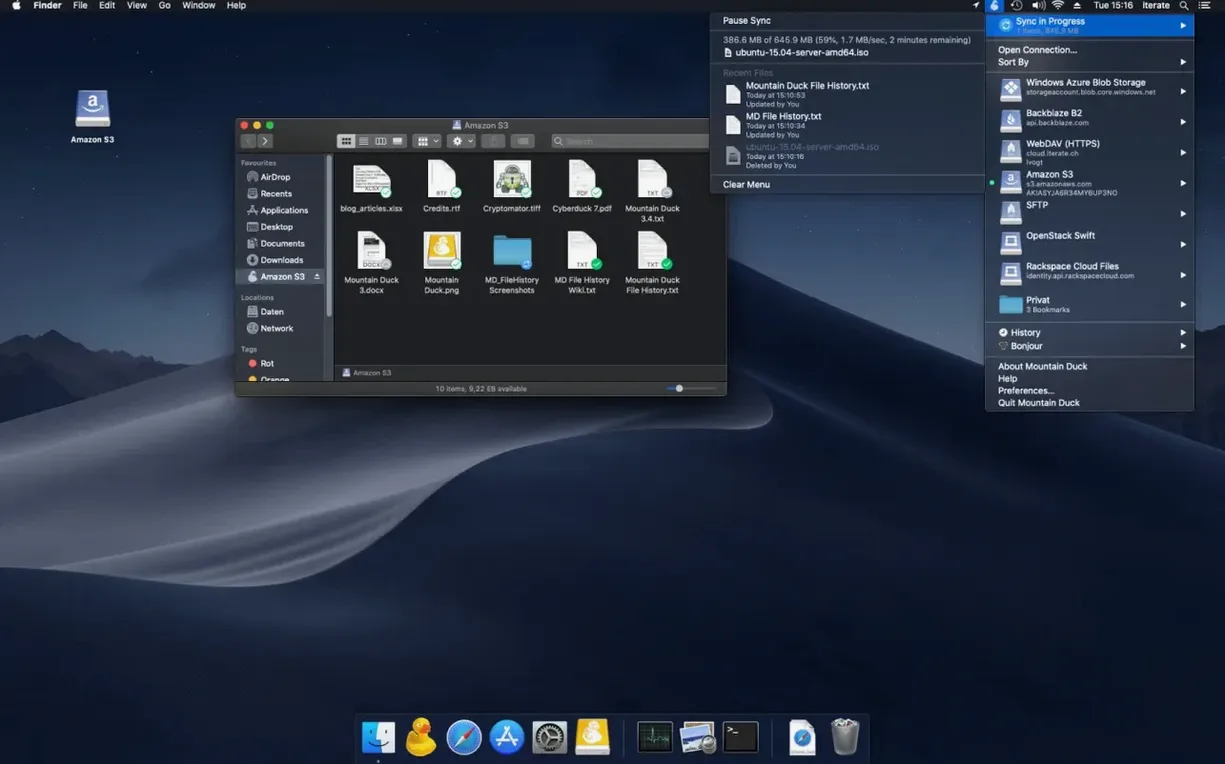
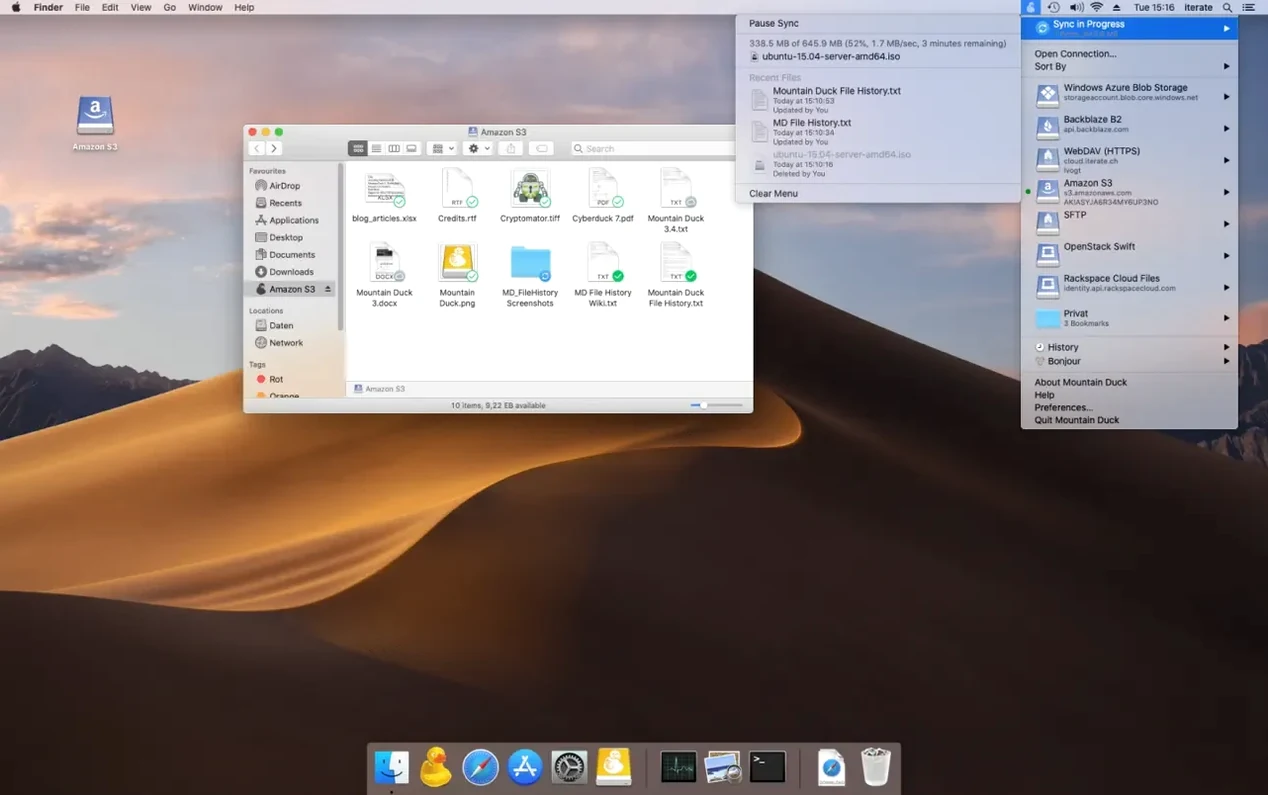
Mountain Duck mounts remote servers and cloud storage as a regular disk in Finder, letting you open and edit files with any application as if they were local.
How does version 5 improve on the previous version?
Version 5 adds SMB connection support, storage-independent file versioning, and Integrated Connect Mode for faster setup. These are the tools a project manager who works across NAS, SFTP, and cloud accounts will use daily.
What does Smart Synchronization do?
When you open a remote file, Smart Synchronization downloads it to your local disk and keeps it available offline. You work from a local copy without thinking about the sync logic.
Can I encrypt stored files?
Yes. Mountain Duck supports encryption at rest with compatible Cryptomator storage. Files stay encrypted on the remote server and decrypt on the fly in Finder.
Does it share bookmarks with other apps?
SMB and Connect Mode Stability Refined
The current release, version 5.3.2, refines the new features introduced in version 5. The SMB connections and Integrated Connect Mode are now more reliable for day-to-day use. Storage-independent file versioning works the same way across all supported protocols — whether you open a file from Google Drive or an SFTP server, the version history follows the same logic. For anyone managing multiple project folders across different storage types, that consistency saves time.
Morning check-in: a scenario
Rita runs a small architecture firm in Lisbon. She has three ongoing projects — one using a client’s WebDAV server, another on an SMB NAS in the office, and a third on Google Drive. Every morning she opens Finder and sees three mounted volumes. She opens the day’s drawings directly from each volume, edits them in AutoCAD, and saves. Mountain Duck uploads the changes in the background while she moves to the next drawing. She never thinks about upload queues or syncing folders. The files are just there, on her Mac.
Auto-Start on Login with Finder Volumes
Monday morning. You open your MacBook Air, and Mountain Duck starts automatically because you added it to your login items. In Finder, the volumes appear under the device section — one for the office NAS over SMB, one for a client’s SFTP server, and one for your own Google Drive. You click on the Google Drive volume to open a project budget spreadsheet. Smart Synchronization pulls a local copy to your cache. You edit the spreadsheet, then close it. The app uploads the changes a few seconds later. Around lunch, you pick up the phone and head to a site visit. Before leaving, you right-click on the SFTP project folder and choose “Keep Offline.” The entire folder downloads while you grab your coat. On the train, you open a PDF from that folder with no connection. It works because the file is on your local disk. Back in the office, you reconnect. Mountain Duck syncs any changes you made while offline. The day ends with no file transfer windows left open.
Saved Bookmarks Disappear Without Saving
- Setting a bookmark but not saving it. Mountain Duck shares bookmarks with Cyberduck if it is installed. A beginner types the server details, connects, and later cannot find the saved connection. The fix: save the bookmark after the first successful connection.
- Forgetting to keep folders offline before traveling. Smart Synchronization caches files you open, but it does not automatically cache entire folders. If you know you will be offline, right-click and select the option to keep the folder stored on your local disk before you disconnect.
- Not checking the mount point in Finder. After connecting, the remote volume appears under Devices or Locations. Some new users open the app window itself and look there, not in Finder. The disk is in Finder, not inside the Mountain Duck window.
- Editing a file while another application has it locked. Mountain Duck uploads changes in the background, but if your editor keeps a lock on the file, the upload may delay. Close the file when you finish editing rather than leaving it open in the background.
If you have Cyberduck installed, Mountain Duck shares bookmarks with it. One set of connections, two ways to access them.
No release notes filed for 5.3.2. They are added here when a build changes how the program behaves.
| macOS | macOS 13 or later |
|---|---|
| Processor | Apple Silicon, Intel 64-bit |
| Download | 187 MB |
- macOS 13 or later
- Apple Silicon or Intel processor
Questions about Mountain Duck
Does Mountain Duck support offline access?
Yes. Files stored on the local disk are available offline after being opened once through Smart Synchronization.
What macOS version is required?
Mountain Duck requires macOS 13 or later and runs on both Apple Silicon and Intel Macs.
How to install, in order
- Open the downloaded disk image.
- Drag the app to the Applications folder.
- Launch the app from Launchpad after copying is complete.
Comments and corrections 0
Sign in or open a free account to leave a comment.
No comments or corrections yet.