NotchBox 1.1.71 — download for Mac
Utilities Updated
Adds interactive widgets to the MacBook notch area.
Screenshots
NotchBox 1.1.71 runs on any Mac with macOS 13 or later — both Intel and Apple Silicon models are supported. That covers most Macs from 2017 onward. Before you install, here’s a quick look at what it does and what to expect.
| Details | Specs |
|---|---|
| Version | 1.1.71 |
| Developer | 裕涛 兰 |
| macOS required | 13 or later |
| Architecture | ARM + Intel 64-bit |
| Languages | 17, including English, Spanish, French, German, Japanese, Chinese |
The app turns the notch into an active area: drag files in for temporary storage, check Wi‑Fi speed and signal, start a countdown timer, or control Spotify playback. A camera mirror view is also included, and AirDrop sharing works by dragging files straight to the notch. If you’ve been curious about how a notch utility fits into daily work, these are the features most people ask about.
Drop Files Into the Notch Without Opening Windows
Monday morning, I open my Mac and the notch looks the same as always. But with NotchBox running, that small dark area becomes a place to drop things and check things without opening any windows.
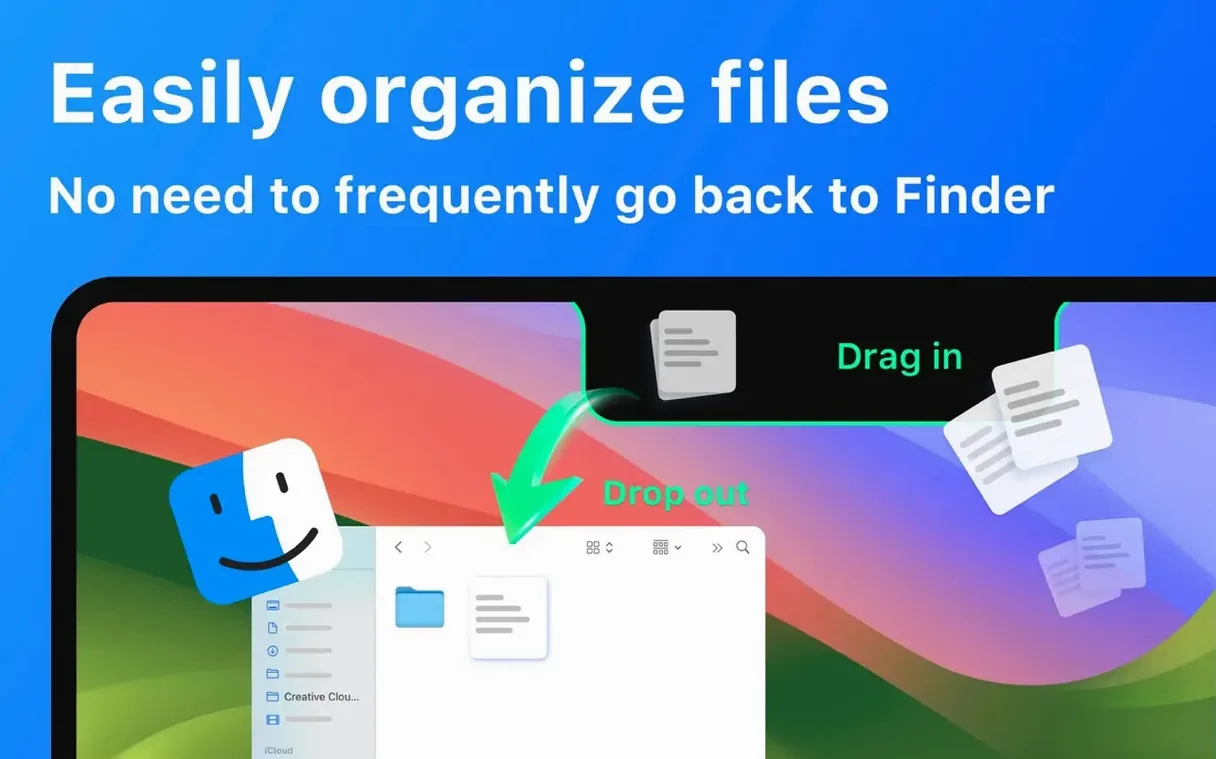
First task: I have three PDFs from a client that need to go into a folder for this week’s project. Instead of hunting for the folder on the desktop or in Finder, I drag the first PDF up to the notch. It lands there, and a small indicator shows it’s stored temporarily. I grab the second and third the same way. Then I open the project folder, and from the notch I drag all three files down into it in one go. That sequence — drag in, collect, drag out — saves me from switching windows six times.
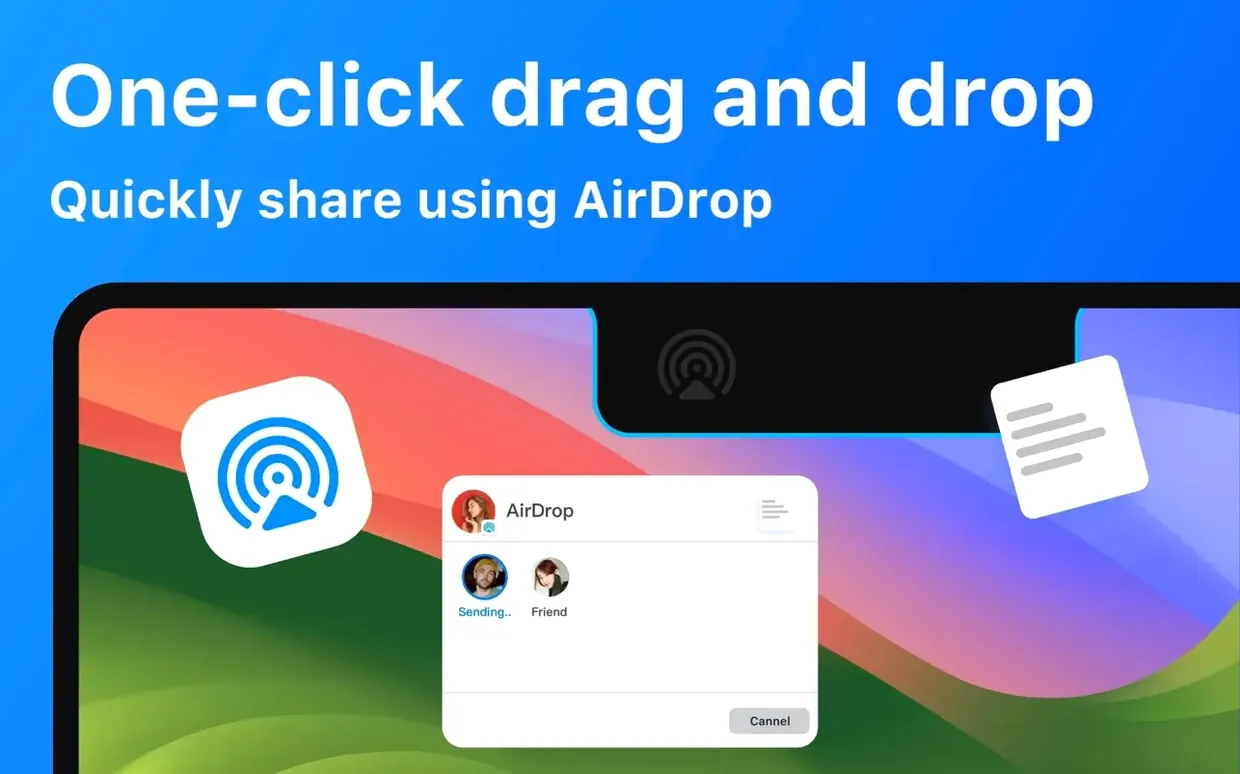
Later that morning, I need to send a revised floor plan to the architect on site. I drag the file to the notch, click the AirDrop icon that appears, and his MacBook shows up in the list. One click later, the file is on its way. No extra app, no email attachment, no “where did I save that” pause.
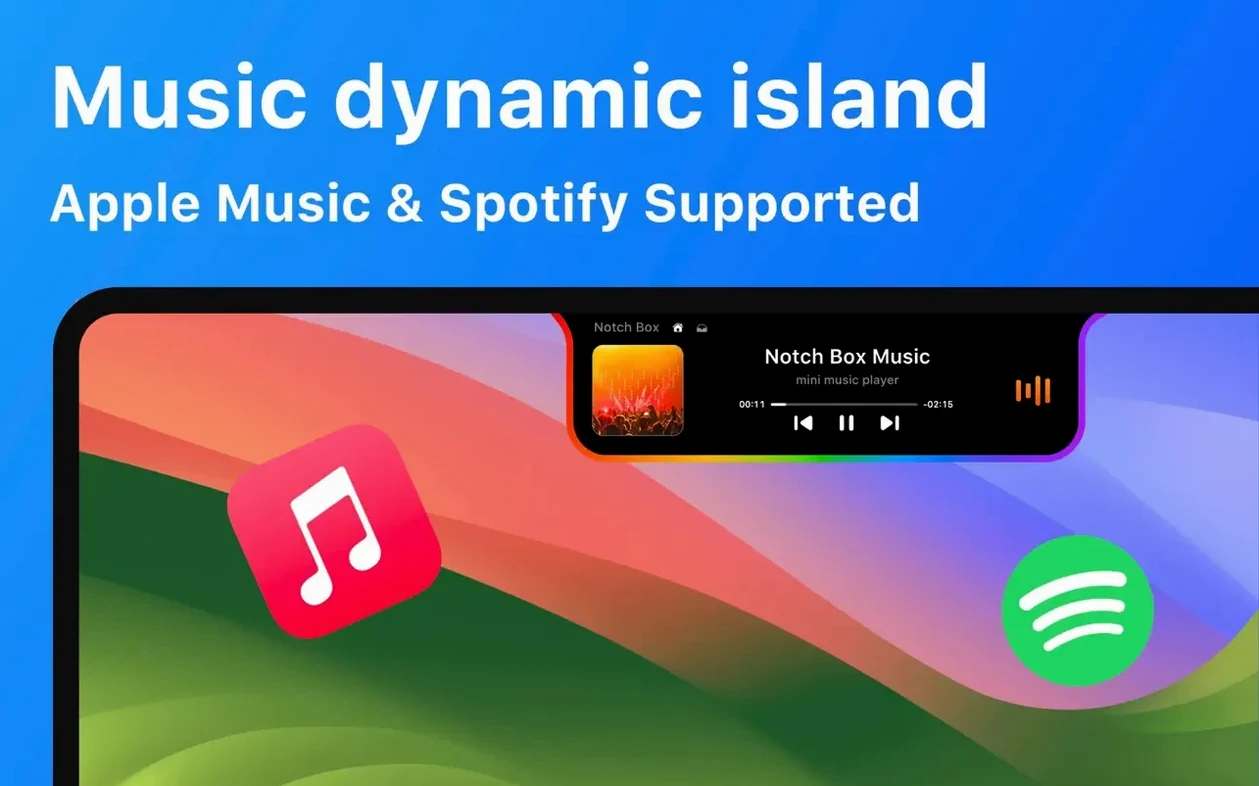
During lunch I’m listening to Spotify through the office speakers. A track I don’t like starts playing. I click the notch to expand the music widget, skip the track, and go back to work. The notch shows the album art and track name — enough to see what’s playing without switching to the Spotify window.
At 2 PM I have a site meeting. I open the calendar view inside NotchBox and see the event title and time without opening the full Calendar app. I set a 25-minute countdown timer for the drive over, and the timer stays visible in the notch while I finish an email. When time’s up, the notch pulses briefly.
Late in the day, I copy a supplier’s contact details, then a reference number from a spreadsheet, then a line from an email. Instead of losing any of them, I open the clipboard history in the notch and paste each one where it needs to go. No re-copying, no missed bits.
Works With Existing macOS Tools, Not a New Folder System
NotchBox works with what’s already on your Mac rather than replacing it. The file storage is a temporary holding area — it doesn’t create a new folder system or sync to the cloud. You drop files in, you take them out, and that’s it. Think of it as an extra pocket in your workflow, not a permanent drawer.
Apple Music and Spotify integration means the notch becomes a remote control for music playback. You don’t need to keep either app in the foreground or switch desktops to change a track. The widget reflects what’s playing in the native apps, so there’s no conflict.
The calendar widget pulls from the macOS Calendar app. If you use Apple’s built-in calendar for meetings and deadlines, NotchBox will show your upcoming events without extra setup. It’s the same for the date and time display — it follows your system settings.
AirDrop is a macOS feature, and NotchBox simply puts it within reach of the notch. Instead of going to the share menu or right-clicking, you drag the file to the notch and see nearby AirDrop recipients. It’s the same underlying service, just a different starting point.
The clipboard history is system-wide. It keeps a short list of recent text items you’ve copied, so you can go back and grab something you copied ten minutes ago. This is useful when you cut and paste between spreadsheets, emails, and project files all day.
Wi‑Fi speed and signal strength appear as live indicators. They don’t replace a network tool, but they let you see at a glance if your connection is weak or if a large file upload is going to take a while.
How It Differs From NotchNook and Similar Notch Apps
There are a handful of apps that try to make the notch useful. Here’s how NotchBox stacks up against a few of them.
NotchNook focuses mainly on file management in the notch. It lets you drag files in and out, and it shows basic system info. NotchBox offers the same file storage and AirDrop integration, but adds music controls for both Spotify and Apple Music, a countdown timer, a camera mirror, and clipboard history. If you only need file handling, NotchNook is simpler. If you want music control and extra tools in the same space, NotchBox gives you more without making the notch crowded.
Baton is a separate app that provides a floating dock for files and quick actions. It doesn’t live in the notch at all — it sits as a movable panel anywhere on screen. Baton is good if you work on a Mac without a notch or if you prefer a dedicated window. NotchBox stays in the notch, which means it doesn’t take up screen real estate. For MacBook users with a notch, it’s more natural to reach up to that area than to manage a floating panel.
Dropzone is another file-only utility that gives you a temporary holding spot on screen. It’s minimal and fast, but it doesn’t do music, timers, or clipboard history. NotchBox has broader scope. If your day involves moving files, checking time, and controlling music, NotchBox replaces two or three separate tools.
None of these apps are expensive or heavy. All run on macOS 13 and later and support both Intel and Apple Silicon. The choice comes down to whether you want the notch to do one thing or several.
Requires macOS 13.0, Works on ARM and Intel Macs
NotchBox requires macOS 13.0 or later. It runs on both ARM and Intel 64-bit Macs, so it works on M-series MacBooks and older Intel iMacs and MacBooks alike. The installer is a disk image: you open it, drag the app to your Applications folder, and launch it from Launchpad. That’s all.
The interface is available in 17 languages, including English, Spanish, French, German, Japanese, Chinese, and Portuguese. If your system language is one of those, NotchBox will match it automatically.
Once running, the app sits in the background and activates when you move your cursor near the notch or when a notification triggers it — like a timer finishing or a new calendar event starting. It doesn’t add a separate dock icon that you need to manage.
Because it uses the notch as its home, it’s most practical on MacBooks from 2021 onward that have a notch. On desktop Macs without a notch, or on older MacBooks that still have a flat top bar, the app still works but the notch area is simulated in the menu bar. The developer lists it as a notch utility, so keep that in mind depending on your hardware.
No release notes filed for 1.1.71. They are added here when a build changes how the program behaves.
| macOS | macOS 13 or later |
|---|---|
| Processor | Apple Silicon, Intel 64-bit |
| Download | 7 MB |
- macOS 13 or later
- Apple Silicon or Intel 64-bit processor
Questions about NotchBox
Does NotchBox work on Intel Macs?
Yes, NotchBox supports both Intel 64-bit and Apple Silicon Macs, as long as macOS 13 or later is installed.
Can I store files in the notch?
Yes. You can drag files into the notch for temporary storage, then drag them out when needed.
Does NotchBox integrate with Spotify?
Yes. The app supports Spotify, letting you control playback directly from the notch area.
How to install, in order
- Open the downloaded disk image.
- Drag the app to the Applications folder.
- After copying finishes, open the app from Launchpad.
Comments and corrections 0
Sign in or open a free account to leave a comment.
No comments or corrections yet.