Movavi Screen Recorder 23.1.1 — download for Mac
Utilities Intel processors only Updated
Captures the screen with audio and webcam for tutorials and demos.
Screenshots
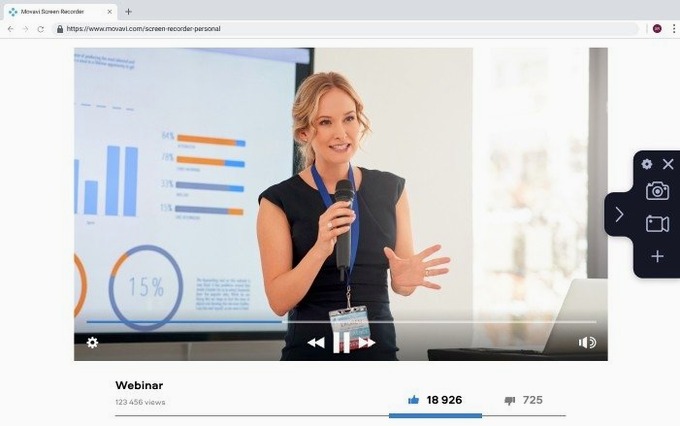
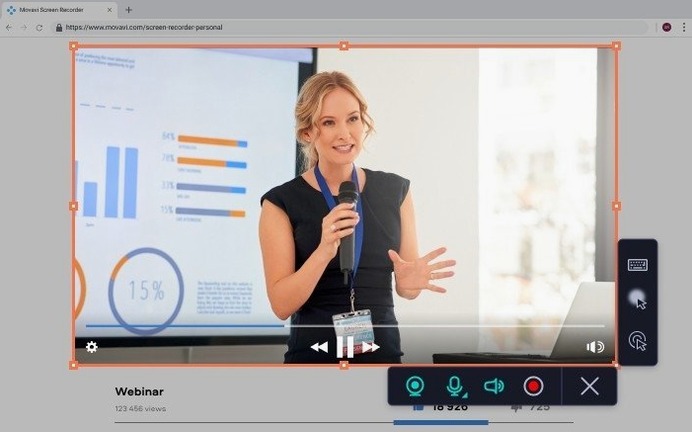
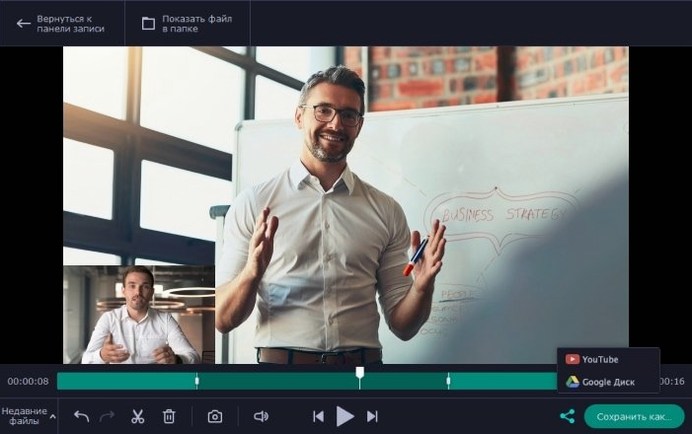
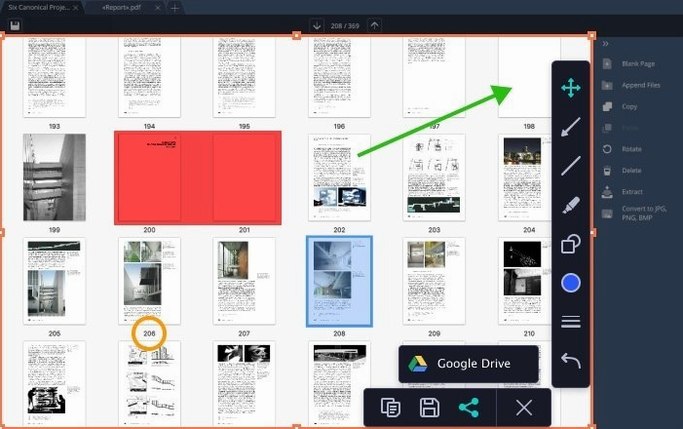
Office workers, educators, and support teams who need to capture their Mac screen with audio and webcam will find Movavi Screen Recorder a direct tool for the job. Before installing, confirm your Mac can run it.
Check Compatibility for Rosetta on M-Series
The app requires macOS 10.13 or later and an Intel processor. Apple Silicon Macs are not supported natively—it runs through Rosetta, so performance on M-series machines may vary. Check your system under About This Mac before proceeding.
record and export
Capture the desktop, application windows, or activity with audio and webcam. Save output as MP4, MOV, GIF, or other common formats. The built-in editor lets you trim clips and add cursor click effects before export.
capture multiple streams at once
Record several video streams simultaneously—useful when you need both the main screen and a secondary display or webcam feed in one project. Custom hotkeys let you start, pause, or stop without leaving the keyboard.
Best for Support Demos with System Audio
Support technicians documenting bugs or walking users through workflows get the most value. The ability to record system sound along with microphone means the viewer hears both the app’s alerts and your commentary. Training departments producing internal screencasts for new software rollouts save time with the recording scheduler—set it to capture a live demo at a specific time and walk away. Content creators who need quick GIFs for blog posts or social media clips also gain, since the export includes animated GIF without extra conversion steps.
Any Mac user who frequently sends visual feedback to remote colleagues, such as QA engineers, will appreciate the screenshot editor. Mark up a capture before attaching it to a ticket, no separate image tool needed.
Enable System Audio to Capture Game or Notification Sounds
New users often forget to enable system audio recording. The app captures microphone by default, but recording the computer’s own sound (game audio, video playback, notification pings) requires checking the system audio option in the recording panel. Without it, demos of browser‑based tools or media files come out silent.
Another oversight: not setting a recording duration limit. Beginners start a session and walk away, returning to a very long file that is awkward to trim later. The scheduler and duration limiter are right there in the toolbar but get overlooked until the second or third project.
Hotkey conflicts also trip people up. Movavi Screen Recorder assigns default keys that may already be used by other apps. New users who do not customize them in the settings panel accidentally trigger recordings or stop them mid‑stream. A quick check of the hotkey preferences before the first serious recording prevents that frustration.
Finally, beginners sometimes record the entire screen when only a portion is needed. The region selection tool is available before each session but many click “record” too fast. Teaching yourself to frame the capture area first saves editing time later.
Comparisons with Other Mac Recorders
versus obs studio
OBS Studio is a heavyweight—great for live streaming and complex multi‑source setups, but its learning curve is steeper. Movavi Screen Recorder skips the scene composition and streaming configuration; you pick a window or region, hit record, and export. For non‑broadcast tasks like internal demos or bug reports, Movavi is faster to get started with.
versus screenflow
ScreenFlow is a full screencast editor with timeline‑based editing, callouts, and advanced export profiles. Movavi Screen Recorder does not aim to replace that. It is a capture‑and‑trim tool, not a multitrack editor. If your workflow stops at a few cuts and cursor effects, Movavi suffices. If you need layered editing and animated annotations, ScreenFlow remains the choice.
versus quicktime player
QuickTime Player’s built‑in recording can grab the screen and microphone, but it lacks webcam overlay, system audio capture, and the scheduler. Movavi adds those without forcing you to install a separate utility. For one‑off captures QuickTime works; for repeated, scheduled recordings with webcam, Movavi is more complete.
- Minor improvements and bug fixes.
| macOS | macOS 10.13 or later |
|---|---|
| Processor | Intel 64-bit |
| Download | 110 MB |
- macOS 10.13 or later
- Intel processor (Apple Silicon supported via Rosetta)
- Interface languages: English
Questions about Movavi Screen Recorder
Can Movavi Screen Recorder save recordings as GIF animations?
Yes, it can save recordings as video files or GIF animations, and can also create screenshots.
How to install, in order
- Mount the disk image and launch Open Gatekeeper friendly.
- Press Enter in the Terminal window to bypass Gatekeeper.
- Complete the standard installation steps.
- The app is ready to use.
Comments and corrections 0
Sign in or open a free account to leave a comment.
No comments or corrections yet.