Magnet 3.0.7 — download for Mac
Utilities Updated
Snaps windows into full, half, quarter, or custom layouts with hotkeys.
Screenshots
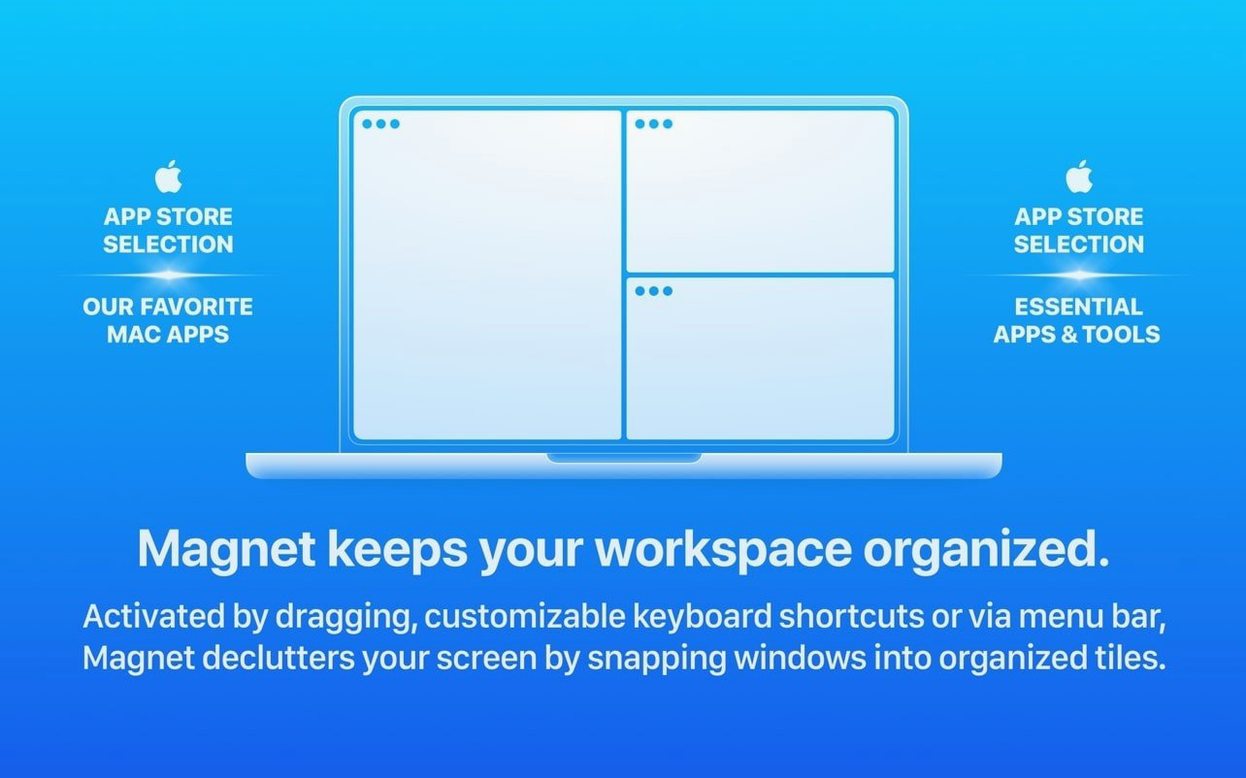
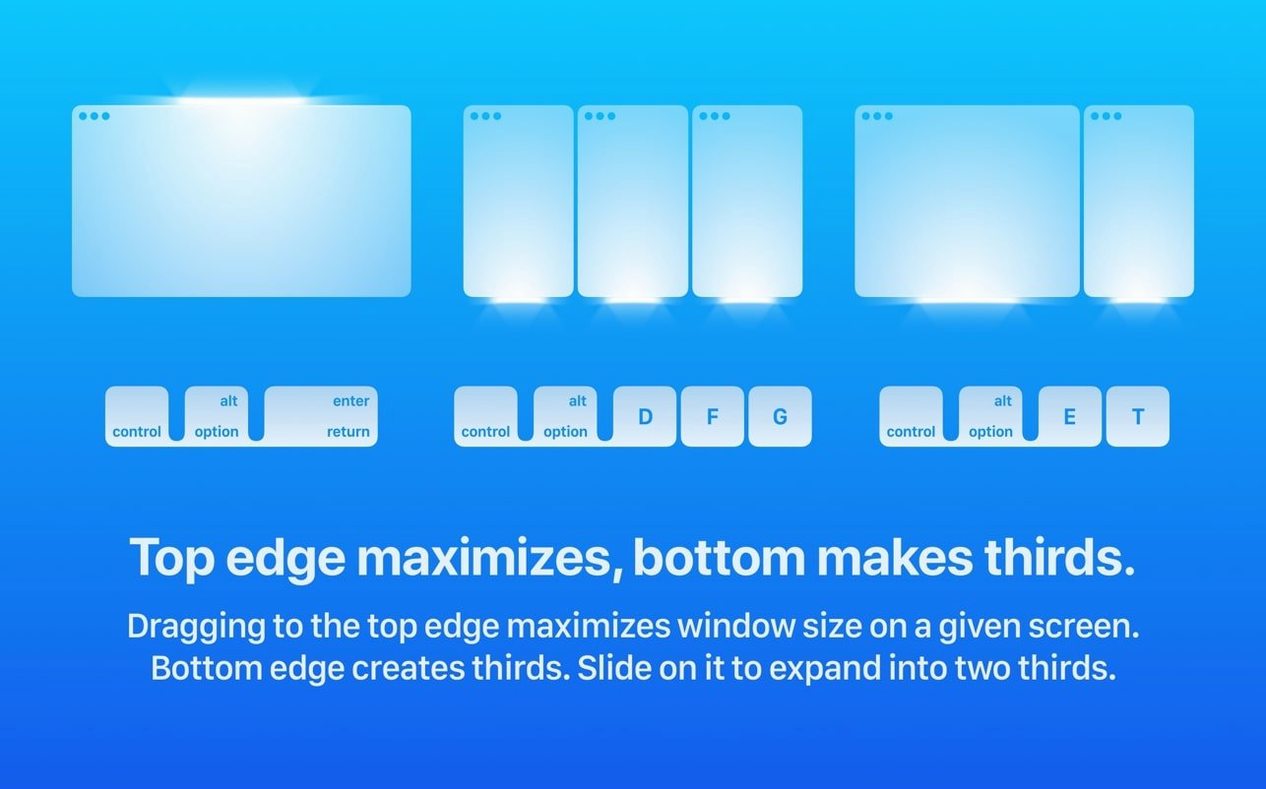
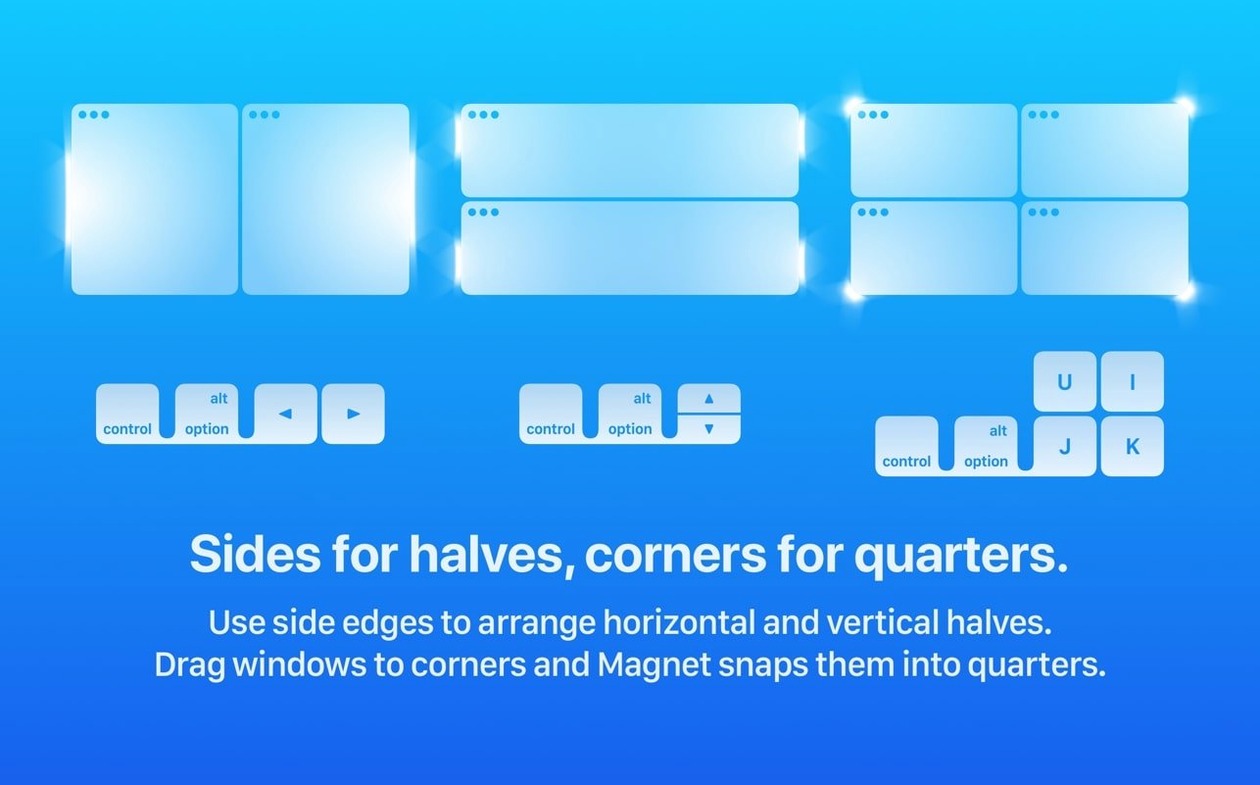
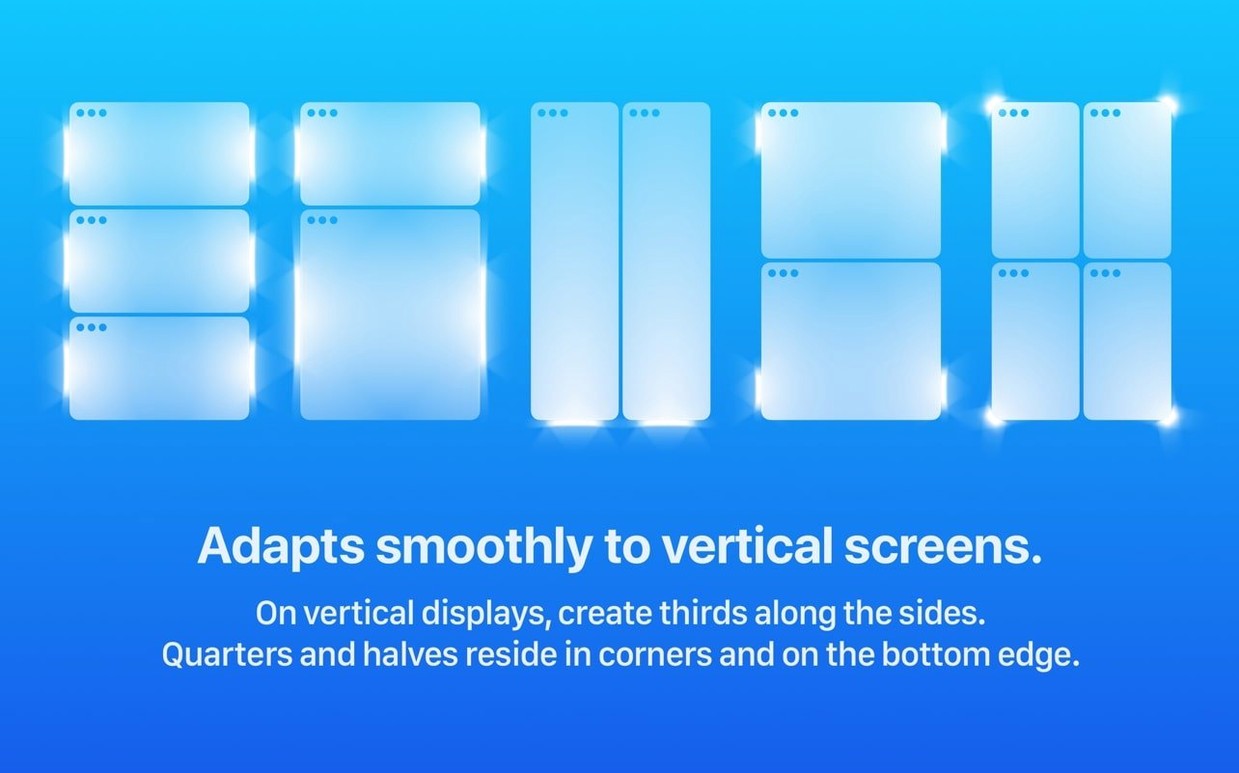
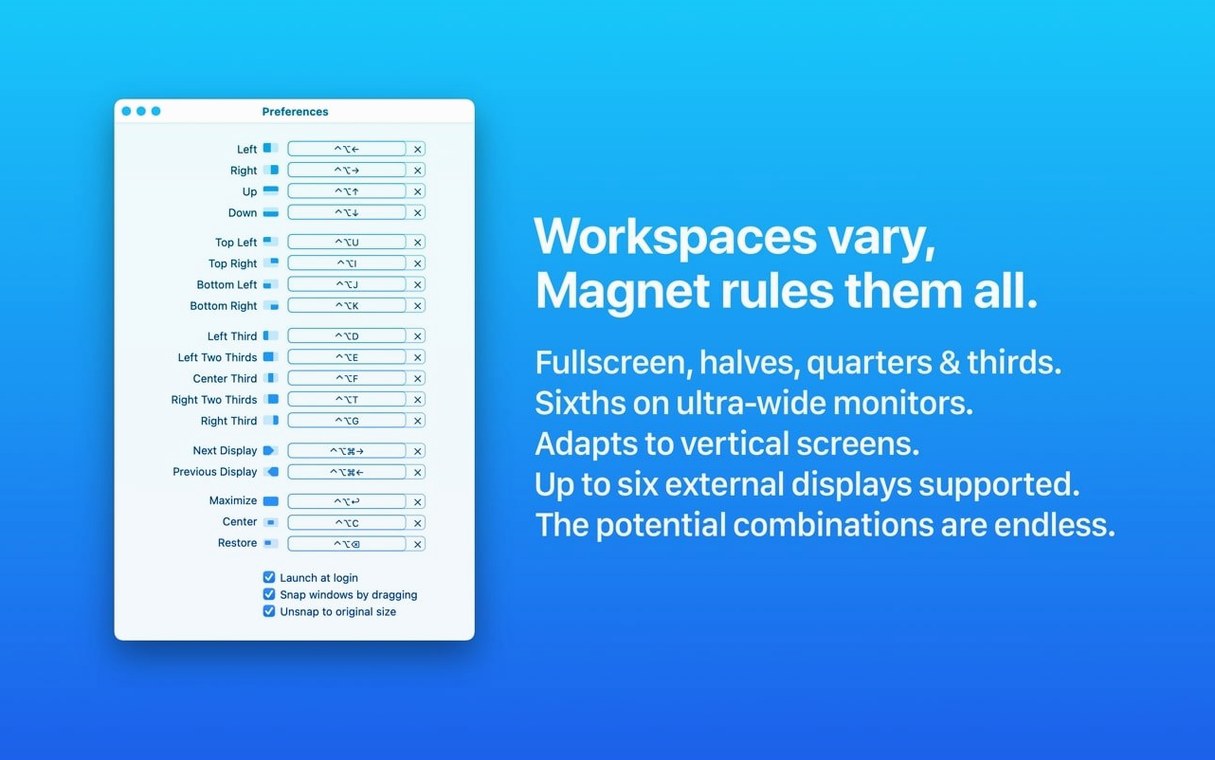
Magnet 3.0.7 is a window manager for Mac that works with hotkeys or dragging. It supports full-screen, half-screen, quarter-screen, and custom layouts. You can bind your own keyboard shortcuts from the menu bar, so windows snap where you want without touching the mouse.
- Arrange windows by dragging them to screen edges or using hotkeys
- Customizable shortcuts for every layout option
- Half, quarter, full-screen, and custom window sizes
- Menubar access — no extra panels or setup
- Interface in 14 languages, including English, German, Spanish, and Japanese
- Runs on macOS 13 Ventura or later, both Intel and Apple Silicon
Magnet suits anyone who spends the day switching between documents, browsers, and terminals. Once the shortcuts are set, it becomes a background tool you forget until you need it.
Real-World Use: An Architect Reviewing Plans
Consider someone reviewing construction drawings — an architect or a site supervisor. They have a PDF viewer open on one display, a spreadsheet with material quantities on a second, and a Slack window or email client on a third. Without Magnet, each window sits wherever it was last dragged. Every time they switch between referencing a dimension and updating a line item, they manually resize or reposition the window. It costs a few seconds per switch, and across a morning of reviewing multiple sheets, that adds up to minutes of friction.
With Magnet, that same person taps a shortcut to send the PDF to the left half of the main display, the spreadsheet to the right half, and Slack to the external monitor at full height. When they need to check a detail on a different page, they bring the PDF to full screen, then return it to half-screen with one keystroke. No dragging, no guessing at pixel alignment. The architect does not care about window management; they care about the plans. Magnet reduces the window chore to something barely noticed.
Menu Bar Shows Active Layout
Beyond the main snap-to-grid behavior, Magnet has a few details that do not appear in marketing screenshots but matter during daily work.
- The menu bar icon shows the current active layout at a glance — no need to open the menu to know what mode you are in.
- Magnet remembers monitor positions. If you disconnect and reconnect an external display, the layout zones stay assigned to that monitor without reconfiguration.
- Custom layouts can be saved per monitor configuration. A project manager who docks a laptop at a desk with two external displays can have one layout for that desk and a different one for the laptop screen alone.
- The hotkeys are global by default. They work over full-screen applications and do not require Magnet to be the active window. This matters when your terminal, IDE, or PDF viewer is in the foreground.
First-Week Setup Steps
Magnet is simple enough to start using immediately, but a few deliberate steps can make the first week smoother.
- Open Magnet from the Applications folder after installation and check the menu bar for the icon. If the icon does not appear, confirm that macOS allowed the app to run — Gatekeeper may block it on first launch.
- Test the default hotkeys before changing anything. Use the half-screen and quarter-screen commands on a few open windows to feel how the snapping works. This helps you decide which shortcuts to keep and which to remap.
- If you use multiple monitors, arrange your windows manually once, then let Magnet memorize the arrangement. Future sessions will apply the same zones automatically.
- For the first two days, keep the menu bar menu open while you work. Seeing the list of available layouts reinforces which shortcuts are available and builds muscle memory faster.
Custom Hotkeys to Avoid Conflicts
The defaults work, but a few adjustments can tailor Magnet to how you actually move between tasks.
- Set your own hotkeys. The factory shortcuts may conflict with shortcuts you use in other applications. Open the Magnet menu in the menu bar, choose Preferences or the equivalent settings panel, and reassign any key combination that overlaps with your browser, IDE, or design tools. Common conflicts involve Ctrl+Cmd+arrows or Fn keys on smaller keyboards.
- Adjust the snapping margin. Magnet detects when a window is near a screen edge and snaps it. If the default margin feels too sensitive — windows snap when you only wanted a small nudge — reduce the margin width. If windows do not snap when you drag them quickly, increase it.
- Decide whether to start on login. For most project managers and multitaskers, having Magnet load automatically at startup makes sense. It is a small app and runs quietly. If you prefer a cleaner menu bar when not at your desk, disable auto-start and launch it manually.
- Check the display order. Magnet numbers displays in the order macOS reports them. If your primary monitor is labeled as display 2 in the settings, you can reorder the display list so hotkeys match your physical desk layout.
Once these preferences are set, Magnet stays out of the way and does exactly what you told it to. No dialog boxes, no confirmation prompts. It is the kind of tool you only notice when it saves you from dragging a window for the fifth time in an hour.
No release notes filed for 3.0.7. They are added here when a build changes how the program behaves.
| macOS | macOS 13 or later |
|---|---|
| Processor | Apple Silicon, Intel 64-bit |
| Download | 6 MB |
- macOS 13 Ventura or later
- Intel or Apple Silicon
Questions about Magnet
Can I set my own keyboard shortcuts in Magnet?
Yes. Custom hotkeys can be configured from the menu bar, so you can assign the key combinations that fit your workflow.
How to install, in order
- Mount the disk image.
- Open Gatekeeper friendly — if the system blocks the app, press Enter in Terminal to bypass Gatekeeper.
- Drag the app into the Applications folder.
- Launch the app when installation is complete.
Comments and corrections 0
Sign in or open a free account to leave a comment.
No comments or corrections yet.