Nook X 2026.11.03 — download for Mac
Utilities Updated
Combines tasks, music lyrics, and AI chat into one macOS app.
Screenshots
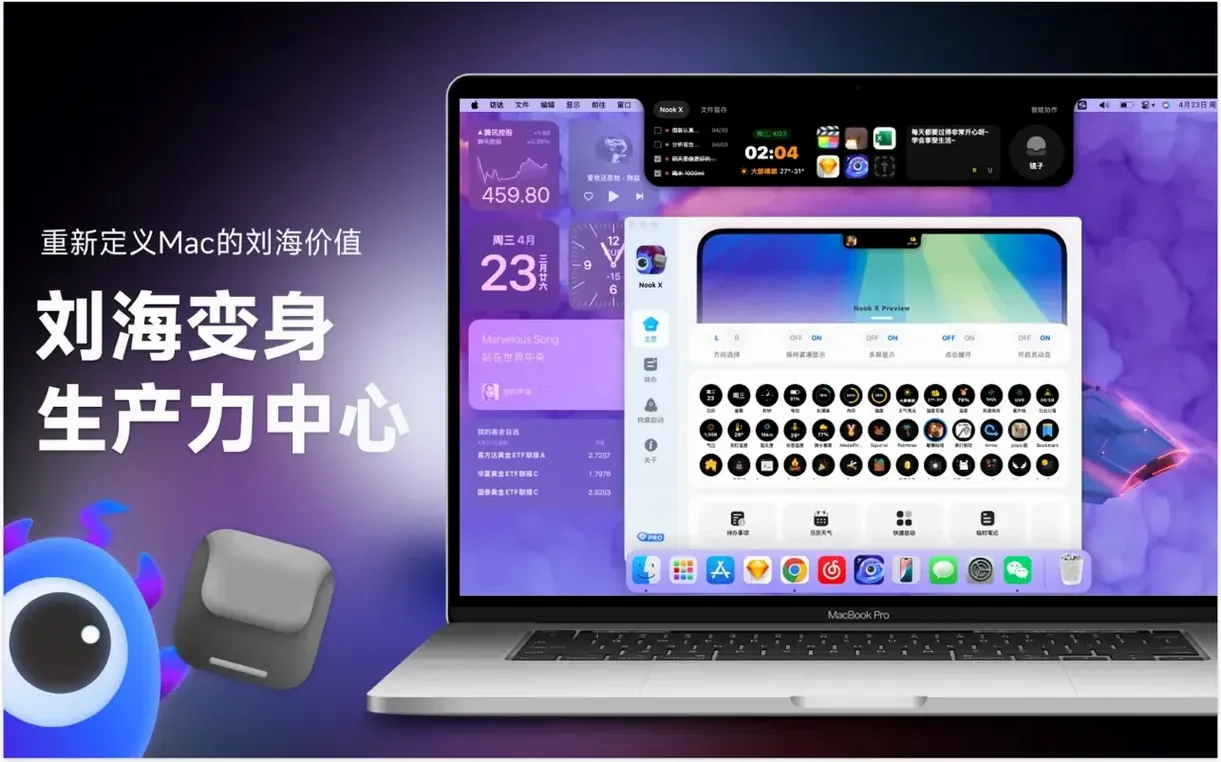

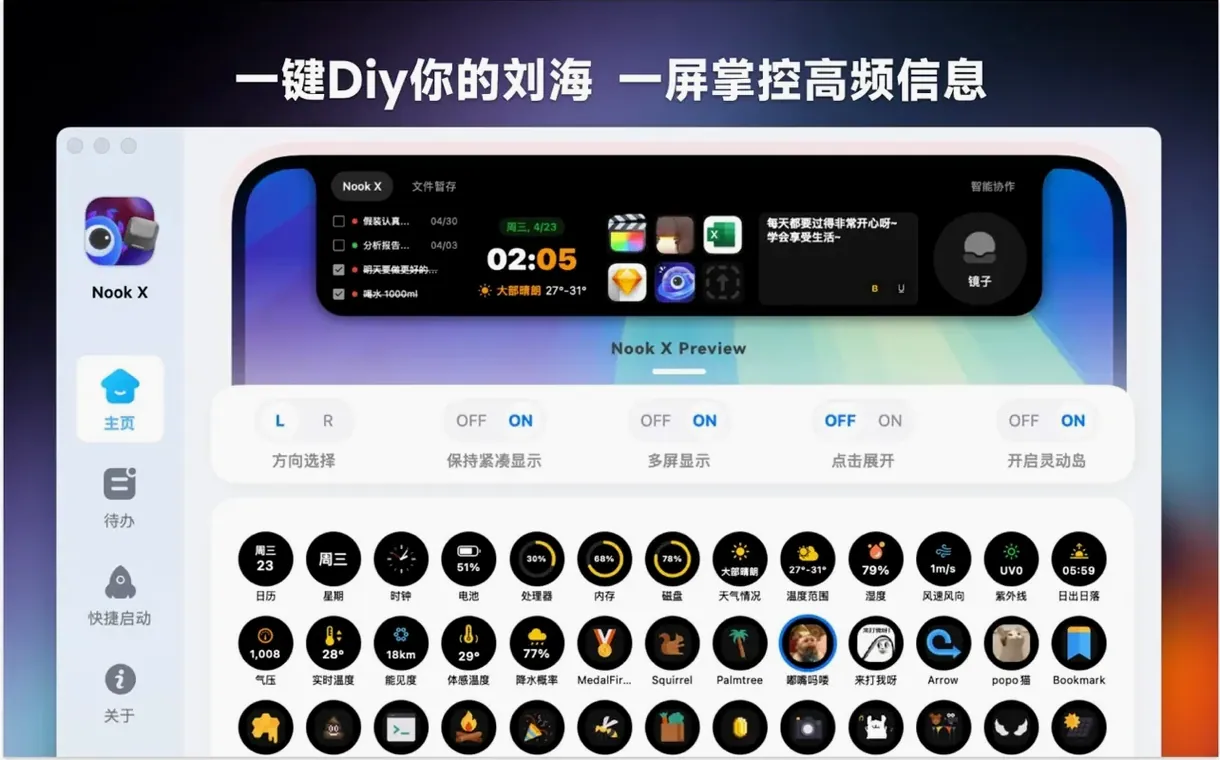
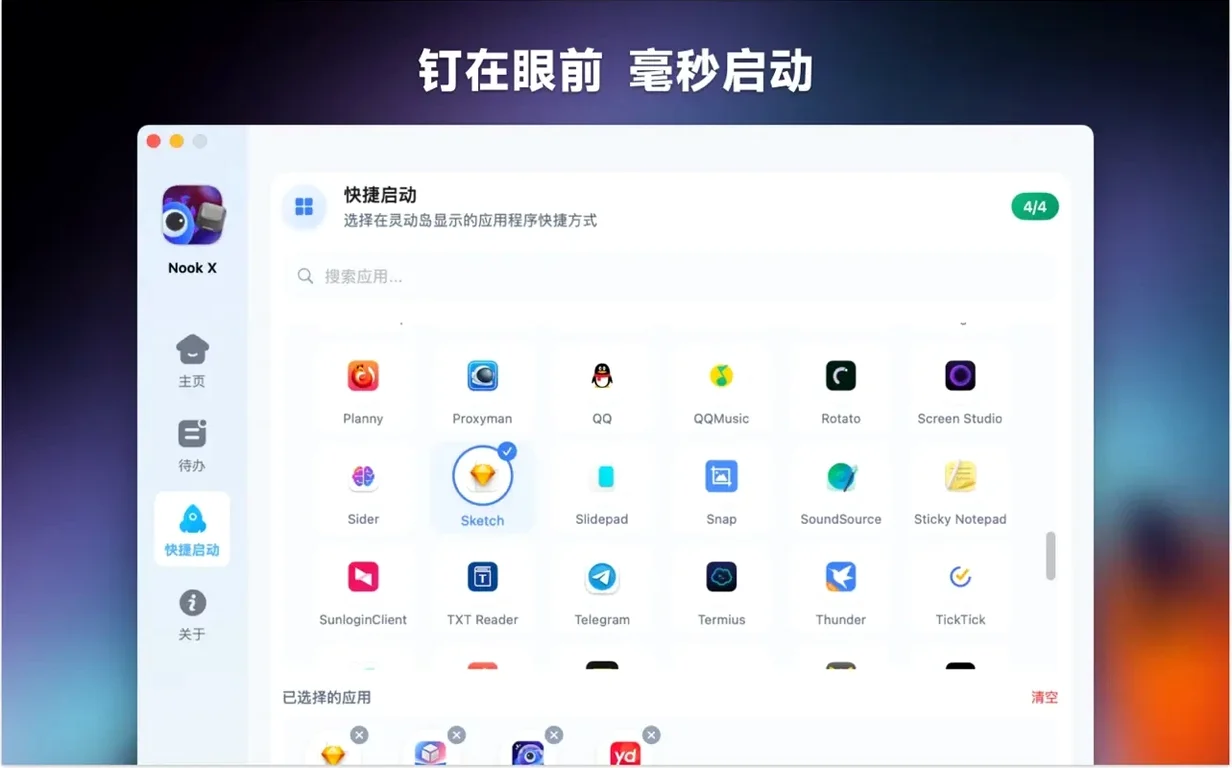

Nook X 2026.09.15 brings together three often separate tools — tasks, music lyrics, and AI chat — into one macOS app. It works on any Mac from 2017 onward, as long as it runs macOS 13 or later.
Creating Tasks from AI Chat
- Creating tasks directly from an AI conversation, then checking them off without switching apps.
- Looking up songs by lyric fragments and showing the words in a karaoke-style display.
- Using voice input for questions, translation, or idea generation through the built-in AI assistant.
Complements, Doesn't Replace
- It is not a full project manager or a dedicated music player — it complements other apps.
- The interface supports 13 languages, including English, Portuguese, Spanish, French, German, Italian, Japanese, and Chinese.
- AI features depend on an internet connection; offline use is limited.
Will It Slow Down Your Mac?
Will it slow down my Mac?
Nook X is a notch-screen utility, so it stays in the menu bar area and uses system resources only when you interact with its panels. For a typical work session — a few tasks, occasional music playback, or short AI queries — you will not notice a performance change. If you run it alongside a dozen other docked apps, macOS manages the load as it does with any background utility.
Can I use it offline?
Task management and the music player work without an internet connection. You can create to-do lists, set reminders with priorities, and play audio files from your local drive. The AI assistant and voice input require an active connection because they send queries to an online service. If you work on a plane or in a spotty-coverage area, the non-AI features remain fully usable.
Does it replace my existing to-do app?
Not entirely. Nook X handles personal task lists well — quick checklists, prioritized items, reminders — but it is not a project management tool with Gantt charts or team collaboration. Think of it as a sidecar for short lists you want to turn around quickly, not a replacement for something like Todoist or Things 3.
What about the notch-area integration?
The app lives in the notch — the top-center space on Macs with a camera cutout. It uses that area to show a compact panel for tasks, music controls, or the AI assistant. On Macs without a notch, it positions itself in the menu bar. The transition is automatic; you do not need to configure anything.
Does it play any audio format?
The description mentions popular audio formats. For standard MP3, AAC, FLAC, and WMA files, it works out of the box. If you have uncommon formats like Ogg Vorbis or APE, test a file to be sure. The lyrics display scans most embedded metadata, but for songs without tags you can paste the lyrics manually.
a workflow: find a song by lyric, set a reminder, ask a question
Here is a realistic chain of actions that shows how the three parts of Nook X connect in a single session.
- Open the app from Launchpad. The notch panel appears. You see the default task list on the left, music controls in the center, and a small AI input field at the bottom.
- Search for a song by a lyric fragment. You remember a line from a song but not the title. Type a few words into the music search box. Nook X scans your local library and returns matches. Select the track; the player starts and the lyrics appear in karaoke mode, scrolling line by line.
- While the music plays, create a task from the AI chat. Tap the AI icon. You ask, “Remind me to submit the Q3 report by 5 PM.” The assistant replies with a confirmation and automatically adds a task to your to-do list with a priority of your choosing (you set the default in settings). The task now shows in the notch panel.
- Set a priority and a due time. Click the task to expand it. Assign high priority and pick 5 PM. The reminder triggers a system notification at that time. The song continues playing in the background.
- Translate a phrase while you work. Without leaving the music, you type “translate ‘thank you for your patience’ to Portuguese” into the AI input. The assistant returns the translation and offers to add it as a note to the current task. You accept.
- Check off the task when done. At 5 PM, the notification pops up. You complete the report and click the checkbox in the notch panel. The task moves to completed; the music keeps playing.
This sequence took about three minutes and required no app switching. The three parts of Nook X — tasks, lyrics, AI — stayed visible the whole time.
Uses macOS Notification Banners
System notifications. Nook X uses macOS notifications for task reminders. You see the same banner that Calendar or Mail uses, so you do not need to keep the app window open. If you use Do Not Disturb mode, reminders queue as usual and appear when you turn the mode off.
File management. Drag audio files from Finder onto the music panel to add them to the player. The app does not copy files; it references their original location. Keep your music organized in a standard folder, and Nook X reads your existing library without duplication.
macOS voice input. The app supports voice input through the system’s built-in speech recognition. If you have a microphone enabled, you can dictate AI queries instead of typing. The same mic settings you use for Siri work here — no extra setup needed.
Language settings. Nook X offers 13 interface languages, including Portuguese, Spanish, and Japanese. It picks up your macOS display language by default, but you can override it in the app’s preferences. This is useful if you share a Mac with someone who prefers a different locale.
Multitasking with other utilities. The notch panel stays small — about the width of the camera cutout — so it does not block other windows. You can keep it visible while you work in a browser, a code editor, or a spreadsheet. When you need more space, click the panel to expand it; clicking outside collapses it again.
macOS 13+ Drag-and-Drop Install
Nook X runs on macOS 13 or later, on both Apple Silicon (M1, M2, M3 families) and Intel 64-bit Macs. The install is a simple drag-and-drop: open the downloaded disk image, drag the app to the Applications folder shortcut, wait for the copy to finish, then launch it from Launchpad. No activation key, no license file — the app works immediately.
The interface uses the notch area, so on Macs without a camera cutout (older MacBook Pros, iMacs) it sits in the menu bar. The layout adapts automatically. When you close the app, it does not leave background processes running — it shuts down cleanly.
The 13 supported languages cover most European and East Asian markets. If you switch between English and Portuguese during the workday, the app remembers your choice per session. Text in tasks and chat remains in the language you typed, regardless of the interface language.
Build 2026.11.03 delivers minor stability refinements and compatibility updates for the current macOS release cycle.
| macOS | macOS 13 or later |
|---|---|
| Processor | Apple Silicon, Intel 64-bit |
| Download | 36 MB |
- macOS 13 or later
- Apple Silicon or Intel 64-bit processor
Questions about Nook X
Does Nook X work on Intel Macs?
Yes, it runs on both Intel and Apple Silicon Macs, provided macOS 13 or later is installed.
Can I search for songs if I only remember a few lyric words?
Yes, the app supports searching by lyrics, and it can display them in karaoke mode.
What languages does the interface support?
Thirteen languages: English, Russian, German, Vietnamese, Indonesian, Spanish, Italian, Traditional and Simplified Chinese, Korean, Portuguese, Thai, French, and Japanese.
How to install, in order
- Open the downloaded disk image.
- Drag the app into the Applications folder shortcut.
- Launch Nook X from Launchpad after the copy finishes.
Comments and corrections 0
Sign in or open a free account to leave a comment.
No comments or corrections yet.