One Switch 1.35.4 — download for Mac
Utilities Updated
Toggles system settings like desktop icons and sleep mode from the menu bar.
Screenshots
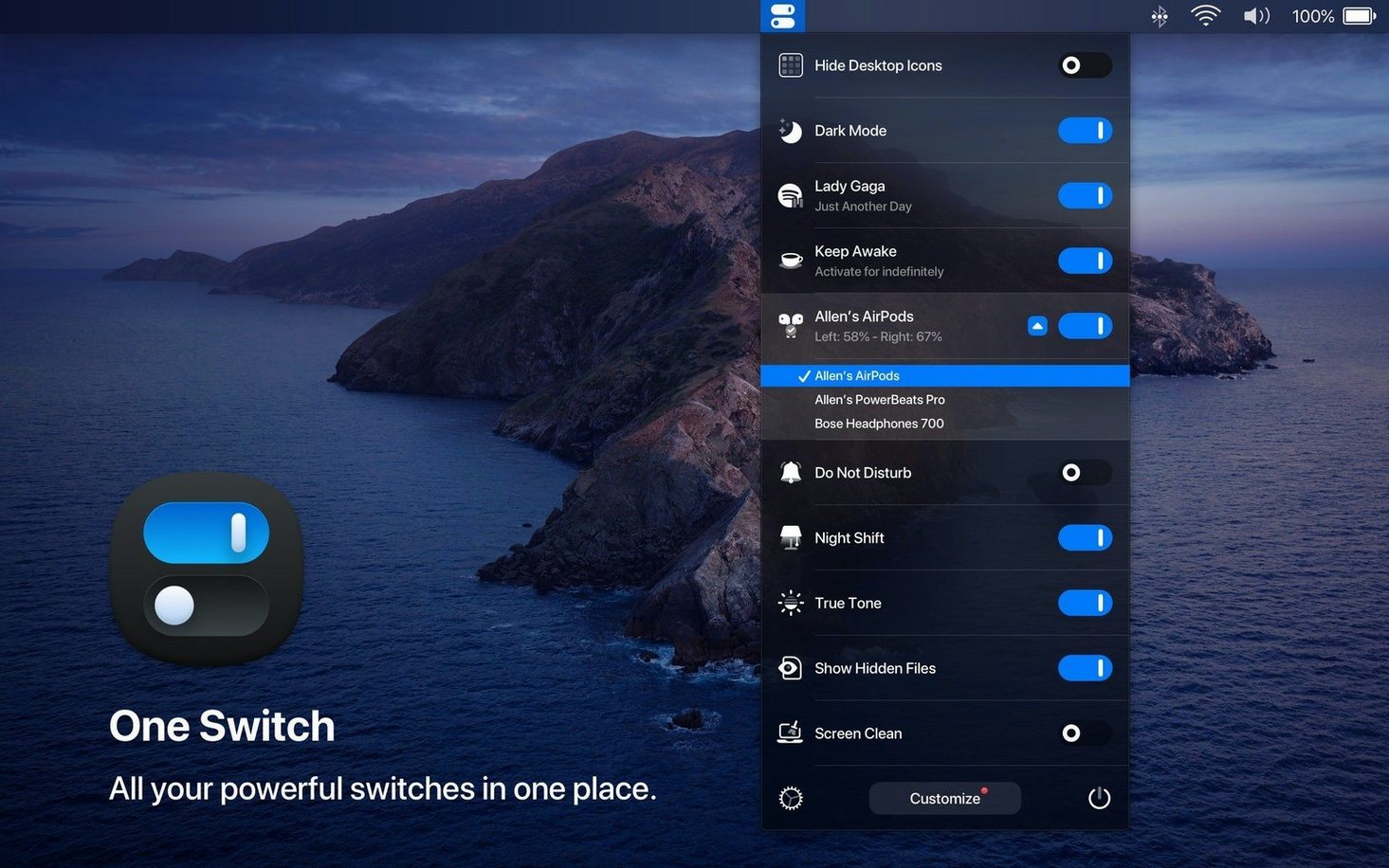
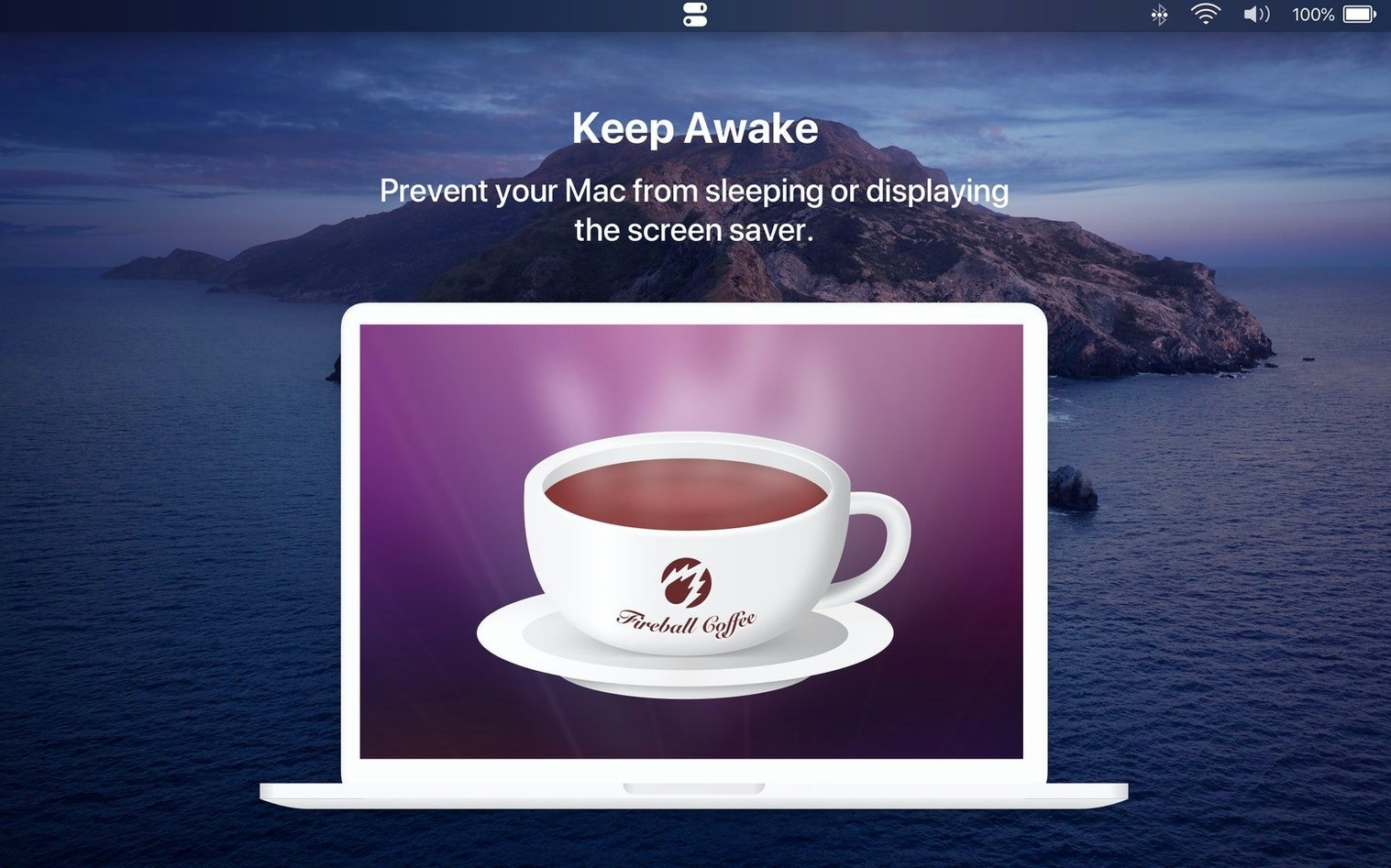
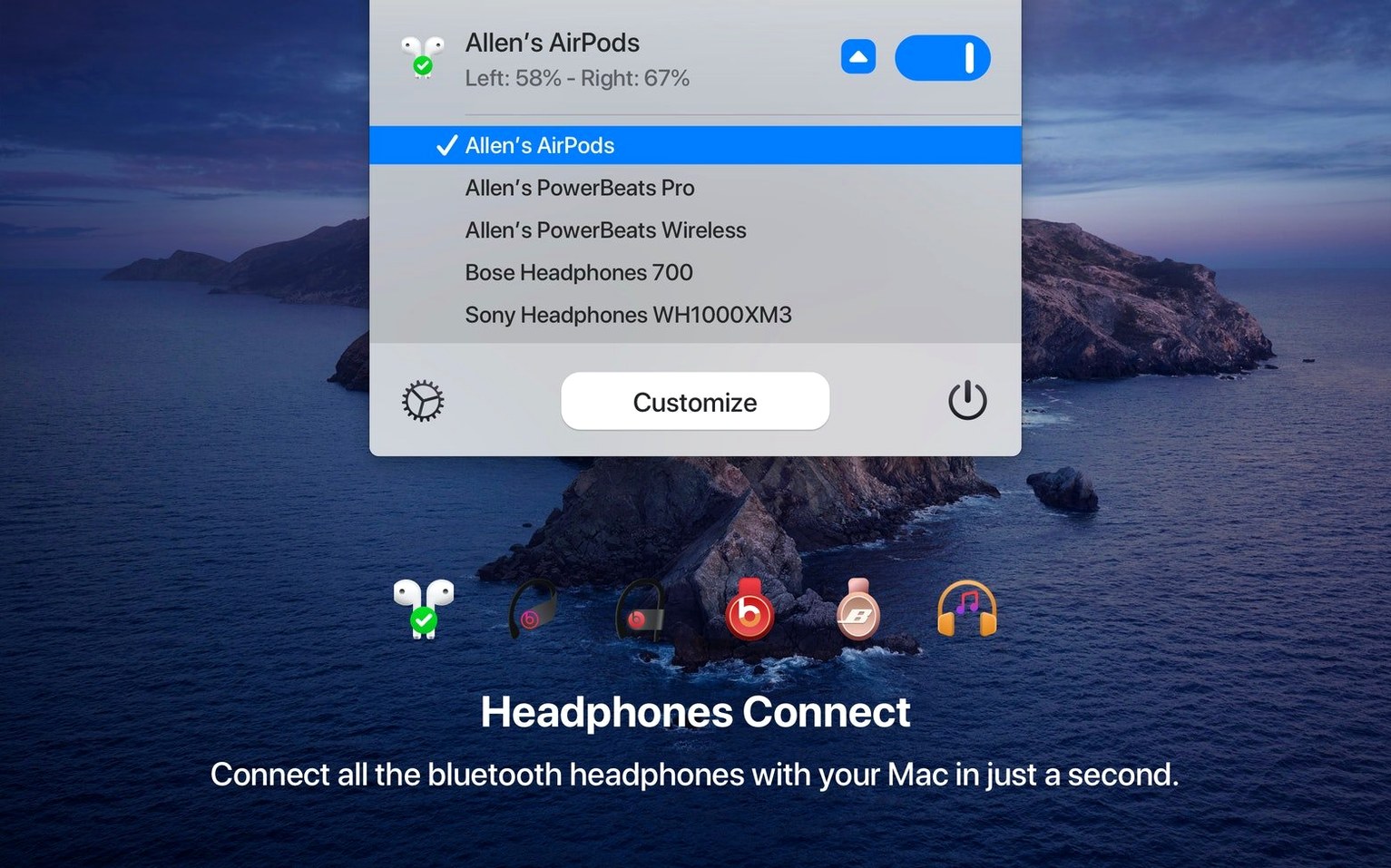
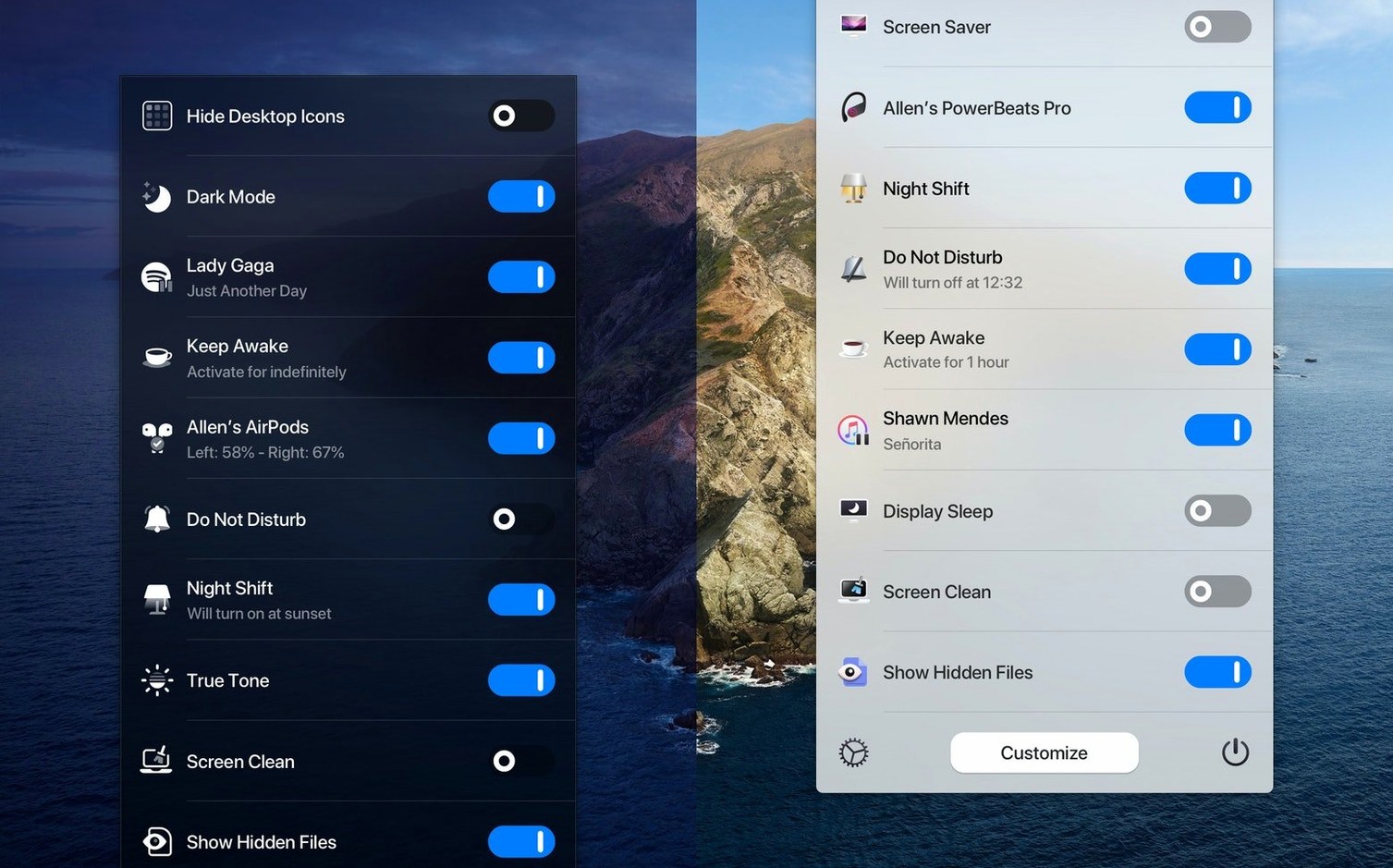
Hide Desktop Icons is the switch I use most. One click, and the project folder clutter vanishes so I can present a clean screen during a video call. One Switch puts seven such toggles in your menu bar — appearance, sleep, screen saver, AirPods connection, notifications, and more — and you can disable the ones you rarely touch.
- Open One Switch from the menu bar.
- Click the switch you need: Light/Dark mode, sleep, screen saver start, or hide desktop icons.
- Let it run in the background. The switches stay accessible without opening another window.
It also handles timed tasks: set automatic sleep and wake times, or schedule the appearance switch between Light and Dark during the day. For anyone running a Mac at a desk — project managers, developers, or graphic designers — it cuts the small delays of digging into System Settings.
Workflow: preparing a presentation from start to finish
Your desktop is full of folders from four different projects, your Mac is in Dark mode because you prefer it for late‑afternoon work, and your AirPods are connected from the morning call. Here is how One Switch clears that in seconds.
- Click the One Switch icon in the menu bar. The panel shows your active switches.
- Click Hide Desktop Icons. The folders and files disappear instantly — the client sees only your wallpaper or a clean workspace.
- If the meeting room has bright overhead lights, toggle Light/Dark appearance to Light mode so the screen stays readable.
- Click Do Not Disturb to block notifications during the call. No Slack pop‑ups, no calendar reminders.
- When the meeting ends, click the same switches again to restore your usual setup.
The whole routine takes about ten seconds. Without One Switch, you would open System Settings for appearance, right‑click the desktop to hide icons, and toggle Focus Mode or Do Not Disturb separately. Three different places, three times the clicks.
No audio, video, or network processing
It does not process audio, video, or network data. When you click a switch, it sends the same command System Settings would. No background scanning, no constant polling.
Can I use it if I only need two switches?
Yes. You enable or disable any of the seven switches in the app preferences. If all you want is Dark Mode and Hide Desktop Icons, you show only those two. The menu bar stays compact.
Will it conflict with other apps that control the same settings?
One Switch uses standard macOS system commands. If another app toggles dark mode or Do Not Disturb, the state updates normally — One Switch just reads the current state on next click. No conflicts.
Does it work with an external display?
Yes. The switches control system‑wide settings, so hiding icons or changing appearance applies to all connected screens the same way System Settings would.
Sits alongside window managers like Rectangle or Magnet
One Switch does not replace everything — it sits alongside tools you already use. For example, if you run a window manager like Rectangle or Magnet, you keep using those for layout. One Switch handles the system toggles that those apps do not touch.
It works well with calendar apps. Before a meeting, I toggle Do Not Disturb here rather than finding the Focus Mode toggle in a calendar window. After the call, one click turns notifications back on. No tab switching, no mouse travel to the far corner of the screen.
macOS already offers keyboard shortcuts for Dark Mode and Do Not Disturb if you know them. One Switch gives you a visual menu‑bar button for people who prefer a mouse or trackpad. You can learn the keyboard shortcuts later — the app works as a backup either way.
Avoid enabling all seven switches by default
Leaving all seven switches enabled.
The default shows every available switch. If you only use three, the menu bar becomes crowded with toggles you never touch. Open preferences and turn off the ones you do not need. A cleaner panel means one less glance to find the right switch.
Forgetting to turn off scheduled appearance changes.
If you set One Switch to switch between Light and Dark at specific times, it will override a manual toggle later. A user toggles Dark Mode manually for a presentation, then the schedule flips it back to Light ten minutes later. Check the schedule if manual changes seem to get undone.
Expecting it to control third‑party apps.
One Switch handles macOS‑level settings only. It will not turn on a screen saver from a third‑party app or connect headphones that are not AirPods. Keep that expectation in mind and you will not wonder why a switch does nothing.
Skipping the menu bar preferences.
Some users drag the app to the dock and never open its preferences. The real value is in hiding unused switches and setting the schedule. Without those two steps, One Switch is just a shortcut to System Settings — which is useful, but not the full picture.
- Added multilingual support: German, Italian, Japanese, Korean, Portuguese, Russian, and Spanish.
| macOS | macOS 10.15 or later |
|---|---|
| Processor | Apple Silicon, Intel 64-bit |
| Download | 7 MB |
- macOS 10.15 or later
- Intel or Apple Silicon
Questions about One Switch
Can I control which switches appear in the menu bar?
Yes. One Switch lets you configure which of the seven switches are visible, so you can hide the ones you never use.
Does One Switch automate the Light/Dark appearance change?
It can switch between Light and Dark appearance automatically during the day, based on your schedule.
What macOS version does it require?
One Switch runs on macOS 10.15 and later, on both Intel and Apple Silicon Macs.
How to install, in order
- Mount the downloaded disk image.
- Drag the app into the Applications folder alias.
- Launch the app from Launchpad after copying finishes.
Comments and corrections 0
Sign in or open a free account to leave a comment.
No comments or corrections yet.