
PullTube 1.8.6 — download for Mac
Utilities Updated
Downloads video or audio from YouTube, TikTok, or Twitch at your chosen quality.
Screenshots
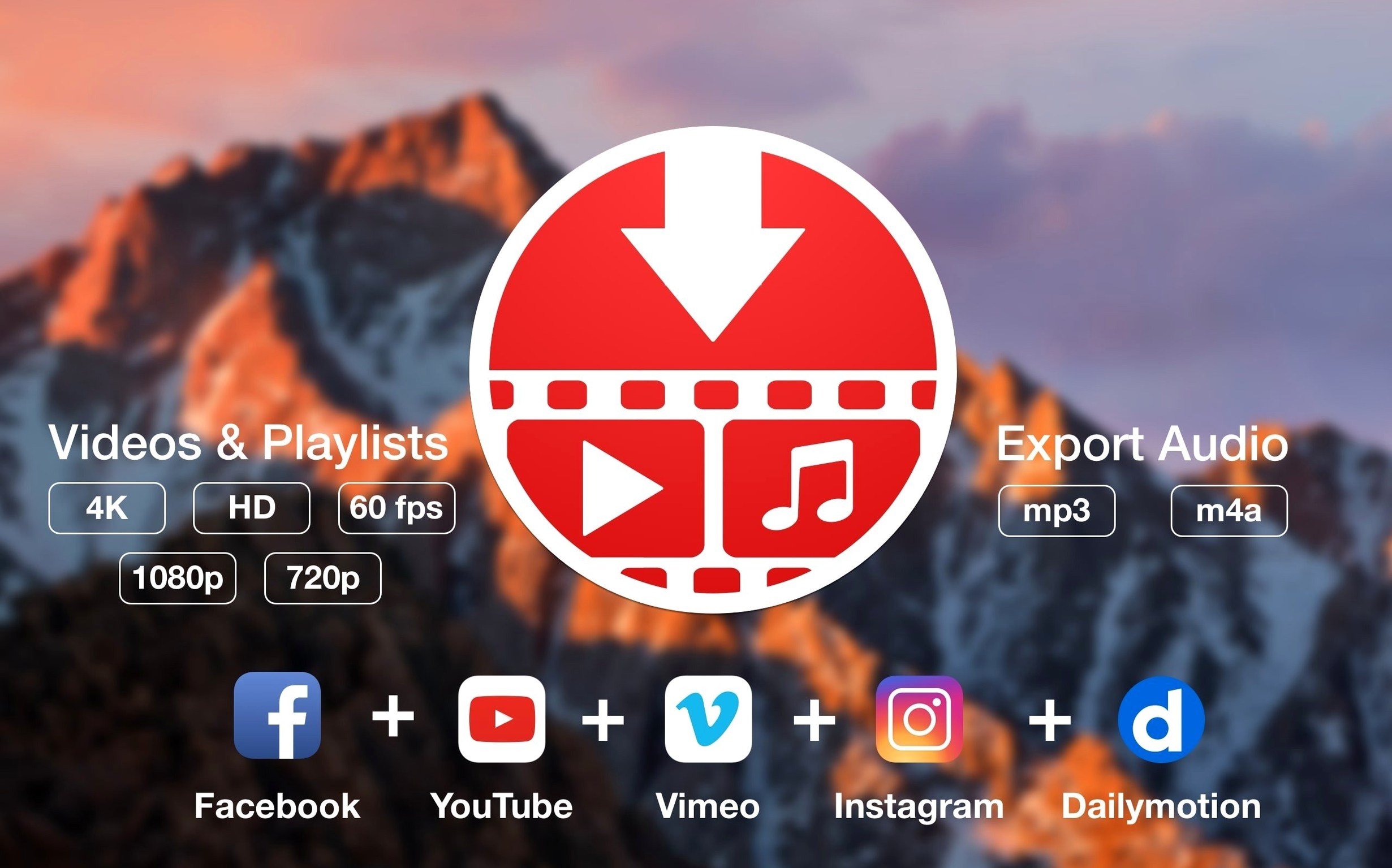
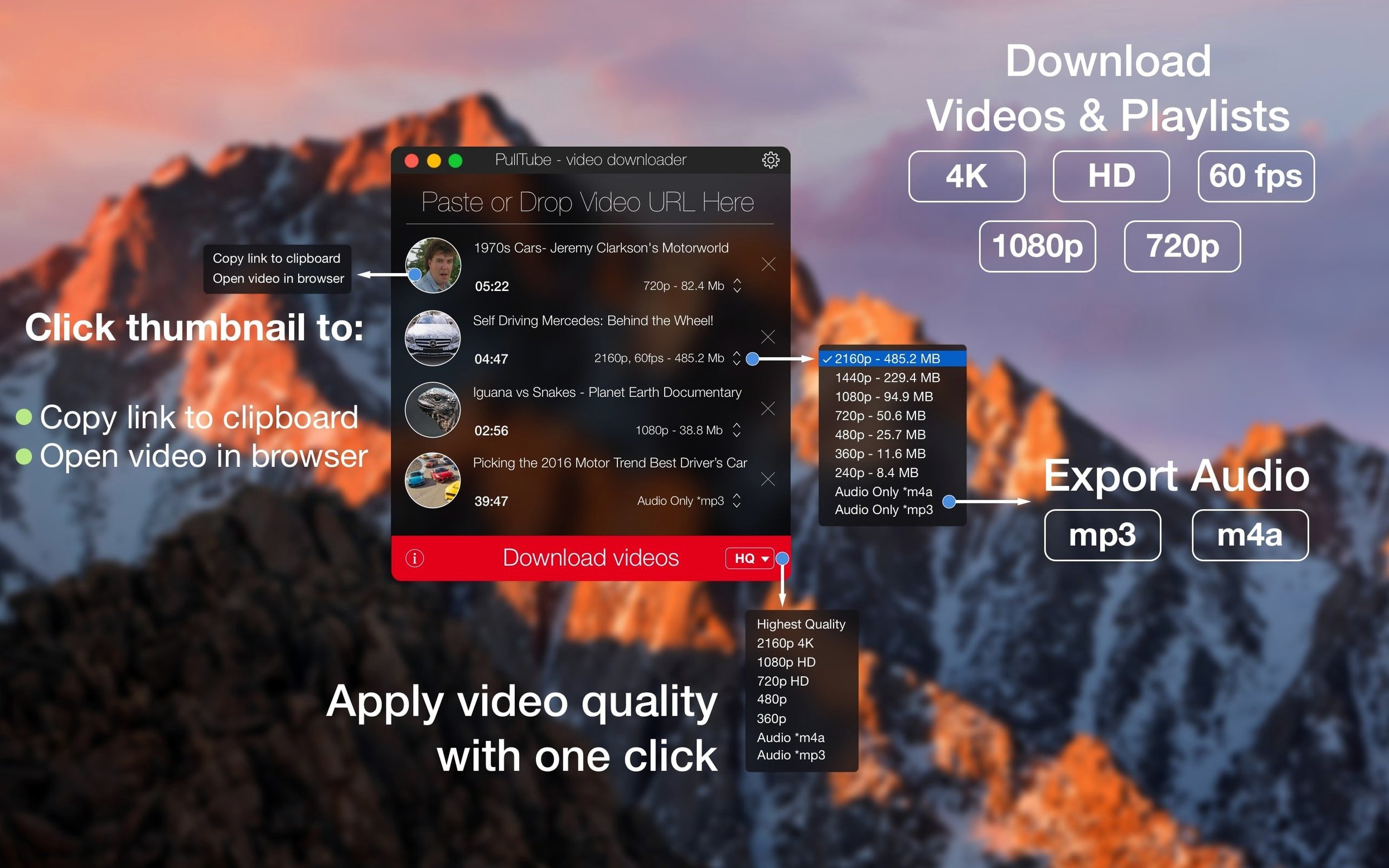
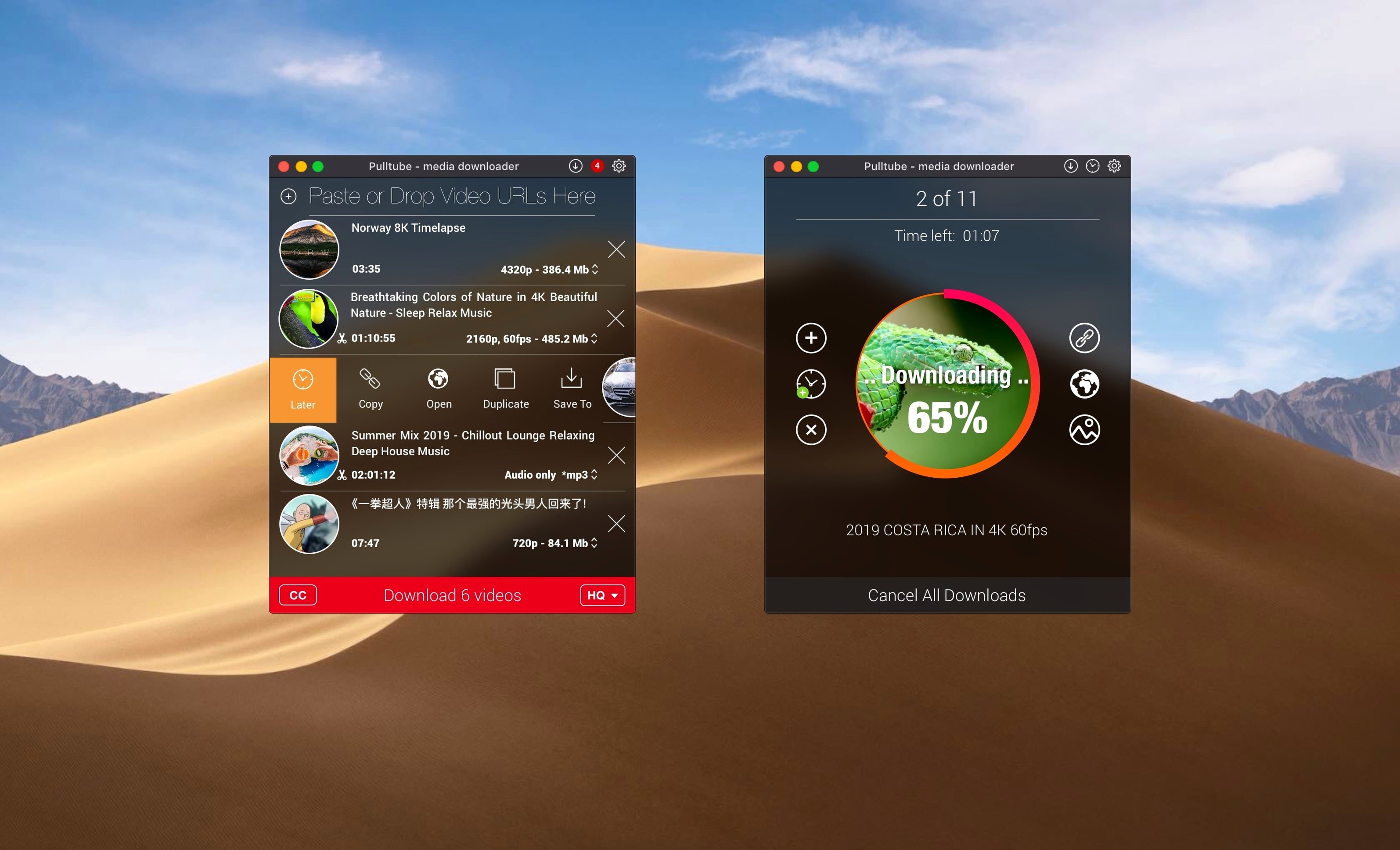
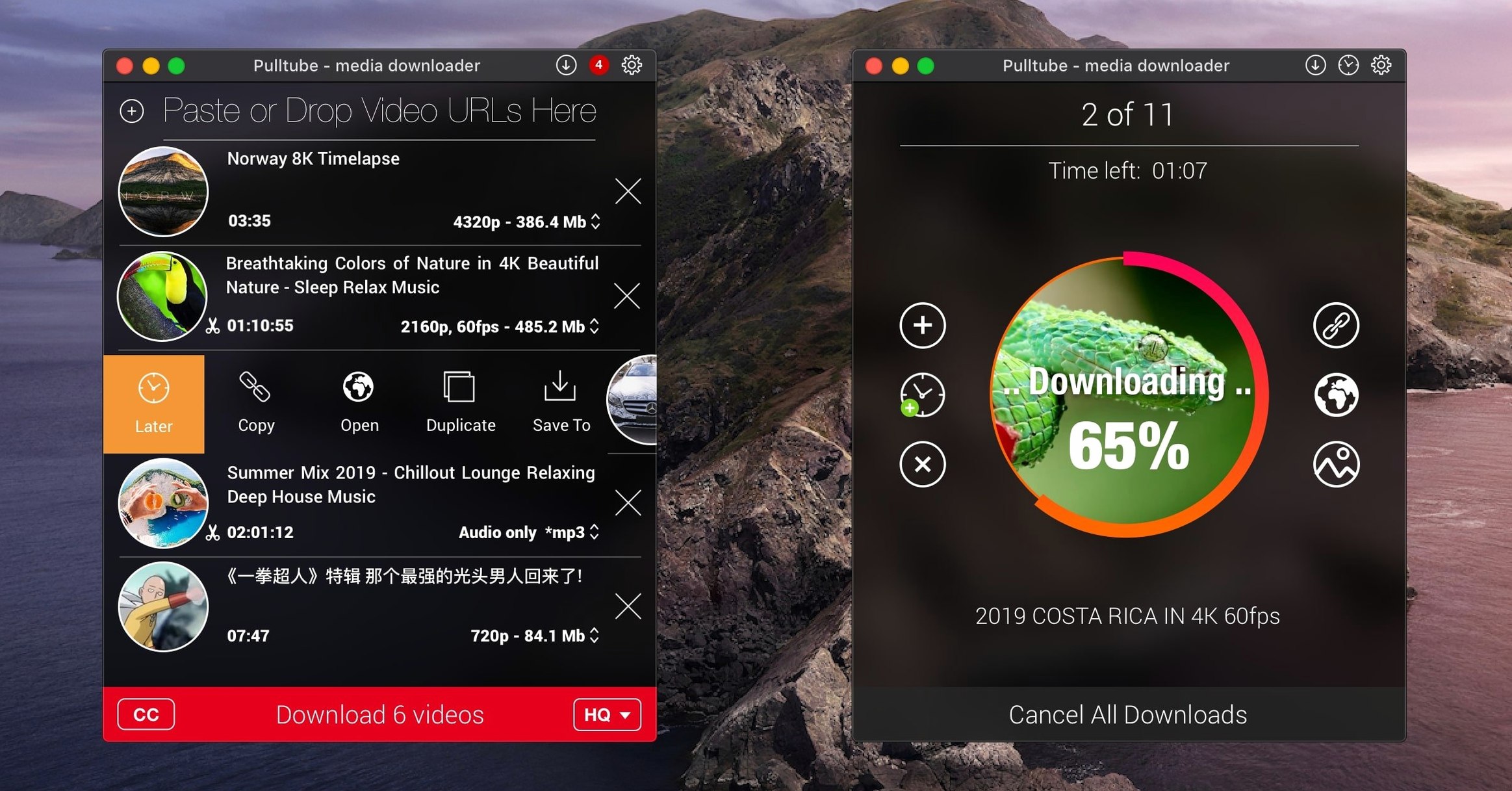
You paste a link from YouTube, TikTok, or Twitch and want the file on your Mac, not in a browser buffer. PullTube takes that link and gives you a local video or audio file, with the quality you pick, before you move on to the next task.
Compatible with macOS 11 and Apple Silicon
PullTube runs on macOS 11 and later, works on both Intel and Apple Silicon Macs. Interface languages cover English, Russian, German, Spanish, Italian, Chinese (Simplified), and French. No extra dependencies.
choose output quality
Select highest, 4K, HD, or normal before the download starts. The app can append the quality tag to the file name, so you know what you saved.
download a playlist
Paste a playlist link and PullTube detects it automatically. Download the whole list or pick individual videos. The app shows title, duration, and thumbnail before anything starts. Set it to quit after all downloads finish.
workflow: save a playlist as mp3
Say you want a set of podcast episodes from YouTube saved as audio files for listening offline. Copy the playlist URL from your browser. Open PullTube, paste the link into the input field — the app detects the playlist and shows each video with its title and duration. Before hitting download, switch the output format from video to audio and pick MP3 or M4A. Set the quality slider to the bitrate you need. Check the box that appends quality info to the file name, so a 192 kbps MP3 reads clearly in your folder. Click download. PullTube processes each item in sequence. If you know you will not need the app open after it finishes, enable the option to quit when done. Walk away, and come back to a folder of tagged audio files ready for transfer to a phone or media player. The same flow works for a single video if you only need one track.
Versus Downie's Gallery and Queue Approach
Three other Mac apps do similar work: Downie, 4K Video Downloader, and ClipGrab. Each has a different approach. Downie lists supported sites in a neat gallery and handles many of the same platforms, but its interface leans on a queue system that takes a moment to learn. ClipGrab keeps things minimal with a simple window and a couple of format choices, but it supports far fewer sites and never added Apple Silicon compatibility in the same way. PullTube splits the difference: it covers over a thousand websites according to the developer, works natively on M-series Macs without translation layers, and keeps the interface to one window with clear choices for quality and format. None of these competitors offer the option to quit after the queue finishes, a small time-saver if you start a batch before a meeting.
Drag-and-Drop Links Instead of Pasting URLs
- Drag and drop links. Instead of copying and pasting a URL from your browser, you can drag it from the address bar directly into the PullTube window. The app reads the link the same way and shows the video preview.
- Thumbnail preview before download. Before committing bandwidth, you see the video thumbnail, title, and duration. This helps confirm you grabbed the right link when you have multiple tabs open.
- Quality tag in file names. If you save video at different resolutions for different devices, enabling the quality suffix keeps your library sorted without renaming files manually.
- Playlist detection on paste. The app does not require you to switch to a special mode for playlists. Paste a playlist URL, and PullTube changes its layout automatically to show the full list.
- Auto-quit after downloads. Useful for overnight or away-from-desk batches. The app closes itself once the queue empties, so your Mac does not sit with an idle process running.
commonly asked questions before installing
The application runs on macOS 11 and later, and the developer states compatibility with Apple Silicon and Intel processors. No Rosetta configuration required.
Can I download subtitles along with the video? The developer lists subtitle downloading among the app's capabilities for supported websites. When you paste a link and see the preview, check the output options for subtitle formats.
What happens if I paste a link from a site not on the main list? PullTube claims support for more than 1,000 websites. The prominent names are YouTube, TikTok, Twitch, Facebook, Vimeo, Instagram, Bilibili, and SoundCloud. If a site is not listed, the app may still work — the detection happens based on the URL structure, not a hardcoded whitelist.
Can I download just the audio from a video without converting afterward? Yes. Choose audio as the output format before starting the download, then pick MP3 or M4A. The app extracts the audio stream and saves it in your chosen format and bitrate.
Will the app install on a company-managed Mac with strict permissions? The developer provides a Gatekeeper-friendly installer that uses a disk image and a Terminal command to bypass macOS restrictions. The rest of the process is dragging the app to your Applications folder. If your IT policy blocks unsigned applications entirely, you may need approval before proceeding.
No release notes filed for 1.8.6.41. They are added here when a build changes how the program behaves.
| macOS | macOS 11 or later |
|---|---|
| Processor | Apple Silicon, Intel 64-bit |
| Download | 250 MB |
- macOS 11 or later
- Intel or Apple Silicon processor
Questions about PullTube
Which sites does PullTube support?
It supports YouTube, TikTok, Twitch, Facebook, Vimeo, Instagram, Bilibili, and SoundCloud.
Can I download just the audio?
Yes, PullTube downloads audio and video from supported sites like YouTube and Vimeo.
Does it work on Apple Silicon Macs?
Yes, PullTube runs on both Intel and Apple Silicon Macs with macOS 11 or later.
How to install, in order
- Mount the disk image and run Open Gatekeeper friendly.
- Press Enter in Terminal to bypass Gatekeeper.
- Drag the app to the Applications folder.
- Launch the app.
Comments and corrections 0
Sign in or open a free account to leave a comment.
No comments or corrections yet.