PopClip 2026.11 — download for Mac
Utilities Updated
Shows a bar of actions when you select text, saving right-clicks and menu steps.
Screenshots
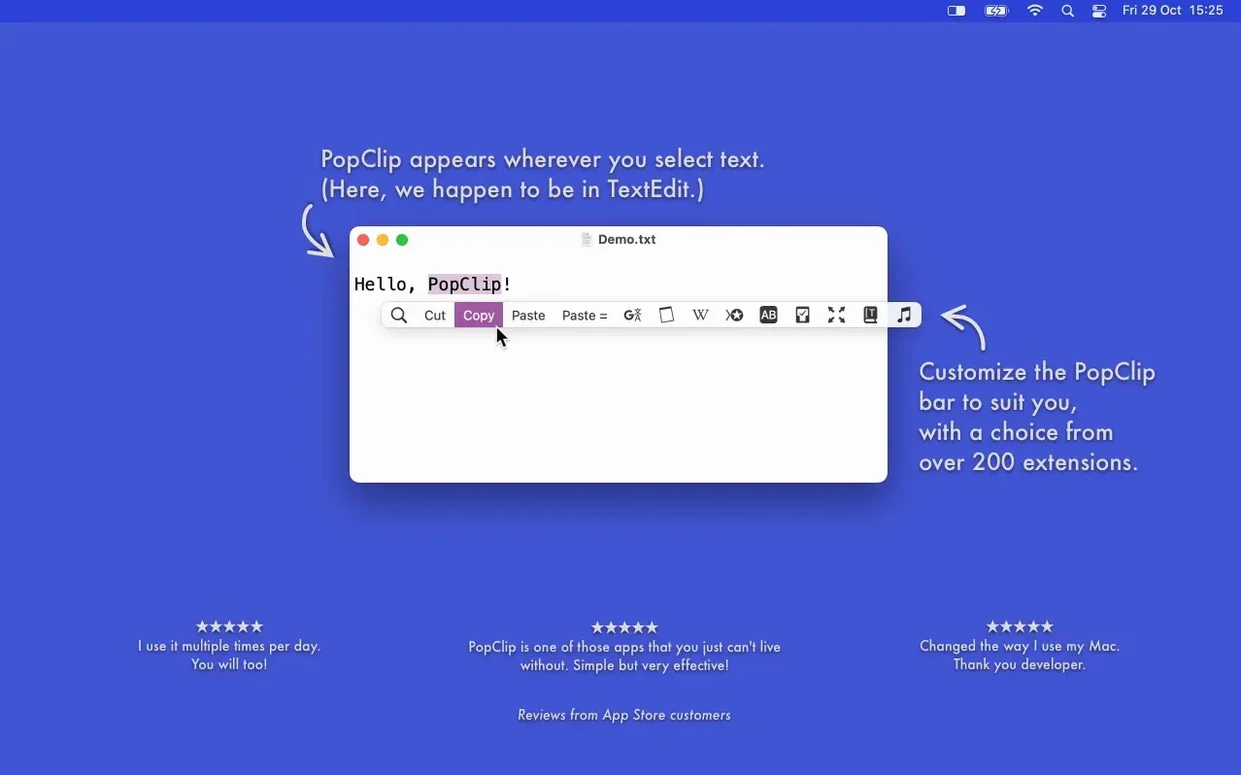
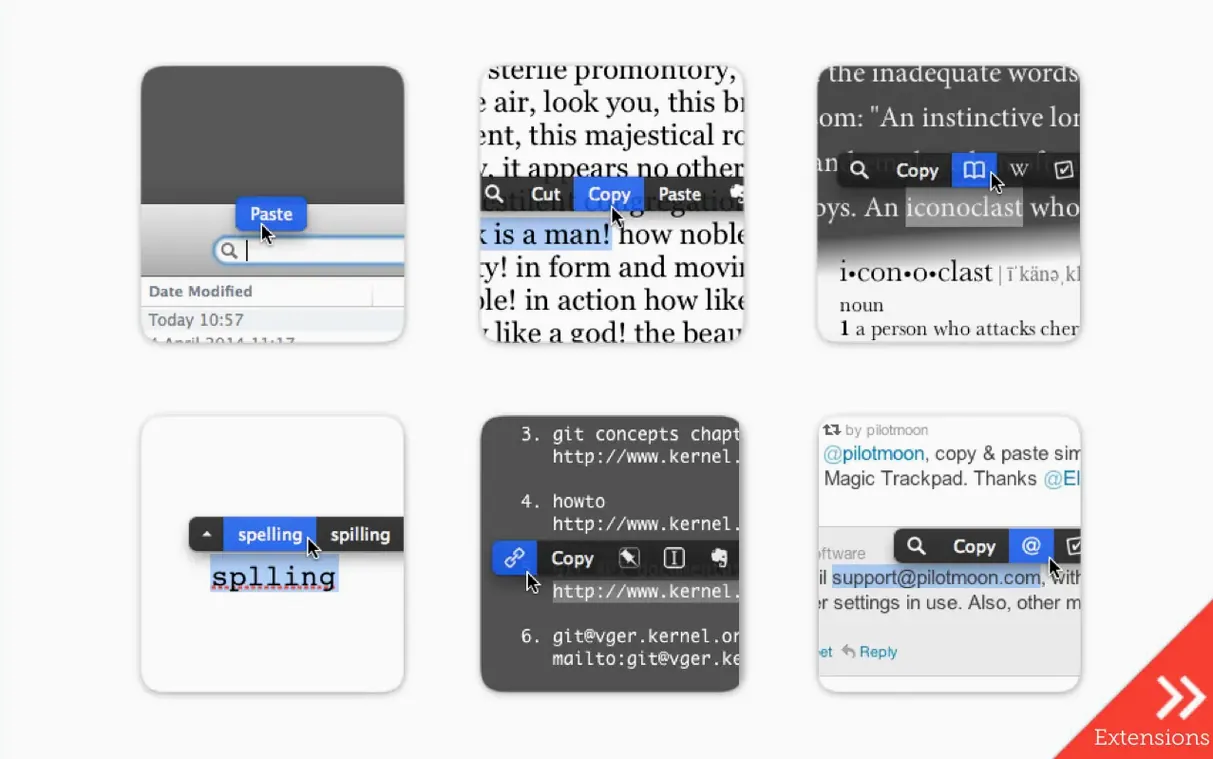
Copywriters, editors, and developers who select text dozens of times a day are the ones who get the most out of PopClip. It saves the extra clicks of right-clicking or reaching for a menu bar shortcut. Select any text in most Mac apps, and a small bar appears with actions like copy, paste, search the web, or look up a definition — whichever makes sense for what you’ve highlighted.
Sits Alongside Your Existing Mac Workflow
PopClip doesn’t replace anything you already use; it sits on top of the selection you’ve already made. The actions change based on the app and the text type. Select a single word and the dictionary option appears. Select a URL and you get an open-in-browser action. It extends what macOS already does with text selection, and because it syncs extensions and settings via iCloud, the same layout follows you between machines.
Maintenance Release After 2026.7
Version 2026.8.1 is a cleanup release released on September 7, 2026. It keeps PopClip stable on macOS 13.5 Ventura and later, supporting both Intel and Apple Silicon Macs. The app itself is a standalone download inside a zip file — drag the app to your Applications folder and you’re set.
Fits With System Tools and Other Apps
PopClip works alongside macOS’s own text selection rather than replacing it. The popup bar shows up only when you highlight text with the mouse, so the standard context menu (right-click or two-finger tap) still works if you need it. You can also use keyboard shortcuts from the apps you already know — PopClip doesn’t intercept them.
Extensions give it reach beyond the basic actions. Send selected text to Evernote for note-taking, run a word count without leaving the document, or convert text between title case and lowercase. The translation extension opens a small panel in your browser or a dedicated window depending on your setup. Each extension is a separate .popclip file you install from the extension manager inside PopClip’s preferences.
Because the app uses iCloud sync, the same set of extensions and their arrangement carries over to another Mac signed into the same Apple account. You don’t need to reconfigure the bar layout on each machine.
PopClip Not Showing in Terminal or Custom Editors
A few things trip people up. Here’s what I see most often and how to get past them.
- PopClip doesn’t appear. Some apps aren’t compatible. Terminal, emacs, and a few custom editors block the popup. Check PopClip’s preferences — there’s a list of excluded apps. You can remove an app from that list, but there’s no guarantee it will work.
- Extensions don’t sync between Macs. Both machines must be signed into the same iCloud account, and PopClip must have the iCloud sync option enabled in its preferences. If you’ve added an extension manually from a download, sync only applies to extensions installed through the in-app extension manager.
- Actions feel slow on first launch. PopClip indexes its extensions on startup. If you have many installed, the first action after a reboot might take a moment. It’s not a performance issue — it’s a one-time load.
- Spelling suggestions don’t show. That action only appears when you select a single word that macOS’s built-in spell checker considers misspelled. It won’t trigger on URLs, numbers, or correctly spelled words.
Respecting App-Level Restrictions Instead of Forcing Popups
New users often expect PopClip to work everywhere. It doesn’t — and that’s intentional. The app respects app-level restrictions, so don’t assume it’s broken if it doesn’t show up inside a password manager or a web-based text editor running in full-screen mode.
Another common slip is installing every extension at once. With over 100 free extensions available, people load them all and then find the popup bar cluttered with actions they never use. It’s better to install a handful — paste and match style, search selection, word count — and add more only when you need them. You can rearrange actions by dragging them inside the extension manager.
Some users also drag the PopClip app to a subfolder instead of the main Applications folder. The app runs fine from anywhere, but putting it in Applications keeps it consistent with other macOS apps and avoids confusion if you ever need to troubleshoot. If you launch it from its own folder inside Downloads or Documents, just make sure you don’t delete that folder later.
Newcomers also confuse PopClip’s actions with macOS’s own spell-check or dictionary popups. PopClip’s dictionary extension looks up a word in the system dictionary, not a web service, so it won’t give you definitions for proper nouns or jargon. If you need that, the search web action sends the text to your default browser.
One last mistake: expecting it to work with text selected via keyboard (Shift+Arrow). PopClip only triggers on mouse-based selection. If you prefer keyboard navigation, you’re stuck with the normal right-click menu or keyboard shortcuts within the app itself.
PopClip 2026.11 is available. The developer’s log for this release lists no new features or specific fixes.
| macOS | macOS 13.5 or later |
|---|---|
| Processor | Apple Silicon, Intel 64-bit |
| Download | 7 MB |
- macOS 13.5 or later
- Apple Silicon or Intel 64-bit Mac
Questions about PopClip
Which Macs does PopClip run on?
PopClip requires macOS 13.5 Ventura or later and supports both Intel 64-bit and Apple Silicon processors.
Does PopClip sync its settings between Macs?
Yes, PopClip uses iCloud to sync installed extensions, action layout, and action settings between your Macs.
How to install, in order
The PopClip download clocks in at roughly 7 MB and expects macOS 13.5 or later on an Apple Silicon or Intel 64‑bit Mac. Three steps get it into the Applications folder.
- Mount the disk image and open Open Gatekeeper friendly.
- Press Enter in the Terminal window that appears to bypass Gatekeeper.
- Drag the PopClip app into your Applications folder.
Comments and corrections 0
Sign in or open a free account to leave a comment.
No comments or corrections yet.