Raycast Pro 2.5.1 — download for Mac
Utilities Updated
Replaces dock search and trackpad actions with a hotkey and a few keystrokes.
Screenshot
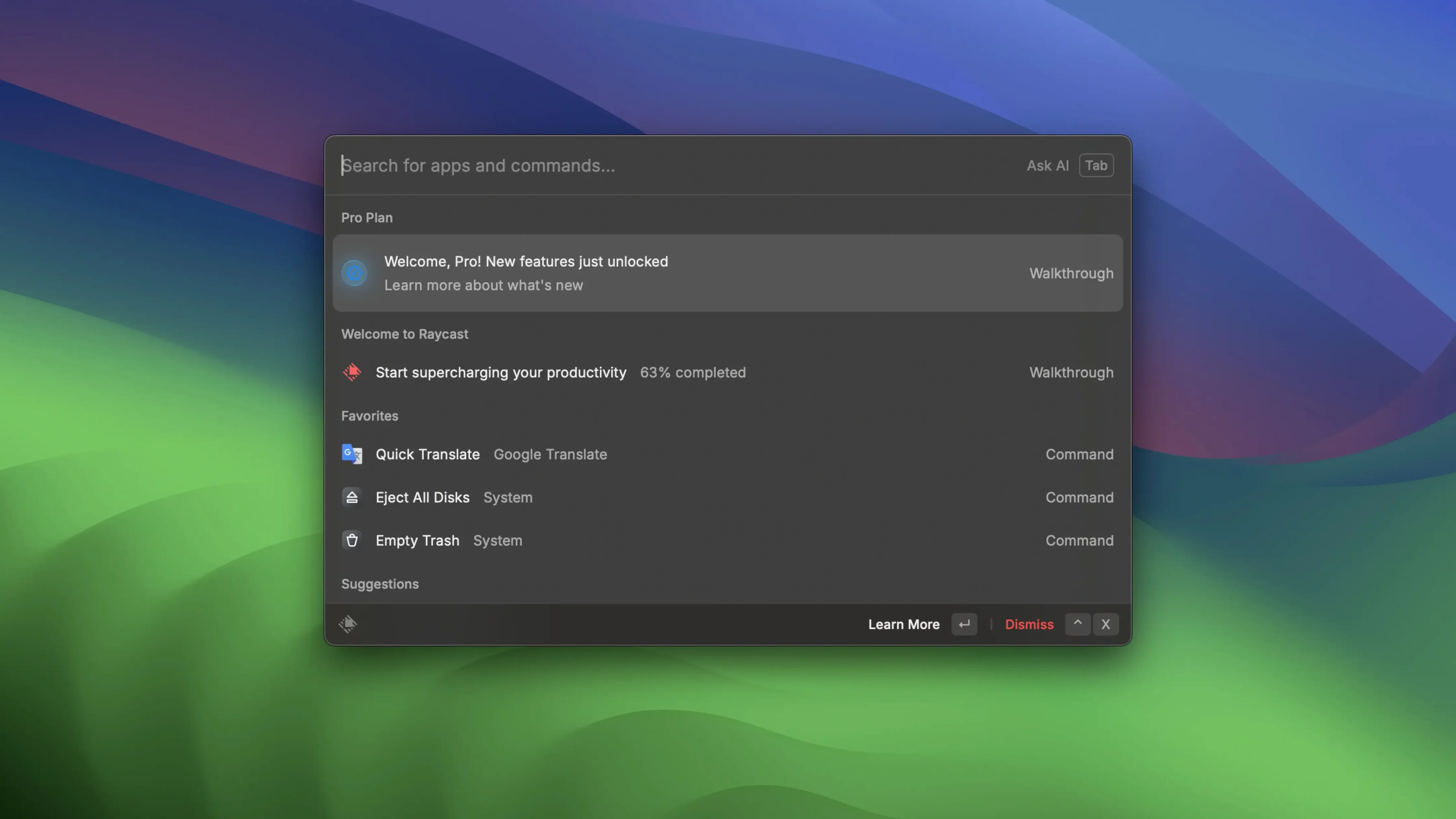
You open Raycast with a hotkey and start typing. No mouse, no dock search. Files, apps, clipboard, notes — it's all a few keystrokes away. For a newcomer, the first thing to grasp is that Raycast replaces half the actions you normally do with a trackpad.
Type two words, press Return
Press the default shortcut (Option + Space) and type the name of the app or file. Raycast shows results as you type. Press Return to open, or use Cmd+number to open a result in a specific position.
What are extensions and how do I use them?
Extensions are small tools inside Raycast. You can install community-created scripts or write your own custom script commands. Built-in shortcuts handle clipboard history, floating notes, and calculations without leaving the keyboard.
Can I connect Raycast to other apps?
Yes. Raycast connects with Zoom, so you can schedule, start, or view upcoming meetings. It also works with third-party apps for file sharing, note taking, and more. Quick links can be opened in a chosen browser or app.
How does Raycast compare to similar Mac launchers?
Raycast sits alongside apps like Alfred and LaunchBar, but it takes a different approach. Alfred is built around workflows and system actions — you set up keyword-driven chains for repetitive tasks. LaunchBar focuses on direct file and application launching with a clean, minimal window. Raycast leans harder into extensibility. Instead of configuring XML‑based workflows, you install extensions from a store inside the app. That makes adding a Google Drive search or a Zoom meeting command a two‑click operation rather than a scripting project.
Where Raycast stands apart is how it treats notes and clipboard. Alfred and LaunchBar have snippets, but Raycast’s floating notes are persistent windows you can keep open on a second monitor. The clipboard history is built in without needing a separate utility. For someone who juggles text all day — copying addresses, pasting meeting IDs, saving quick thoughts — that alone saves a few trips to the menu bar.
Common snags after installing version 2.4.1.0
Most hiccups happen in the first ten minutes. Here are the ones I see often:
- Option+Space doesn’t open Raycast. Another app already uses that shortcut. Go to System Settings > Keyboard > Keyboard Shortcuts and look for anything assigned to Option+Space. You can reassign Raycast’s hotkey inside its preferences to Cmd+Space or something unclaimed.
- Extensions don’t load or show errors. The online functions do not work in this build, so any extension that requires a login or a server call will either fail or sit idle. Stick to local extensions: file search, clipboard history, calculator, floating notes. Community scripts that process local data work fine.
- Raycast doesn’t find files. Check that the file index is enabled. Open Raycast’s preferences, go to the File Search section, and make sure the directories you want searched are listed. macOS permissions can block access to system folders, but your home directory and any mounted drives should appear.
- Floating notes don’t stay put. If you close a note and it vanishes, look for the notes list inside Raycast. Every saved note remains there; you can reopen it with one keystroke. They aren’t lost, just hidden until recalled.
Immediate wins for project managers
Project managers who switch between a dozen tabs, spreadsheets, and chat windows benefit immediately. Instead of clicking through folders to find a PDF spec or a meeting link, you type two words and press Return. The same applies to anyone who writes documents or emails: clipboard history, floating notes for to‑do lines, and quick calculations all live behind the same hotkey.
Developers who manage multiple terminals and editors will find the custom script commands useful — you can run build scripts or open project folders without leaving the keyboard. But even without scripting, the built‑in file and app launcher reduces the friction of jumping between tools.
Office workers who rarely touch the command line still get value from the core launcher, the calculator, and the quick links. It is not a developer‑only tool; it is a general‑purpose accelerator for anyone who prefers keys over clicks.
The three-day app launcher rhythm
Start small. Do not install every extension at once. Use the default launcher for three days: apps, files, clipboard history. Learn the rhythm of Option+Space, type, Return. That alone will feel faster than the dock by day two.
Set up two or three quick links for sites you visit ten times a day — the company timesheet, the project board, the shared drive. Open them in a specific browser if you keep work and personal separate.
Get comfortable with floating notes. When a task comes in over a call, open a note, type the key points, and keep it visible. Later you can copy it to an email or iMessage without re‑typing.
After a week, explore the community scripts. One or two will likely match a repetitive task you do — renaming files, looking up an address, formatting a date. Add them slowly so you remember each one exists and what it does.
No release notes filed for 2.5.1.0. They are added here when a build changes how the program behaves.
| macOS | macOS 12 or later |
|---|---|
| Processor | Apple Silicon, Intel 64-bit |
| Download | 100 MB |
- macOS 12 or later
- Apple Silicon or Intel
- English interface
- Activation not required
- Online functions do not work
Questions about Raycast Pro
Does Raycast Pro support custom scripts?
Yes, Raycast Pro supports custom script commands and community-created scripts, letting you extend functionality beyond built-in tools.
Can I use floating notes in Raycast?
Yes, Raycast includes floating notes. You can copy them to the clipboard, send them in iMessage, or share them to Apple Notes.
Is the Zoom integration useful?
Yes, after connecting Zoom, Raycast can schedule meetings, start meetings, and view upcoming meetings directly from the command palette.
How to install, in order
- Mount the downloaded disk image.
- Drag the app to the Applications folder alias.
- After copying finishes, launch the app from Launchpad.
Comments and corrections 0
Sign in or open a free account to leave a comment.
No comments or corrections yet.