RAR Extractor 13.9.6 — download for Mac
Utilities Updated
Opens over thirty compressed archive formats including RAR, ZIP, and 7Z without fuss.
Screenshots
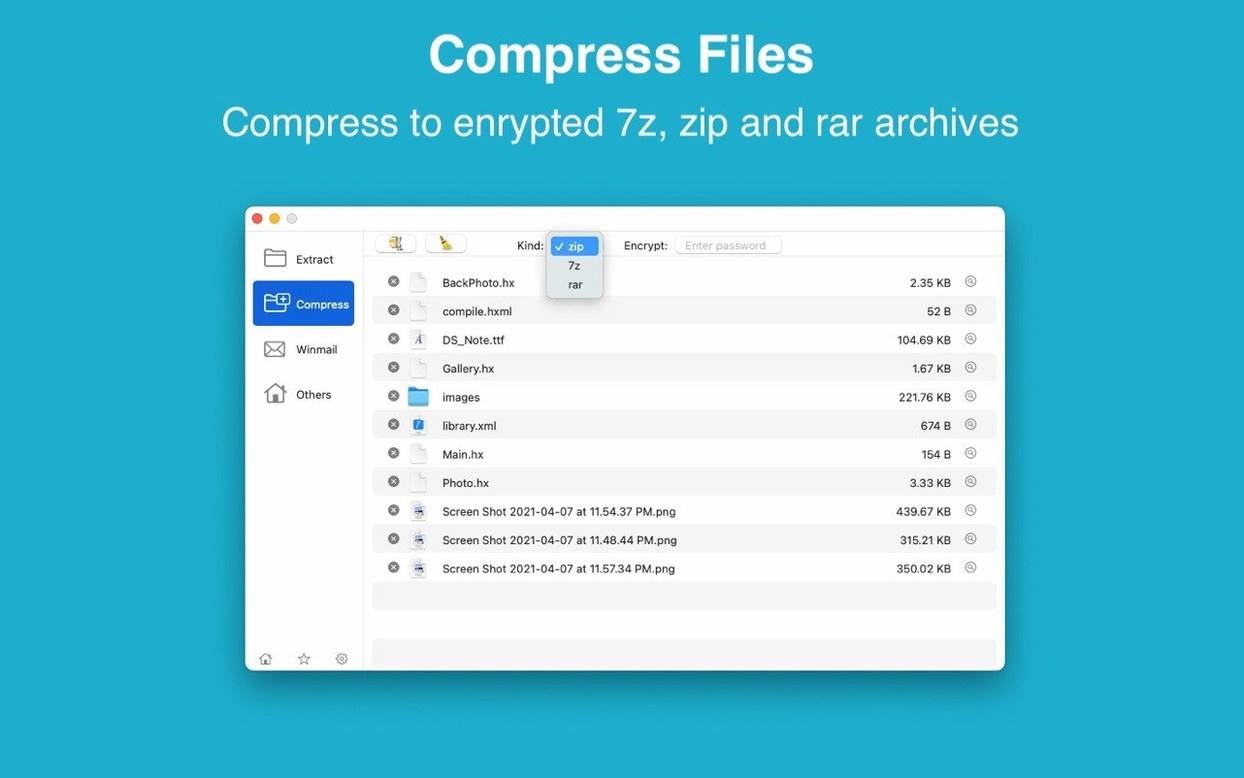
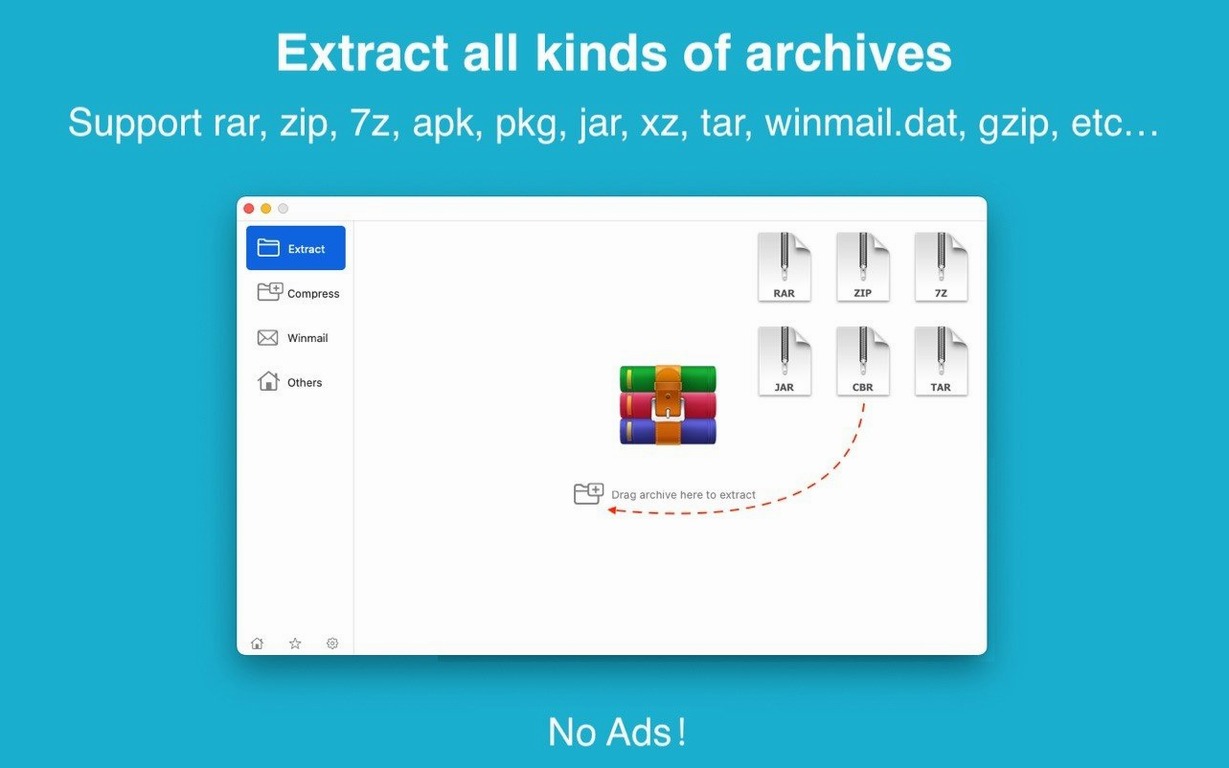
Office workers and project leads who deal with compressed files from clients, vendors or team members need a tool that opens anything and doesn't slow them down. RAR Extractor handles that without fuss.
What it does before you install
It extracts over thirty archive formats — RAR, ZIP, 7Z, ISO, TAR, GZIP, CAB, JAR and many more — and creates password-protected ZIP and 7Z files. You can drag archives to the Dock icon or to the desktop for direct extraction. Batch unpacking saves time when a project lands as a folder full of .rars. The dual-window display lets you browse the archive and the target folder side by side. It runs on Intel and Apple Silicon Macs, from macOS 11.5 onward.
What the download includes
The app is based on the same engine as RAR Extractor Max but keeps a simpler interface. No release notes were supplied for version 13.9.6, so the update likely covers compatibility fixes and format support maintenance.
Most people get the hang of RAR Extractor within a few minutes, but I see a few patterns repeat in an office setting. A project coordinator downloads a batch of drawings, double‑clicks the first archive, extracts everything to the desktop, then spends ten minutes sorting files into folders. That is the first mistake: extracting everything to the same flat location. Use the dual-window display to pick a target folder before you click Extract. You avoid the cleanup step entirely.
Check the file list before extracting
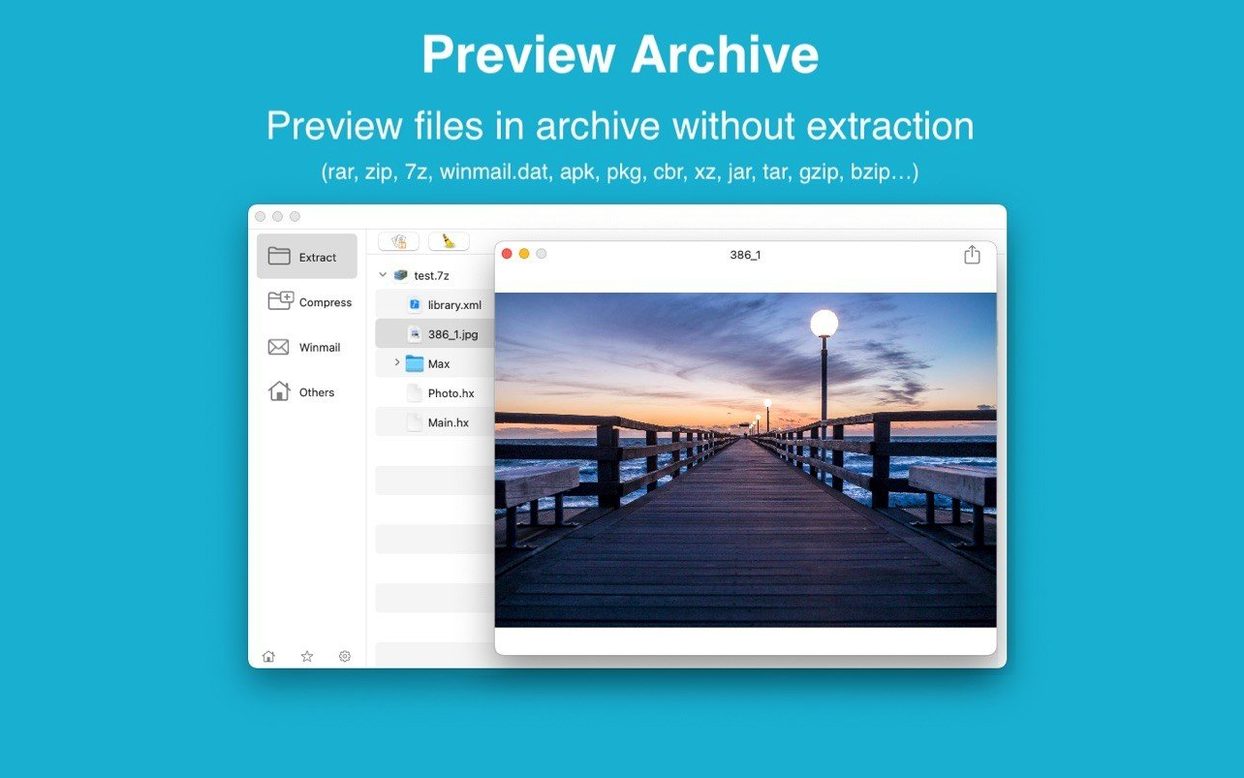
Not checking the file list before extraction. Many users hit Extract on an archive that contains a folder structure they do not need. RAR Extractor shows you the contents in a file list before you do anything. Look at it first. If you only need one spreadsheet, select that single file and extract it. You skip the unneeded subfolders.
Overlooking password-protected archives. A client sends a .zip with a password written in the email body. People try to open it, get a blank prompt, and assume the file is corrupt. RAR Extractor asks for the password when it encounters encryption. If you paste the password and it fails once, double‑check for trailing spaces — email clients sometimes add them.
Dragging archives to the desktop every time. The drag-to-desktop extract is convenient, but it dumps files wherever your desktop icons are. For a single file it is fine. For a project folder with twenty archives, use batch unpacking instead. Select all of them, right‑click, and choose Extract To a dedicated project folder. You keep your desktop clean and your files organised.
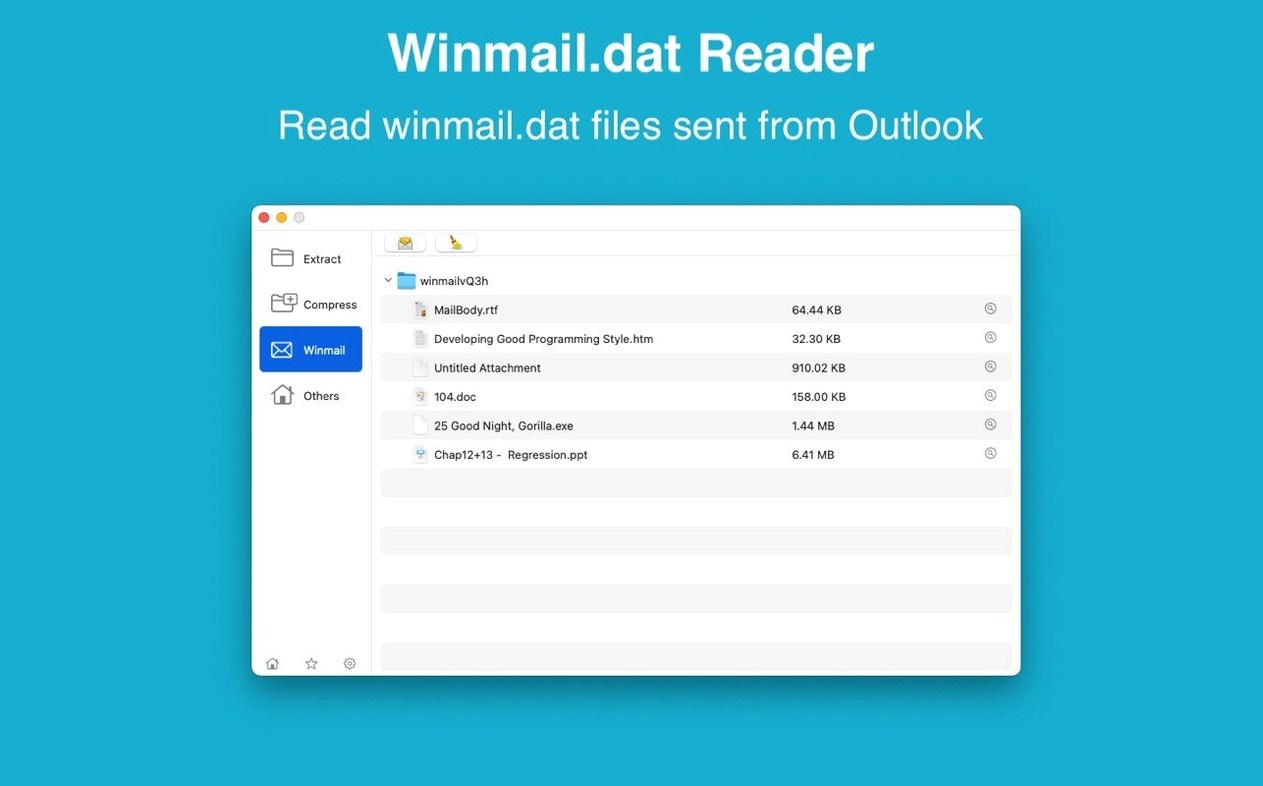
Ignoring the winmail.dat preview. Outlook users on Windows sometimes send attachments as winmail.dat files. Beginners see the .dat extension and try to rename it to .zip. RAR Extractor previews those files natively. Let the app open it; you will see the actual attachments without guesswork.
Better compatibility with macOS 11.5 and Apple Silicon
No release notes accompanied version 13.9.6, so the changes are subtle. Based on the build label and the developer’s update pattern, the current version refines compatibility with macOS 11.5 and later, especially on Apple Silicon machines. Users who open large ISO files or multi‑volume RAR archives should see that those operations remain consistent with earlier builds. The interface language options — English and Simplified Chinese — have not changed. The dual-window display and the drag‑and‑drop behaviour work the same way they did in the previous release.
If you are upgrading from the first-generation RAR Extractor, the difference is noticeable. The current app uses a more modern codebase that handles AES-256 encryption for ZIP and 7Z archives. The old version did not support that. Also, the batch unpacking feature is now standard, where the earlier tool required one archive at a time.
Set it as your default archive app
- Set RAR Extractor as your default archive app. After installation, any .rar, .zip or .7z file you double‑click will open directly in the app. That saves the step of dragging files to the Dock icon every time. To do this, right‑click a compressed file, choose Open With, select RAR Extractor, and check the Always box.
- Use the file preview before extracting. For the first few days, get into the habit of clicking an archive and looking at the file list before you hit Extract. You will learn to spot what you actually need and what you can leave behind.
- Organise your target folders. Create a dedicated Downloads or Archives folder on your Mac. When you extract, point the destination there. Keep your desktop and Documents folder free of loose files.
- Try batch unpacking with a small test set. Drop five small archives into one folder, select them all, and use the Extract To option. Watch how the app creates separate subfolders automatically. Once you see the pattern, you will use it for every multi‑file project.
- Create a password-protected archive once. If you need to send a sensitive file to a client, use the Create Archive function. Choose ZIP or 7Z, enable encryption, and set a password. The app uses AES-256. Test it by reopening the archive yourself to confirm the password works.
Opens password-protected .rar from Windows
Will it open a .rar file from a Windows user? Yes. RAR is the primary format the app is built for. It also opens RAR archives that use password protection. If the sender created the archive with WinRAR on a PC, you will see the same files on your Mac.
Can I create an archive that a Windows or Linux user can open? Yes. The app creates ZIP and 7Z archives. Both are cross‑platform formats. If you enable password protection with AES-256, the recipient will need a compatible extractor — most modern operating systems include one. For maximum compatibility, stick with standard ZIP without encryption.
Do I need to install anything else? No. RAR Extractor is a standalone app. It does not require WinRAR, 7‑Zip, or any command‑line tools. The disk image you download includes everything needed.
What about winmail.dat files from Outlook? The app includes a preview for those. You do not need to open Outlook or convert the file manually. Just drop the .dat file into RAR Extractor and the attachments appear.
Is the app safe for company files? The app runs locally on your Mac. It does not send data to a remote server. Archive extraction and creation happen entirely on your machine. If your IT policy allows installation of third‑party software, this follows the same security model as any other file utility.
Can I extract a single file from a large archive without extracting everything? Yes. Open the archive in the file list, select the file or folder you need, and extract only that item. The rest of the archive stays compressed. That is useful when a client sends a 2 GB project folder and you only need the PDF spec sheet.
No release notes filed for 13.9.6. They are added here when a build changes how the program behaves.
| macOS | macOS 11.5 or later |
|---|---|
| Processor | Apple Silicon, Intel 64-bit |
| Download | 14 MB |
- macOS 11.5 or later
- Intel 64-bit or Apple Silicon processor
Questions about RAR Extractor
Does RAR Extractor support ARM Macs?
Yes, it supports both ARM (Apple Silicon) and Intel 64-bit Macs.
Can I create password-protected archives?
Yes, you can create password-protected ZIP and 7Z archives.
What macOS version is required?
Requires macOS 11.5 or later.
How to install, in order
- Mount the disk image and run Open Gatekeeper friendly.
- Press Enter in Terminal to bypass Gatekeeper.
- Drag the app to the Applications folder.
- Open the app when installation is complete.
Comments and corrections 0
Sign in or open a free account to leave a comment.
No comments or corrections yet.