Radio Silence 3.4 — download for Mac
Utilities Updated
Blocks or allows internet connections from any app with a simple one-click firewall.
Screenshots
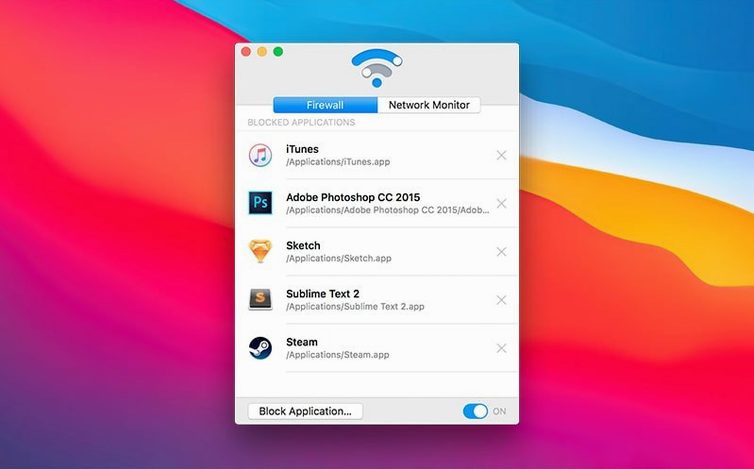
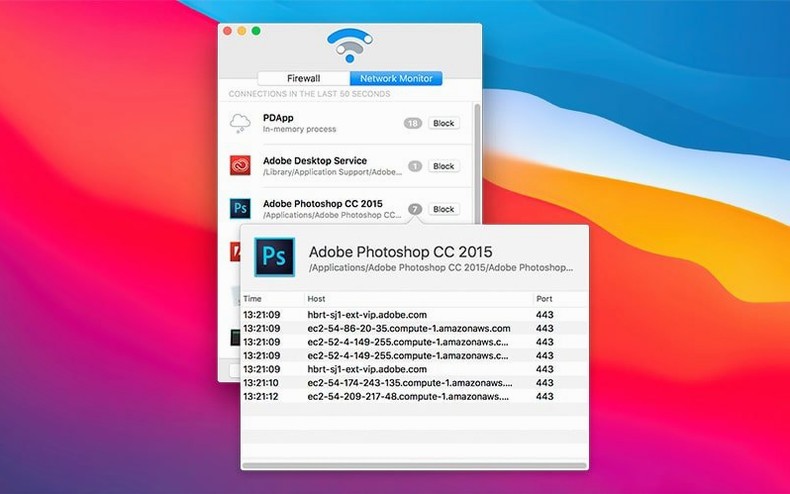
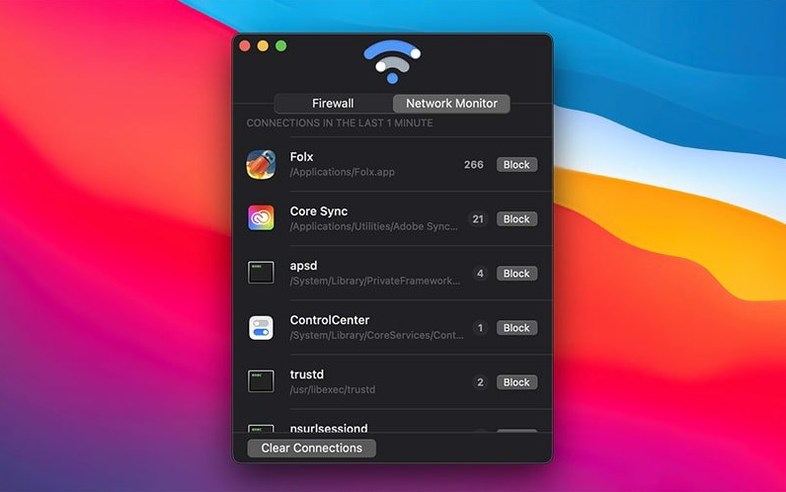
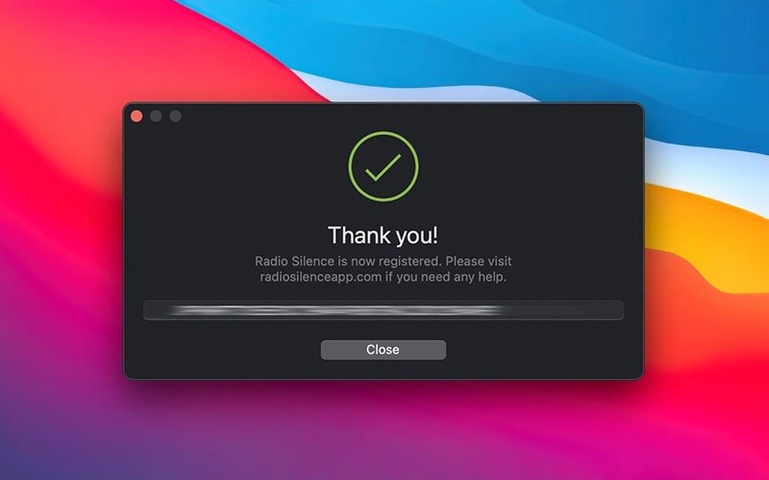
If you have ever used Little Snitch or a similar network monitor, Radio Silence follows the same idea but with a simpler interface. It is a firewall and network monitor for Mac that shows you which applications are connecting to the internet and lets you block them with one click.
Blocks Apps with One Click
After installing Radio Silence, open it and you will see a list of active network connections. To block an app, click the Block Application button and select the installed application from your Mac. The app immediately stops that app's incoming and outgoing connections. The menu bar stays clean — Radio Silence does not add an icon there — so it runs quietly in the background. You can monitor connections in real time and unblock an app just as easily.
Smoother Setup for macOS Tahoe
Version 3.4 improves the installation experience for macOS Tahoe with new guidance during setup. It also handles installation errors and missing permissions more gracefully, and adds a help view that shows troubleshooting information if the app fails to launch. The app works on macOS 10.15 and later, on both Intel and Apple Silicon Macs.
A Session with Radio Silence
Here is how a typical working session might go. You mount the downloaded disk image and run the standard installation. The process is straightforward, and version 3.4 now gives you clearer guidance if you are on macOS Tahoe. If permissions are missing or something goes wrong, the new help view shows troubleshooting information instead of a cryptic error.
Once installed, Radio Silence opens to its main window. At first, the list of connections is sparse — only the apps you have open and the system processes that phone home. I work with a web browser, a messaging client, and a few project tools. Within seconds, you see each one appear in the connection list. This is the real-time monitor at work.
Say you notice an app you do not recognize or one you know should not be talking to the internet. You click the Block Application button, browse to that app in your Applications folder, and select it. That is it. The connection stops immediately. The app no longer appears in the live list. You can confirm it is blocked by switching to the Firewall tab, which shows every app you have blocked. If you change your mind later, you can remove the app from the block list just as quickly.
During a focused work block, you might pause the firewall temporarily. This allows all apps to connect without restriction for a few minutes, useful when you need to download a file or update a tool. When you resume, the block list is still in place. No need to reconfigure.
Stays Out of the Menu Bar
Radio Silence does not clutter your menu bar. It stays out of sight unless you open it. This is a deliberate choice. It means you can run it alongside other background utilities without visual noise. If you use tools like Alfred or a dock-based launcher to switch between apps, Radio Silence works well because it does not add an icon you have to ignore.
The app integrates at the system level by intercepting network calls before they reach the network hardware. This is similar to how a system firewall works, but it is limited to the apps you choose. It does not replace your router firewall or macOS built-in security; it adds a layer of control over individual applications. For a project manager who keeps a browser, a chat tool, Slack or Teams, and a VPN running, this means you can stop an app from calling home without uninstalling it or digging into system preferences.
You can also use it to confirm what an app is doing. If you suspect a utility is phoning home more than it should, Radio Silence shows the connection in real time. That is useful for anyone who needs to know exactly which processes are active on their Mac.
Best for Freelancers and Small Teams
Radio Silence is best for Mac users who want app-level control without a complex configuration. If you are a freelancer, a small-business owner, or someone who works from a personal Mac and does not have an IT department, the simplicity matters. You do not need to learn firewall rules or port numbers. You pick an app and block it.
It is also a good fit for anyone who runs multiple communication apps and wants to reduce background chatter. A writer, a designer, or a project manager who uses several SaaS tools may want to block certain apps from connecting while they focus on a task. Radio Silence lets you do that with one click per app, and the block stays until you remove it.
For users on macOS Tahoe, version 3.4 removes the usual friction. The installation guidance and error handling mean fewer support calls or forum searches. The help view alone saves time if something goes wrong during setup.
Works on Any Modern Mac from 10.15
Radio Silence requires macOS 10.15 or later. It supports both ARM and x86 64-bit Macs, so it runs on any modern MacBook Air, Pro, iMac, or Mac Mini. The interface is in English, and the app is small — it does not install drivers or background services. It runs as a regular application. When you close the window, the firewall remains active in the background until you quit the app from the Dock or the menu.
If you search for radio silence mac torrent or radio silence download to find a copy, make sure you get version 3.4 or later to benefit from the macOS Tahoe fixes. The disk image mounts like any standard Mac installer, so the process is familiar to anyone who has installed software on macOS before.
- Installation guidance for macOS Tahoe.
- Better handling for installation errors and missing permissions.
- New help view with troubleshooting info if the app fails to launch.
| macOS | macOS 10.15 or later |
|---|---|
| Processor | Apple Silicon, Intel 64-bit |
- macOS 10.15 or later
- Intel or Apple Silicon (ARM) processor
Questions about Radio Silence
Does Radio Silence block all internet traffic from an app?
Yes, when you block an app using the Block Application button, Radio Silence stops all incoming and outgoing connections for that app.
How to install, in order
- Mount the downloaded disk image.
- Run the standard installation procedure.
Comments and corrections 0
Sign in or open a free account to leave a comment.
No comments or corrections yet.