Presentify 8.2.1 — download for Mac
Utilities Updated
Lets you draw over any screen and spotlights the cursor during presentations.
Screenshots
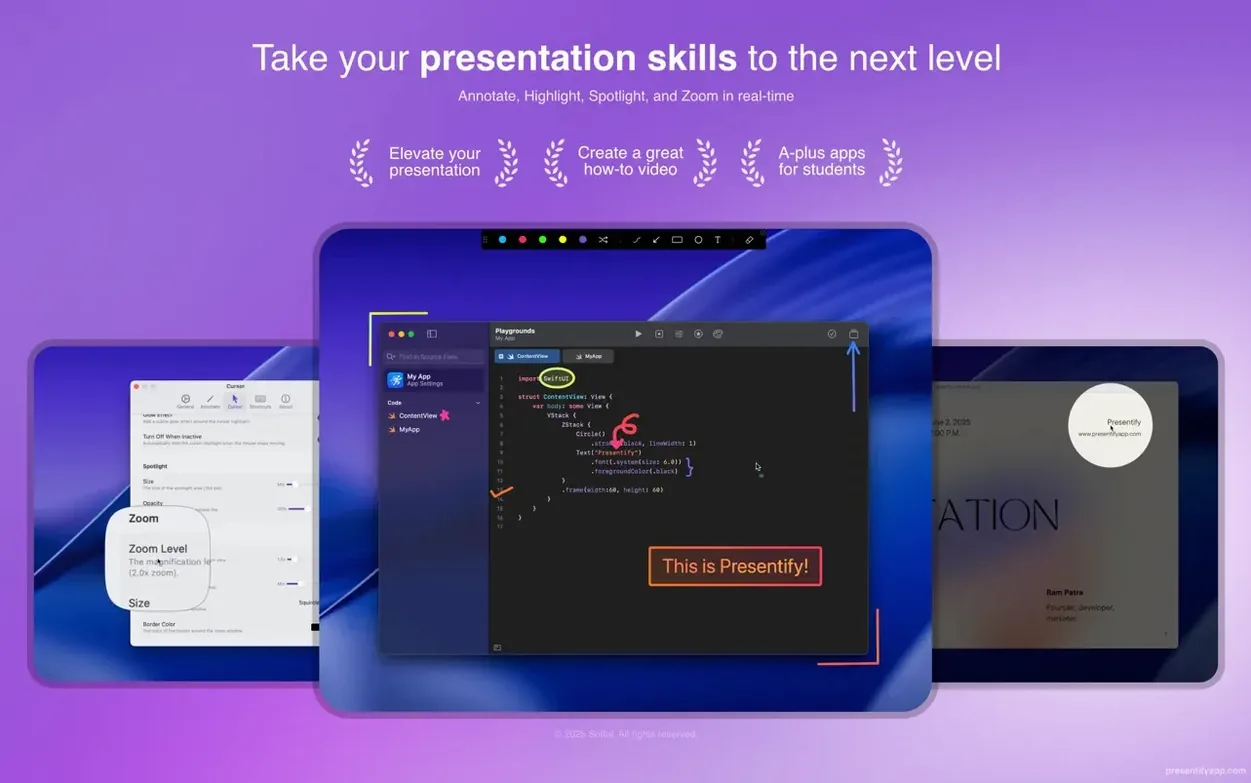
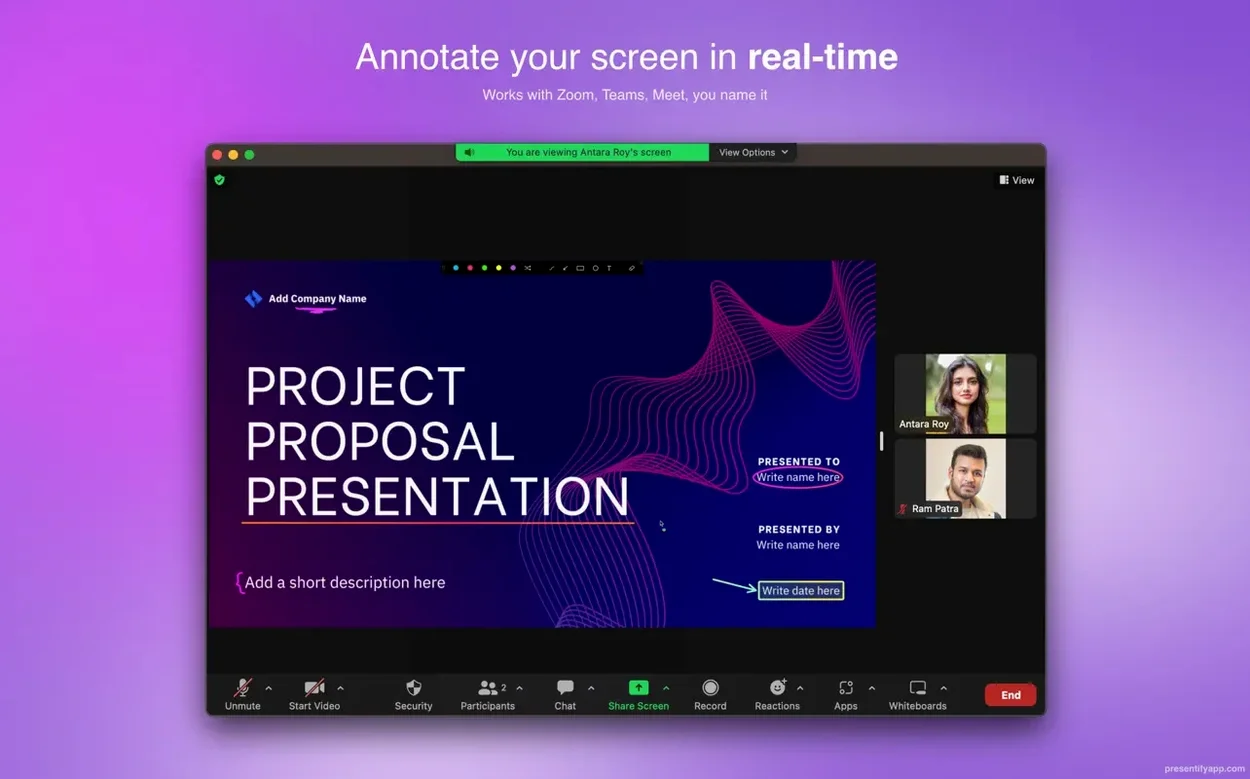
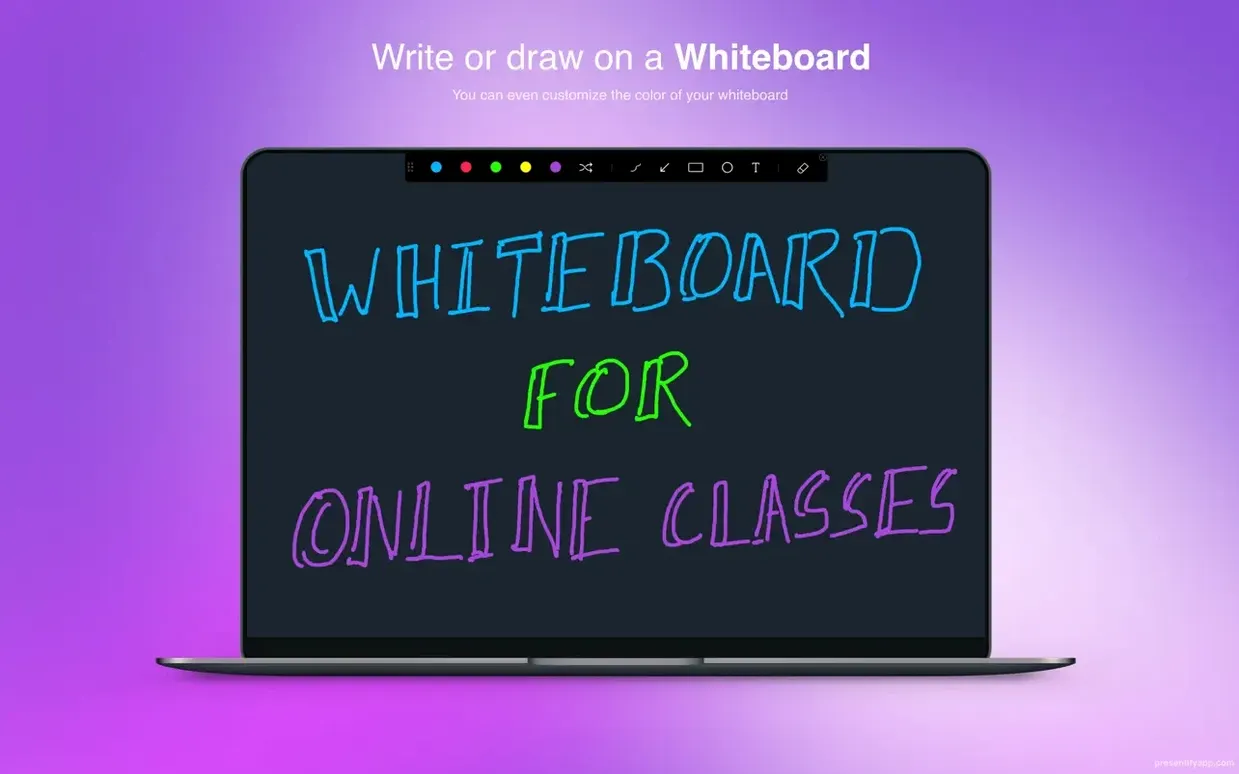
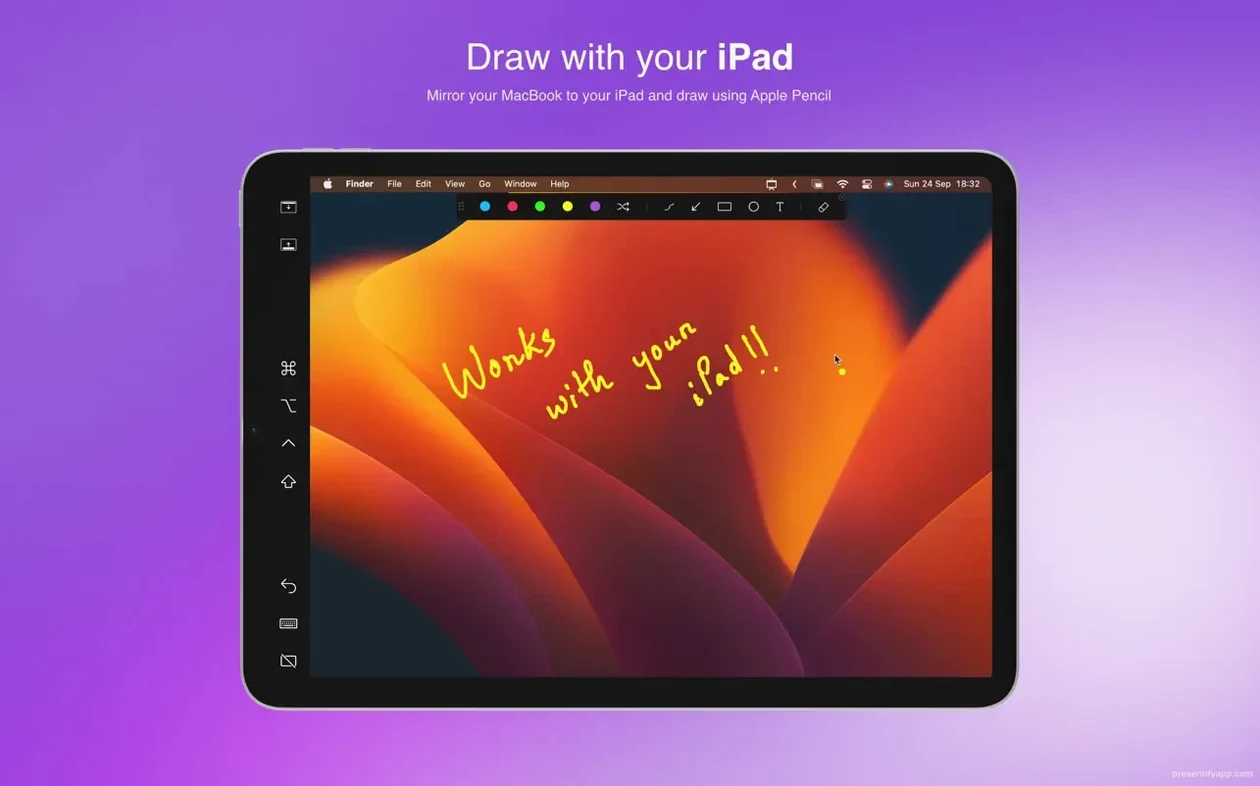
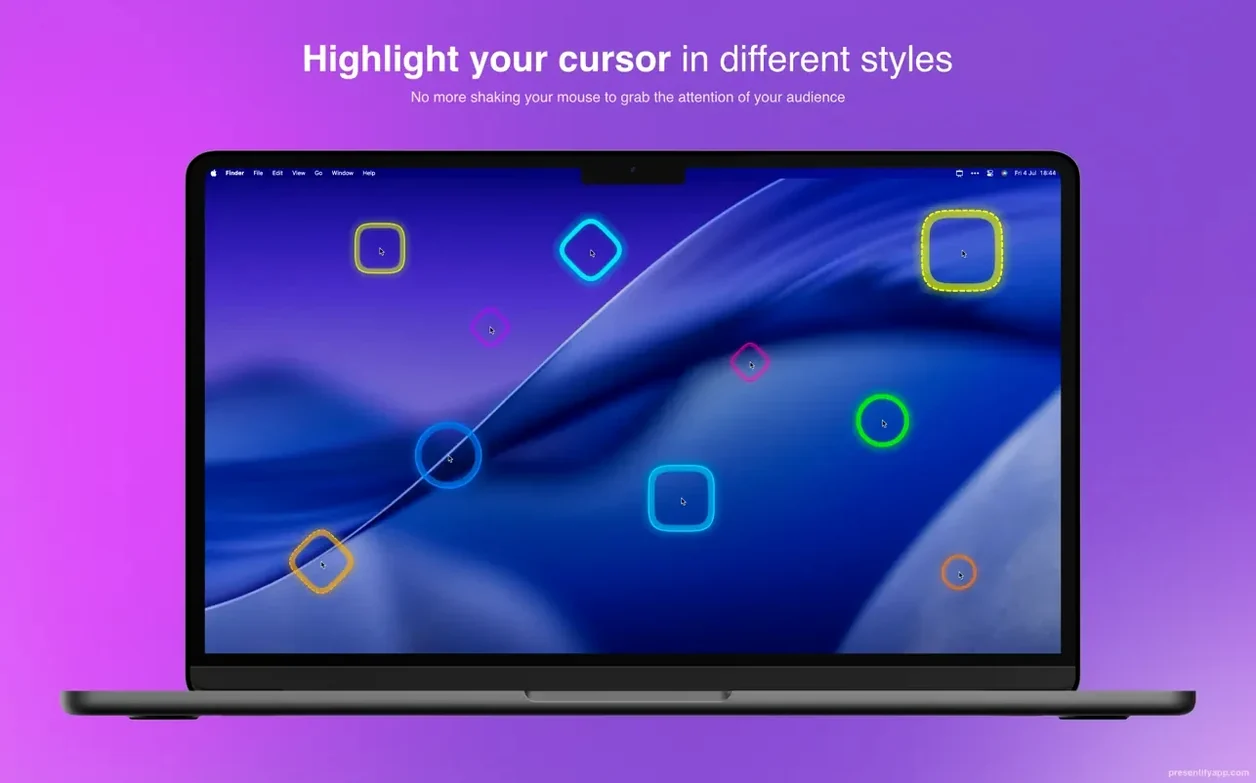
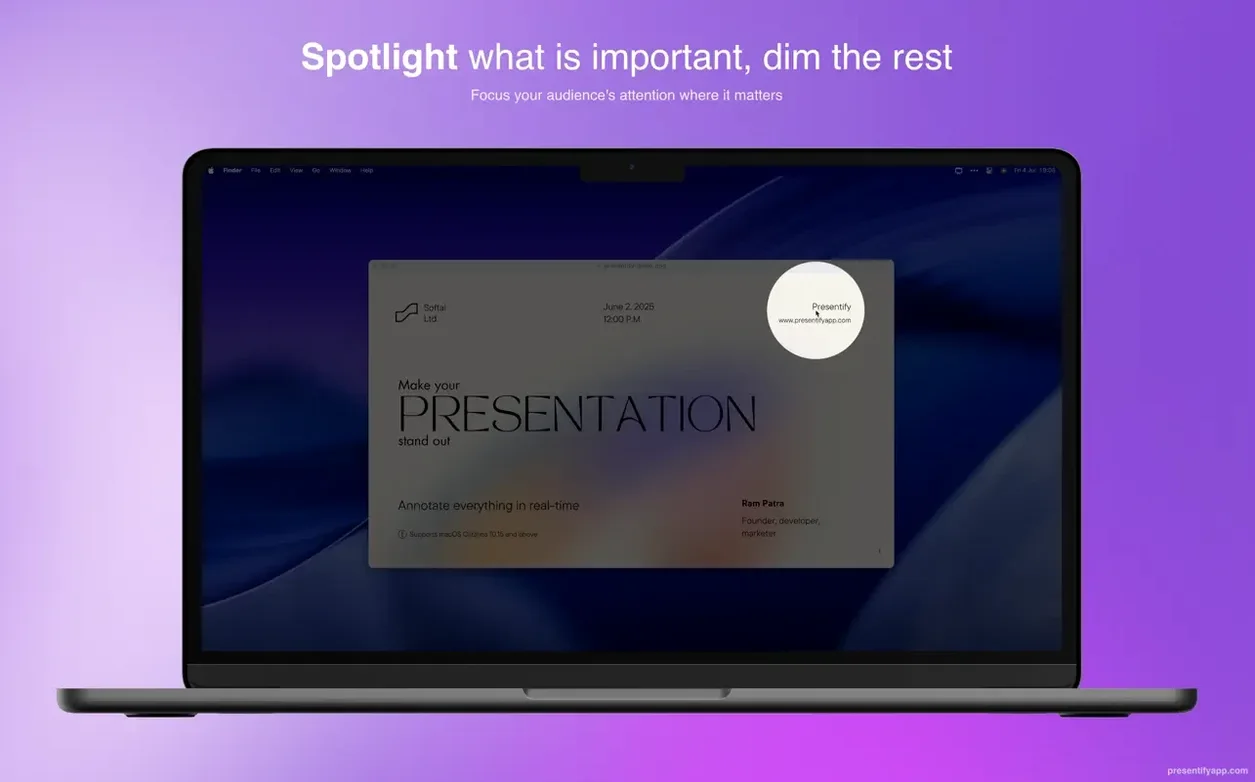
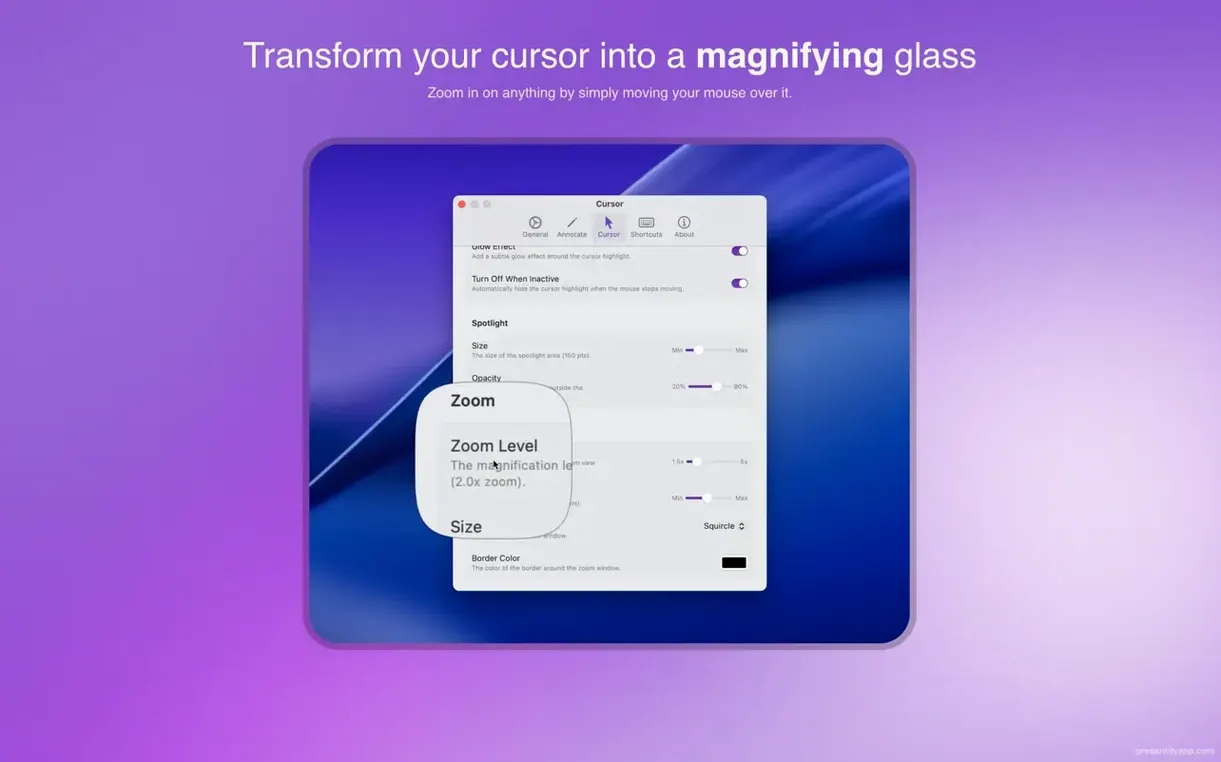
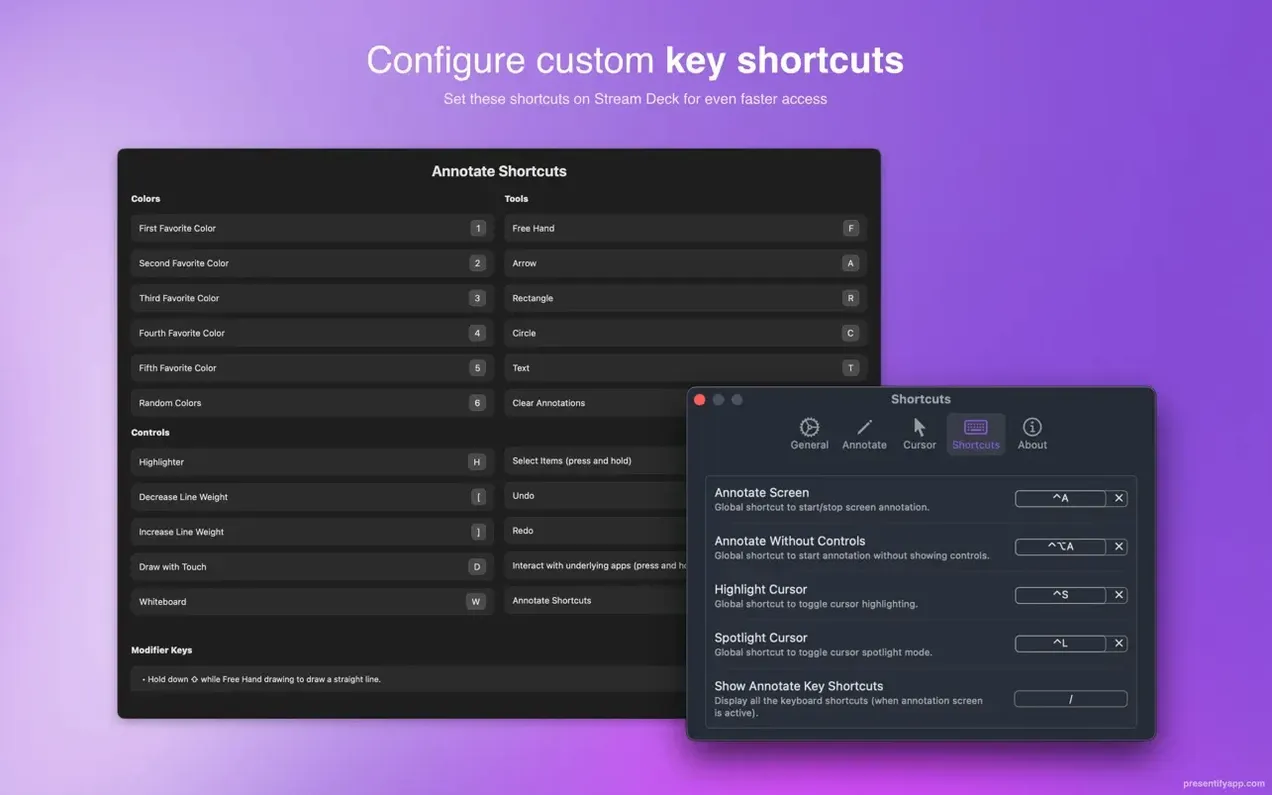
The cursor spotlight is the first thing I turn on in Presentify. It keeps the audience’s eyes where I want them, whether I’m walking a client through a construction timeline or explaining a Gantt chart during a remote stand-up. Presentify is a menu bar app that adds a drawing layer over any screen content — presentations, online classes, video tutorials, or live walkthroughs. You can annotate with random gradient colors, highlight areas with a spotlight, zoom into details, and highlight the cursor itself. It works with graphics tablets like Wacom and XP-Pen, and if you need to interact with an app underneath while annotating, hold the Fn key in default mode. Full-screen mode is supported, and the app runs natively on both Apple Silicon and Intel Macs running macOS Ventura or later. Current version 8.1.3 is available in English, Russian, German, Spanish, and French.
How Presentify Compares With Similar Mac Apps
Most Mac annotation tools fall into two camps: full-featured commercial suites with steep learning curves, and lightweight freeware that stops at basic arrow drawing. Presentify sits somewhere in the middle, and for my work style that is exactly where it belongs.
ZoomIt is a popular Windows-only tool, so Mac users are out of luck unless they run a VM. Presentify covers the same core functions — screen drawing, spotlight, zoom — without requiring a second operating system or extra setup steps before a meeting.
Epic Pen for Mac offers annotation and a whiteboard mode, but its interface feels designed for creative recording sessions more than for live corporate presentations. It saves annotations as video overlays, which is useful if you edit later, but during a live call I prefer Presentify’s simpler menu bar access. You do not need to switch windows or configure recording profiles before you start drawing.
LiveDraw shares the annotation focus, but it emphasizes collaborative drawing rather than presentation pointing. Presentify’s cursor highlighting and spotlight are better suited to keeping a remote team’s attention on one data point in a spreadsheet or one line in a contract PDF.
Works in Keynote and PowerPoint Slideshow Mode
Will it interfere with Keynote or PowerPoint slideshow mode? It works in full-screen mode without crashing or hiding the annotation layer. I have used it during client reviews where I switch between Keynote slides and a live browser demo — the toolbar stays available, and drawings do not flicker when you change applications.
Does it work with graphics tablets? Yes. Presentify recognizes Wacom and XP-Pen tablets directly. If you teach online and prefer drawing with a stylus rather than a trackpad, the app responds to pressure strokes without extra configuration.
What about video calls? I run it over Zoom and Google Meet without issues. The annotation layer stays on top of the call window, so attendees see your drawings. Many of my colleagues in online instruction use it the same way for Skype sessions.
Why do I have to quit and reopen it after first install? The first launch sets up system permissions for the overlay layer. Quitting through Activity Monitor and starting the app again is a one-time step — after that it opens normally from Launchpad.
Auto-Annotations Fade After a Few Seconds
- Automatic erasing — you can set annotations to fade after a few seconds. Useful when you mark a point and want the screen clean for the next slide without manually clearing each shape.
- Random gradient colors — each stroke shifts color slightly. It makes your annotations stand out against busy backgrounds like code editors or spreadsheet grids.
- Highlighting without covering — the highlight tool stays transparent enough that text underneath remains readable. Good for walking through a terms sheet or a project spec line by line.
- Text annotation — you can type directly on screen instead of drawing letters with a mouse. Helpful when you need a clean label like “Phase 2” on a timeline.
- Multiple drawing shapes — rectangles, circles, arrows and lines are available from the menu bar palette.
Adjust Spotlight Size to Frame Paragraphs
Open Presentify from the menu bar and look for the preferences panel. The first setting I adjust is the spotlight size — making it large enough to frame a paragraph but small enough to exclude sidebars. I also enable automatic erasing with a five-second delay so I can annotate without pausing to clear between points.
If you teach or present regularly, set the cursor highlight to a contrasting color like red or bright yellow. It stays visible on dark and light backgrounds alike. The default mode interaction is already set to require the Fn key to interact with underlying apps — I leave that as is to avoid accidental clicks through the overlay during presentations.
For video creators recording tutorials, turning on the zoom tool as a toggle rather than hold-to-zoom saves one finger during long takes. You can zoom into a terminal window or a code block and move the magnified area without pressing extra keys.
I also check the language setting on first use. Presentify is available in five languages, but if you work with international colleagues, switching to English keeps the menu bar labels consistent with screen-sharing expectations.
No release notes filed for 8.2.1. They are added here when a build changes how the program behaves.
| macOS | macOS 13 or later |
|---|---|
| Processor | Apple Silicon, Intel 64-bit |
| Download | 6 MB |
- macOS Ventura 13.0 or later
- Apple Silicon or Intel 64-bit Mac
Questions about Presentify
Can I use Presentify with a Wacom or XP-Pen tablet?
Yes, Presentify supports graphics tablets such as Wacom and XP-Pen for drawing and annotation.
How to install, in order
- Open the downloaded disk image.
- Drag the app to the Applications folder.
- After copying finishes, open it from Launchpad.
- On first launch, quit the app in Activity Monitor and open it again.
Comments and corrections 0
Sign in or open a free account to leave a comment.
No comments or corrections yet.