Capture One 16.9.1 — download for Mac
Mac Apps Updated
Processes RAW photos from over 500 camera models with tethering support.
Screenshots
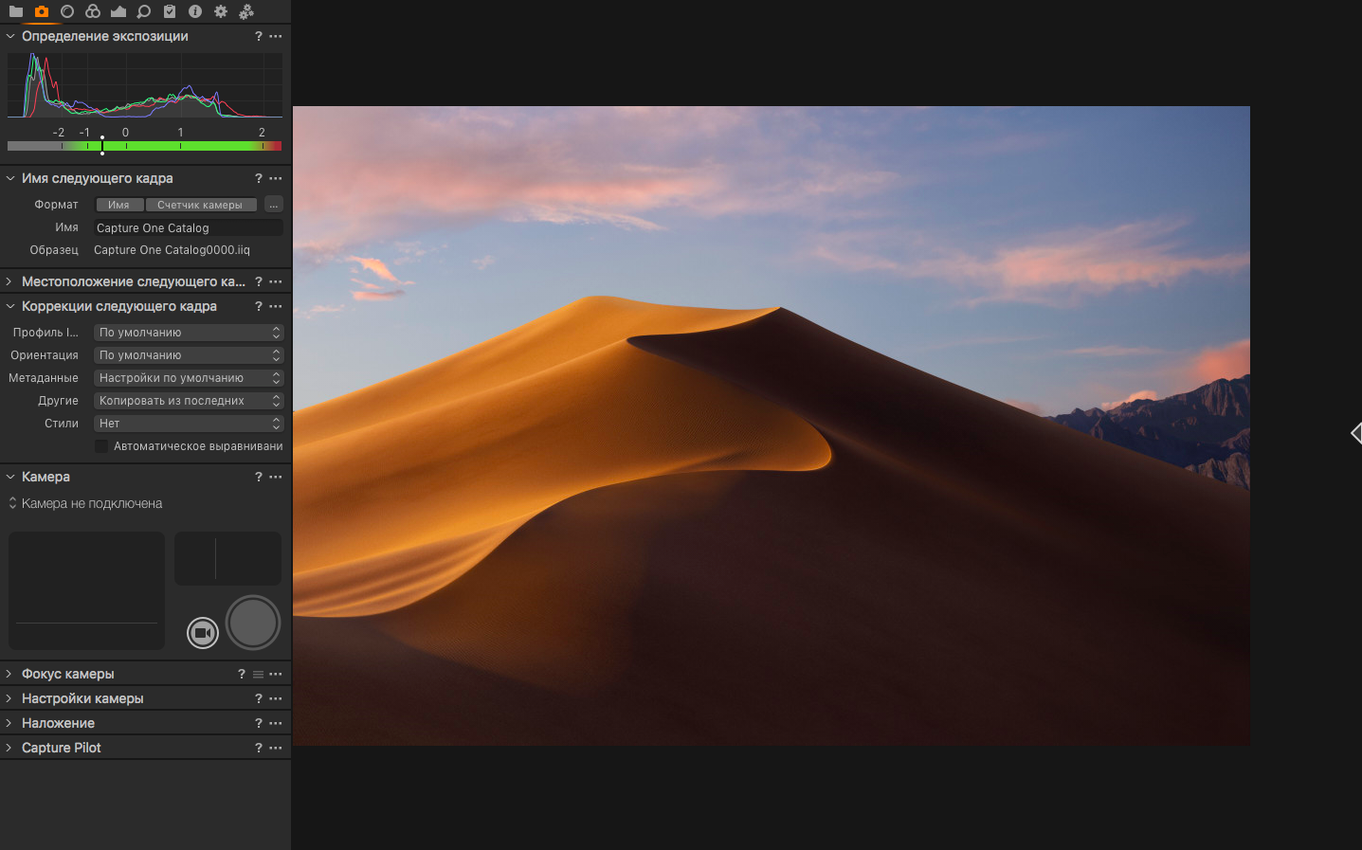
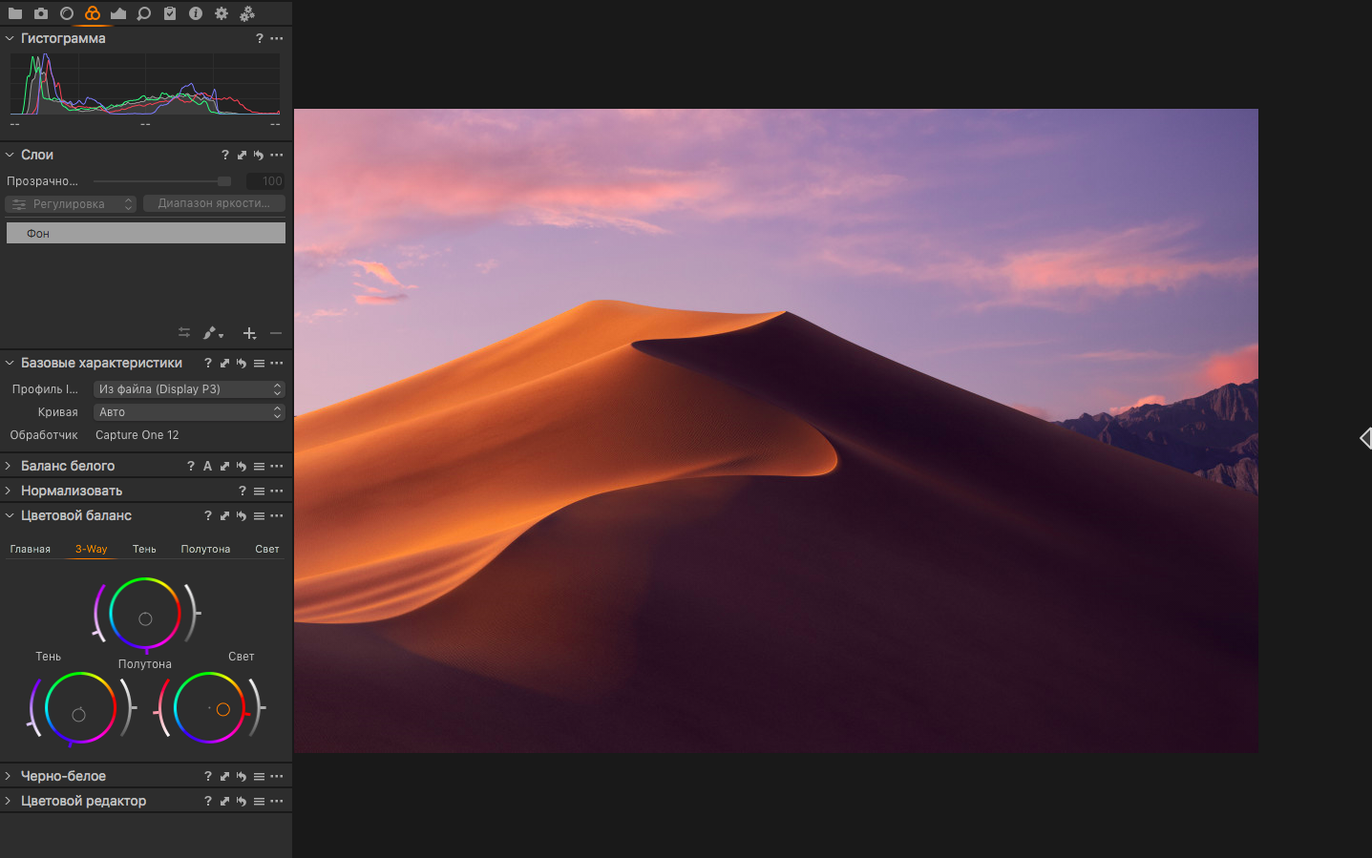
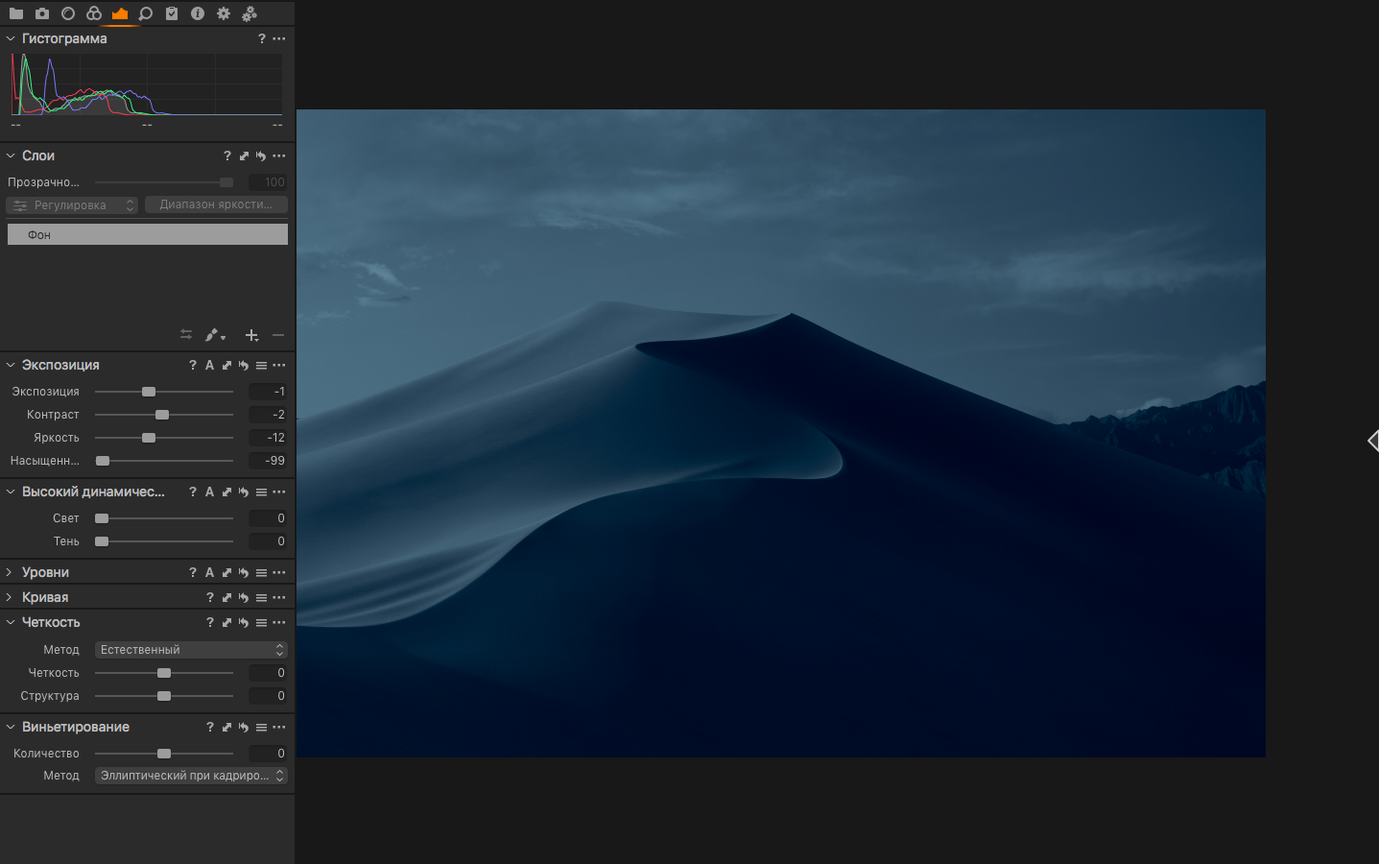
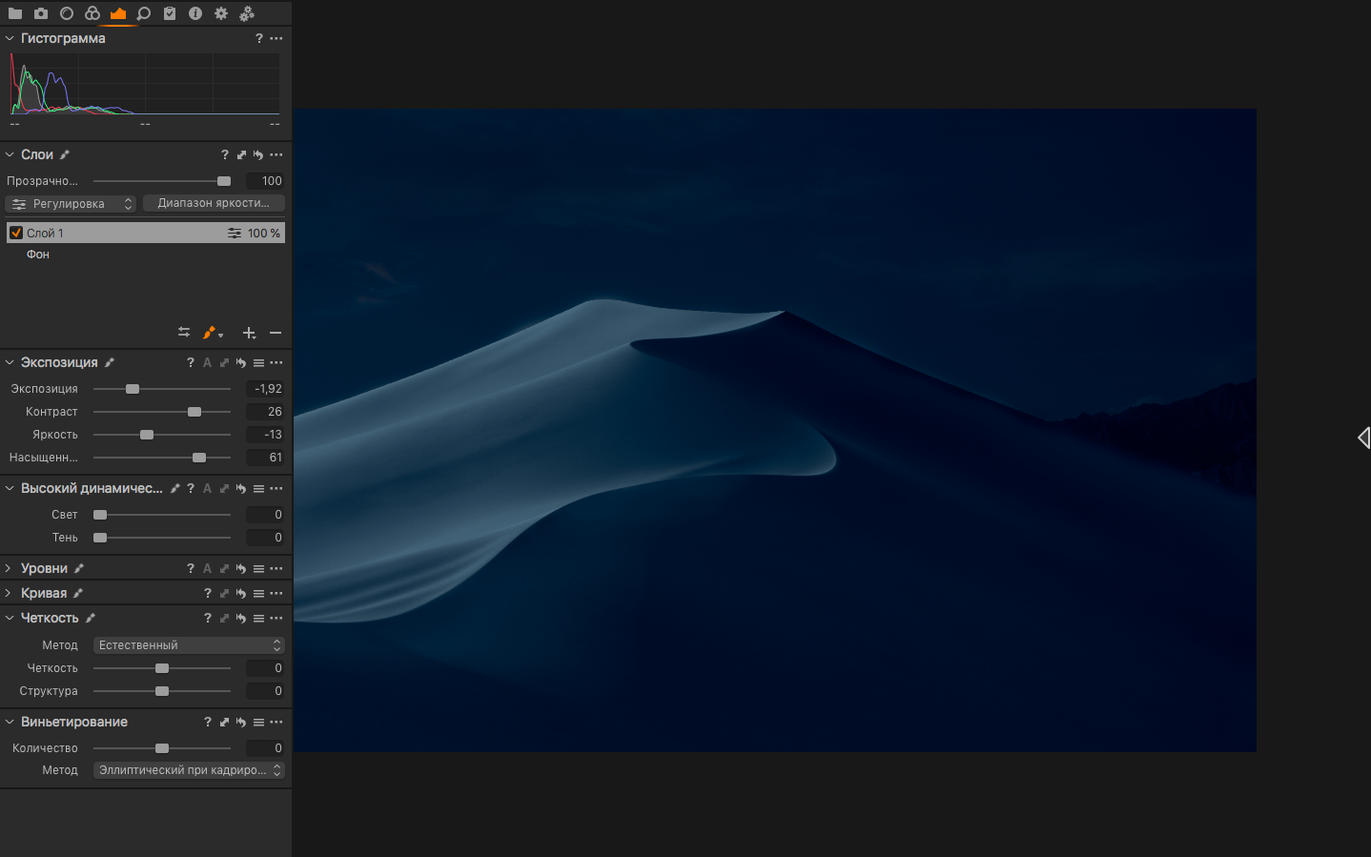
Over 500 camera models feed RAWs into one application. A shoot in Porto wraps at 2pm, and by 2:45 the client has three correction variants of the same frame, each with its own white balance and sharpness profile—no sidecar clutter, no duplicate files.
One Session, Three Variants
- Tether the camera and files land directly into a session folder.
- Apply color temperature and tint controls to neutralize mixed office lighting.
- Create additional correction variants for the hero image—neutral, warm, and high-contrast black and white.
- Set sharpness per variant; push structure on fabric details, pull it back on faces.
- Select full-size TIFFs in Adobe RGB for print and sRGB JPGs for email. Batch convert all three in one pass.
Files Out Before the Coffee Break
Conversion runs on the fly while you rate the next set. The batch queue handles single images or entire contact sheets without locking the interface. Plug-ins from the developer portal slot into the workflow for custom output sharpening or metadata presets. By the time the art director reviews the contact sheets, delivery files are already sitting in a shared folder.
Runs Alongside Lightroom Without Overwriting
Can it run alongside Adobe Lightroom or Luminar? Yes. Capture One does not overwrite system color engines or force its own library on the Mac. It keeps sessions and catalogs in folders you define, so the same RAW files can live in a Bridge folder or an Apple Photos library without conflict. Some photographers import into both applications—Capture One for tethering and color grading, then a secondary tool for specific output presets. There is no reason to uninstall anything.
Does it handle Fujifilm and Sony RAWs as well as it handles Phase One files? The 500-plus camera support covers Fujifilm X-Trans sensors, Sony ARW, Nikon NEF, Canon CR3, and Leica DNG. Phase One profiles each sensor individually, so the initial rendering in Capture One usually shows more detail in shadows and less color cross-talk than generic Adobe profiles. Users shooting Fujifilm often find that Capture One interprets the unique X-Trans pattern with fewer artifacts in foliage and fabric textures.
What happens to existing Lightroom edits? Capture One does not read XMP sidecar files or Lightroom catalog data. Your edits are not lost, but they will not appear inside Capture One. Plan to reapply the most important corrections or use a reference export. For new projects, most photographers simply start from scratch inside Capture One rather than converting older work.
Can it run on an Intel Mac that is a few years old? Yes. macOS 12 Monterey is the minimum, and both Intel and Apple Silicon are supported. The application uses GPU acceleration where available, but Intel Macs without discrete graphics still handle single-image adjustments and batch export without slowdown. Tethered shooting on older hardware may require shorter cables and fewer powered USB hubs between the camera and the port.
White Balance Eyedropper on Any Neutral Area
The eyedropper for white balance works on any neutral gray area—not just on a dedicated gray card. In a studio scene with a white wall or a paper backdrop, clicking once sets temperature and tint simultaneously. That saves the two-step slider dance most editors force you to learn.
Correction variants are independent but share the original RAW. If you open a variant and realize you pushed contrast too far, you can reset that variant without touching the others. The RAW file behind them stays untouched on disk. This is not a virtual copy system that duplicates metadata bloat; each variant is a lightweight set of instructions.
Contact sheets display in the browser view as thumbnails with rating stars and color labels. Version 16.8 introduced new contact sheet layouts, and the change is subtle but useful: you can now fit more thumbnails per page without losing readability. For a team reviewing 300 portraits from a wedding, that means fewer scrolls and faster initial selects.
The interface appears in eleven languages including Russian, Korean, Ukrainian, and Simplified Chinese. Switching the language does not require reinstalling the application. A preferences menu entry changes the display text immediately, which helps when a multilingual team shares one workstation.
Studio Photographers Use Tethered Variants Live
Studio photographers running tethered sessions benefit most. The ability to create multiple correction variants while the camera is still connected to the Mac means the client sees options live on a second monitor. No waiting for imports, no guessing how the final file will look. Commercial food and product photographers also rely on the white balance eyedropper and the color noise reduction to handle mixed LED and strobe lighting that throws off auto presets.
Retouchers who work on batch deliveries for real estate or e-commerce find the export queue useful. They can set one variant with structure boosted for interior shots and a second variant with flatter sharpness for product packshots, then batch convert both to full-size TIFF in CMYK for offset printing. The application does not slow down during export, so rating the next set of images continues uninterrupted.
Team leads who need to distribute contact sheets to clients benefit from the new 16.8 contact sheet options. Printing a contact sheet for a 500-image catalog takes minutes instead of manual layout work in a separate application. The sheets include file names and ratings, which keeps communication clear between the editor and the client.
RAW Engine Keeps Color Accuracy Ahead of Adobe
Capture One vs. Adobe Lightroom Classic
Lightroom Classic relies on a catalog structure that stores previews and edit instructions inside a single large database file. Capture One offers both catalogs and session folders, and the session approach is common in studios that archive by project rather than by date. Color grading in Capture One is more granular—the color temperature and tint controls behave differently than Lightroom's white balance slider, and many photographers find that Capture One holds highlight detail better in high-contrast scenes. Lightroom has a larger ecosystem of presets and mobile sync, but for tethered capture and per-image correction variants, Capture One is the more direct tool.
Capture One vs. DxO PhotoLab
PhotoLab excels at lens corrections and noise reduction using DxO's DeepPRIME engine. Its optical modules correct distortion and vignetting automatically for thousands of lens combinations. Capture One handles noise reduction too—version 16.8 added enhanced denoise—but its strength is in color control and tethering rather than automated lens fixes. A photographer who shoots with a single prime lens and needs fast tethered review in a studio will prefer Capture One. A travel photographer who loads random zoom lenses into an older camera body and wants one-click lens corrections might lean toward PhotoLab.
Capture One vs. ON1 Photo RAW
ON1 Photo RAW positions itself as a faster alternative that includes layers and masking tools similar to Photoshop. Its non-destructive raw processing is solid, but its tethering support is limited compared to Capture One's deep camera control. For a studio that relies on live capture previews and multiple simultaneously connected cameras, Capture One is the established choice. ON1 suits photographers who want a single application that handles both raw conversion and compositing.
Each of these applications runs on macOS 12 or later and supports both Intel and Apple Silicon. The decision usually comes down to whether the primary work is tethered studio capture or post-processing on location.
Capture One 16.9.1.27 is available. The release notes for this build are posted on the Capture One site.
| macOS | macOS 12 or later |
|---|---|
| Processor | Apple Silicon, Intel 64-bit |
| Download | 1.2 GB |
- macOS 12 or later
- Apple Silicon or Intel 64-bit processor
Questions about Capture One
What RAW file formats does Capture One support?
It processes RAW files from over 500 camera models, with tethering support for a wide range of current digital backs and DSLR bodies.
Can I export images in CMYK?
Yes, full-size TIFFs can be exported in both RGB and CMYK color spaces, along with standard JPG output.
How many interface languages are available?
The interface supports 11 languages: Russian, English, German, Spanish, Italian, Simplified Chinese, Korean, Portuguese, Ukrainian, French, and Japanese.
How to install, in order
- Mount the disk image and open the Gatekeeper-friendly launcher.
- In the Terminal window that appears, press Enter to clear the security block.
- Drag Capture One into the Applications folder.
- Launch the app—no further steps needed.
Comments and corrections 0
Sign in or open a free account to leave a comment.
No comments or corrections yet.