Beauty Box Photo 6.0.5 — download for Mac
Mac Apps Updated
Smooths skin automatically inside Photoshop and Premiere Pro.
Screenshot
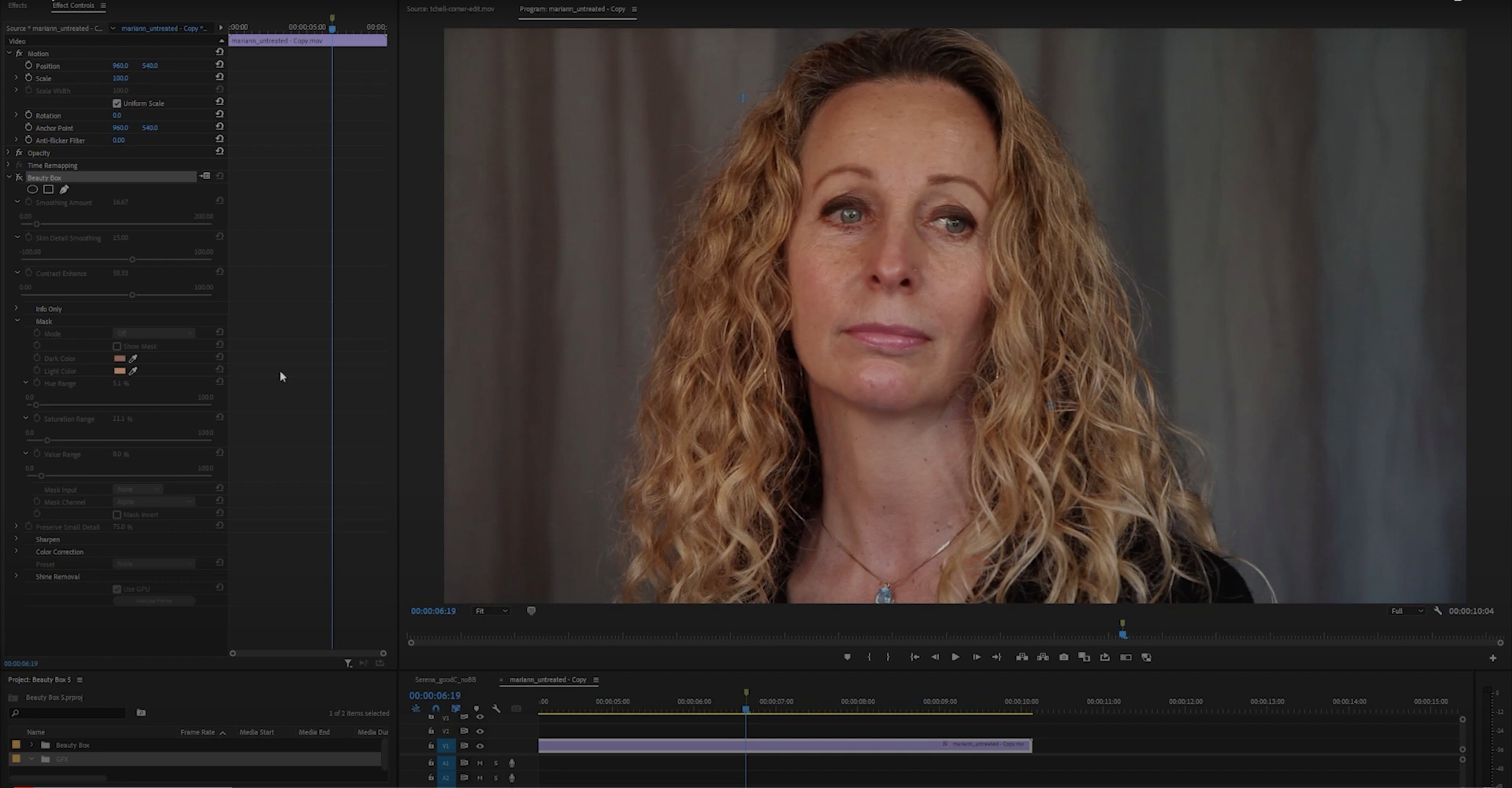
A Photoshop plug-in built solely for automatic skin smoothing, running inside Adobe hosts.
Which host applications does it support?
This is an Adobe-only build. It works inside Photoshop, and the same file also operates as a beauty box plugin for premiere pro mac, extending the skin detection engine into video timelines without a separate installer.
Formats the host accepts
The plug-in processes whatever raster image or video format the host application already accepts. There is no standalone export module or external file handling.
How does skin detection actually work?
It automatically identifies skin color across the frame. That detection mask stays active while the retouching controls smooth texture and preserve pore detail, helping you skip manual brushwork on clean-up passes.
I manage a small portrait studio in Vila Nova de Gaia. Our typical booking is a family session with fifteen to twenty raw frames that need consistent retouching across every face in the group. Before Beauty Box, I would spend about forty-five minutes per session painting layer masks and dodging under-eye shadows. With the plug-in, the same work takes eight to twelve minutes because the detection mask covers three generations of skin tones in one pass. I still do a final check for flyaway hairs and collar wrinkles, but the bulk retouching is done before I pour the first coffee of the morning.
Settings I adjust on first launch
The default values are conservative, which is fine for proof sheets. For finished prints I change three things immediately.
- The default setting leaves too many fine lines visible under studio strobes.
- Preserve detail. I always bump this up by one tick. The algorithm keeps eyes and eyebrows sharp by default, but I find that the lip border benefits from a little extra protection, especially with older subjects who have natural lip lines.
- Mask preview toggle. I turn this on for the first frame of every session. It shows the detection area as a white overlay, so I can see whether the plug-in caught the full face or missed a shadowed jawline. If the mask is patchy, I adjust the color tolerance before processing the batch.
These three changes take about twenty seconds per session and save me from having to undo a batch that over-softened someone's reading glasses bridge.
Group portraits by skin color
Will it work on group portraits?
Yes, because it detects skin by color, not by face count. A group of ten people with varying skin tones gets processed in one pass as long as the host file is open. The only limitation is that the detection mask treats all similar skin colors as one surface, so if two people have very different skin tones, each will be handled separately within the same layer. That is actually helpful, because it prevents the plug-in from smoothing across the gap between two faces.
Does it alter background or clothing?
No. The detection engine looks for skin color ranges only. A red dress or a blue backdrop stays untouched. The plug-in does not have a manual brush for background work, so any background retouching must be done in Photoshop natively. That is by design, since Beauty Box is meant to replace the skin pass, not the whole edit.
Can I use it on video clips the same way I use it on photos?
You can apply it as a beauty box plugin for premiere pro mac, and the detection logic works identically across frames. The real-time rendering with CUDA and OpenGL means you see the effect on the timeline without rendering first. However, the plug-in does not generate keyframes or track moving faces, so for a moving subject you will need to check the mask every few seconds. For talking-head shots from a tripod, it works fine as a one-click filter.
Does it require an internet connection?
No. The activation is included in the disk image, and the detection engine runs entirely on local hardware. No cloud processing, no uploads.
Wednesday morning headshot cleanup
Wednesday morning, thirty-four raw files from a corporate headshot day. I open Photoshop, load the first frame, and duplicate the background layer because I like keeping the unedited file underneath. Then I go to the Filters menu, find Beauty Box in the Digital Anarchy folder, and click it.
The plug-in window opens with the preview already rendered. I see the full-frame image with the default settings applied. I toggle the mask preview, and the detection area shows a clean white overlay across the subject's face, with a slightly softer edge around the jaw where his beard shadow meets his neck. That is fine, I am not trying to smooth the beard.
The layer gets added to my Layers panel as a smart filter, which means I can double-click the filter name later and change any setting without reprocessing the file. I save the layered PSD and move to the next frame. For the first five frames I check each mask preview, but by frame six I can see the pattern is consistent, so I start processing by memory: strength sixty, detail up one, apply. The plug-in takes roughly the same time as a Lens Correction filter, which is to say it is fast enough that I do not wait.
After the first dozen frames I notice that one subject has very fair skin with a visible sunburn line across the nose. The default mask includes the entire nose, which would smooth the burn line away. That kind of per-frame adjustment is easy because the smart filter remembers its own settings per layer.
By eleven o'clock I have all thirty-four frames processed. I spend the next forty minutes doing my manual checks: collar wrinkles, stray hairs, and the occasional reflection in eyeglass lenses. The plug-in did not touch any of those, because they are not skin. The whole session took about an hour and a half instead of the three hours it would have taken with manual frequency separation. I export the retouched JPEGs, archive the PSDs, and move on to the invoice.
That session is a typical Tuesday or Wednesday for a portrait retoucher who works alone. The plug-in does not replace the final polish, but it eliminates the repetitive layer work that makes this job tiring. For a studio that processes fifty or more frames per week, Beauty Box is the difference between finishing at lunch and finishing after dinner.
No release notes filed for 6.0.5. They are added here when a build changes how the program behaves.
| Processor | Apple Silicon, Intel 64-bit |
|---|---|
| Download | 107 MB |
- macOS (Intel and Apple Silicon)
- Adobe Photoshop or Adobe Premiere Pro
How to install, in order
- Open the downloaded disk image.
- Run the standard installation process for the plug-in.
Comments and corrections 0
Sign in or open a free account to leave a comment.
No comments or corrections yet.