BAO Mask Avenger 2.7.5 — download for Mac
Mac Apps Updated
Animates individual bezier vertices in After Effects masks independently.
Screenshots
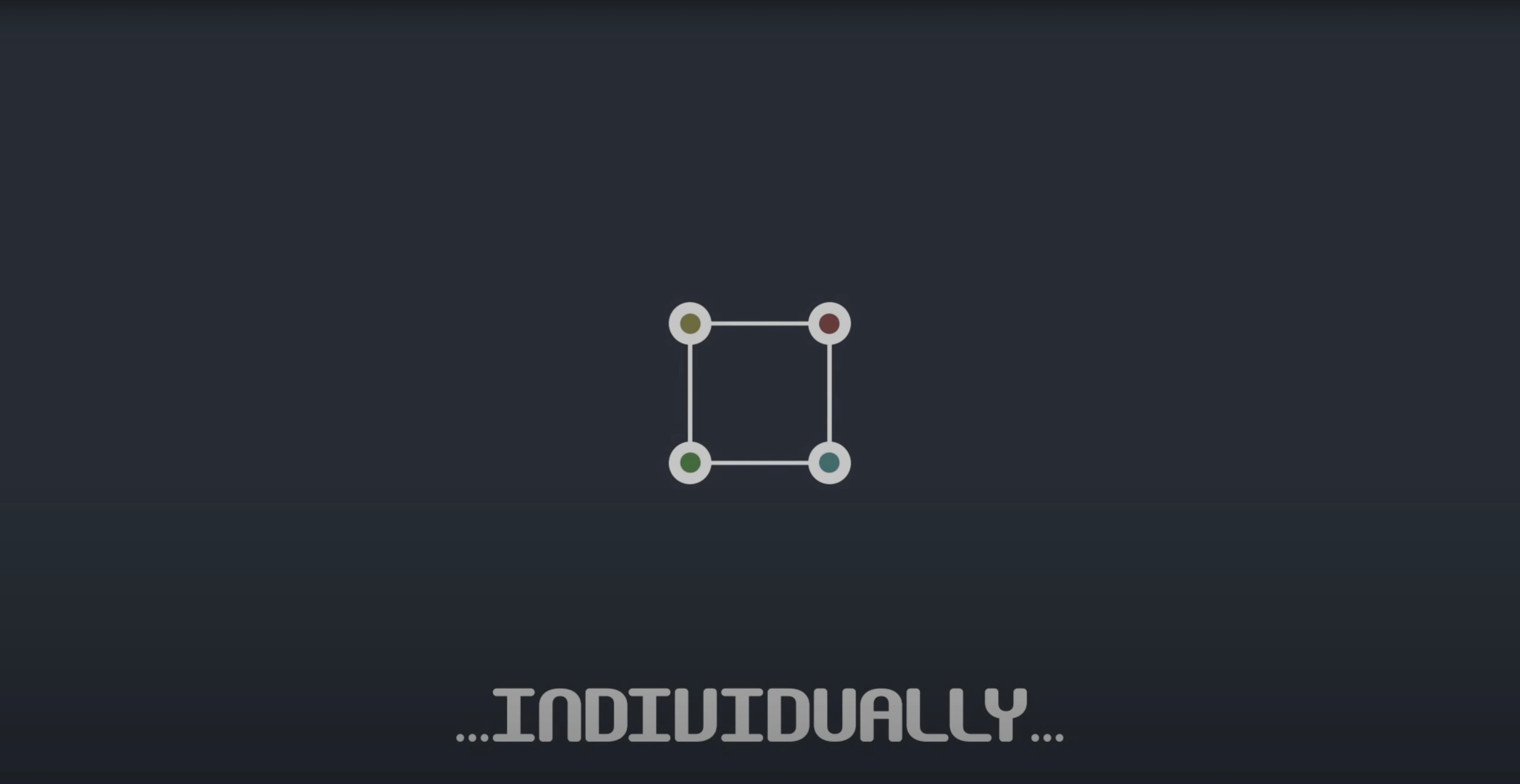
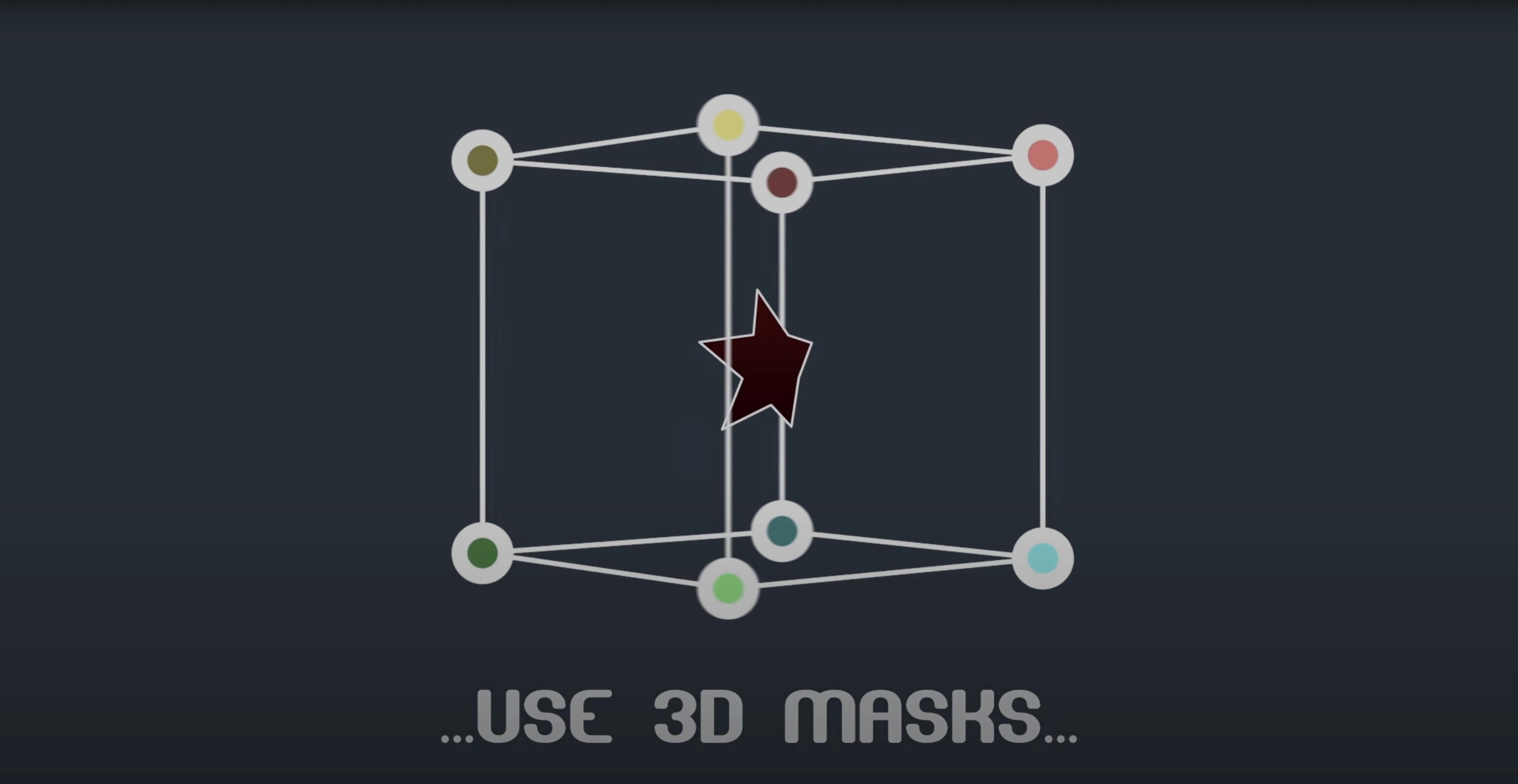
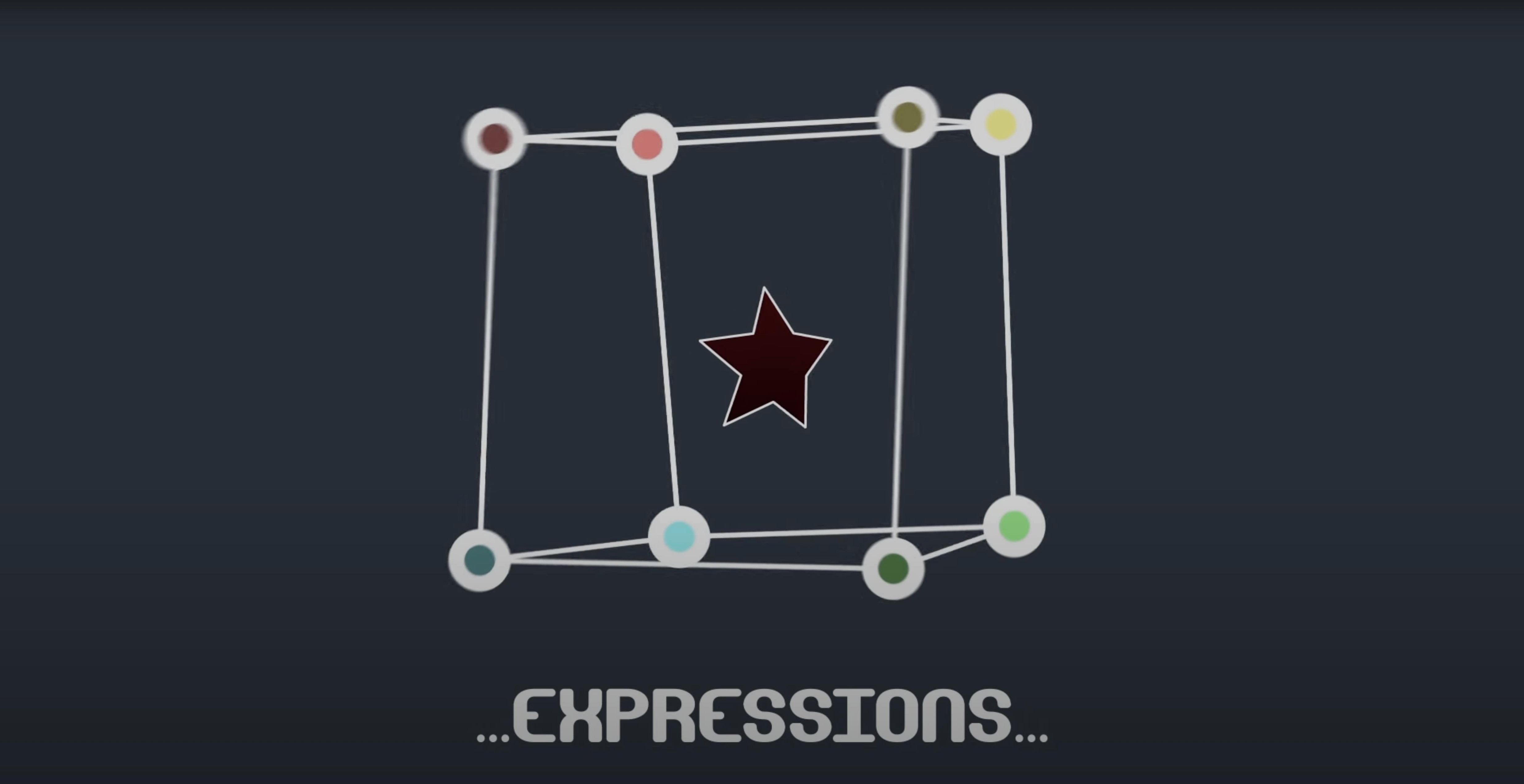
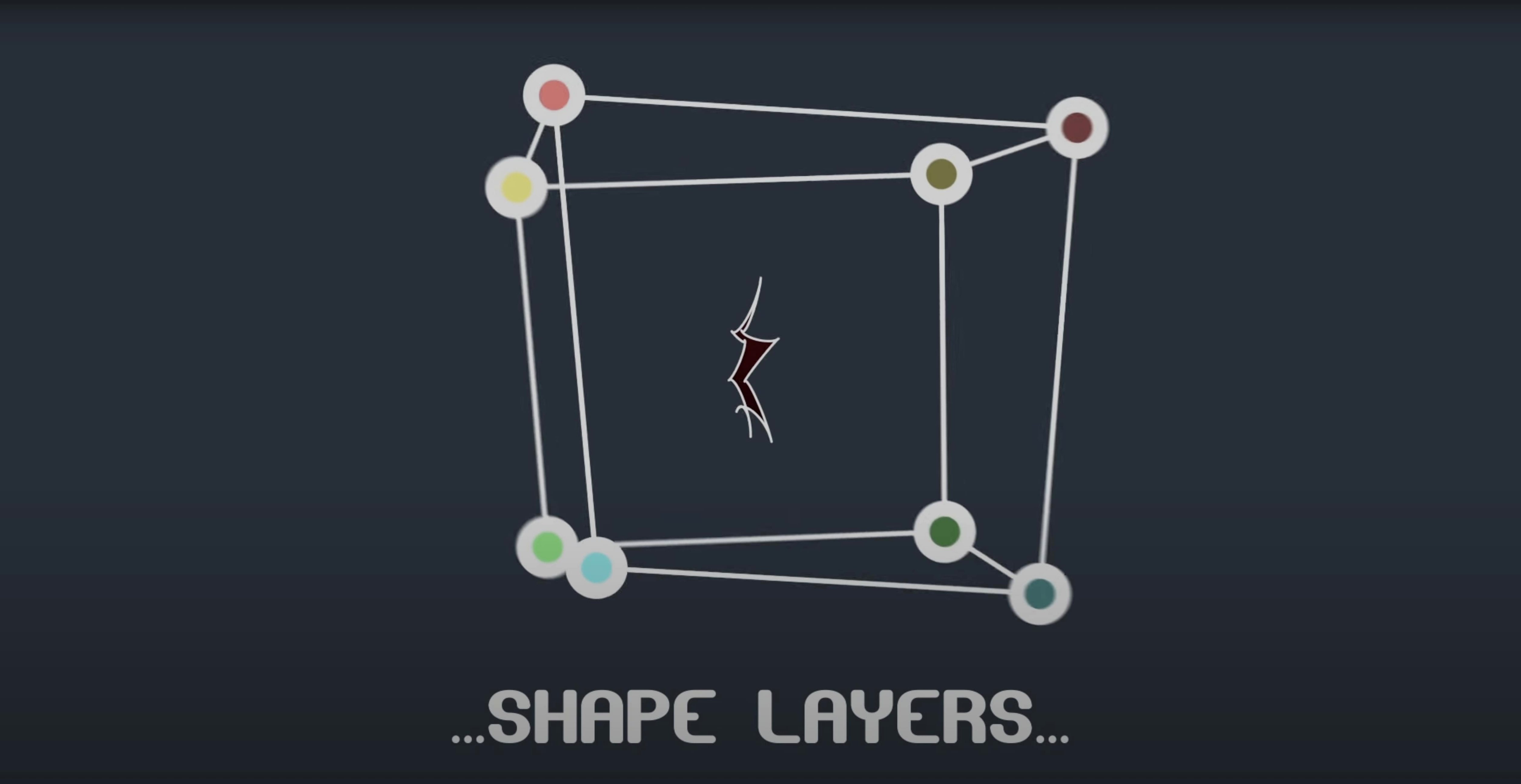
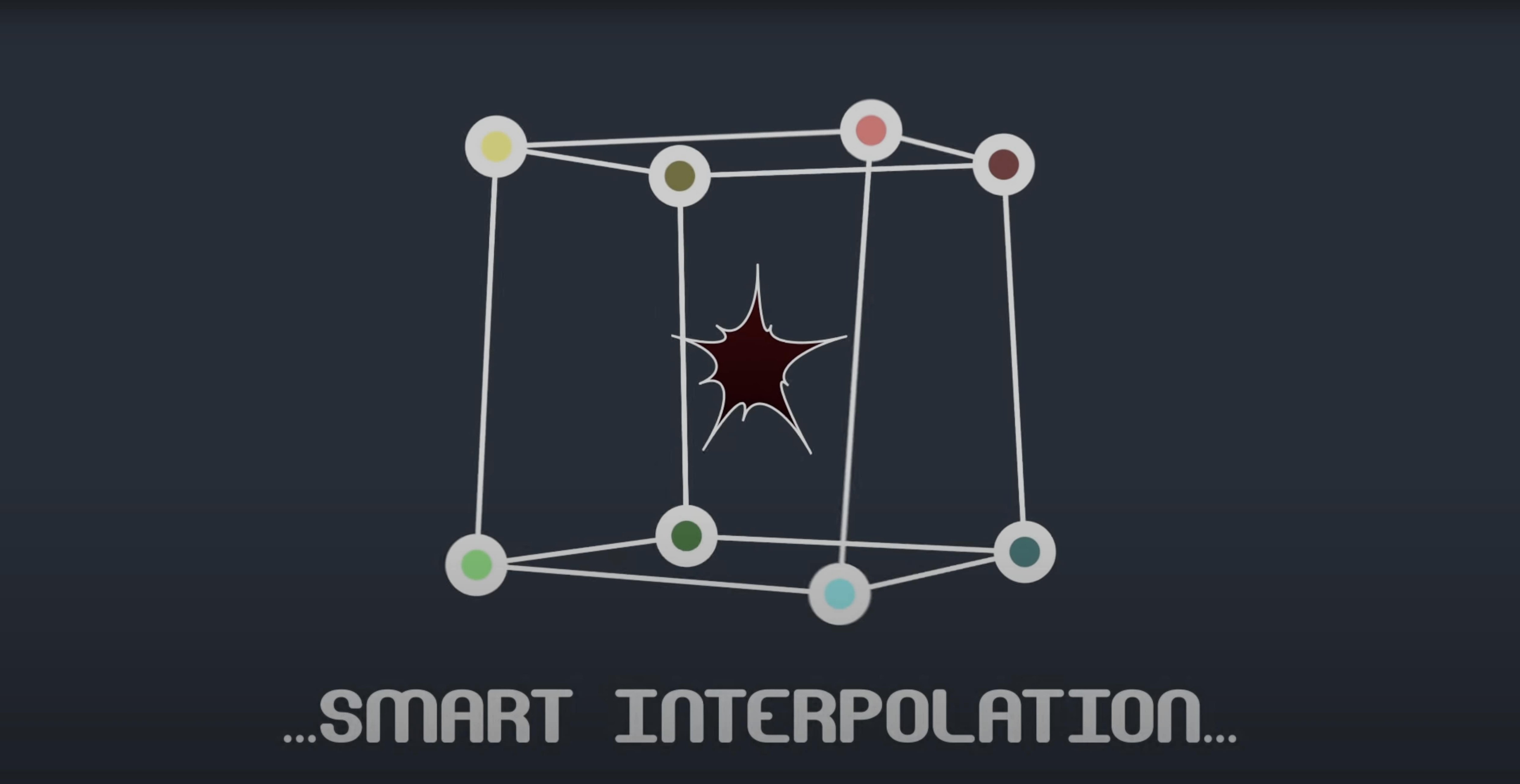
Mask animation in After Effects often becomes a fight with the timeline when a single bezier handle needs to move independently. The standard toolset treats a mask as one shape, leaving you to add keyframes for entire paths just to nudge a corner. BAO Mask Avenger replaces that constraint with per-vertex and per-tangent control, giving motion designers direct access to every point on a mask.
Version 2.7.5 runs as a native plugin on Apple Silicon and Intel Macs, with support confirmed from After Effects CS6 through the 2024 release. The update specifically resolved a compatibility issue that had blocked M1 machines from loading the plugin correctly. Installation is straightforward—activation instructions come in the package.
The tool operates in two modes. Vertex-only mode keeps things simple when you just need to reposition points. Full tangent mode lets you break handles and animate the angle and length of each tangent separately. An intelligent interpolation system calculates motion based on either the mask's center of gravity or an independent key anchor point you define, which reduces drifting during complex moves.
A practical addition for studio work is the freeze mode. You can send a project to a colleague who does not own the plugin, and the mask animation bakes into standard keyframes they can open without error. There is also a pick-whip expression for linking mask vertices directly to tracker points, cutting out the manual alignment that usually follows a camera solve.
Over-Animating Every Vertex
Starting with per-vertex control, it is easy to over-animate. The first mistake is keyframing every vertex on every frame. Mask Avenger gives you individual handles, but that does not mean you need to touch them all. Use the center of gravity interpolation mode first — it handles most movement automatically, and you only nudge vertices when the automatic result drifts.
Another frequent error is ignoring the freeze mode until after a crash. Motion designers often work alone, render a preview and then send the project to a teammate who does not have the plugin. The file opens, but masks disappear. Freeze the project before sharing. It takes seconds and saves a re-install conversation.
Beginners also forget that Mask Avenger works with shape layers, not just masks on footage. If you are animating a logo or a graphic element drawn with the shape tools, the same vertex and tangent controls apply. The plugin reads position and orientation data from any point along a path, so there is no need to convert shapes to masks first.
Vertex-Only vs. Full Tangent Mode
Moklet
Moklet is a simpler After Effects extension focused on masking objects in video, often used for removal work. It does not expose individual vertices or tangent handles. For a project that only needs quick object removal, Moklet is faster to set up. Mask Avenger is better when you need to animate the shape of the mask itself over time, such as a morphing transition or a follow-focus graphic.
Keyan (Nuke integration)
Some motion graphics studios use Keyan for mask-based keying inside Nuke. That is a different pipeline — Nuke is compositing, not After Effects. If your entire workflow stays in After Effects, Mask Avenger integrates natively without round-tripping. The pick-whip expression for linking vertices to tracker points also lives inside After Effects, so you do not export and re-import data.
Vanilla After Effects Masking
The built-in mask tool gives you keyframes for the whole path. That works for simple moves, but fails when one corner needs to stay still while the opposite edge expands. Mask Avenger replaces the Mask Renderer entirely for these cases. The vanilla tool has no tangent control and no freeze mode, so collaboration with other editors often breaks.
Starting with a Simple Polygon Mask
- Start in vertex-only mode. Open a test comp, draw a simple polygon mask and toggle to vertex mode. Animate one point across ten frames. Then switch to full tangent mode and see how the bezier handles change the curve shape. Do this before touching a real project.
- Use the pick-whip on a tracker point. Run After Effects' built-in camera tracker on a test clip, create a null for a track point, then use Mask Avenger's expression link to attach one vertex to that null. Play the timeline and watch the vertex follow the tracked object. This takes fifteen minutes and explains the main use case faster than reading the manual.
- Freeze a project immediately after the first successful animation. Save a copy, freeze it, and open the copy on a machine without the plugin. Confirm the masks render correctly. If you wait until the deadline to test this, you will re-install under pressure.
- Enable the Free Transform mask tool integration. After you set a few keyframes, try scaling or rotating the mask with the Free Transform handles. The plugin keeps your vertex animations intact while you reposition the whole shape. This is faster than adjusting each point manually.
- Fixed an M1 compatibility issue on Mac.
| Processor | Apple Silicon, Intel 64-bit |
|---|---|
| Download | 6 MB |
- Apple Silicon or Intel Mac
- After Effects CS6 through 2024
Questions about BAO Mask Avenger
Does it work on Apple Silicon Macs?
Yes, version 2.7.5 fixed an M1 compatibility issue and runs natively on both Apple Silicon and Intel Macs.
Can I share a project with someone who doesn't have the plugin?
Yes, the freeze mode bakes all mask animation into standard keyframes so the project opens normally on any After Effects setup.
What versions of After Effects are supported?
It supports After Effects 2024 back to CS6, including all CC versions in between.
How to install, in order
- Open the package and follow the included activation instructions.
Comments and corrections 0
Sign in or open a free account to leave a comment.
No comments or corrections yet.