Fission 2.9.5 — download for Mac
Mac Apps Updated
Trims, splits, and merges audio files without re-encoding them so quality stays intact.
Screenshots
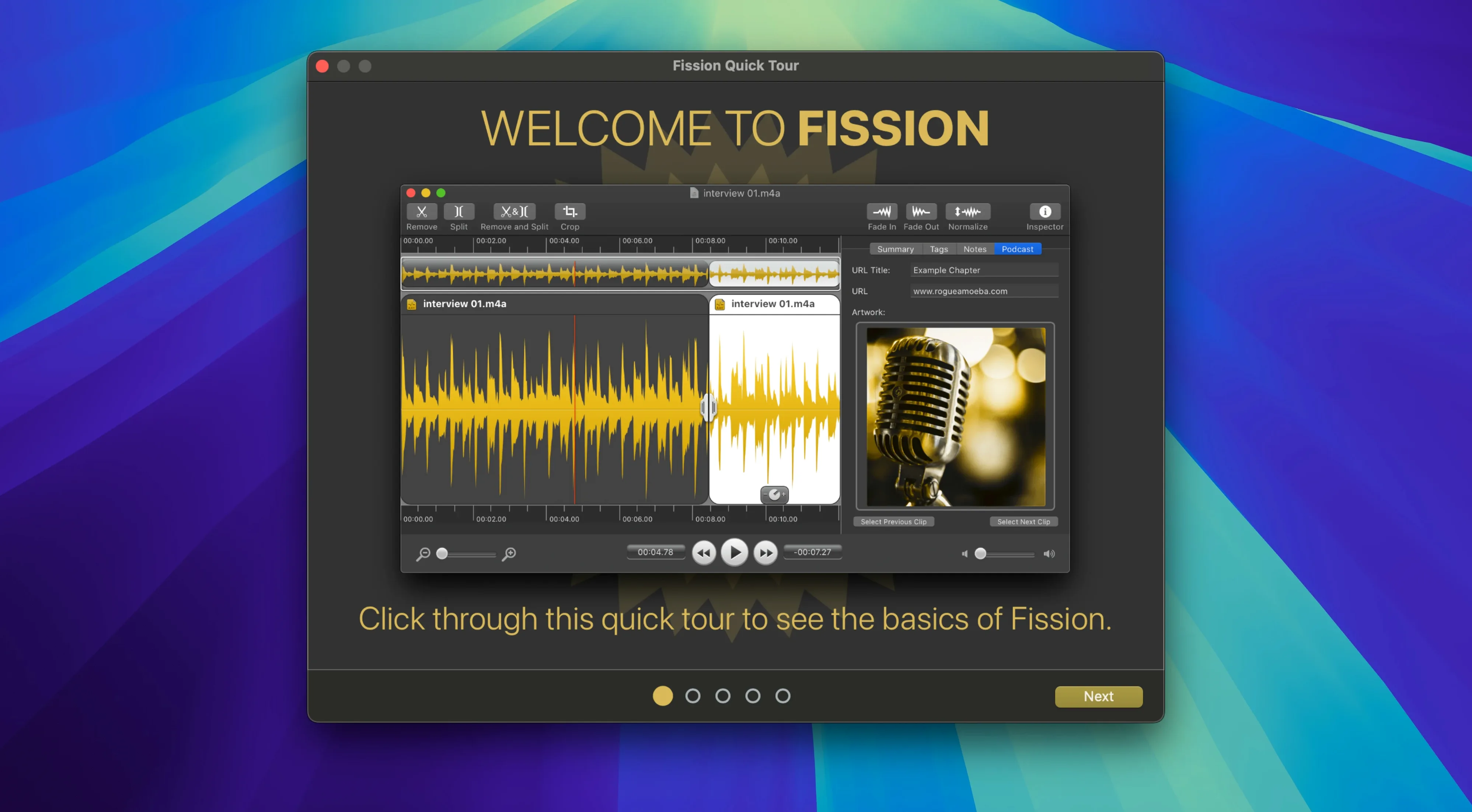
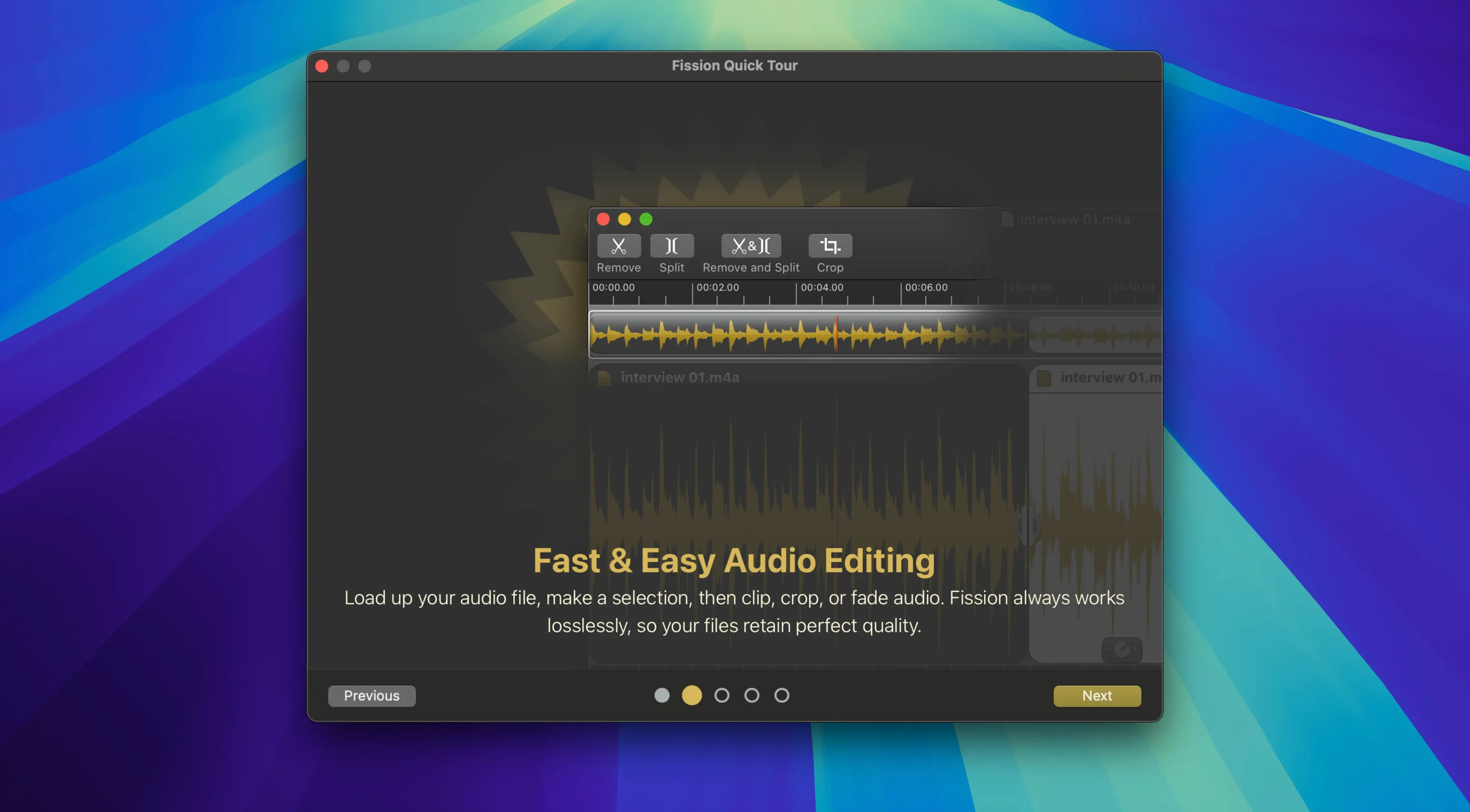
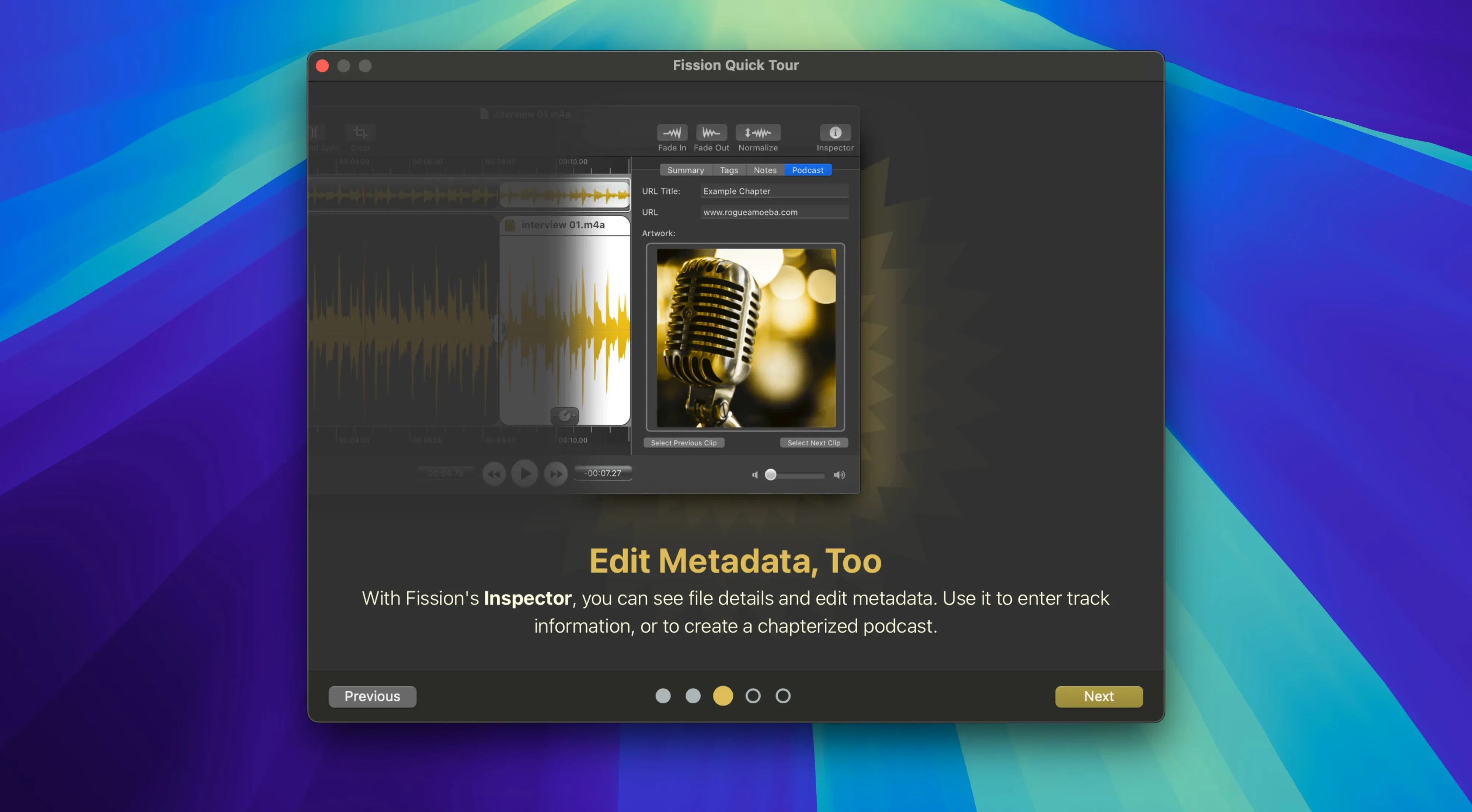
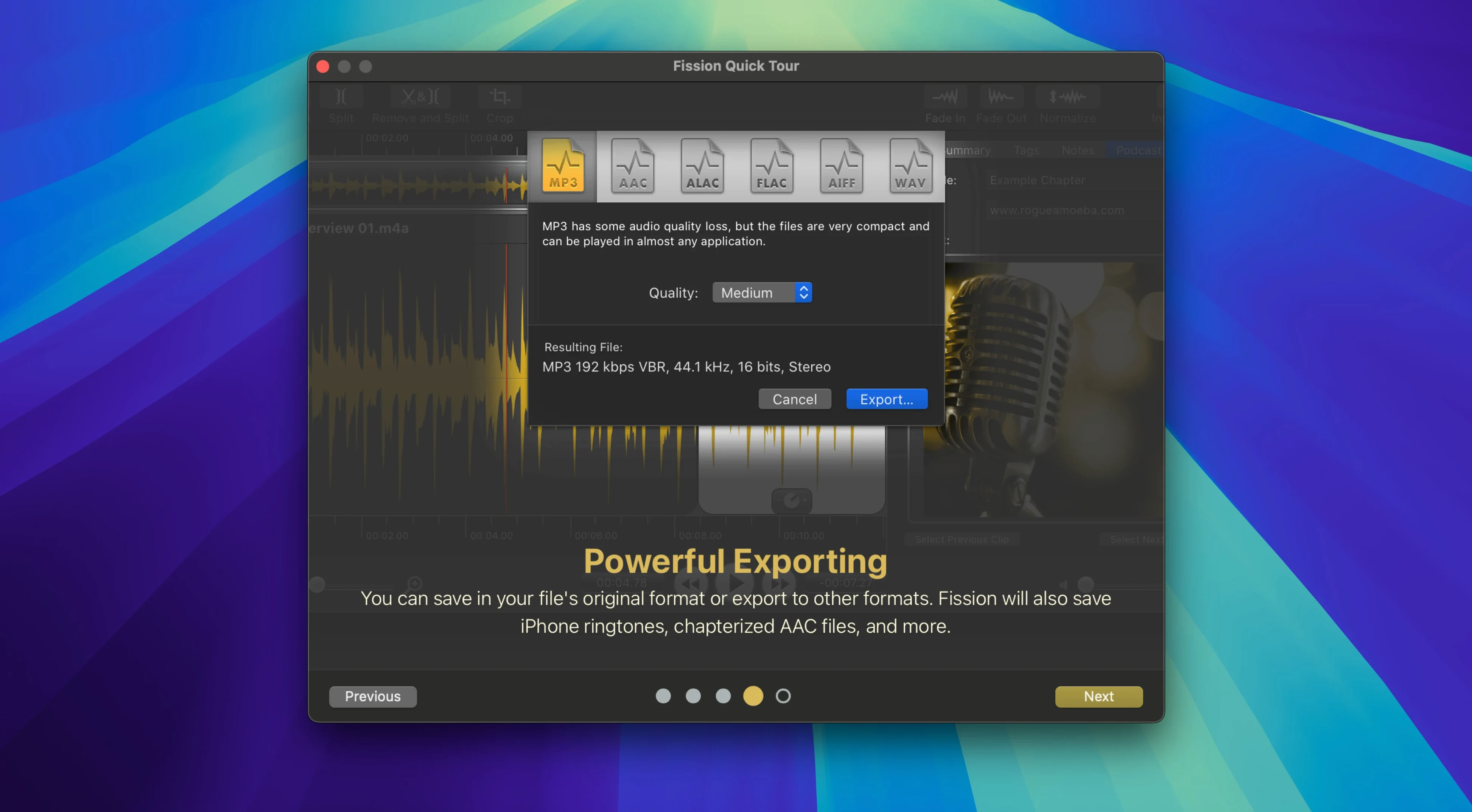
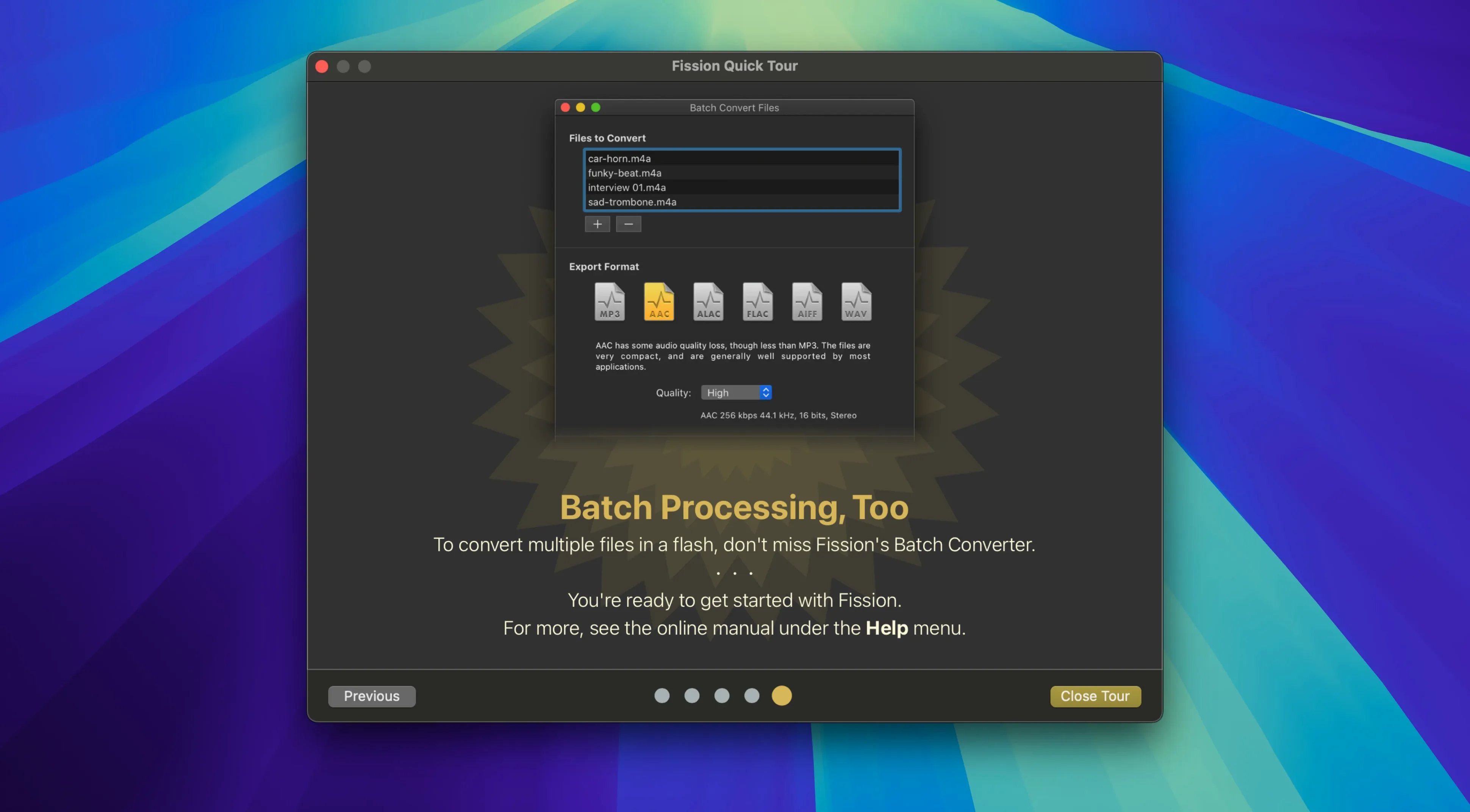
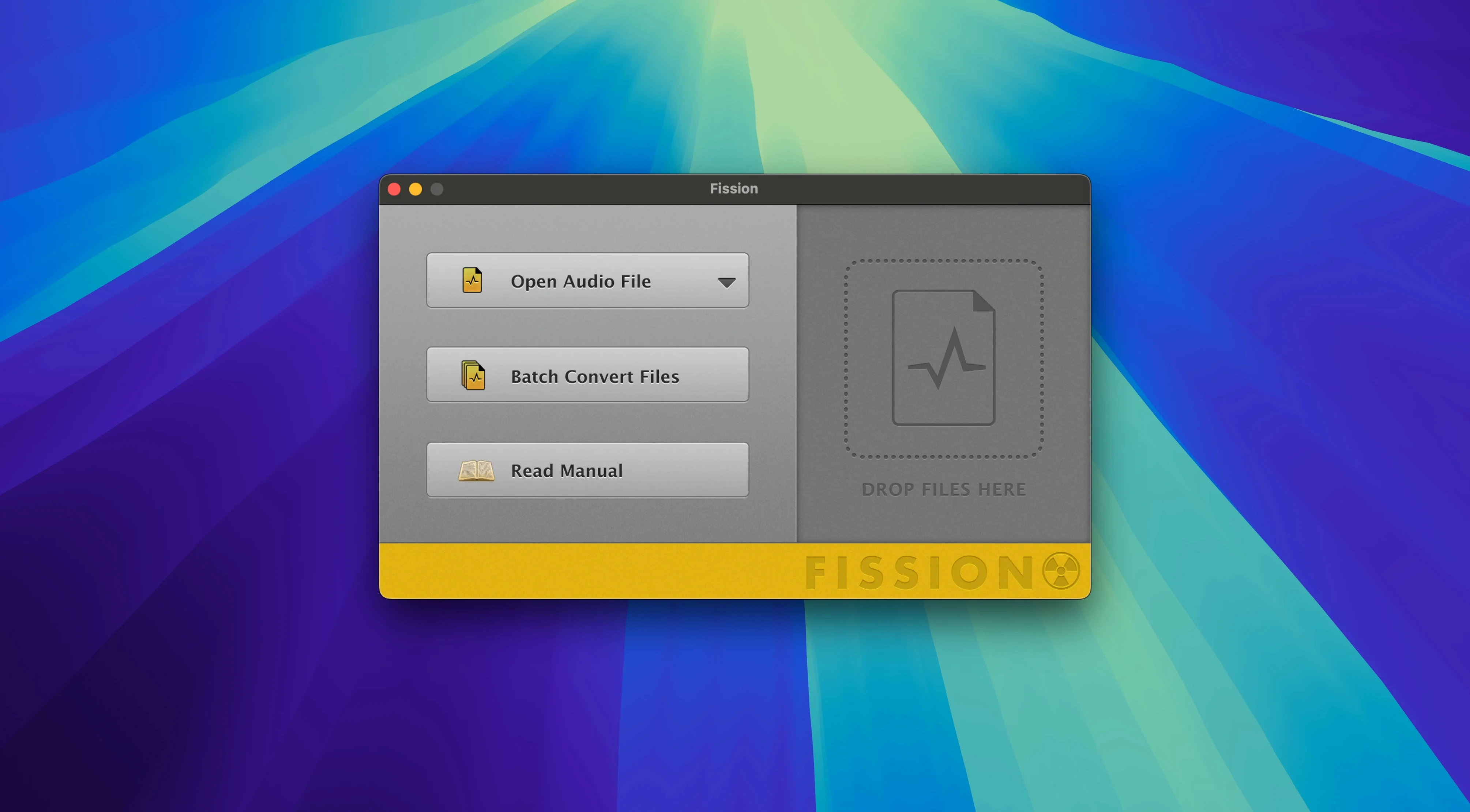
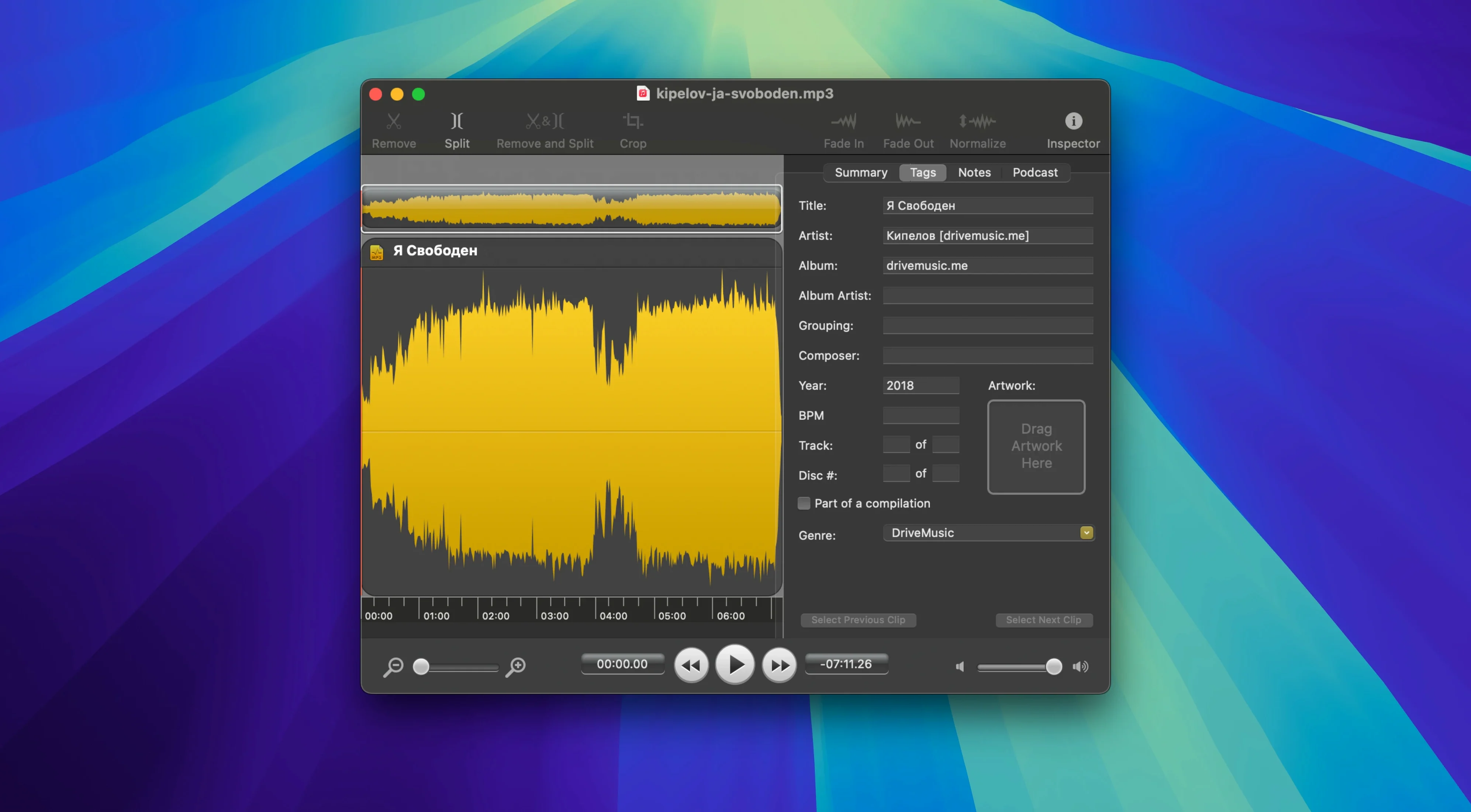
Fission is a direct audio editor for macOS built around one idea: edit audio files without re-encoding them. You open an MP3, trim the front and tail, split a long recording into tracks, or merge several files into one — all without quality loss. It works on both Intel and Apple Silicon Macs, and supports MP3, AAC, Apple Lossless, FLAC, AIFF, and WAV. The interface is minimal: a waveform, a selection tool, and a short list of actions. You do not need a multitrack timeline or a mixer. You need to cut, convert, or combine, and get back to work.
| Detail | Info |
|---|---|
| Developer | Rogue Amoeba Software |
| Current version | 2.9.5 |
| Supported formats | MP3, AAC, Apple Lossless, FLAC, AIFF, WAV |
| macOS required | macOS 11 or later |
| Architecture | Intel 64-bit & Apple Silicon |
A typical task: you record a podcast episode as a 45-minute WAV. In Fission, you open the file, drag the selection handles to remove five minutes of dead air at the start and the closing chatter at the end, then split the remaining file into chapter-sized sections with one click. You export each section as AAC for upload — no re-encoding of the parts you kept, no format conversion that degrades the sound. The whole edit takes about three minutes. Version 2.9.5 adds option-scrolling to adjust gain when audio is selected, so you can balance levels on the fly without opening a separate effect window.
From RAW WAV to Five Clips in Minutes
Monday morning, you have a 72-minute interview recording that needs to become five short clips for a client's website. The raw file is in your downloads folder, still in the original WAV format the recorder spit out. You launch Fission, drag the file onto the waveform area, and the whole thing appears as a single long track.
First pass: remove the setup noise. The first three minutes contain shuffling papers and the host adjusting levels. You zoom in using the scroll gesture, click to set the start marker just after the host says "we're live," then set the end marker at the point where the first question starts. You delete the selection. The file now begins cleanly.
Second pass: split into chapters. The conversation has natural breaks where the topic shifts. Each split marker shows as a thin line on the waveform. With the markers set, you choose the split command. Fission writes five separate files to the same folder as the original, each named with the original filename plus a number suffix. No waiting, no progress bar that hangs — the files appear in seconds because the software is not re-encoding the audio, just cutting the file structure.
Third pass: export for delivery. The client needs AAC files at 192 kbps. You select all five split files in the file list, choose Export, pick AAC as the format, set the bit rate, and click Go. Fission runs through them one after another. While it works, you open the first result in QuickTime to check the start point. It is exactly where you placed the marker. The whole session, from opening the original file to having five ready-to-send clips, takes under ten minutes.
Lossless Format Support Without Quality Loss
Does Fission work with lossless formats? Yes. It handles Apple Lossless, FLAC, AIFF, and WAV natively. You can open a FLAC file, trim it, and save as Apple Lossless without any quality loss in the conversion, because the software works with the original data rather than decoding and re-encoding it.
Can I use it to make ringtones? The manual includes iPhone ringtone creation as a documented use case. You trim a song to the 30-second section you want, choose the export format that matches your phone's requirements, and you are done.
Does it work if I have files in different sample rates? Fission handles mixed sample rates in the same session. If you merge a 44.1 kHz file with a 48 kHz file, it converts on the fly during export without asking you to pick a sample rate beforehand.
What about batch processing? The batch converter lets you apply the same format and bit rate settings to a folder of files. You drag in a dozen AIFFs, set them all to MP3 at 256 kbps, and let the software process them in one pass. Each file keeps its original name with the new extension.
Split Markers Not Exporting? Click the Waveform First
Split markers not taking effect. The most frequent issue: you have placed split markers but the file still exports as one piece. This usually happens because the file is still selected in the waveform view. Before you split, click anywhere outside the waveform area to deselect it, then apply the split command. The markers need to be placed on an unselected track to work as split points.
Export destination confusion. When you export a file, Fission saves it to the same folder as the original by default. If you are working with a file from your downloads folder, the exported version lands there too. To avoid clutter, create a dedicated output folder and set it in the export preferences before you start the batch.
Gain adjustment not responding. Version 2.9.5 uses option-scrolling to adjust gain, but only when audio is selected in the waveform. If you are scrolling with the option key pressed and nothing happens, check that you have a selection active — a highlighted region on the waveform. Click and drag across a section, then try again. The gain change applies only to the selected portion, not the whole file.
File format not appearing in the export list. Fission supports six formats natively. If you need a format that is not listed, convert to a supported intermediate format first, then use another converter for the final step. This is rare for most office use cases, since the included formats cover the common delivery standards for podcasting, archiving, and broadcast.
- Option-scrolling now adjusts gain when audio is selected.
| macOS | macOS 11 or later |
|---|---|
| Processor | Apple Silicon, Intel 64-bit |
| Download | 17 MB |
- macOS 11 or later
- Intel 64-bit or Apple Silicon
Questions about Fission
Does Fission re-encode my audio?
No. Fission edits MP3, AAC, Apple Lossless, FLAC, AIFF, and WAV without re-encoding, so you keep the original quality.
What macOS versions does Fission support?
Fission runs on macOS 11 (Big Sur) and later, on both Intel and Apple Silicon Macs.
Can Fission convert between audio formats?
Yes. You can open one format and save or export in any of the supported formats: MP3, AAC, Apple Lossless, FLAC, AIFF, and WAV.
How to install, in order
- Open the downloaded disk image.
- Drag the app to the Applications folder alias.
- After copying finishes, open the app from Launchpad.
Comments and corrections 0
Sign in or open a free account to leave a comment.
No comments or corrections yet.