FontLab 8.4.3 — download for Mac
Mac Apps Intel processors only Updated
Shapes letterforms with vector tools and supports multiple font formats.
Screenshots
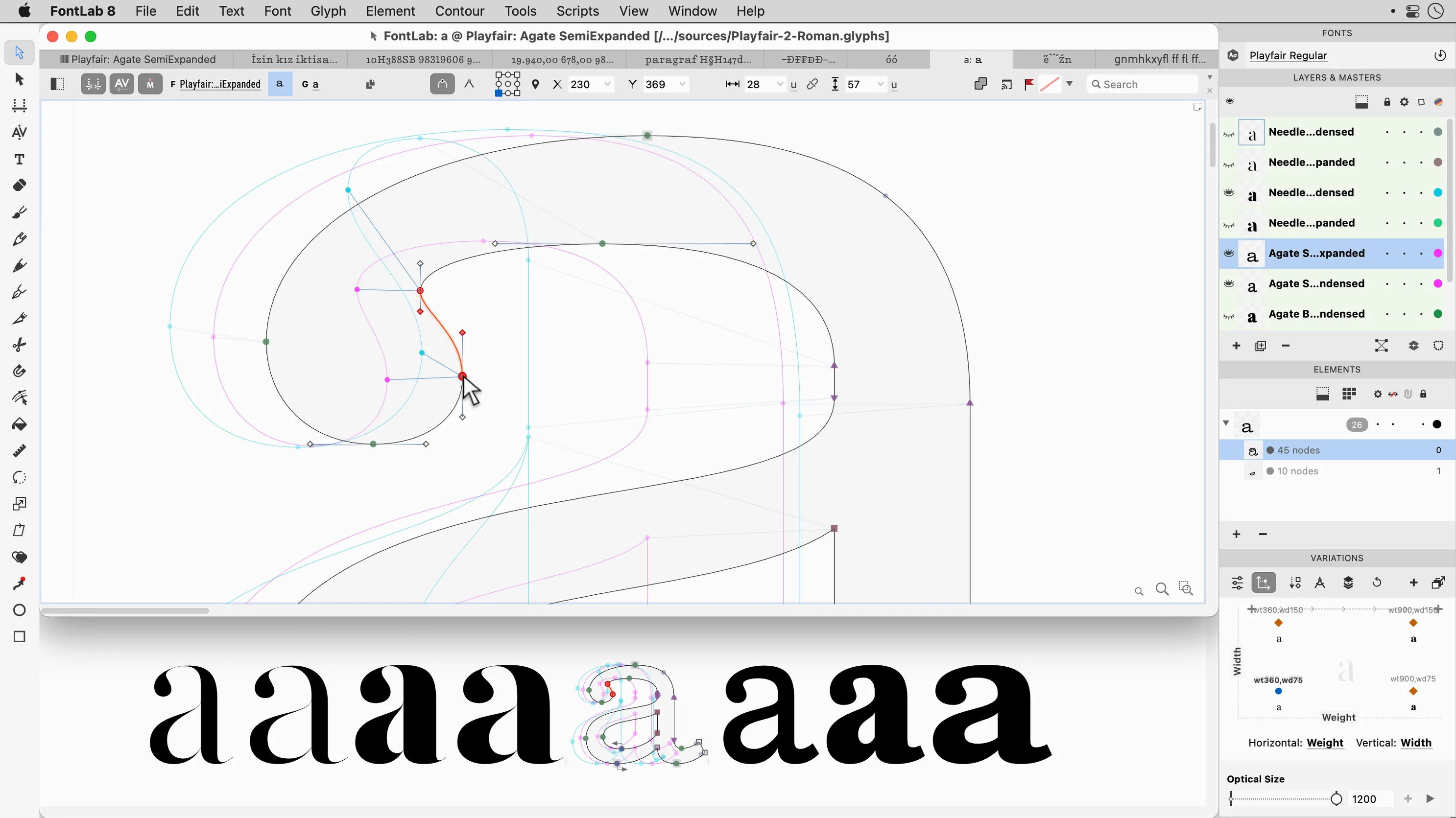
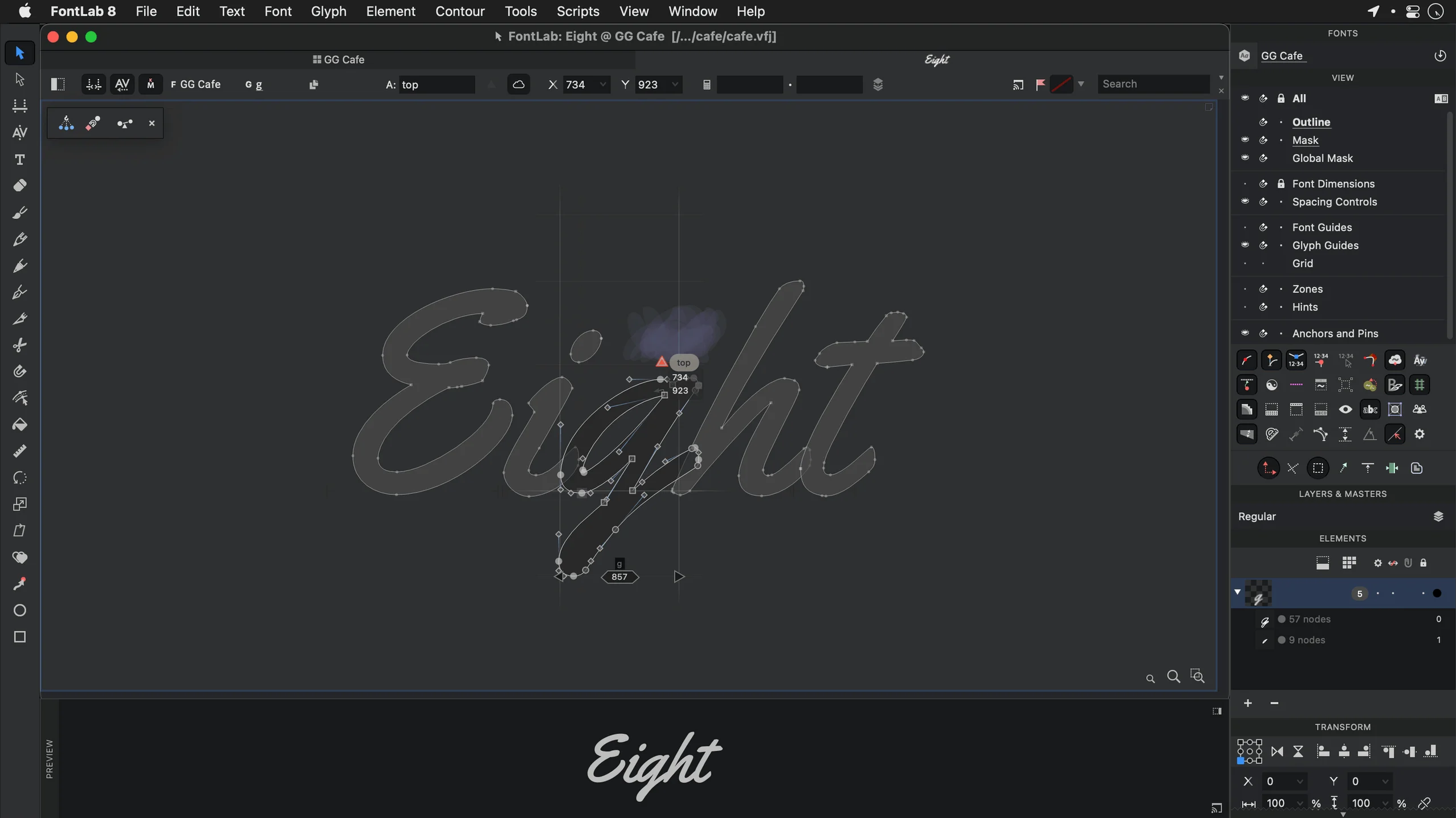
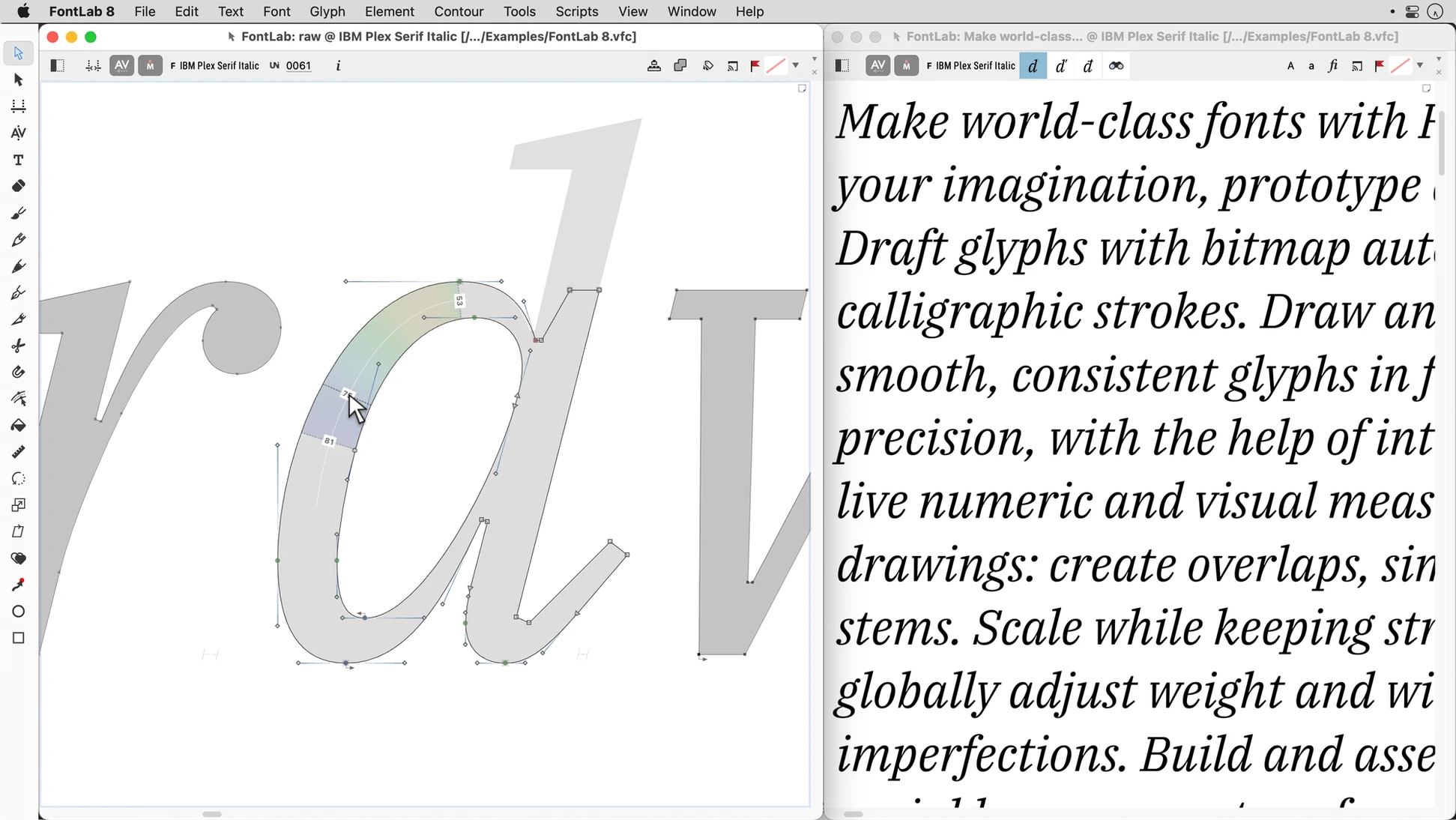
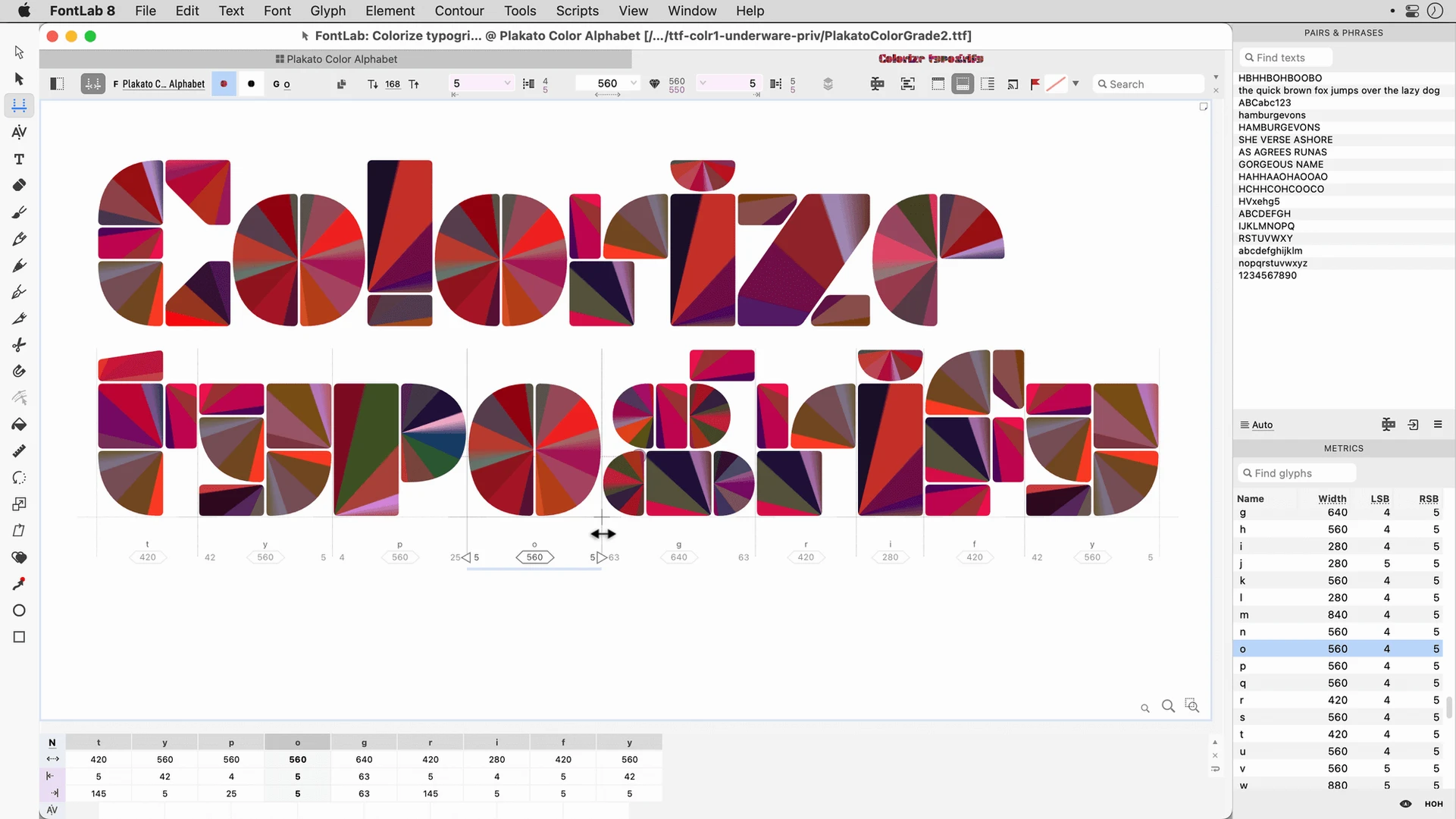
Type designers and font engineers who spend their days shaping letterforms need an editor that matches their precision. FontLab 8 sits in that workspace, offering vector drawing tools, support for OpenType, TrueType, and even ASCII/Unix Type 1 fonts, plus editable code pages and encodings. It’s built for the person who wants to tweak a Bézier curve, then run a programmable transformation across an entire glyph set.
How deep does the undo stack go?
More than 200 undo and redo levels. That means you can experiment freely—adjust a sidebearing, test a substitution rule, or rework a composite glyph—and step back through nearly any decision without losing work.
What font formats can it handle?
FontLab 8 works with OpenType, TrueType, and ASCII/Unix Type 1 fonts, and it fully supports Unicode. The built-in font viewer and editor let you inspect and modify any glyph across these formats in one project.
How do programmable transformations help?
Instead of repeating the same adjustment on every glyph, you write or apply a transformation rule. FontLab runs it across selected glyphs or the whole font, saving hours of manual retouching on large character sets.
Runs on macOS 10.14 and Apple Silicon Natively
FontLab 8.4.3.8984 runs on macOS 10.14 and later, and it supports both Intel and Apple Silicon Macs natively. That covers everything from older iMacs to the latest M-series machines, so compatibility concerns are minimal for most studios.
FontLab 8 is a full replacement for FontLab Studio 5. If you have been working in version 5, projects and font files open in 8, though the interface and tool layout are different. The learning curve is steeper than moving between minor versions, but the added programmable transformations, batch glyph tools, and expanded format support make it worthwhile for daily work.
A common question is whether FontLab supports Arabic and Hebrew. It does. The app handles right-to-left scripts and complex ligature systems, which matters for type designers working on multilingual font families or localization projects.
Users also ask about file import. FontLab accepts AI, EPS, TIFF, and BMP files, so you can bring in vector artwork from Illustrator or scanned sketches and convert them into glyph outlines. This keeps the initial drawing step inside familiar tools if that is where you work fastest.
Workflow: Building a Simple Font From Scratch
Over one afternoon, here is how a small project runs from first glyph to exported font file.
- Set up a new project. Create a new font with OpenType outlines. Choose a Unicode encoding that matches the character set you need, such as Basic Latin for a test font or Arabic Presentation Forms for a right-to-left project.
- Draw the first glyph. Use the vector drawing tools to shape a lowercase letter. FontLab's Bézier editing works similarly to other vector editors, so moving nodes and adjusting curves feels familiar. The built-in font viewer shows the glyph in context with other characters you have already added.
- Add metrics. Set sidebearings and kerning pairs for the letter. FontLab remembers these values and applies them to similar glyphs if you use the batch transformation tools later.
- Duplicate for similar glyphs. Copy the glyph and adjust it to create related letters. For example, take a lowercase "n" and add a descender to make a "p". Drag-and-drop glyph placement keeps the copy fast.
- Apply a transformation. Use a programmable transformation to adjust stem weights or overshoot values across every glyph at once. This step saves time compared to editing each character individually.
- Generate the font. Export the project as an OpenType or TrueType font file. FontLab compiles the outlines, metrics, and encoding tables into a single installable font.
This process works for simple display fonts and for more complex projects with hundreds of glyphs and substitution rules.
Open an Existing Font to Locate Tools and Panels
- Open an existing font first. Before starting a new project, load a font you have worked with before. Browse through the glyphs and test the built-in viewer. This helps you find where tools and panels live without the pressure of a blank project.
- Use undo freely. With over 200 levels available, there is no penalty for trying a transformation or a curve adjustment you are unsure about. Step back if it does not work. The undo stack encourages experimentation.
- Check encoding early. Set your code pages and encodings at the start of a project. Changing them later can shift glyph mappings and require rework. FontLab supports editable code pages, so you can customize them, but it is easier to set them correctly first.
- Batch transform before fine-tuning. Run programmable transformations on the full glyph set early. Adjust stems, serifs, or overshoots globally. Then go back and polish individual glyphs. This sequence avoids redoing manual edits after a batch pass.
- Test import formats. Drag an AI or EPS file into a new glyph slot to see how FontLab handles your vector data. Some strokes or fills may map differently than you expect, so a quick test saves time later.
Best for Designers Managing Multiple Font Formats
FontLab 8 fits most naturally into the workflow of a typeface designer who works with multiple font formats. If you produce OpenType families, maintain large glyph sets, or convert legacy TrueType and Type 1 fonts into modern outlines, the format support and batch tools reduce repetitive work.
Graphic studios that produce custom fonts for branding projects also benefit. The ability to import AI and EPS files means designers can draw letterforms in their preferred vector tool and bring them into FontLab for technical font production. The built-in viewer and editor let a non-specialist inspect a font before delivery without needing a separate preview tool.
Font production teams handling Arabic or Hebrew typefaces get direct value from the Unicode and right-to-left support. Programmable transformations help apply consistent styling across large glyph sets without manual duplication.
For the freelance typographer who maintains a personal library of fonts, the undo stack and batch editing tools keep projects manageable. Even a single-family project with 200-plus glyphs becomes easier to organize when you can transform groups and step back through changes.
- 500 improvements over FontLab 8
- 900 improvements over FontLab 7
| macOS | macOS 10.14 or later |
|---|---|
| Processor | Intel 64-bit |
| Download | 131 MB |
- macOS 10.14 or later
- Intel-based Mac
Questions about FontLab
What macOS versions does FontLab 8.4 support?
FontLab 8.4 works on macOS 10.15 through macOS 26 Tahoe.
Is FontLab 8 compatible with Apple Silicon?
The current version runs on Intel-based Macs. No Apple Silicon-native version is listed in the requirements.
How many improvements does FontLab 8.4 have over version 7?
FontLab 8.4 includes 500 improvements over version 8 and 900 improvements over FontLab 7.
How to install, in order
- Open the downloaded disk image.
- Drag the app into the Applications folder alias.
- Open the app from Launchpad after copying finishes.
Comments and corrections 0
Sign in or open a free account to leave a comment.
No comments or corrections yet.