
Flicker Free 2.1.6 — download for Mac
Mac Apps Updated
Removes rolling flicker from footage captured under LED lights during video processing.
Screenshot
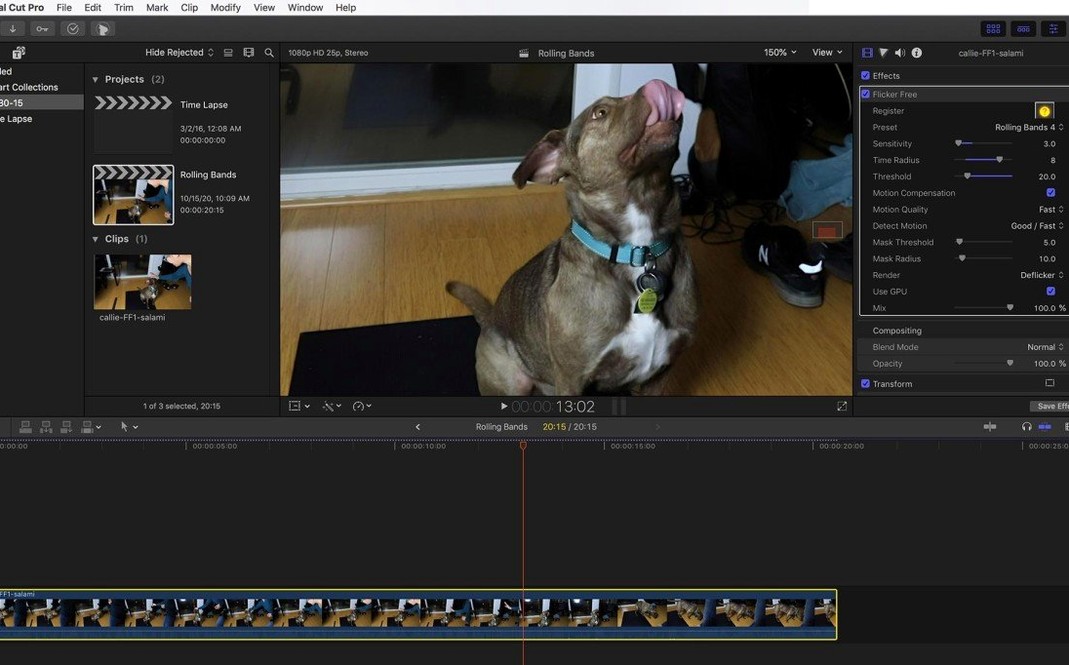
Editors and colorists working with footage from Phantom Flex, Sony FS700U, GoPro HERO3 Black, or any camera that picks up flicker from LED lights have a practical solution in Flicker Free 2.1.6. This plugin from Digital Anarchy analyzes frames during processing to remove rolling flicker caused by unsynchronized cameras and electrical or lighting sources. It is a third-party plugin, not a built-in editor feature, and you can apply it to a clip, do a short render, and check the result before committing to the full project.
Format, Host, and Compatibility
Flicker Free works as a plugin inside Final Cut Pro, After Effects, Premiere Pro, Avid, DaVinci Resolve, and other OpenFX-compatible applications. The interface is in English, and the plugin is built for both ARM and x86 architectures on macOS (64-bit only). Because it runs inside the host app, you do not need to export footage or switch tools — you deflicker right in your timeline.
Targets LED Rolling Flicker and High-Frame Uneven Brightness
The plugin is described as a new powerful form of video deflickering. It targets the rolling flicker that appears when LED lamps cycle out of sync with a camera’s shutter or when high-speed cameras produce uneven frame brightness. Flicker Free analyzes each frame as it processes, adapting the correction to the actual flicker pattern in the shot rather than applying a fixed filter. This makes it useful for real-world shoots where the flicker frequency changes across a clip.
For Artificial Light, Time-Lapse, and High-Frame-Rate Shooters
Flicker Free is not a general-purpose effect. It solves a specific problem, so the users who benefit most are the ones who shoot under artificial light, record time-lapse sequences, or work with high-frame-rate cameras. Event videographers who film in conference halls or sports venues where LED walls and dimmer-controlled lights are standard will see the clearest difference. Time-lapse shooters also rely on it: a long sequence shot in a room with overhead fluorescents can show a steady brightness pulse, and Flicker Free removes that before you export the final clip.
Post-production houses that handle footage from slow-motion cameras like the Phantom Flex or Sony FS700U often spend hours manually leveling brightness between frames. The plugin cuts that work to a single pass. Editors in commercial and corporate video production will also find it useful when client shoots happen under mixed lighting and the flicker is only visible after playback on a bigger screen.
Pick a Preset — LED, Fluorescent, or Time-Lapse — First
Once you install Flicker Free following the included instructions, the first step is to pick a preset. The plugin ships with presets that match common flicker sources — LED, fluorescent, and time-lapse among them — so you do not have to guess parameters. Apply the preset that matches your footage, do a short render on a few seconds of the clip, and inspect the result. If the flicker remains, switch to a different preset or adjust the correction manually. The short render step is the fastest way to confirm you are on the right track before processing the full project.
One setting to check early is the mode that fits your footage type. Standard video and time-lapse sequences require different approaches because the flicker pattern in a time-lapse is slow and steady, while slow-motion video can produce high-frequency brightness jumps. Flicker Free handles both, but selecting the correct mode first saves time on later tweaks.
Saved a Music Video From Re-Lighting an Entire Warehouse
Consider an editor cutting a music video shot in a warehouse at night. Back in the editing timeline, every clip shows a rolling brightness shift that pulses through the performance. Without a deflicker tool, the editor would either re-light and re-shoot or spend hours keyframing brightness adjustments. With Flicker Free, the editor applies the slow-motion preset, renders a short test segment, sees the flicker drop out, and then processes the whole timeline. What would have been a half-day fix becomes a few minutes of rendering.
Kept ARM and x86 Support for macOS Editors
Version 2.1.6 is the current release, and it builds on earlier versions by keeping support for both ARM and x86 architecture on macOS. For editors who upgraded from older versions, the key change is that the plugin continues to work on Apple Silicon Macs without emulation, which means it does not slow down when you apply it to longer timelines. The processing method — analyzing frames as they are processed — remains the same, but the architecture support ensures that the plugin runs natively on newer hardware. No extra configuration or compatibility mode is needed.
Flicker Free 2.1.6 also stays compatible with the latest versions of Final Cut Pro, After Effects, Premiere Pro, Avid, DaVinci Resolve, and other OpenFX apps, so there is no gap between updating your host software and losing your deflicker tool. For a post-production team, that kind of compatibility reduces friction when multiple editors work on the same project across different systems.
No release notes filed for 2.1.6. They are added here when a build changes how the program behaves.
| Processor | Apple Silicon, Intel 64-bit |
|---|---|
| Download | 24 MB |
- macOS (exact version not specified)
- 64-bit processor (ARM and x86 both supported)
- Interface language: English
Questions about Flicker Free
Which Mac applications can run Flicker Free?
It works as a plugin in Final Cut Pro, After Effects, Premiere Pro, Avid, DaVinci Resolve, and other OpenFX-compatible apps.
What kind of flicker does Flicker Free remove?
It removes rolling flicker caused by LED lamps, unsynchronized cameras, and electrical or lighting sources.
How to install, in order
- Use the included installation and activation instructions provided with the plugin.
Comments and corrections 0
Sign in or open a free account to leave a comment.
No comments or corrections yet.