MacFamilyTree 11.3.4 — download for Mac
Mac Apps Updated
Builds interactive family trees with person details and relationships.
Screenshots
Importing from Windows and Other Genealogy Tools
People often ask whether MacFamilyTree works with data from other genealogy programs. The answer is yes — the app imports and exports GEDCOM, the standard format that most family history software uses. If you have been using a Windows genealogy app or a web service, you can bring that data in and keep working on your Mac. The import process reads the file and places each person into a new tree. You may need to check a few dates or sources afterward, but the structure comes through intact.
Another frequent question is about syncing between computers. MacFamilyTree uses CloudTree Sync & Share, which requires an iCloud account. When you enable sync, the app sends an encrypted copy of your family file to iCloud. You can then open the same file on another Mac and continue editing. The sync is real-time, so changes on one machine appear on the other quickly. If you also use an iPhone or iPad, the companion app MobileFamilyTree can access the same data through the same iCloud account.
Some users worry about privacy when publishing a family tree online. MacFamilyTree handles this with password protection on the website feature and the ability to hide people and records from export. Before you generate a website or a PDF, you can mark certain individuals or private notes as hidden. Only the information you choose to share becomes visible in the published version.
For Family Historians Beyond Basic Charts
This app fits best for three kinds of Mac users:
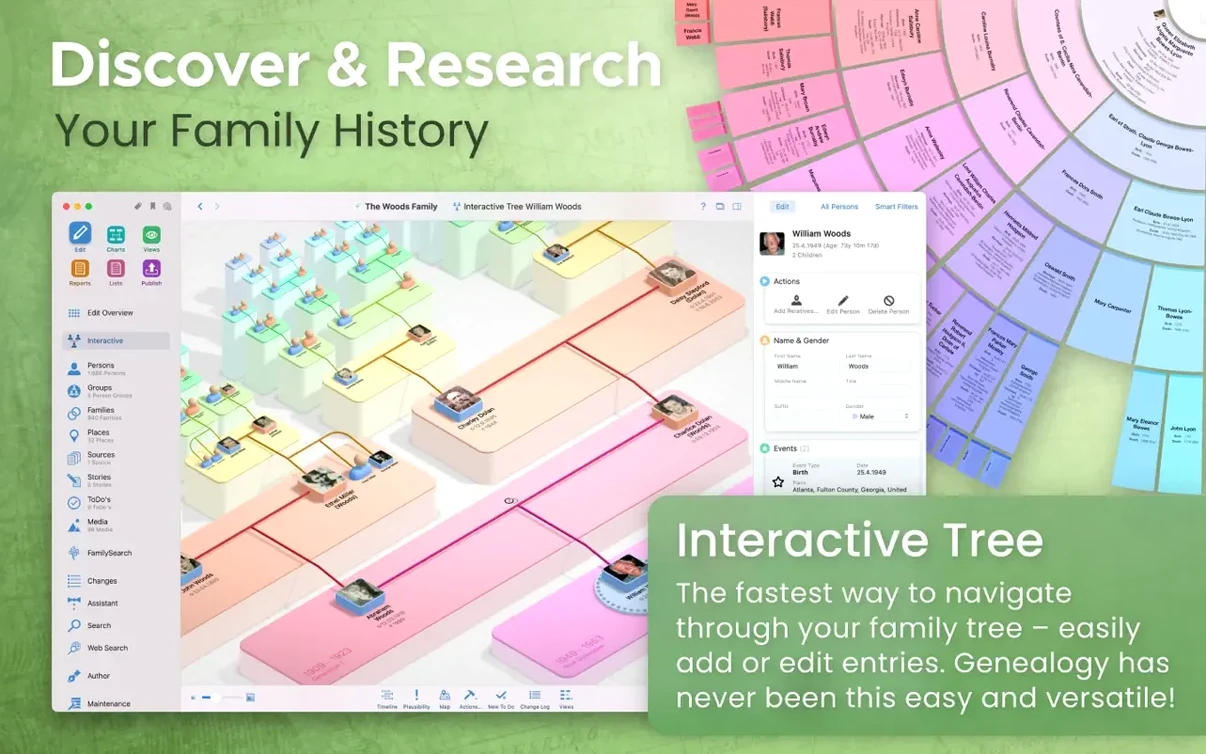
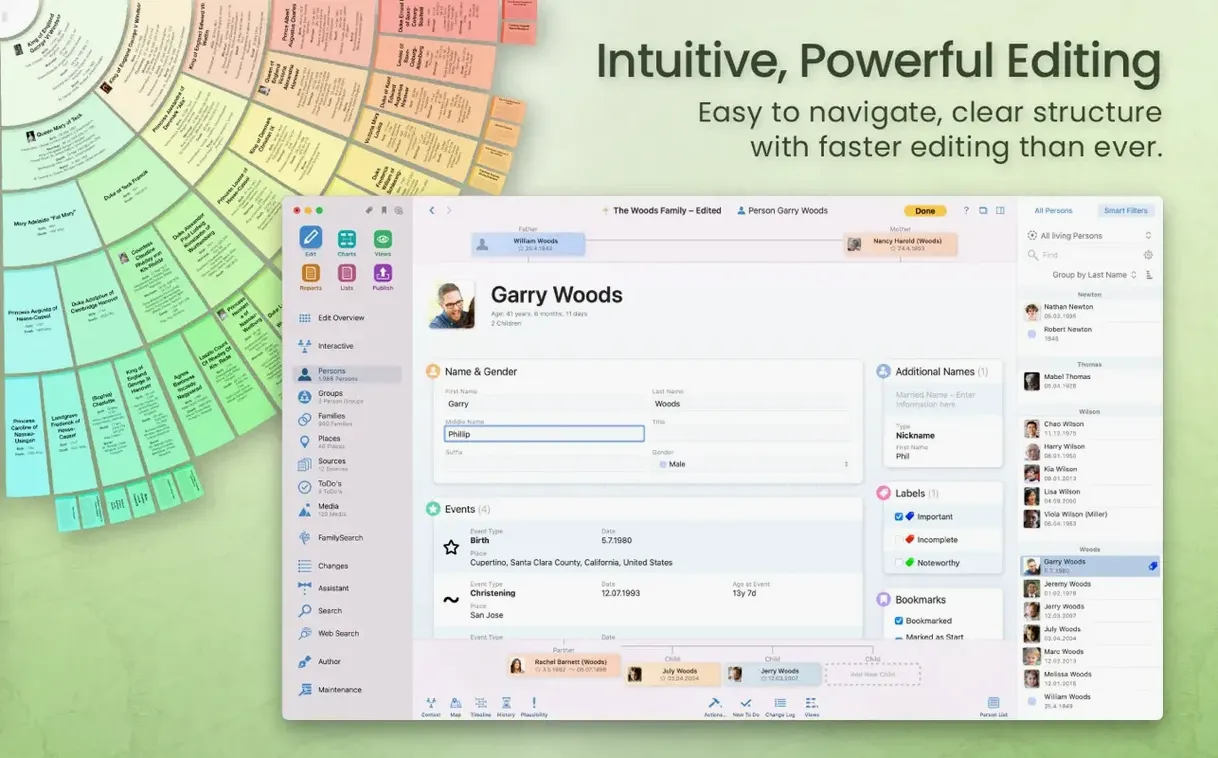
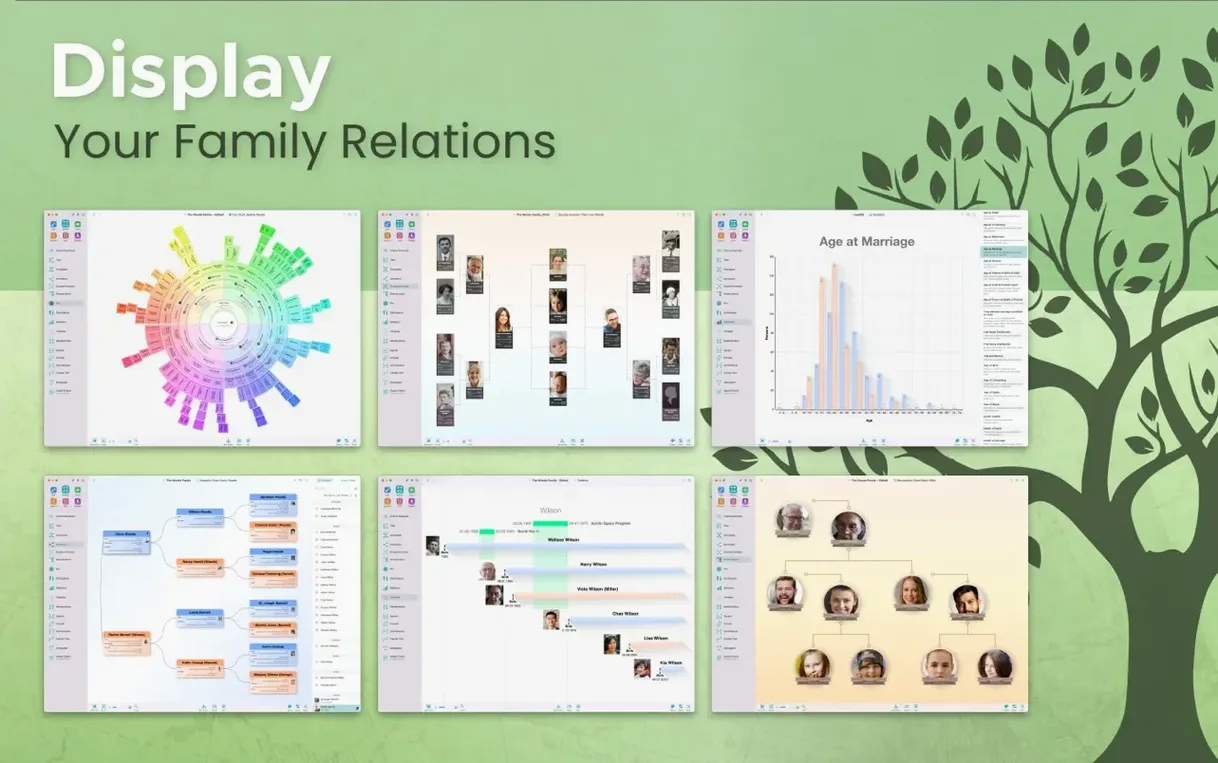
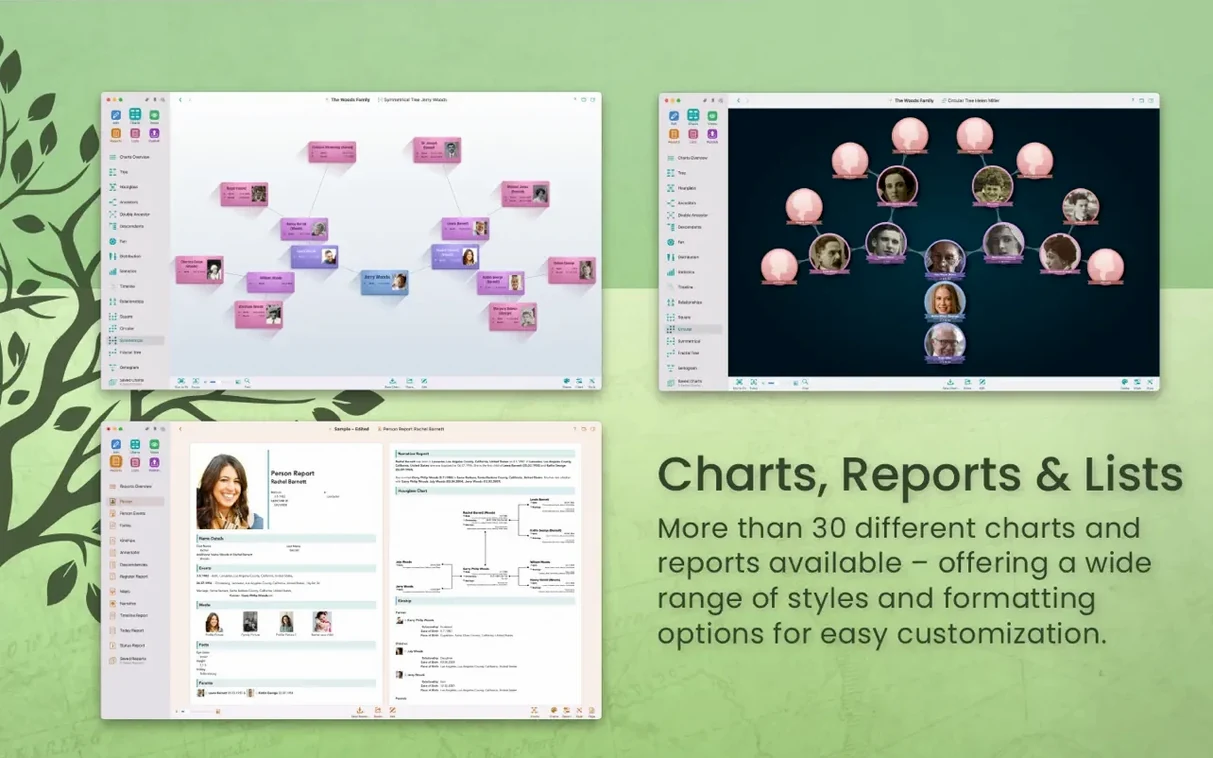
- Family historians who need more than a basic chart. If you have collected a few generations of names and dates in a spreadsheet or a free web tool, MacFamilyTree gives you the reports and diagrams that turn raw data into a real family history. You can create narrative biographies, maps of where ancestors lived, and descendant charts ready for printing.
- Mac users who work across multiple devices. Because the app syncs through iCloud and has a companion app for iOS, you can add a new birth record on your phone during a phone call with a relative and see it on your Mac later.
- Users who want to publish a family site. If your goal is to share the tree with cousins who are not genealogists, the website publishing option saves time. You set a password, pick which people to show or hide, and the app generates a site hosted through MacFamilyTree.com. Relatives can browse the tree without installing anything.
For someone who only wants a simple three-generation tree for a school project, the app may be more than they need. But for ongoing research that involves multiple branches, sources, and maps, it provides the tools that turn scattered records into a single organized file.
How MacFamilyTree Differs from Gramps
There are a few other genealogy apps for macOS, and each takes a different approach. Here is how MacFamilyTree stacks up against the main alternatives.
Gramps is a free and open-source genealogy application that runs on Mac, Windows, and Linux. It has powerful reporting and supports GEDCOM import and export, just like MacFamilyTree. The main difference is in the interface and the chart views. Gramps organizes data into a flat list of people and events, while MacFamilyTree emphasizes the interactive tree view and the 3D family tree. For users who prefer a visual, drag-and-drop way of building a tree, MacFamilyTree is easier to start with. Gramps offers more customization in reports but has a steeper learning curve and no built-in cloud sync or mobile companion app.
Family Tree Maker is a Windows app that also has a Mac version. It supports GEDCOM and integrates with Ancestry.com. The 3D tree view and the statistical map reports are features that Family Tree Maker does not offer on the Mac side.
For users who only need a basic tree and do not want any installation, web services like Ancestry.com or MyHeritage are a simpler option. MacFamilyTree keeps your data on your own Mac and lets you export a complete GEDCOM file anytime, with no ongoing payment.
Runs on Apple Silicon and Intel Macs
MacFamilyTree 11.3.2 runs on macOS 12 Monterey or later. It supports both Apple Silicon and Intel 64-bit Macs, and the developer states it is optimized for Apple Silicon. That means whether you have an M1 or M2 Mac or an older Intel model, the app will run without compatibility workarounds.
The installation follows the standard Mac method. You open the downloaded disk image, drag the app into the Applications folder alias, and after the copy finishes, launch it from Launchpad. No extra steps or configuration files are needed.
The interface is available in seventeen languages including English, Russian, German, French, Spanish, Italian, Portuguese, and Chinese. The language is set from the system language or from a preference inside the app.
For syncing between devices, you need an iCloud account — the same one you use for iCloud Drive or iCloud Photos. No separate genealogy service account is required. The app encrypts the data before sending it to iCloud.
If you search for macfamilytree torrent or macfamilytree 11 torrent to find the installation files, make sure you match the version to your macOS. The current release requires Monterey or newer, so it will not run on macOS 11 or earlier. The architecture check is handled automatically: the same download works on both ARM and Intel Macs.
- Stability improvements.
| macOS | macOS 12 or later |
|---|---|
| Processor | Apple Silicon, Intel 64-bit |
| Download | 135 MB |
- macOS 12 Monterey or later
- Intel or Apple Silicon processor
- iCloud account required for syncing between devices
Questions about MacFamilyTree
Does MacFamilyTree 11 work on Intel Macs?
Yes, it supports both Apple Silicon and Intel 64-bit Macs running macOS 12 Monterey or later.
Can I export a family tree as a PDF?
Yes, you can export charts and reports, including descendant charts and narrative reports, in multiple formats like PDF.
How do I prevent certain people from appearing in an export?
You can hide specific people and records before exporting, so private information stays out of shared files.
How to install, in order
- Open the downloaded disk image.
- Drag the app into the Applications folder alias.
- After copying finishes, launch the app from Launchpad.
Comments and corrections 0
Sign in or open a free account to leave a comment.
No comments or corrections yet.