
MainStage 4.3.1 — download for Mac
Mac Apps Updated
Turns a Mac into a live performance instrument with a full-screen interface.
Screenshots
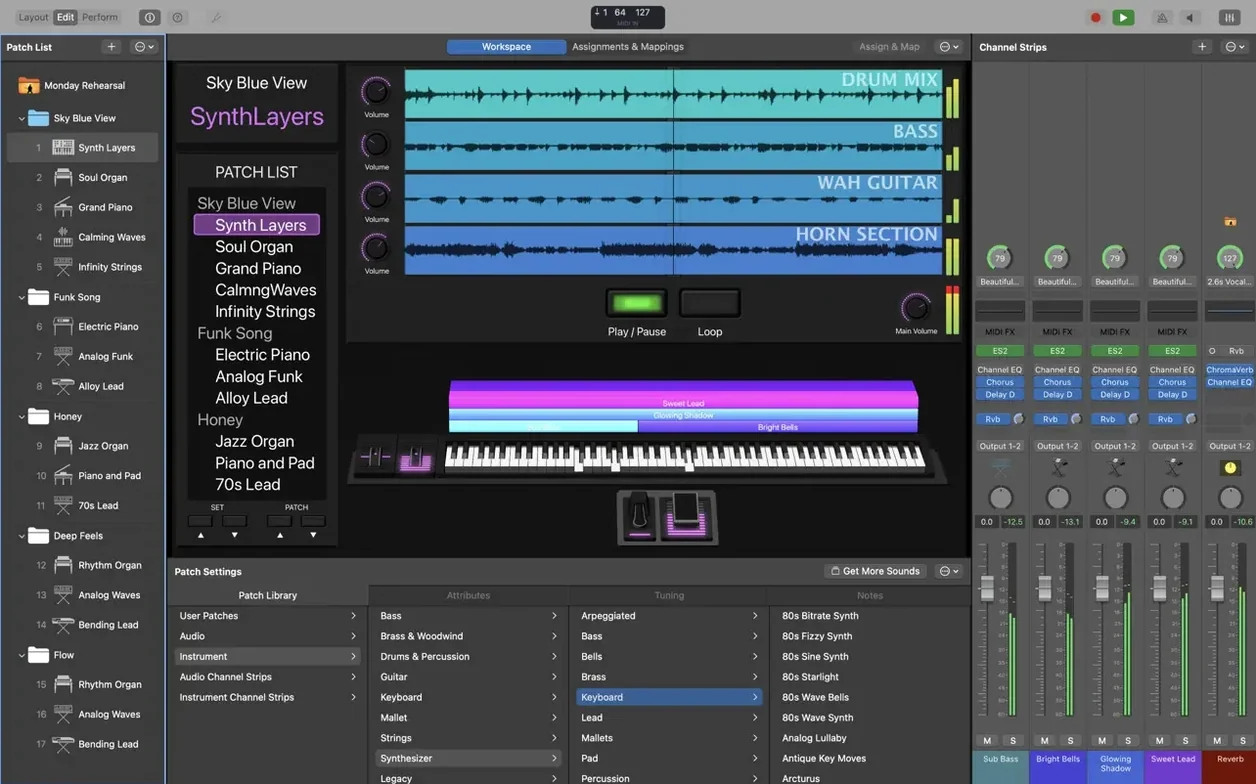
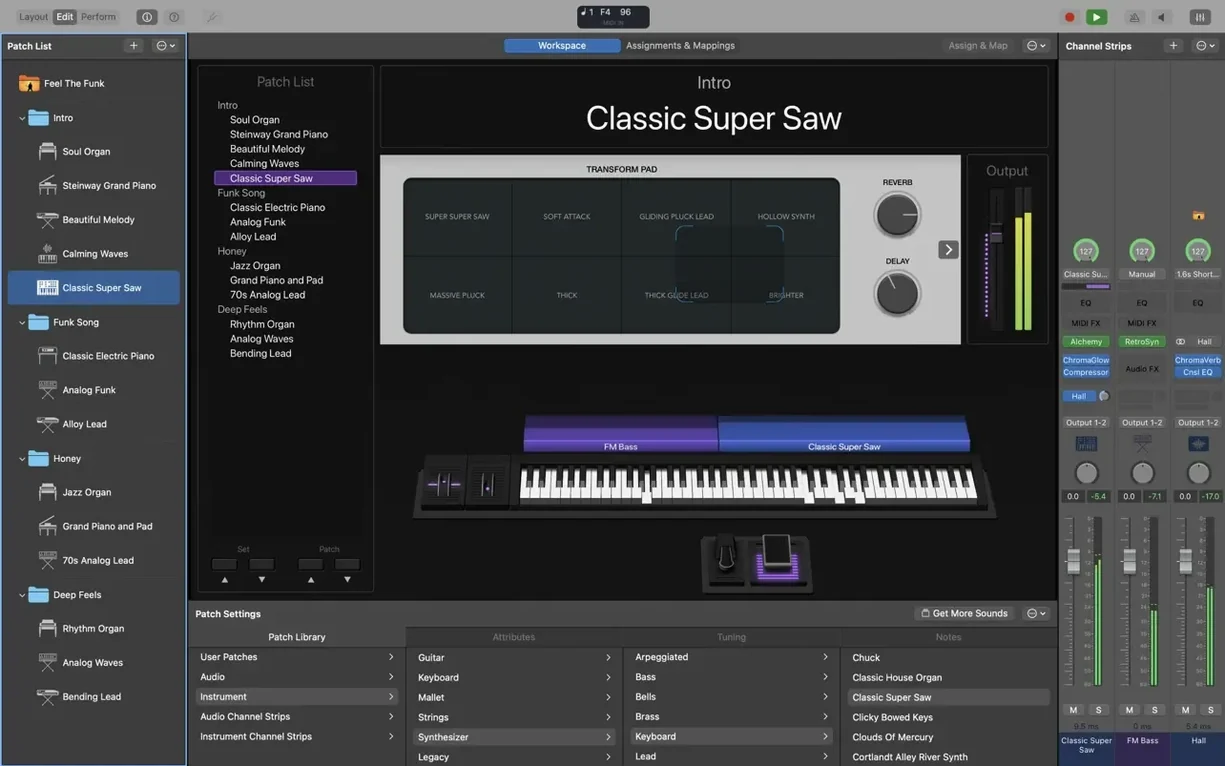
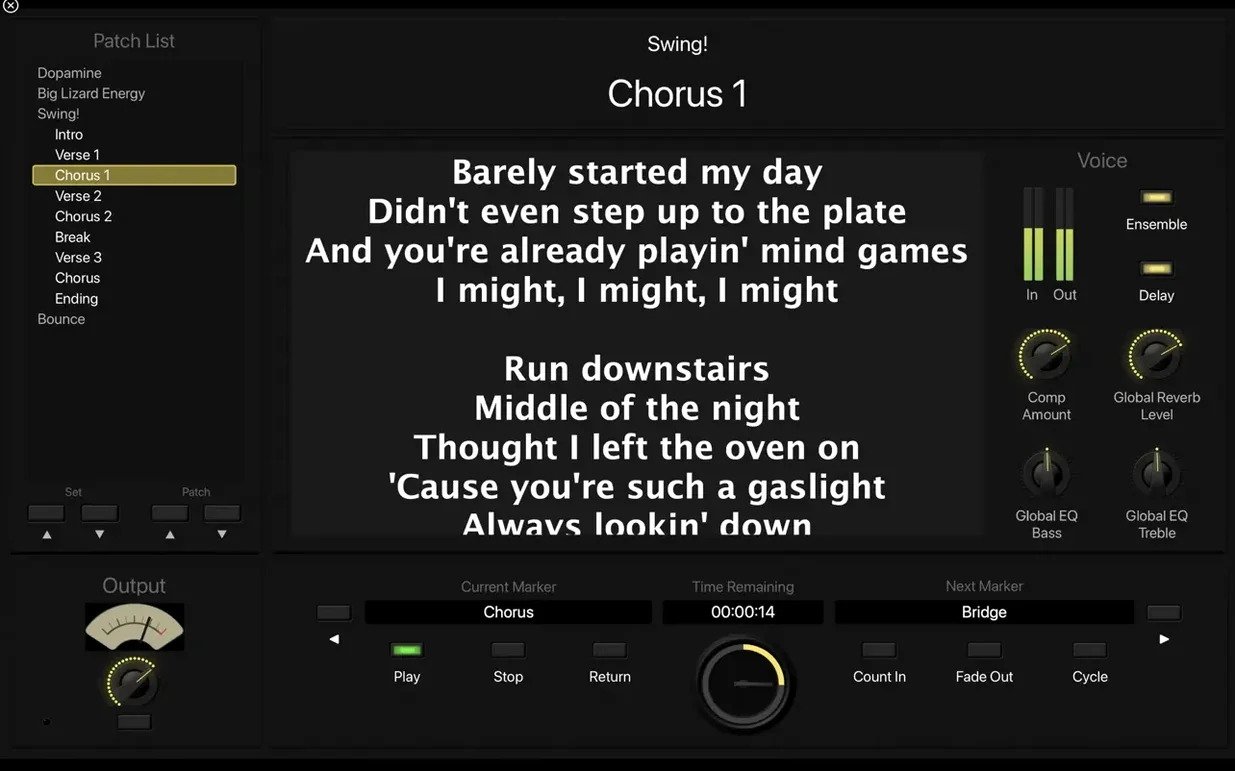
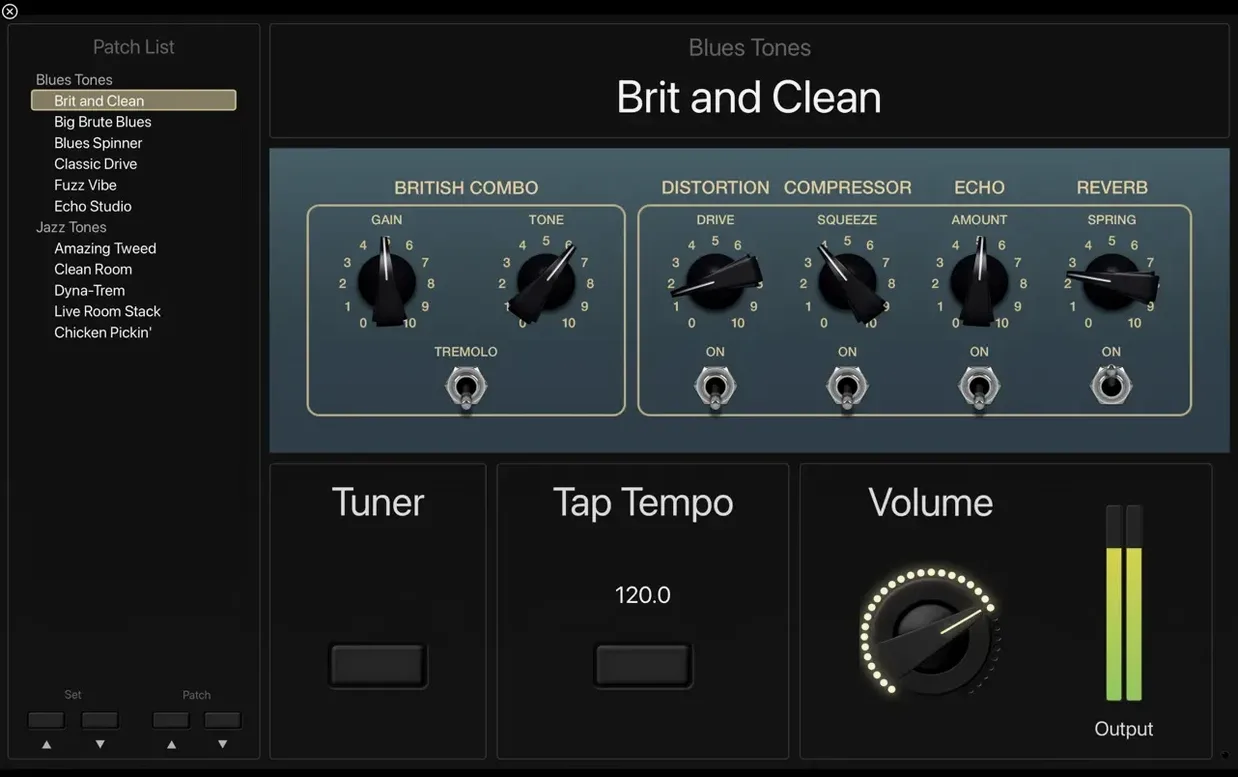
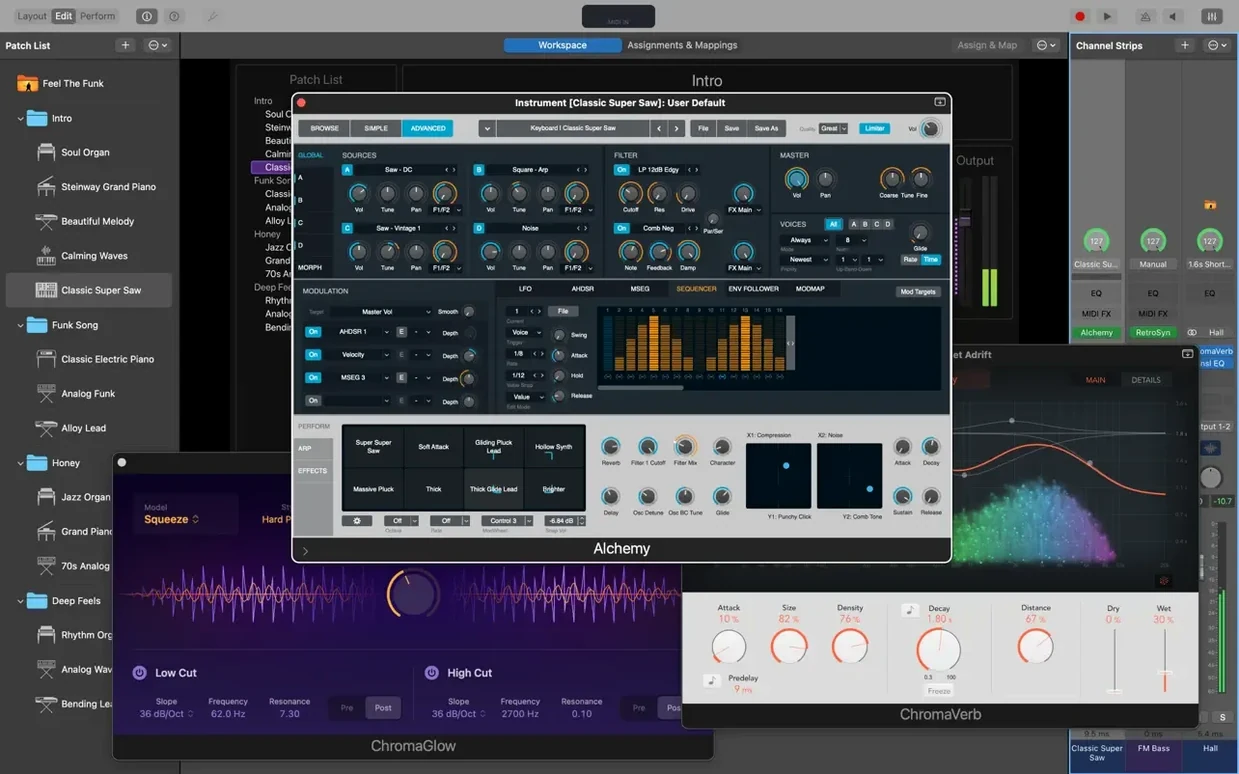
MainStage transforms a Mac into a live performance instrument with a full-screen interface optimized for the stage. For experienced users, the depth is in the control surface integration and the MIDI plug-in rack — tools that let a performer reshape their setup without touching a mouse mid-set.
Key Tools for Power Users
- Hardware control: Assign any knob, fader, or button on a MIDI controller to patch parameters, volume, or plug-in settings. Works with most class-compliant hardware.
- MIDI plug-ins: Arpeggiator, Chord Trigger, and Transposer run inside the channel strip, so you can transform incoming notes before they hit the instrument. Great for live remixing.
- Playback plug-in: Handles stereo or multichannel backing tracks. Useful for click tracks, video sync, or running stems alongside live playing.
- Sound Library: Over 1,800 instrument and effects patches, plus 4,600 Apple Loops in dance and electronic genres. Full install needs 57 GB; a minimal setup takes 6 GB.
- Touch Bar support: On compatible MacBook Pros, the Touch Bar shows patch navigation, volume, and smart controls.
SysEx Messages Restored After 4.3.1 Bug
Version 4.3.1 addresses three specific issues: incoming MIDI SysEx messages were blocked in the previous release — now restored. The Add Channel Strip window again accepts number typing, and Sampler instruments load the correct sounds. These are the kind of fixes that matter when a glitch mid-set is not an option.
Live Setup Pitfalls for Studio Migrants
A few recurring issues trip up new MainStage users, especially those moving from a studio setup to a live one. Here is what to watch for and how to handle it.
Audio Dropouts or Crackle
The live environment stresses the audio engine differently than Logic Pro does. If you hear dropouts or crackle, start by lowering the buffer size in the audio preferences. A smaller buffer reduces latency but demands more from the processor. If the crackle persists, check that no other app is using the same audio interface — Zoom, Safari media players, or system sounds can fight for the same device. Quit anything not needed for the performance.
MIDI Controller Not Showing in Device List
MainStage expects a class-compliant MIDI device, but some controllers send data on multiple channels by default. Open the MIDI preferences and confirm that the controller appears in the device list. If it shows up but nothing happens, verify that the patch you are on has an active channel strip mapped to the same MIDI channel. A common mistake: the controller sends on channel 1, but the patch listens on channel 2. Set both to match or use the Auto option in the patch inspector.
Plug-ins Not Showing in the Rack
Third-party Audio Unit plug-ins that worked in Logic Pro may not appear in MainStage if they are not 64-bit or if they rely on features MainStage does not export. Check the plug-in format first. Then open the Plug-in Manager from the Preferences menu and rescan. If the plug-in still does not show, it likely depends on a Logic Pro-only host environment. Stick to the included instruments and effects, which are identical to Logic Pro’s core library, or use Logic Pro sounds imported via the browser.
Patches Switching Unexpectedly
Version 4.3.1 fixed an issue where typing numbers into the Patch List could trigger an unintended switch. If you still see unexpected jumps, check that your MIDI controller is not sending program change messages accidentally. Some controllers send program change on startup or when a preset is recalled. Disable program change transmission on the controller if you are not using it to switch patches.
Keyboardists Layering Multiple Sound Modules
MainStage is not a replacement for a DAK — it is a focused tool for a specific workflow. The users who benefit most share a few traits.
- Keyboard players with multiple keyboards or sound modules. The ability to layer a Vintage Electric Piano from one controller and a Retro Synth from another, each on its own channel strip, makes stage rigs far more flexible than a single hardware keyboard can offer.
- Guitarists who rely on Amp Designer and Pedalboard for their live tone. The full-screen tuner is a small addition, but it is visible from across the stage and responds faster than most pedal tuners. Running backing tracks from the Playback plug-in means one Mac handles both guitar processing and tracks.
- Vocalists who need real-time effects processing. MainStage can run reverb, delay, and pitch correction on a vocal channel with low latency, and the Smart Controls let you adjust reverb mix or delay feedback from a tablet or phone running a MIDI controller app.
- Electronic performers who build sets around MIDI plug-ins. The Arpeggiator and Chord Trigger turn a single finger into a full arrangement, and the Transposer lets you shift a keyboard part to any key without re-learning it. That is practical when a singer changes the setlist key at sound check.
Scripter Gets MIDI Data After Patch Change
The release notes for this version are short, but each fix has a real effect on stage work.
- MIDI messages now reach Scripter on patch change. Before, Scripter patches that relied on incoming MIDI data after a patch switch stayed silent. Now you can use Scripter for live processing that reacts to the new patch instantly. Useful for custom MIDI transformations that depend on patch-specific variables.
- SysEx messages are no longer blocked. Some hardware synthesizers and effect units send and receive system exclusive data to request presets or dump settings. MainStage now forwards those messages, so you can control external gear directly from the stage computer without a separate MIDI utility.
- Number typing in the Add Channel Strip window works again. A small fix, but if you build complex patches with many channels, typing the exact number is faster than scrolling. It avoids the accidental patch jump that the previous version introduced.
- Sampler instruments load the correct sounds. A few factory patches in earlier releases pulled the wrong sample or no sample at all. This version corrects the mapping, so vintage instruments and acoustic sounds match the patch name.
These are not headline features. They are the kind of under-the-hood corrections that keep a live rig reliable. For a performer, that is the point.
How MainStage Fits with Other Apps and macOS
MainStage works best when you treat it as part of a larger system, not an island.
Logic Pro and GarageBand sounds can be imported directly. Open the Sound Library browser, and any instrument or effect you have added to Logic Pro or GarageBand appears in the MainStage browser. That means you are not buying new libraries — your existing sounds carry over. The same plug-in engine runs underneath, so a patch built in Logic Pro can be recreated in MainStage by loading the same plug-ins and adjusting the control assignments.
macOS audio routing lets you send click tracks to a separate output, such as the headphone jack, while the main mix goes to the interface. Set up a Bus that stays out of the main output, assign the Playback plug-in to that bus, and route the bus to a different system audio device in the audio preferences. The audience hears only the main mix; the click is in your ears only.
Touch Bar integration works on MacBook Pro models with the Touch Bar. It shows patch name, volume level, and smart controls without taking screen space. For a performer using a laptop on stage, that means one less thing to look away for. The Touch Bar responds to taps and gestures, so you can scroll through patches or adjust volume without touching the trackpad.
MIDI over Bluetooth is supported for compatible controllers. If your keyboard or pad controller connects via BLE MIDI, MainStage sees it in the device list. The latency is slightly higher than a wired USB connection, but for chord changes, program changes, or switching patches, it is practical and cuts down cable clutter on a small stage.
For performers who also run lighting or video software, MainStage does not interfere with other audio apps as long as they use different audio devices. Keep the main output assigned to MainStage and let other apps use the built-in speakers or a secondary interface. That keeps the stage sound isolated from system alerts and unrelated audio.
- Fixes an issue where incoming MIDI SysEx messages were blocked.
- Restores the ability to type numbers into the Add Channel Strip window.
- Sampler instruments now load the correct sounds.
| macOS | macOS 15.6 or later |
|---|---|
| Processor | Apple Silicon |
| Download | 1 GB |
- macOS 15.6
- Apple Silicon
- 64-bit Audio Unit plug-ins required
- 6 GB free disk space for a minimal installation
- 57 GB free disk space for a full Sound Library installation
Questions about MainStage
Does MainStage work with any audio interface?
Yes, it works with any Core Audio–compatible interface. It also requires 64-bit Audio Unit plug-ins.
Can I use MainStage with a MIDI keyboard only?
Yes. A single class-compliant MIDI keyboard is enough. Hardware control can be extended with any MIDI controller that sends standard CC or note messages.
How to install, in order
- Open the downloaded disk image.
- Drag the app to the Applications folder alias.
- After copying finishes, open the app from Launchpad.
Comments and corrections 0
Sign in or open a free account to leave a comment.
No comments or corrections yet.