macOS Catalina 10.15.7 — download for Mac
Mac Apps Intel processors only Updated
Connects your phone to Finder and adds natural workflow upgrades.
Screenshots
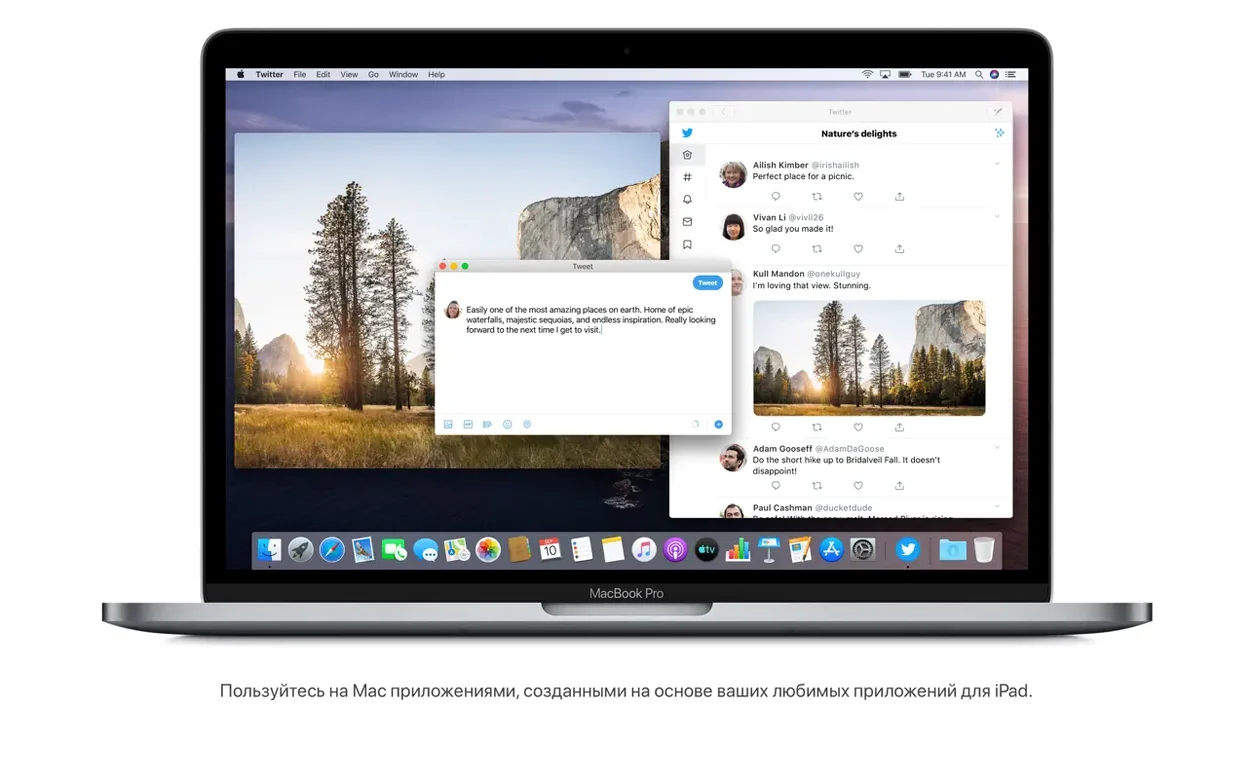
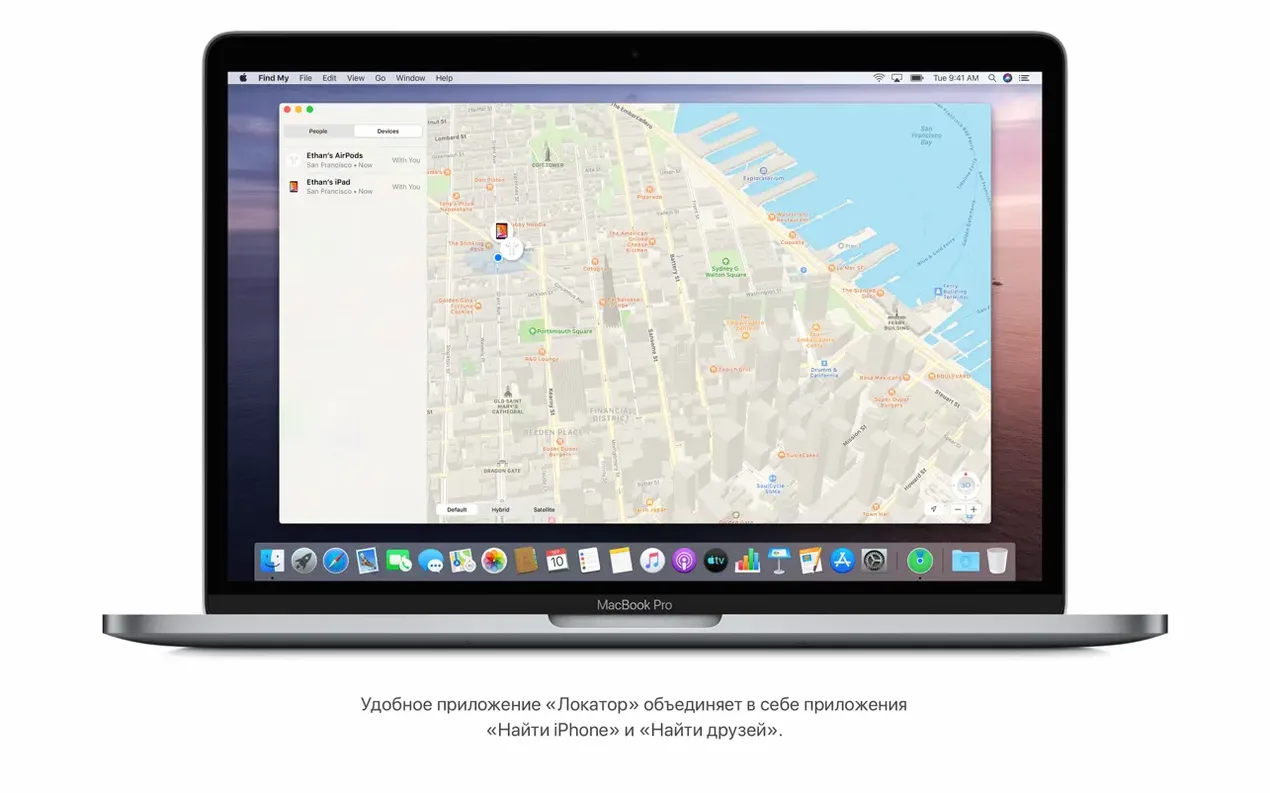
You already know how macOS works. Catalina builds on that foundation with a handful of features that feel like natural upgrades rather than a learning curve. Here are the first things to try after the install finishes.
First Workflow on Catalina
- Connect your phone to Finder. Plug in an iPhone or iPad. Finder now handles backups, updates, and restores — you don’t need iTunes for device management anymore.
- Open Notes and switch to gallery view. Notes displays visual thumbnails instead of a flat list. It makes finding sketches, scanned receipts, or whiteboard photos faster.
- Edit a reminder with the new controls. Reminders now accepts dates, locations, flags, and attachments directly in the editing panel. No more jumping between fields.
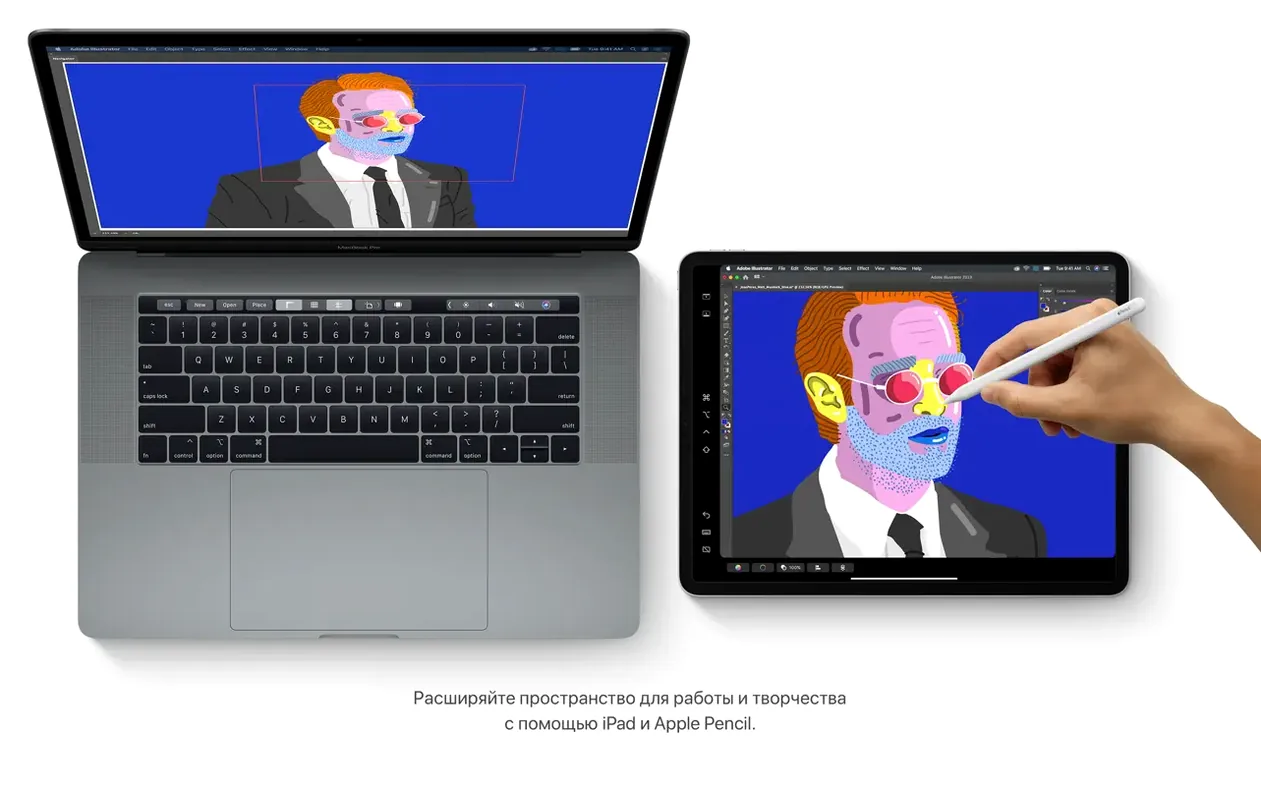
- Try using your iPad as a second display. If you have an iPad, Catalina supports it as a wireless display. Useful for reference docs or a second timeline.
- Check Safari’s new start page. It surfaces browsing history, bookmarks, Reading List, iCloud tabs, and links from Messages in one view.
The three new media apps — Music, TV, and Podcasts — replace older apps and keep your library separate from the system. Catalina also runs 64-bit Intel Macs with 4 GB of memory and requires a broadband connection for cloud features. If you manage documents between a Mac and mobile devices, Finder’s sync tools and Notes’ gallery view will save trips to external utilities.
End-to-End Workflow: Backing Up and Restoring an iPhone via Finder
One of the tasks that used to require iTunes on older macOS versions is now handled entirely through Finder. Here is a complete workflow from connecting your phone to finishing a restore on Catalina.
- Connect the iPhone or iPad to the Mac. Use the USB cable. The device appears in the Finder sidebar under Locations. Click it once.
- Trust this computer on the phone. If you get a prompt on the device asking for permission, tap Allow. The Finder panel shows device info, storage, and backup options.
- Set up a backup. Click Back Up Now in the General section. The first backup copies everything — apps, settings, messages, photos. Later backups are incremental, so they take less time. Keep the phone connected until Finder confirms it is done.
- Check the backup file. Finder stores backups inside
~/Mac/Backupby default. You can copy that folder to an external drive if you want an extra copy. - Restore from a backup. If the phone needs a full restore later, plug it in, click Restore from Backup in Finder, and pick the correct file. The process wipes the phone first, so confirm that the backup is up to date.
This workflow replaces the old iTunes device-management panel entirely. For anyone who maintains multiple iPhones for work or family, it saves a few clicks per device.
How Catalina Compares to Similar Mac Operating Systems
People restoring or installing an older macOS version for compatibility often weigh Catalina against three other options: Mojave, Big Sur, and High Sierra. Here is how they differ in day-to-day use.
macOS Mojave (10.14)
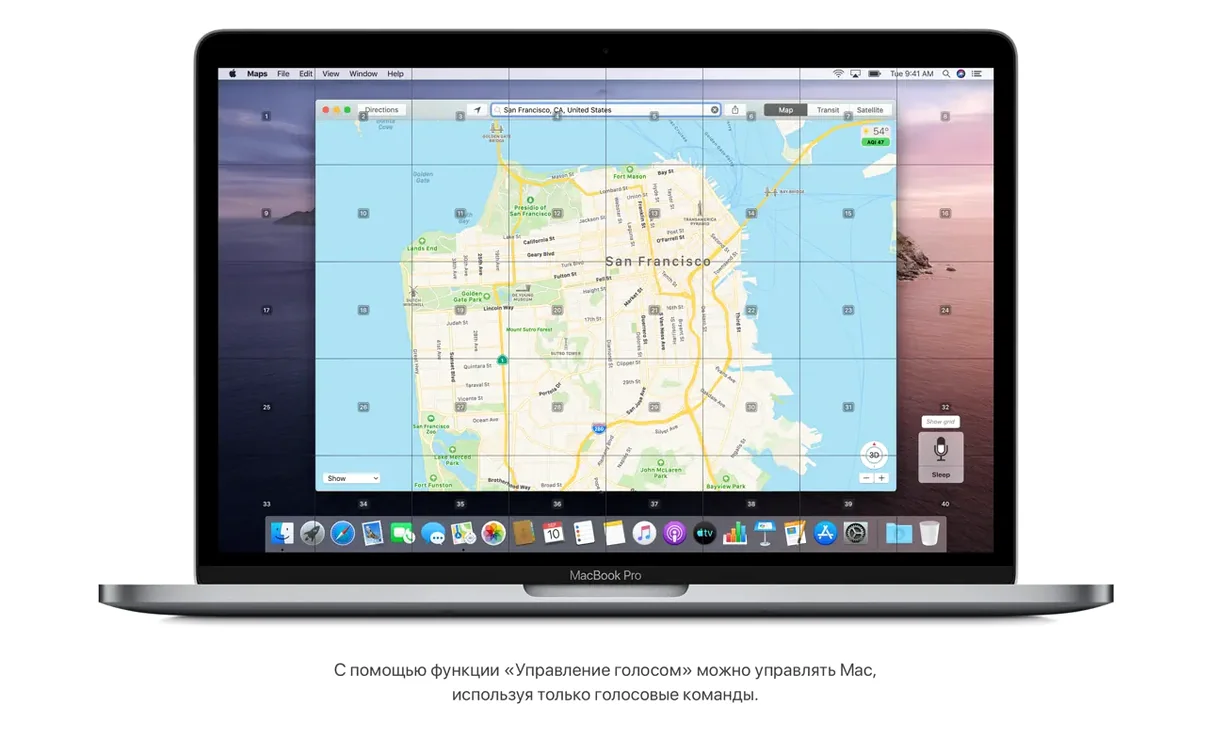
Mojave runs on the same Intel Macs as Catalina and uses similar hardware requirements. It lacks the three separate media apps — Music, TV, and Podcasts — and instead keeps iTunes for media. Finder does not handle device backups in Mojave. If you need to sync an iPhone or iPad, you will use iTunes or third-party software. Mojave also does not support iPad-as-display or Voice Control. For users who avoid those features, Mojave feels more familiar, but it misses the later security patches included in Catalina 10.15.7.
macOS Big Sur (11)
Big Sur introduces the new design language and drops 32-bit app support. It also moves to a different driver model for printers and scanners. On the same hardware, Big Sur uses more memory at idle. Catalina sits between these two — it has many of the media and device features from Big Sur but runs on less memory and supports older Intel Macs that Big Sur no longer supports. If your Mac model tops out at Catalina, you are getting the latest Apple operating system it can run.
macOS High Sierra (10.13)
High Sierra is lighter on memory and storage space, but it lacks the security improvements from later updates. It does not include Notes gallery view, the redesigned Reminders, or any of the new media apps. High Sierra works well for older Macs that cannot run Catalina, but on a supported machine, Catalina offers a more modern set of tools without requiring a hardware upgrade.
Surprises After a Clean Install and Their Fixes
Even a clean Catalina install can throw up a few surprises. Here are the ones people hit most often and straightforward fixes.
Wi-Fi does not reconnect after sleep
Version 10.15.7 includes a fix for automatic Wi-Fi reconnection. If the issue persists after updating, open Network settings, forget the network, and rejoin by entering the password fresh. This often clears a cached credential mismatch.
iCloud Drive files not syncing
This is another item addressed in 10.15.7. If you still experience it, sign out of iCloud in System Preferences, restart the Mac, and sign back in. Do not skip the restart — the sign-out process does not always clear the stalled sync daemon.
External display shows garbled graphics on iMac (Retina 5K, 27-inch, 2020)
This model with the Radeon Pro 5700 XT has a known issue that the 10.15.7 update resolves. After updating, reset the display by unplugging and reconnecting the video cable at the monitor end. If you use a daisy-chained Thunderbolt setup, disconnect all devices, reboot, and reconnect one at a time.
Notes search cannot find text in scanned documents
Catalina supports search inside scanned documents and photo content, but the feature needs the indexing service to finish processing. Give it a few minutes with the Mac plugged in and awake. If search still shows nothing, open Notes preferences and confirm that Enable Content Indexing is turned on.
Upgrade fails due to insufficient storage
Catalina requires 12.5 GB of free space for an upgrade from El Capitan or later. If the installer stops with a space warning, move large files — video projects, VM images, game libraries — to an external drive. After the upgrade, you can copy them back.
- Important security updates and bug fixes.
- Resolves an issue where macOS would not automatically connect to Wi-Fi networks.
- Fixes an issue that could prevent files syncing through iCloud Drive.
- Addresses a graphic issue that may occur on iMac (Retina 5K, 27-inch, 2020) with Radeon Pro 5700 XT.
| Processor | Intel 64-bit |
|---|---|
| Download | 7.7 GB |
- macOS 10.9 or later
- Intel 64-bit architecture
- 4 GB of memory
- 12.5 GB available storage for upgrade from OS X El Capitan 10.11.5 or later
How to install, in order
- Open the downloaded disk image.
- Copy the installer app to the Applications folder.
Comments and corrections 0
Sign in or open a free account to leave a comment.
No comments or corrections yet.