
Navicat Premium 18.0.6 — download for Mac
Mac Apps Updated
Transfers data between different database servers in one interface.
Screenshots
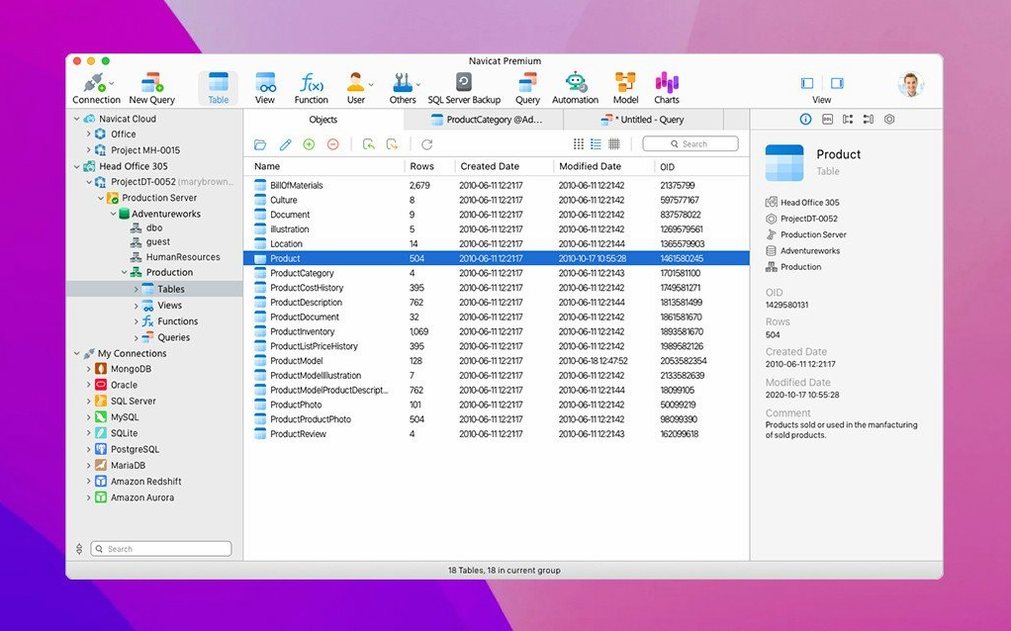
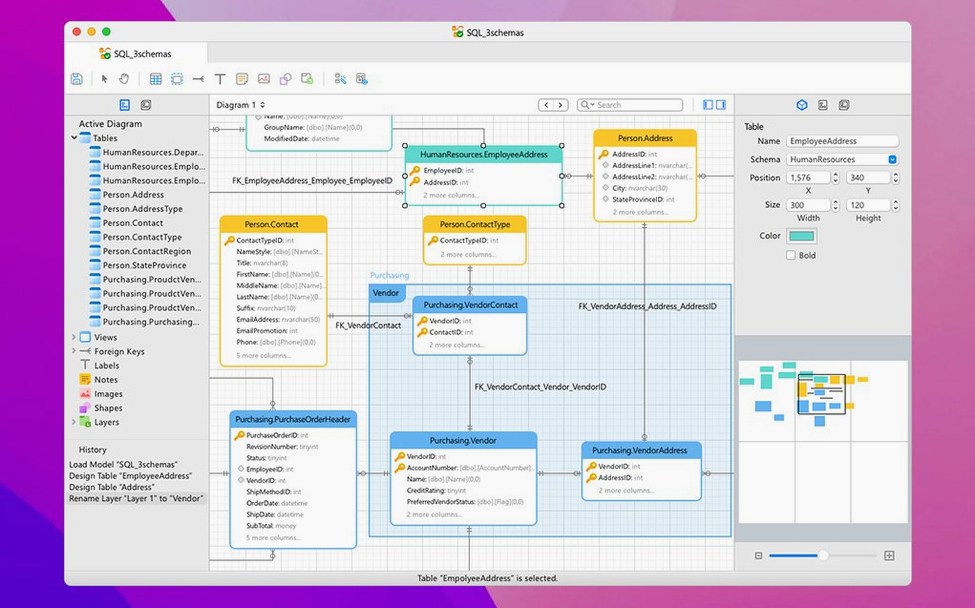
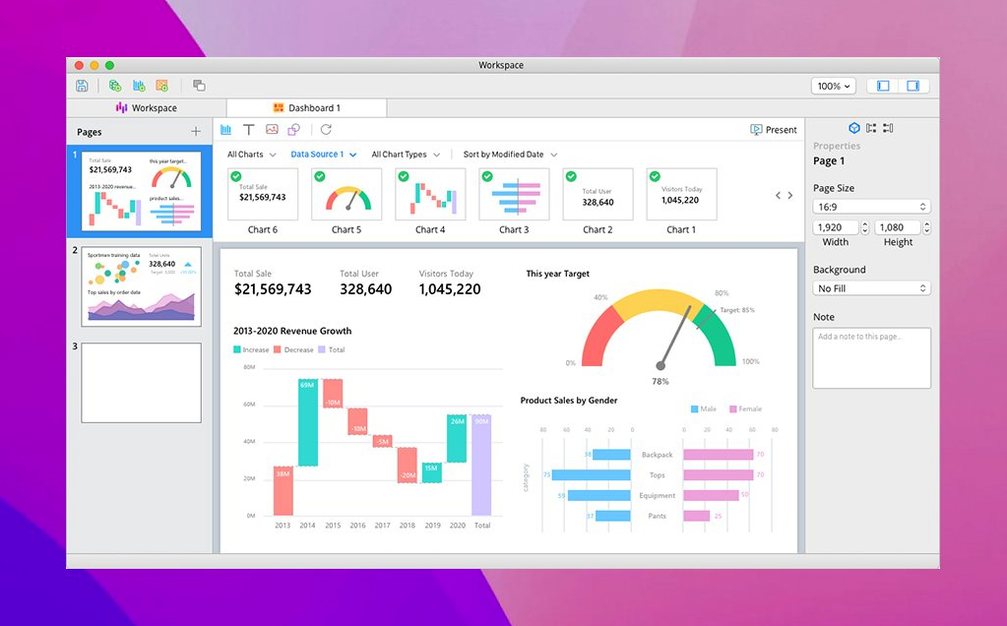
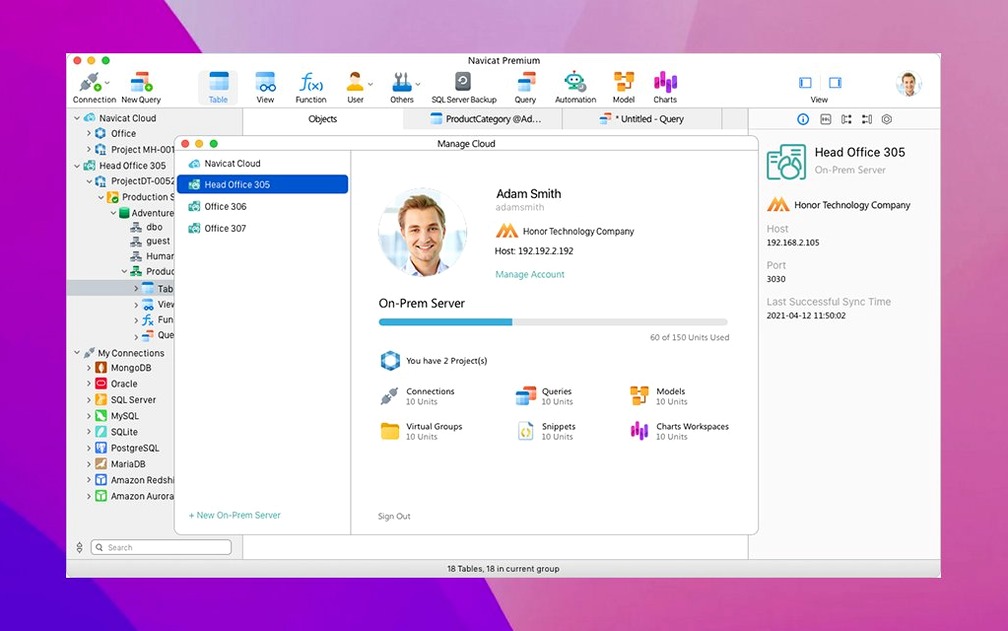
You need to pull a customer table out of a remote MySQL server and land it into a local PostgreSQL database for reporting. Without a dedicated tool, you are writing export scripts, wrestling with CSV encoding, and fixing type mismatches by hand. Navicat Premium 17.3.8 for Mac handles this in one interface.
- Set up both connections. Open Navicat Premium and click Connection. Choose MySQL, enter the host, port, and credentials. Repeat for PostgreSQL with your local server details. Both connections appear in the left pane.
- Open the data transfer tool. Right-click the MySQL connection and select Data Transfer. In the Source tab, pick the database and the
customerstable. In the Target tab, select your PostgreSQL connection and an existing database. - Map fields and run. Navicat Premium auto-maps compatible data types. Click Start. The transfer log shows each row inserted. When it finishes, the table exists in PostgreSQL with the same structure and data.
- Verify. Open the PostgreSQL connection, browse the table, and run a quick
SELECTto confirm row counts match.
The whole migration takes under ten minutes. You never touch a command line, and the wizard handles type conversions between MySQL, Oracle, and PostgreSQL so you do not have to remember them.
I have been running Navicat Premium in production environments for years. Here is what I tell developers and DBAs who ask about it before they install — and what I wish someone had told me on day one.
Start with one test connection, not all databases
Once Navicat Premium is on your Mac and you have bypassed Gatekeeper, resist the temptation to connect every database you own at once. Start with one test connection — a local SQLite file or a development MySQL instance. This lets you verify the app works, learn the layout, and confirm that your SSH or HTTP tunnel settings are correct before you add complexity.
Spend the first session exploring the left pane. Each connection type has its own icon. Right-click any connection and you will see options for Open Connection, New Database, and New Query. Open a query window and run a simple SELECT 1 to confirm the connection is alive. If you plan to use the job scheduler, create one test task that runs a backup to a local folder. Watch it complete. This confirms the scheduler has file-system permissions and that your backup path is writable.
On the second day, import a small CSV file using the Import Wizard. This is the fastest way to understand Navicat Premiums field mapping interface. Choose a file you already know the structure of so you can spot incorrect type assignments immediately. After the import, use the Data Synchronization tool to compare the imported table against a known-good copy. This teaches you how the sync logic works without risking real data.
Handles MySQL, Oracle, PostgreSQL, and more in one window
Most people want to know one thing: will it handle the mix of database types I already have? Navicat Premium connects to MySQL, SQLite, Oracle, PostgreSQL, MongoDB, MariaDB, SQL Server, Redis, and Snowflake from one window. You do not switch between different database clients. The interface stays the same whether you are running queries on a local SQLite database or a production Oracle instance.
Another common question is about the learning curve. If you have used any SQL client before — even the basic one that ships with MySQL Workbench — you will find the connection setup familiar. The query builder and the visual data modeler take a bit longer to master, but the core tasks (connect, query, transfer, backup) follow a logical pattern: right-click the connection, choose the action, fill in the details. The ER data model tool and the business intelligence tools are deeper features you grow into, not prerequisites for daily work.
People also ask whether Navicat Premium works well on macOS with Apple Silicon. The current version 17.3.8 supports both ARM and x86 architectures. If you moved to an M-series MacBook, the app runs natively. The install steps are identical for both architectures: mount the disk image, run Open Gatekeeper friendly, press Enter in Terminal to bypass Gatekeeper, and drag the app into the Applications folder.
Sequel Pro is free but limited to MySQL and MariaDB
Sequel Pro is a free, lightweight MySQL client that many Mac users start with. It is fast for browsing tables and running ad-hoc queries, but it only supports MySQL and MariaDB. If your work involves PostgreSQL, Oracle, or SQL Server, you need a second tool. Navicat Premium replaces three or four separate clients with one application. Sequel Pro also lacks built-in data synchronization, a job scheduler, and SSH tunnel support in the same polished interface.
DBeaver is a cross-platform database tool with broad database support similar to Navicat Premium. It is open-source and free for basic use. The interface, however, feels like a Java application on macOS — menus and dialogs sometimes look slightly off on a high-DPI screen. Navicat Premiums macOS-native interface behaves like any other Mac app. DBeaver also requires installing separate drivers for each database type. Navicat Premium bundles the drivers, so you skip that step. If you prefer a community-driven tool and do not mind the occasional UI glitch, DBeaver works. If you want a polished, consistent experience across all your databases, Navicat Premium is the cleaner option.
TablePlus is a modern, minimal database client for macOS. It looks great. It supports MySQL, PostgreSQL, SQLite, and several others. Its strength is speed for quick edits and queries. Its weakness is depth. TablePlus does not include data modeling, business intelligence, a job scheduler, or the import/export format variety that Navicat Premium offers (XLS, CSV, TXT, DBF, XML). If your work is limited to browsing tables and writing SELECT queries, TablePlus might be enough. If you regularly run migrations, build reports, or schedule backups across multiple database types, Navicat Premium provides tools that TablePlus lacks.
Don’t connect to production before testing on a dev copy
Connecting to production first. The most common error is pointing Navicat Premium at a live production database before testing the tool on a development copy. One wrong click on Drop Database or a misconfigured UPDATE query can cause downtime. Create a sandbox database on a local server or a free cloud instance. Learn the interface there. Only after you are comfortable should you add production credentials.
Skipping the SSH or HTTP tunnel setup. Many beginners try to connect to a remote MySQL or PostgreSQL server directly over the internet. Most production databases block remote connections by default. Navicat Premium supports SSH Tunnel and HTTP Tunnel connections. Set up the tunnel in the connection properties before you attempt to reach the remote server. The connection test at the bottom of the setup dialog will tell you immediately whether the tunnel works.
Overlooking the SQL Minifier. Beginners often paste long SQL queries into the editor and wonder why they are hard to read. Navicat Premium includes a SQL Minifier that formats your query with proper indentation. Right-click in the query editor and look for the minify option. It costs nothing and makes debugging faster.
Not setting up backup schedules. The job scheduler is one of Navicat Premiums strongest features. Beginners tend to ignore it and rely on manual backups. Set up one scheduled task that backs up your most important MySQL or PostgreSQL database to a local drive or a network share. Test the restore process at least once. You will appreciate this the first time you accidentally drop a table.
Ignoring the database search tool. When you work with dozens of tables and hundreds of columns, finding the right field becomes a chore. Navicat Premiums database search tool lets you search across all tables and views for a column name or a string value. Use it early. It saves more time than scrolling through the object pane.
Navicat Premium 18.0.6 arrives with a set of targeted corrections and stability improvements. The full release notes are published by the developer.
| macOS | macOS 14.6 or later |
|---|---|
| Processor | Apple Silicon, Intel 64-bit |
| Download | 333 MB |
- macOS 14.6 or later
- Apple Silicon or Intel 64-bit
Questions about Navicat Premium
Which database types does Navicat Premium support on Mac?
It connects to MySQL, SQLite, Oracle, PostgreSQL, MongoDB, MariaDB, SQL Server, Redis, and Snowflake from one application.
Can I manage stored procedures and triggers with this tool?
Yes. It supports stored procedures, events, triggers, functions, and views in MySQL, SQLite, Oracle, and PostgreSQL.
Does it include data modeling tools?
Yes. Navicat Premium includes data modeling tools for designing, managing, and maintaining database schemas.
How to install, in order
- Mount the disk image and run Open Gatekeeper friendly.
- Press Enter in Terminal to bypass Gatekeeper.
- Drag the app into the Applications folder.
- If a sign-in window appears, close it.
Comments and corrections 0
Sign in or open a free account to leave a comment.
No comments or corrections yet.