Nik Collection 9.0 — download for Mac
Mac Apps Updated
Adjusts raw photos with filters and separate shadow, midtone, and highlight controls.
Screenshots
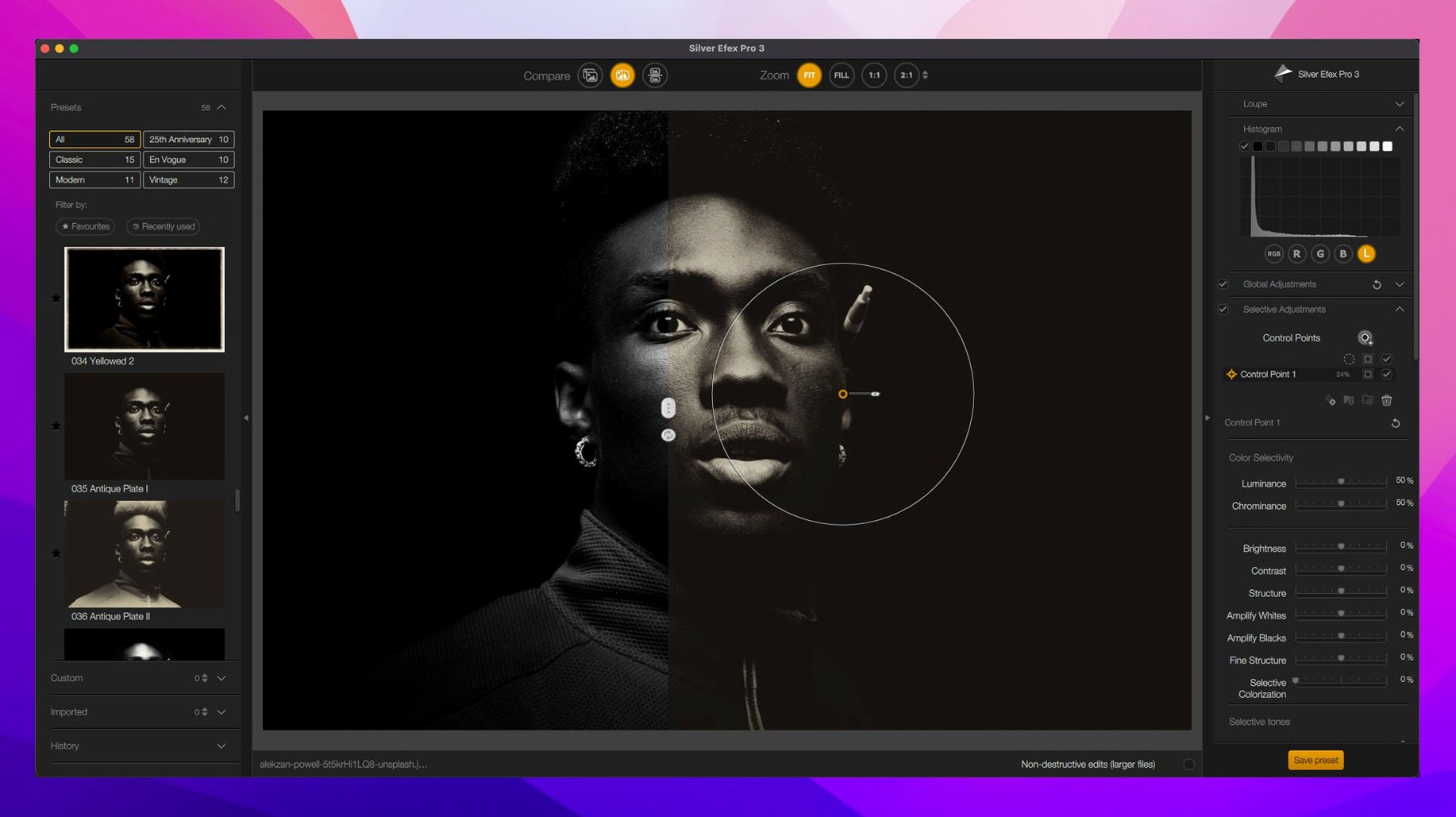
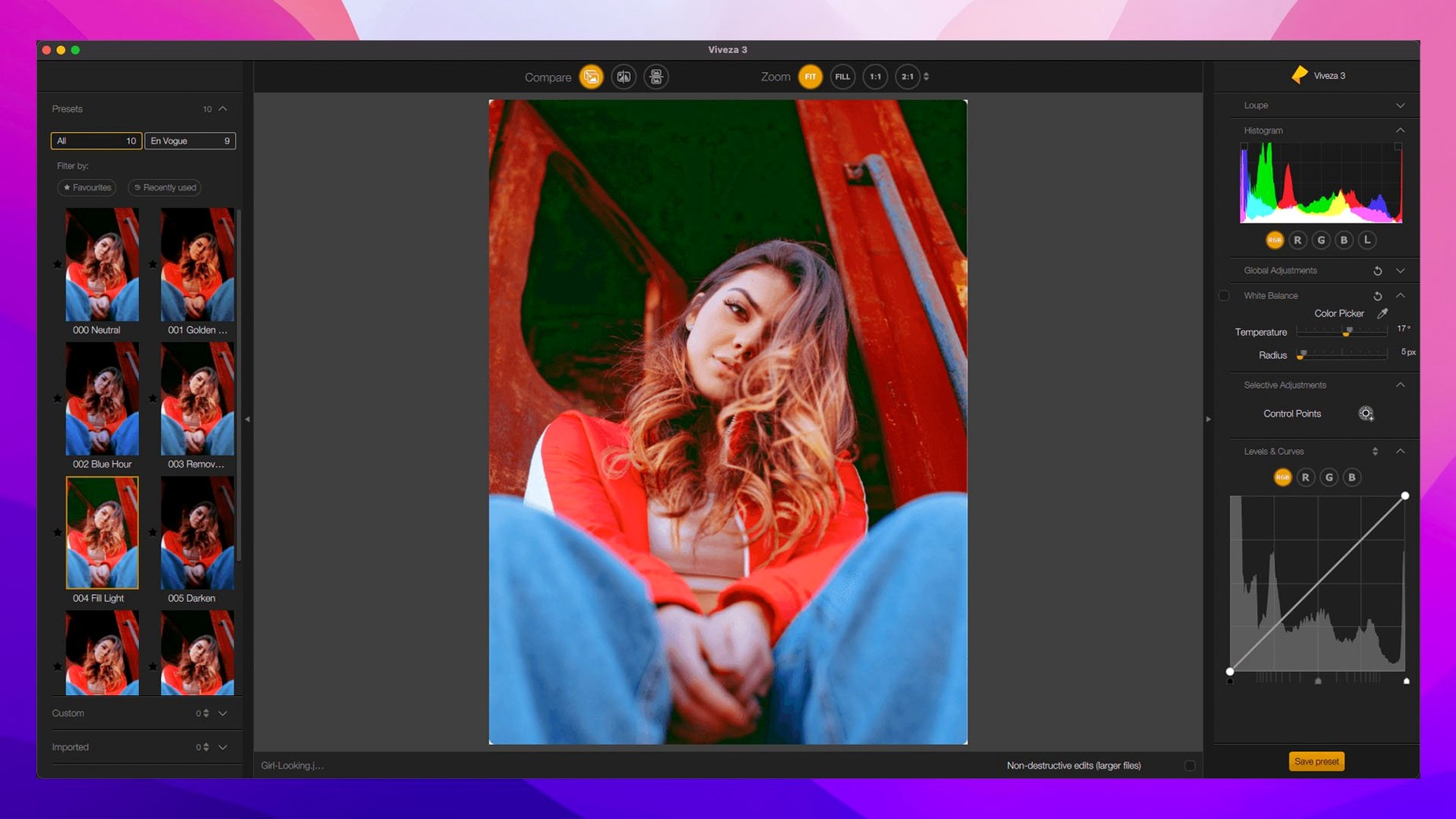
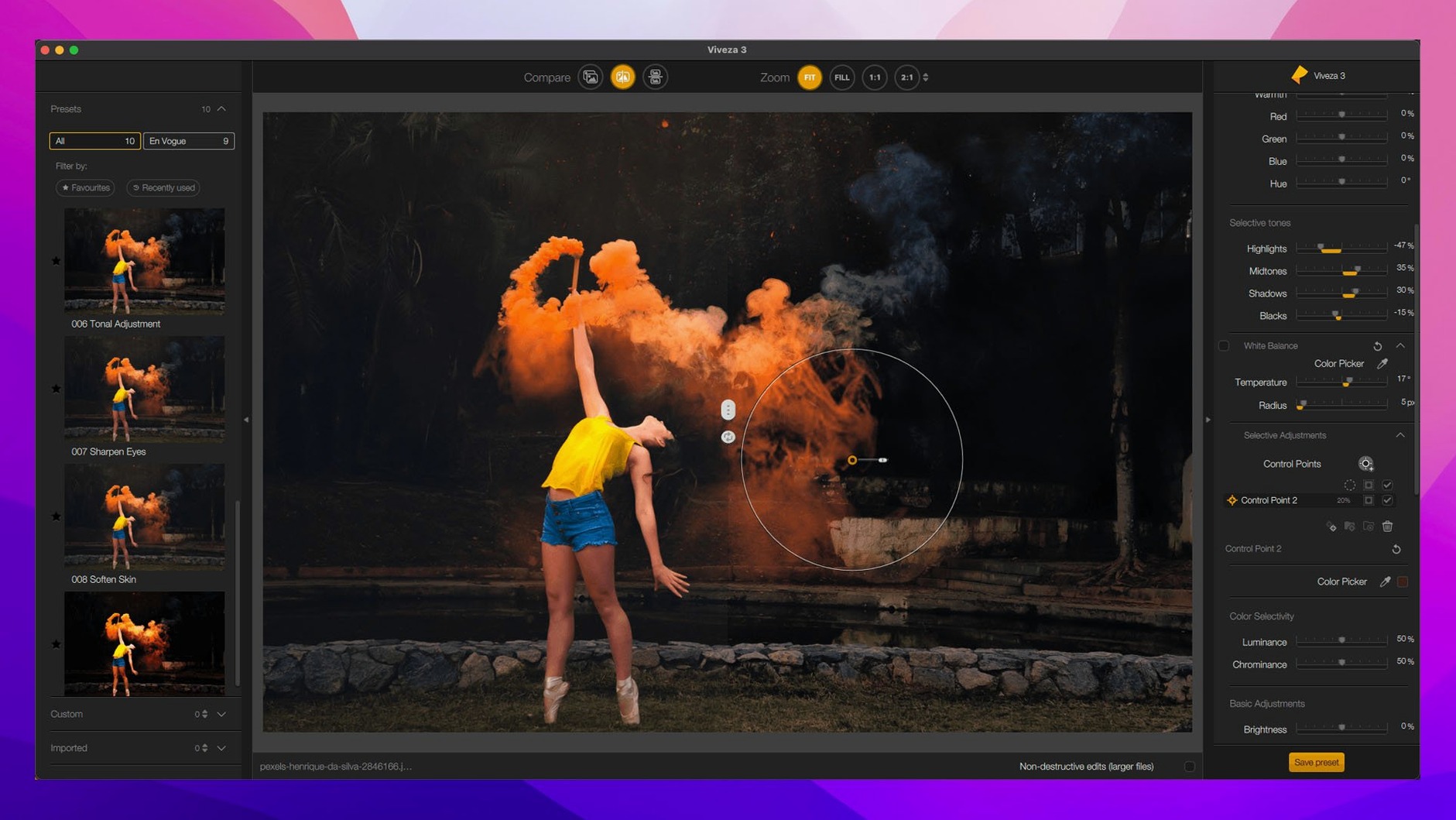
You drop a raw file into Photoshop, open Color Efex Pro, and start with a filter — maybe Bleach Bypass or Cross Balance. The new Color Grading tool in version 9 lets you shift shadows, midtones, and highlights separately, so you dial in a look without touching the original layer. Viveza adds control points for local color and light adjustments, and now you can copy and paste those local adjustments between images to keep a consistent edit across a series.
What the Suite Covers
- Color Efex Pro — 52 filters, 250 effects, Selective tool for applying an effect to a chosen area, and a new Color Grading tool with Chromatic Shift, Glass Effect, and Halation
- Viveza — control points for targeted color and tone edits
- Sharpener Pro — 16-bit sharpening with a preview of the image area
- Depth Masks and AI Masks for masking based on distance or subject
- Mask Overlays to see where adjustments apply
Plugs into Photoshop, Lightroom, and Affinity
Nik Collection 9 runs as a plugin for Adobe Photoshop, Lightroom, Aperture, Affinity, and DxO PhotoLab. You edit inside your host app without switching to a standalone interface. The interface languages cover English, German, French, Spanish, Italian, Russian, Arabic, Traditional Chinese, Simplified Chinese, Korean, Dutch, Polish, Turkish, and Japanese. The suite works on macOS 13.3 and later for both Intel and Apple Silicon Macs.
Needs a Host Program to Launch
Does the suite work as a standalone app or does it need a host program? Nik Collection 9 is a plugin suite. It must be called from within a compatible host application — Photoshop, Lightroom, Aperture, Affinity, or DxO PhotoLab. There is no standalone launcher. You install it, open your host app, and access each module through the Filter menu or an equivalent plugin panel.
Will it conflict with an older version of Nik Collection already on the machine? The installer for version 9 replaces or sits alongside previous versions depending on how you set it up. The bundled instructions cover the install sequence. If you want to keep an older nik collection 8 torrent copy for reference, make a backup of the plugin folders before proceeding.
Does it support raw files directly? Each module works on the image data that your host application sends to it. If your host app opens raw files, the plugin receives the rendered version. You do not need to convert to TIFF or JPEG beforehand — the host handles the raw conversion.
Yes. No special configuration is needed.
How much disk space does the suite require? The installer is several hundred megabytes. Each module adds its own filter data and preview cache. Plan for about 1 GB of free space to accommodate the suite and its working files.
Set Output Format and Two More Prefs First
After installation, open any module — Color Efex Pro or Silver Efex Pro are good starting points — and check these three preferences before your first real edit:
- Default output format. The plugin can return a new layer, a duplicate of the background, or a flattened file. Set it to “New layer with layer mask” if you work non-destructively. That way each adjustment stays editable in Photoshop’s Layers panel.
- Preview quality. Choose “Full” for color-critical work during editing. Use “Draft” only when you are browsing presets on a slower machine. The difference in rendering time is noticeable on large files.
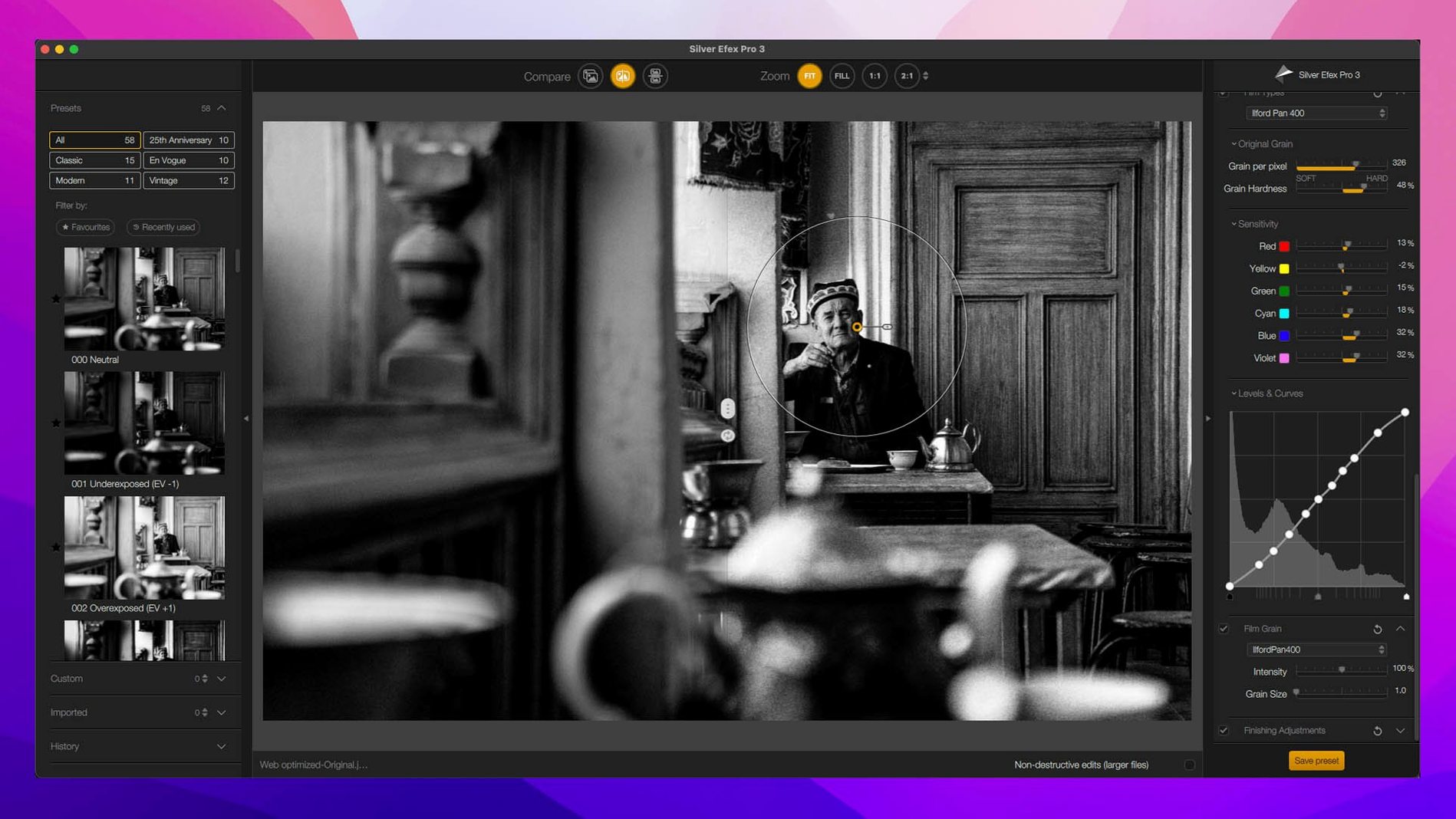
- Control point display. Turn on “Show control points on the image” in Viveza and Color Efex so you see exactly where your local adjustments land. Beginners often miss that toggle and wonder why nothing changes.
These settings are saved per module. You do not set them globally, so repeat the steps for each plugin you plan to use regularly.
Depth Masks Save Minutes on 300-Photo Edits
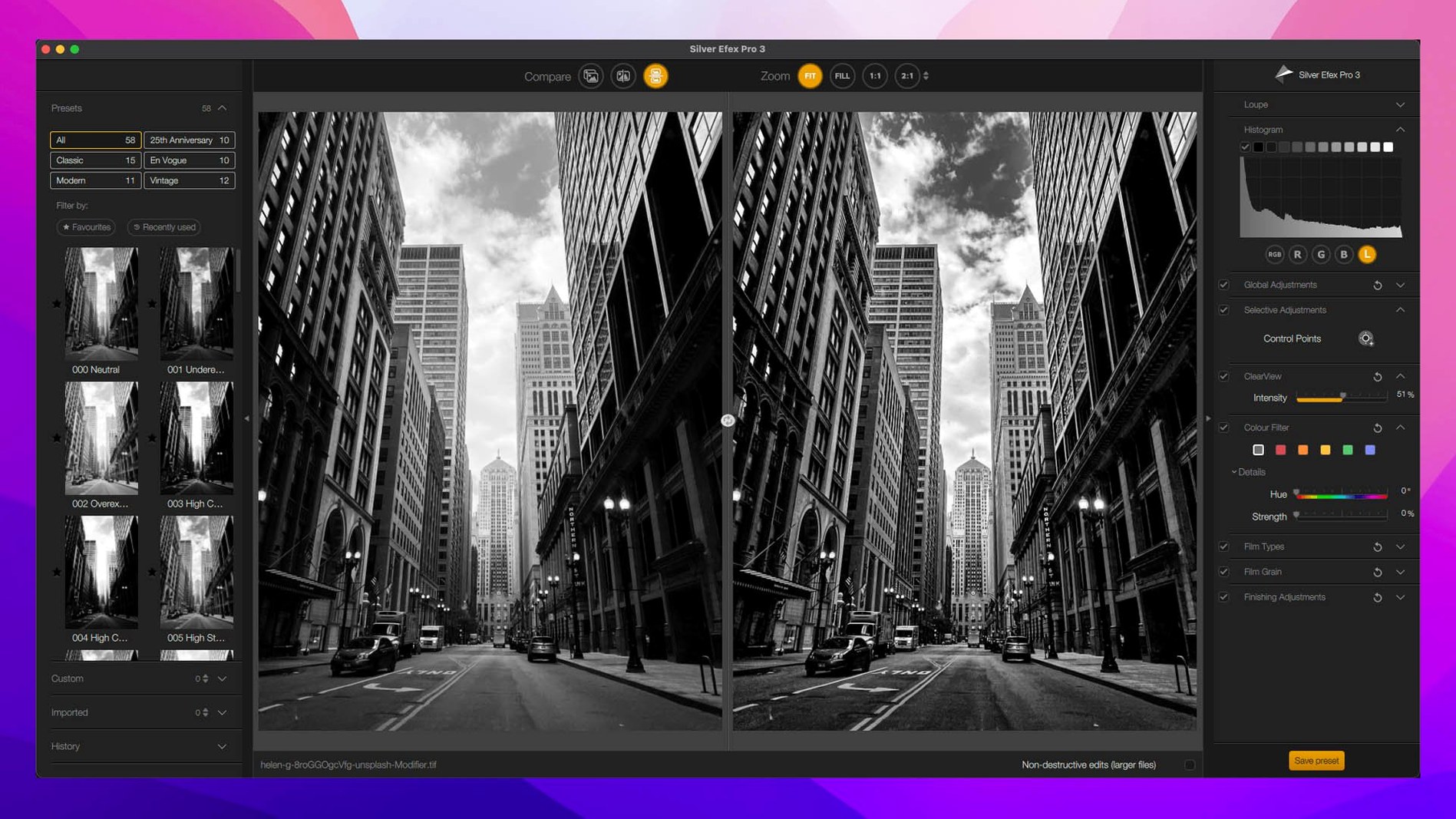
Portrait and wedding photographers benefit from the new AI Masks and Depth Masks. A Depth Mask isolates the subject from the background in one click, which saves minutes per image during a 300-photo edit. The before-and-after split preview in Silver Efex Pro helps you judge skin tones while converting to black and white.
Architectural and real estate photographers use Perspective Efex to correct converging lines. That module alone replaces a separate lens-correction step in Lightroom. With the new Chromatic Shift tool in Color Efex, you fix color fringing on high-contrast edges without switching to a dedicated de-fringing filter.
Product and e-commerce editors who batch-process hundreds of similar shots use Viveza’s control points to apply the same highlight lift to every product photo. The copy-and-paste function for local adjustments in version 9 makes that repeatable without re-clicking control points each time.
Photo editors working on a team appreciate that the suite uses existing layers and masks in Photoshop. One editor applies a base look in Color Efex, another refines it with Dfine, and the layer structure stays intact. No need to flatten or export between edits.
Users who only occasionally edit photos — say, once a month for a company newsletter — may find the suite overkill. The depth of controls and the number of presets require time to learn.
Avoid Stacking All 80 Filters on One Image
Applying every filter to a single image. New users open Analog Efex Pro, try all 80 tools, then add Color Efex effects, then Sharpener Pro. The result is muddy, over-processed, and hard to undo. Work in stages: pick one module per area of the photo. Sharpener Pro should always be the last step, applied only after you are satisfied with color and tone.
Ignoring the Selective tool. Color Efex Pro includes a Selective tool that restricts an effect to a painted area. Beginners often apply a strong filter to the whole image and then try to erase it with layer masks. Using the Selective tool from the start keeps the edits cleaner and reduces mask work afterward.
Forgetting to check the before-and-after preview. Every module has a split or full preview toggle. Beginners sometimes crank settings while looking at the live preview, lose the original reference, and end up with an edit that no longer matches the scene they shot. Use the before view every three or four adjustments to stay grounded.
Leaving control points at default size. Viveza and Color Efex drop control points at a default radius that may be too large or too small for the area you want to adjust. Resize the control point immediately after placing it. A radius that covers the entire image defeats the purpose of local adjustment — you might as well use a global slider.
Not saving presets after building a look. You spend twenty minutes dialing in a custom black-and-white conversion in Silver Efex Pro, close the module, and the settings are gone. Save any combination you like as a user preset. Next time, it appears in the preset list and takes one click to apply. This is especially useful if you work on a series that needs the same treatment — the nik collection torrent community often shares preset packs, but building your own is faster for consistent work.
Running Sharpener Pro before resizing. Sharpening at full resolution and then downsampling to web size wastes the sharpening. Resize the image to its final dimensions first, then run Sharpener Pro. The 16-bit sharpening preview shows you exactly what the final pixel-level output will look like, so you avoid the double-sharpening look that beginners introduce by sharpening at two different sizes.
- Depth Masks and AI Masks for masking based on depth or subject.
- New Color Grading tool in Nik Color Efex.
- Chromatic Shift, Glass Effect, and Halation effects.
- Copy and paste local adjustments between images.
- Mask Overlays for visual feedback.
| macOS | macOS 13.3 or later |
|---|---|
| Processor | Apple Silicon, Intel 64-bit |
| Download | 3.5 GB |
- macOS 13.3 or later
- Intel or Apple Silicon
Questions about Nik Collection
Which host applications does Nik Collection work with?
It works with Adobe Photoshop, Lightroom, Aperture, Affinity, and DxO PhotoLab.
What editing controls does Viveza offer?
Viveza uses control points for local color and light adjustments.
Does Sharpener Pro support high-bit-depth images?
Yes, Sharpener Pro supports 16-bit image sharpening.
How to install, in order
- Use the included installation and activation instructions.
- Follow the bundled steps to install and activate the software.
Comments and corrections 0
Sign in or open a free account to leave a comment.
No comments or corrections yet.