PhotoScape X Pro 4.3 — download for Mac
Mac Apps Updated
Batch renames, resizes, and arranges phone photos into a single page.
Screenshots
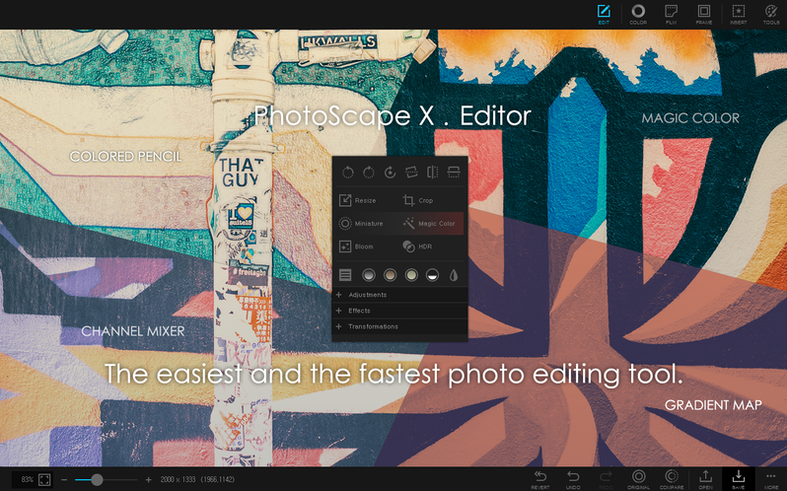
A construction site manager returns from a walkaround with thirty phone photos of pipes, fittings, and a cracked wall. Opening each one in a separate app takes too long. PhotoScape X Pro 4.3 handles that pile in one window: batch rename the files, resize them all to the same width, then paste six into a single comparison grid. No round trips to different tools.
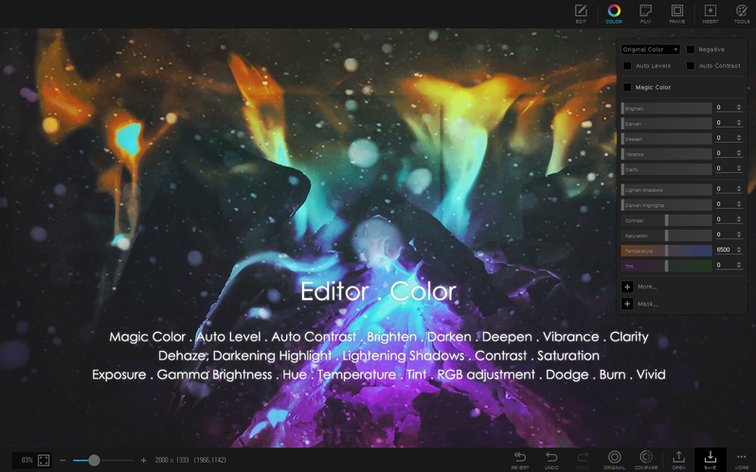
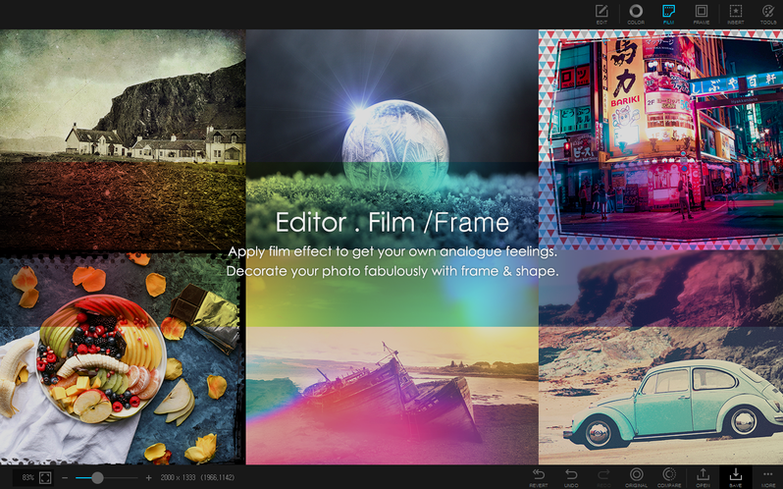
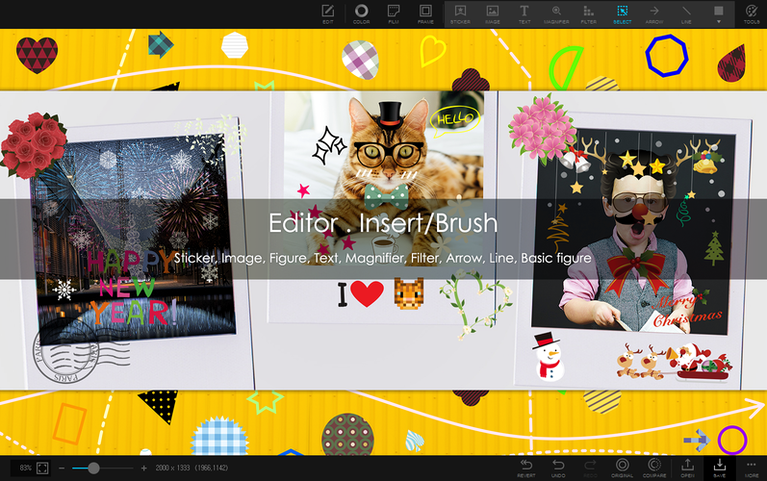
The editor itself holds over a thousand filters and effects, focus stacking, HDR merging, and the usual retouching tools—clone stamp, healing brush, liquify, red-eye fix. It can split a photo into parts or combine several vertically or horizontally. For printed output, the print module works directly. The collage and GIF makers are there for quick sharing or documentation.
Its batch tools cover format conversion, resizing, and renaming, which saves time when you have a folder of raw images that need to become small JPEGs for a report. It runs natively on Apple Silicon Macs (macOS 13 Ventura required) and speaks twelve languages, including Portuguese, French, German, and Japanese. The current build is a fix release—stable, no new features to learn.
Clone Stamp and Healing Brush Limits
PhotoScape X Pro sits in a specific corner of the Mac photo-editing market. Those tools focus on deep retouching, layer blending, and advanced masking. PhotoScape X Pro handles those tasks only up to a point—its clone stamp and healing brush work fine for spot fixes, but you will not build a multi-layer composite in it. That is not what it is for.
A closer competitor is XnView MP. Both apps include batch conversion, renaming, and a file browser with ratings and flags. XnView MP is lighter and faster for navigating large folders, but its editing tools are basic compared to what PhotoScape X Pro offers. You get no filters, no collage builder, no GIF creation in XnView MP. If your workflow is mostly batch operations with occasional quick edits, XnView MP is a leaner choice. If you need to crop, apply a filter, add a frame, and send the result out the door, PhotoScape X Pro keeps everything in one place.
Another option for Mac users is Acorn, which started as a simple image resizer and has grown into a batch processor with some editing capability. Acorn is faster for repetitive resize-and-convert jobs, but again, it lacks the collage, GIF, and frame tools. For someone who manages photos for a small team or a personal archive and needs variety in output formats, PhotoScape X Pro covers more ground without switching apps.
ARM Compatibility Blocks Intel Versions
People switching from an Intel Mac to an Apple Silicon machine sometimes find that older versions of PhotoScape X Pro do not open at all. The app requires macOS 13 Ventura and runs natively on ARM, so if you are coming from an older version, make sure you are on version 4.3. The developer's site lists that requirement clearly, but it is easy to miss if you downloaded the app years ago and kept the installer on a drive.
Another frequent issue involves the batch rename tool. The preview panel shows the new filenames correctly, but the actual files do not change unless you click the Apply button. The interface does not make this step obvious—look for the button at the bottom right of the batch rename window. It is a simple oversight, but it trips up new users who expect a live rename as they type.
Batch resizing can also confuse people who expect a locked aspect ratio by default. PhotoScape X Pro resizes to the exact width and height you enter, stretching the image if the proportions differ. If you want to keep the original aspect ratio, check the box labeled "Maintain aspect ratio" before you run the batch. Without it, you get distorted images.
Some users report that the collage tool feels slow when loading many high-resolution photos. This is not a bug—the app loads full-resolution previews for each tile. The workaround is to downscale your source images to 1920 pixels on the long side before adding them to the collage grid. The final export quality stays high because the tool re-reads the original files for the output.
Stability Fixes for 4.x Crashes
The 4.3 build is labeled as a fix release. That means no new filters, no redesigned panels, and no new batch modes. What it does address are small stability issues that appeared in earlier 4.x versions. Users who had occasional crashes when switching between the browser and editor modules should find those resolved. The fix also corrects a problem where the GIF export dialog would sometimes freeze after saving a few frames.
For everyday use, version 4.3 behaves the same as 4.2 on the surface. Menus, tool locations, and keyboard shortcuts are unchanged. The benefit is purely in reliability—less time re-opening the app after a crash, fewer lost edits. If you are on an older version like 3.x or early 4.x, this is a safe upgrade that does not require learning anything new.
- The listed build is marked as a fix.
| macOS | macOS 13 or later |
|---|---|
| Processor | Apple Silicon |
| Download | 452 MB |
- macOS 13 Ventura
- Apple Silicon (M1, M2, M3, etc.)
- In-app purchases are included
Questions about PhotoScape X Pro
Does PhotoScape X Pro support Apple Silicon Macs?
Yes, version 4.3 requires macOS 13 Ventura and runs natively on Apple Silicon.
Can I batch rename photos with this app?
Yes, the batch tools include renaming, resizing, and format conversion.
Does it include retouching tools like clone stamp and healing brush?
Yes, the editor includes clone stamp, healing brush, liquify, and red-eye fix.
How to install, in order
- Open the downloaded disk image.
- Drag the app into the Applications folder shortcut.
- Launch the app from Launchpad after copying finishes.
Comments and corrections 0
Sign in or open a free account to leave a comment.
No comments or corrections yet.