PlistEdit Pro 1.10.0 — download for Mac
Mac Apps Updated
Edits nested plist files in a tree view for iOS app configuration.
Screenshots
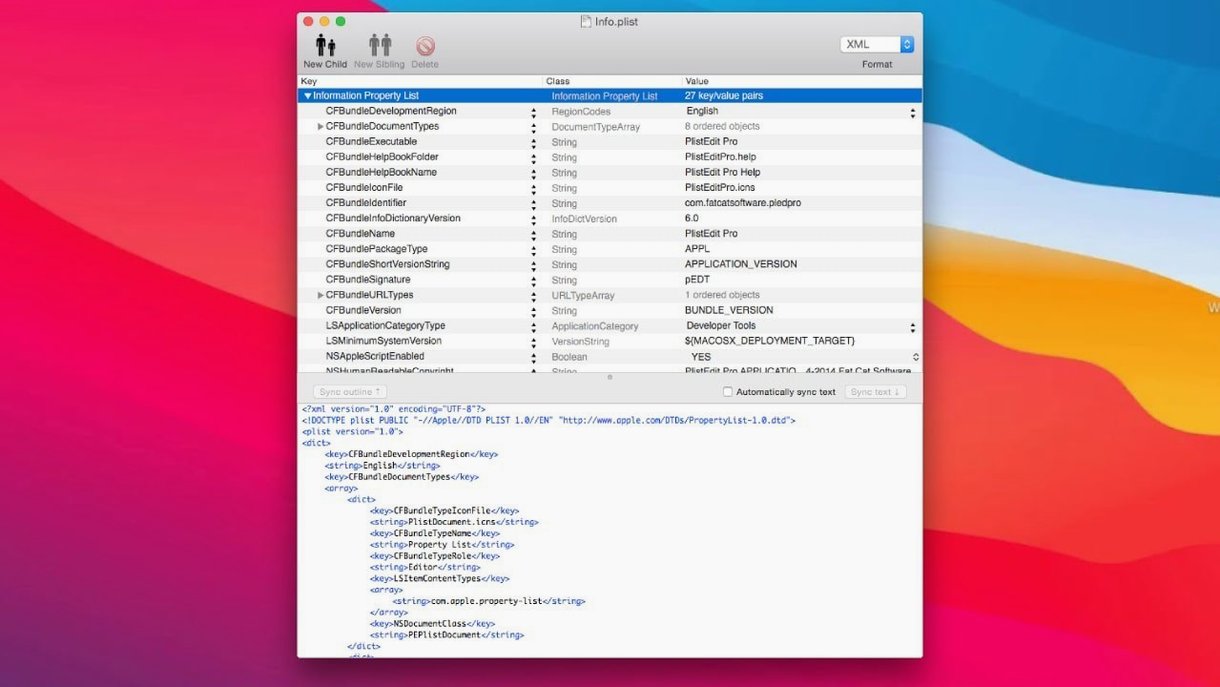
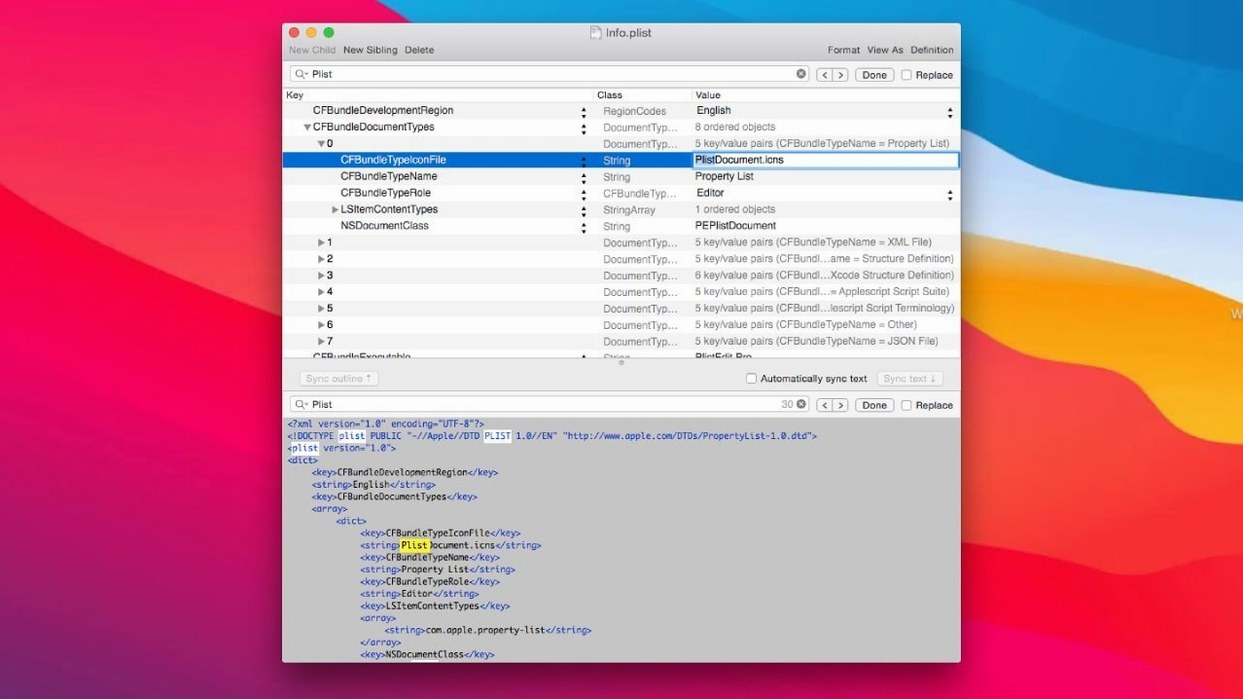
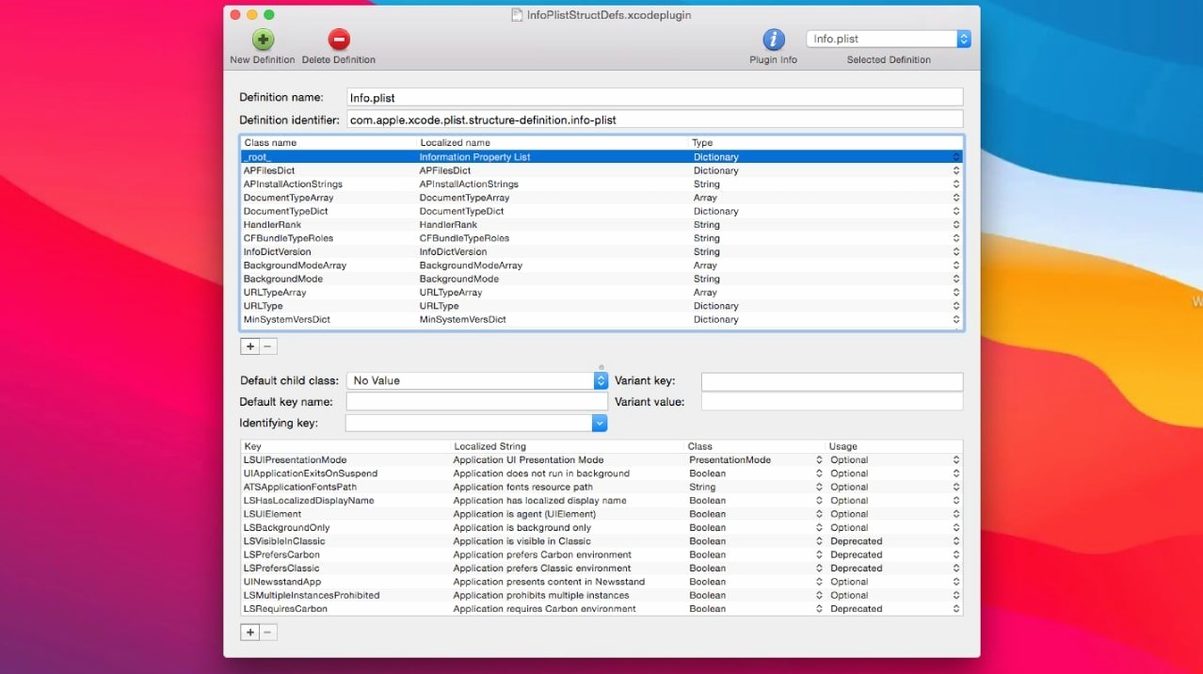
You open a project plist from an iOS app, and the file is a mix of nested dictionaries and arrays. PlistEdit Pro 1.10.0 loads it in an outline view, showing each key and value in a tree. You locate the CFBundleVersion string and double-click to update it. A few items down, you need to add a new array entry for a font file; you drag a plist snippet from another window into the outline, and it slots in without breaking the structure.
- Open a property list or JSON file directly — the outline view shows the hierarchy without clutter.
- Edit any value by typing in place; use keyboard navigation to move between keys and values without lifting your hands.
- Find and replace across the entire file — useful when updating bundle identifiers or version strings.
- Copy and paste plist data between files or from a text editor; the paste preserves the structure.
- Use the
pleditcommand-line tool from Terminal to script edits or batch-process multiple plists. - Switch to plain-text view when you need to see the raw XML or JSON.
The drag-and-drop interface and the command-line tool cover both interactive and automated workflows. For a developer who handles plist files daily, PlistEdit Pro replaces manual XML wrangling with a purpose-built editor.
Font Customization for Terminal Users
After you install PlistEdit Pro and open your first file, the defaults work fine for basic edits. But a few settings make daily use faster:
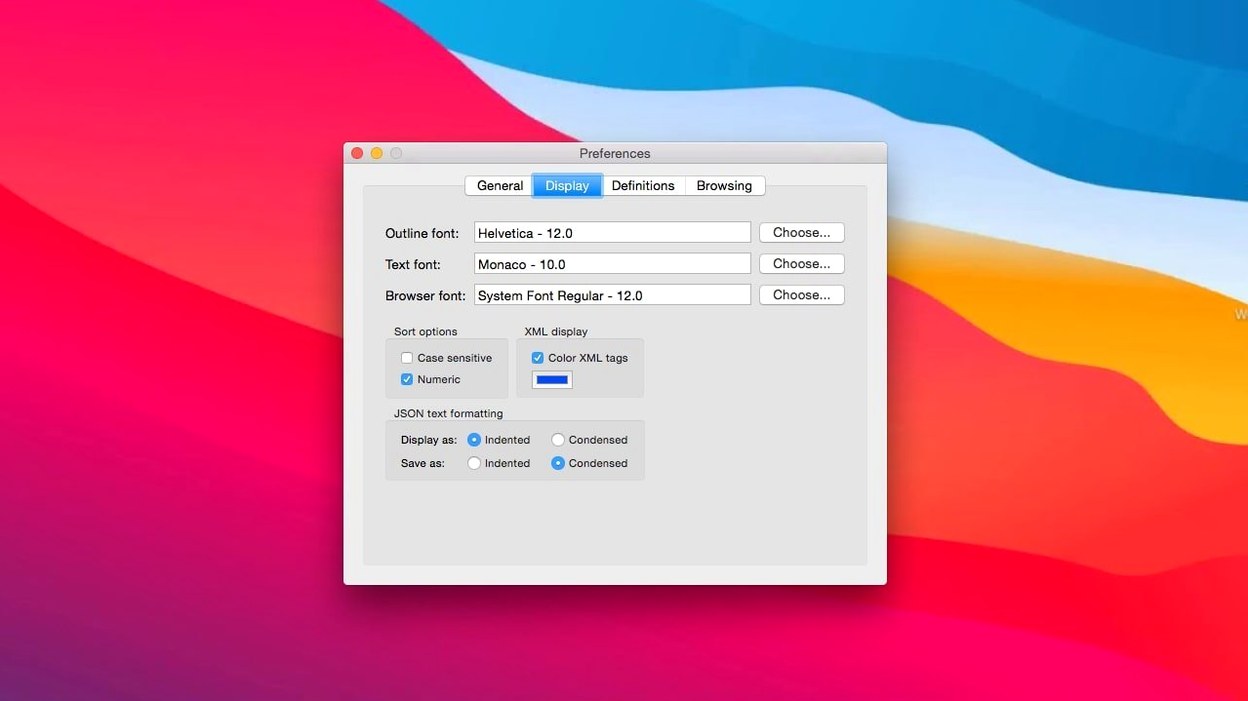
- Font customization — if you work in a terminal all day, the default monospaced font might be smaller than you prefer. Open Preferences and increase the font size so you can read deeply nested keys without squinting.
- Undo depth — the multi-level undo is generous out of the box, but on large plists you can run out of history sooner than expected. Check the undo limit and raise it if you often make several changes before deciding to roll back.
- File-change behavior — version 1.1 replaced the old revert dialog with a small popover. If you work with plists that get modified by other tools (build scripts, for example), set the option to ask before reverting. That way you won’t lose unsaved work when a background process touches the file.
These are set-once adjustments. Five minutes of configuration and you avoid the small irritations that add up over a week of editing.
Versus Three Mac Property List Alternatives
PlistEdit Pro is not the only way to edit property lists on macOS. Here is how it stacks up against three alternatives.
Apple’s Built-in Editors
macOS includes basic tools: TextEdit, Vim, or even nano in Terminal can open a plist. They show you the raw XML or JSON, but you have to navigate the structure manually. Find and replace works line by line, and dragging a block from one file into another is a text-paste operation that often breaks formatting. PlistEdit Pro’s outline view and structure definitions turn that process into point-and-click.
BBEdit
BBEdit handles XML and JSON well, and its multi-file search is powerful. But it treats plist files as text first. You do not get a tree view that understands property lists natively — no collapsing of nested dictionaries, no structure definitions for standard macOS preference files. For a one-off edit, BBEdit works. For daily work with plists, PlistEdit Pro saves time because it knows the format.
Visual Studio Code With Extensions
VS Code can edit plist files with the right extensions, but those extensions are community-built and vary in quality. JSON support is good; XML support is fine. Property list-specific features — such as the preferences browser for macOS preference plists — are missing entirely. PlistEdit Pro’s dedicated command-line tool (pledit) also beats scripting VS Code from the terminal for batch operations.
If you handle plists infrequently, any of these alternatives will do. If plists are part of your daily build or configuration workflow, the specialist editor pays for itself in avoided mistakes.
Plain-Text Editing Without Outline Understanding
A few patterns come up repeatedly when someone starts using PlistEdit Pro. Knowing them saves frustration.
- Editing in plain-text view without understanding the outline — switching to plain-text view is useful for a quick peek, but beginners sometimes make changes there that break the structure. The outline view enforces valid plist syntax. Use plain text only for review, and switch back before saving.
- Dragging items without checking the parent — the drag-and-drop interface is forgiving, but you can drop an array entry into a dictionary node if you are not careful. Always look at the highlighted drop target before releasing the mouse.
- Forgetting the
pledittool exists — beginners edit every file manually. Once you learn the command-line tool, you can script repetitive changes — updating a version string across twenty plist files in one command — and stop opening each file by hand. - Not using the folder-search feature — searching an entire folder of plist files for a specific key or value is one of the best features in PlistEdit Pro. New users often waste time opening files one at a time to find a setting, when a single search would reveal it in seconds.
- Requires macOS 14 or later.
- Updated interface elements for macOS Tahoe.
- Preferences browser options moved to a toolbar menu.
- ‘Ask to revert when file changes on disk’ option changed to a small popover.
| macOS | macOS 14 or later |
|---|---|
| Processor | Apple Silicon, Intel 64-bit |
| Download | 11 MB |
- macOS 14 or later
- Intel or Apple Silicon
Questions about PlistEdit Pro
Can PlistEdit Pro edit JSON files?
Yes. PlistEdit Pro supports opening and editing JSON files directly, using the same outline and text views as property list files.
How to install, in order
- Mount the disk image and run Open Gatekeeper Friendly.
- Press Enter in Terminal to bypass Gatekeeper.
- Drag the app into the Applications folder.
- The app is ready to use.
Comments and corrections 0
Sign in or open a free account to leave a comment.
No comments or corrections yet.