SILKYPIX Developer Studio Pro 11.0.18 — download for Mac
Mac Apps Intel processors only Updated
Adjusts RAW files nondestructively with white balance and cropping tools.
Screenshots
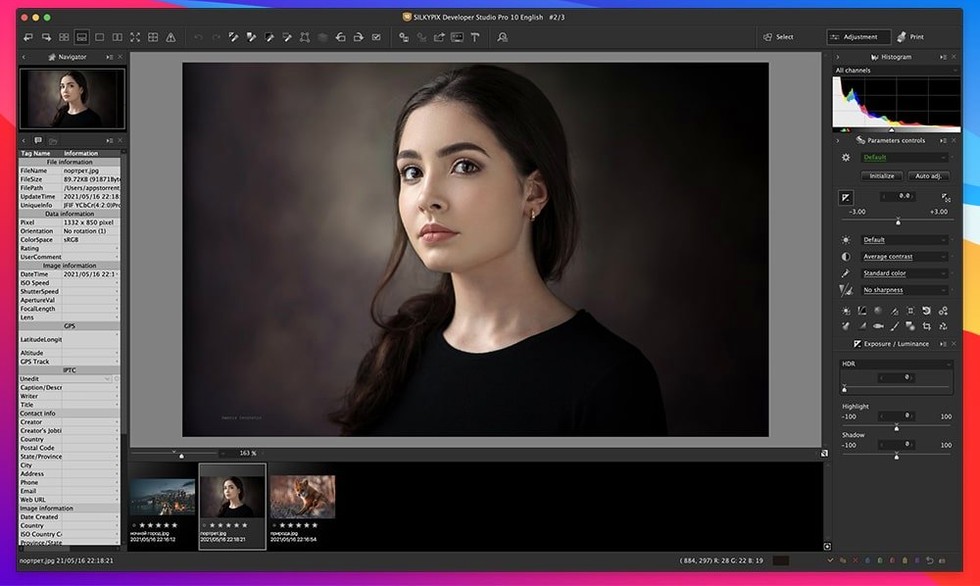
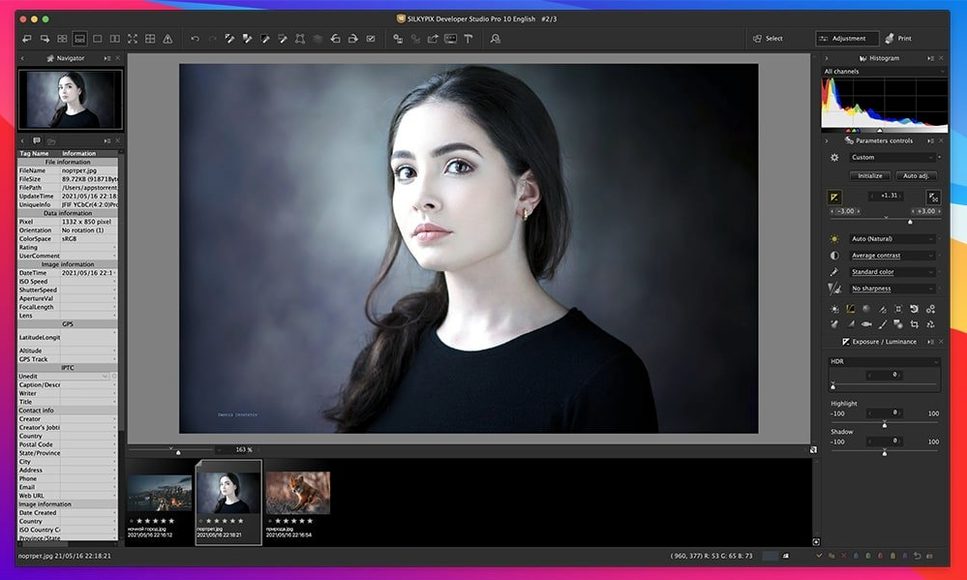
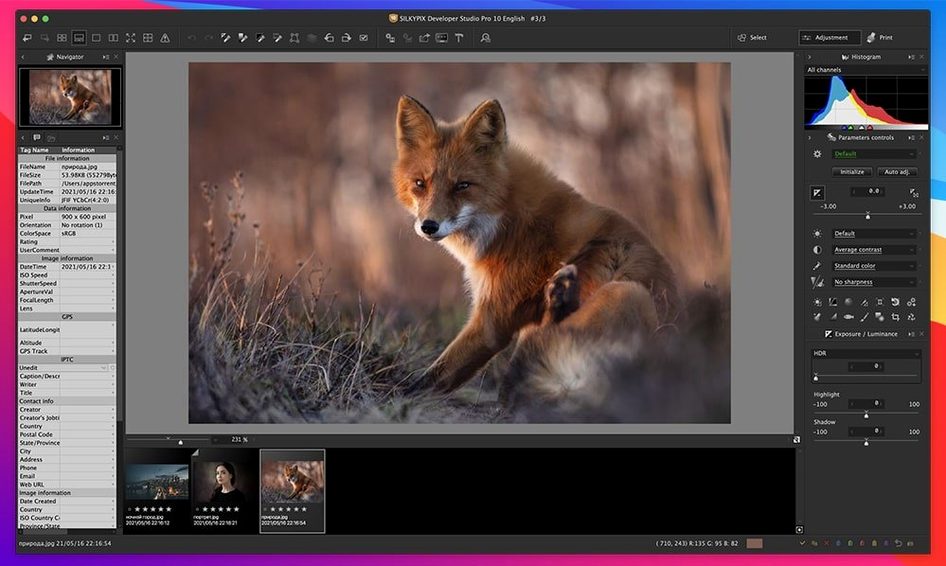
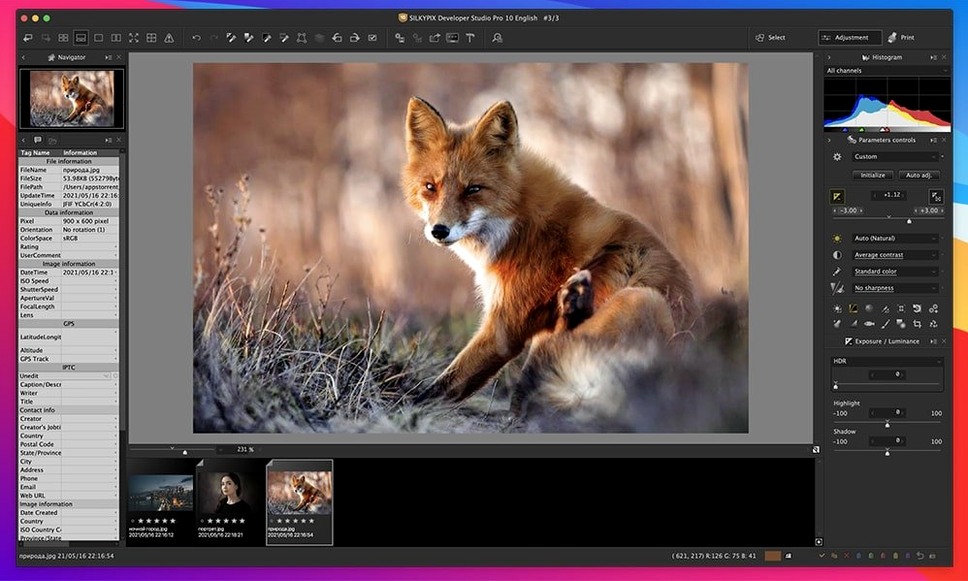
Handling large sets of RAW files means working in an editor that doesn’t lock you into destructive changes. SILKYPIX Developer Studio Pro for macOS keeps the original image untouched while you adjust white balance with an eyedropper, crop, sharpen, rotate, or correct display issues. When you’re ready, export as JPG or TIFF, or send straight to print.
Non-Destructive RAW Edits to Final Export
- Non-destructive RAW adjustments — white balance, sharpening, cropping, rotation
- Precise color correction using the eyedropper tool
- Saving finished work as JPG or TIFF
- Printing directly from the application
Intel-Only Build via Rosetta 2 on Apple Silicon
- The current macOS build is 64-bit Intel only; Apple Silicon users run it via Rosetta 2
- Requires macOS 10.15 Catalina or later
- Version 11.0.18.0 adds support for Canon EOS R50 V, Fujifilm GFX100RF, Fujifilm X-E5, Nikon COOLPIX P1100, and Nikon Z5II
RAW Processing vs. Capture One and DxO PhotoLab
Most Mac photographers start with a shortlist of three or four RAW editors. SILKYPIX Developer Studio Pro sits in a different space than the two I see most often in project folders: Capture One Pro and DxO PhotoLab.
Capture One Pro builds its reputation on tethered shooting and session-based catalogs — useful if you run a studio with a constant stream of product shots. SILKYPIX doesn’t do tethering, and it doesn’t force you into a catalog structure. You open a folder, work on files, export. That flat approach suits me when I’m handling material from a construction site walkthrough: open the card, adjust, move on.
DxO PhotoLab relies heavily on its lens correction modules and DeepPRIME noise reduction. SILKYPIX handles distortion correction and noise reduction, but it doesn’t claim the same automated fix-everything approach. Instead, you get direct sliders for exposure, contrast, and saturation, plus the eyedropper for white balance. The control feels more manual, which is fine if you prefer to dial in each shot instead of applying a preset algorithm. Both apps support non-destructive editing, so you never lose the original RAW data.
Where SILKYPIX stands out is in its camera support. The 11.0.18.0 release added five new bodies — Canon EOS R50 V, Fujifilm GFX100RF, Fujifilm X-E5, Nikon COOLPIX P1100, and Nikon Z5II — which tells me the developer stays current with hardware. If your workflow includes recent mirrorless models from these brands, you won’t wait months for a profile update.
Fitting Into a macOS Workflow
SILKYPIX doesn’t try to replace your entire photo management system. I use it alongside standard macOS tools. After importing cards with Image Capture (the built-in utility or a third-party alternative), I open SILKYPIX to adjust the batch. Exposure and white balance corrections happen first, then cropping and sharpening. From there, I save the finished images as TIFF and bring them into the Adobe suite or Affinity for layout work.
The application sits well in a dual-screen setup. I keep the preview window on one display and the adjustment panels on the other. The interface doesn’t fight macOS window management — I can snap panels to the side without glitches. For printing, it talks to the system print dialog, so any printer you have configured in macOS is available without additional setup.
One detail that saves time: the app reads folder structures directly. You don’t need to import files into a library before working. Open the folder, edit, export to the same folder or a subdirectory. For someone managing weekly batches of project documentation, that direct file access keeps the process linear.
Installation and Mac Compatibility Queries
Rosetta 2 Performance for Batch RAW Processing
The current macOS build is 64-bit Intel, which means it runs under Rosetta 2 on M1, M2, and M3 machines. I haven’t timed it, but for batch RAW processing the translation layer isn’t a dealbreaker — the app handles adjustments per-image, not in real-time video, so the overhead is manageable. If you work on an Intel Mac, there’s no translation layer at all.
Supported Cameras: Recent Canon, Fujifilm, and Nikon Bodies
Version 11.0.18.0 supports recent models from Canon, Fujifilm, and Nikon — including the five bodies added in this release. For older cameras, SILKYPIX has maintained support across a wide range. If you shoot with a body released in the last five to seven years, the software likely reads its native RAW format without conversion to DNG first.
Edit RAW Files Directly Without Conversion
No. You open the RAW folder directly. The edits remain non-destructive, stored in sidecar files or the internal database. The original stays untouched until you export a JPG or TIFF.
English Interface in Menus and Help Files
The software is available in English. The labels, menus, and help files are in English, so you don’t need to work around machine translations.
Gatekeeper Bypass via Terminal for Locked-Down Macs
Mount the disk image, then open the terminal to run the Gatekeeper bypass command. After that, drag the application into your Applications folder. It’s ready to use without further steps.
- Added support for Canon EOS R50 V
- Added support for Fujifilm GFX100RF
- Added support for Fujifilm X-E5
- Added support for Nikon COOLPIX P1100
- Added support for Nikon Z5II
| macOS | macOS 10.15 or later |
|---|---|
| Processor | Intel 64-bit |
| Download | 1 MB |
- macOS 10.15 Catalina or later
- Intel processor (64-bit)
How to install, in order
- Mount the disk image and run Open Gatekeeper friendly.
- Press Enter in Terminal to bypass Gatekeeper.
- Drag the app into the Applications folder.
- The app is ready to use.
Comments and corrections 0
Sign in or open a free account to leave a comment.
No comments or corrections yet.