Serato DJ Pro 5.0.0 — download for Mac
Mac Apps Updated
Supports over 90 hardware controllers for mixing without manual mapping.
Screenshot
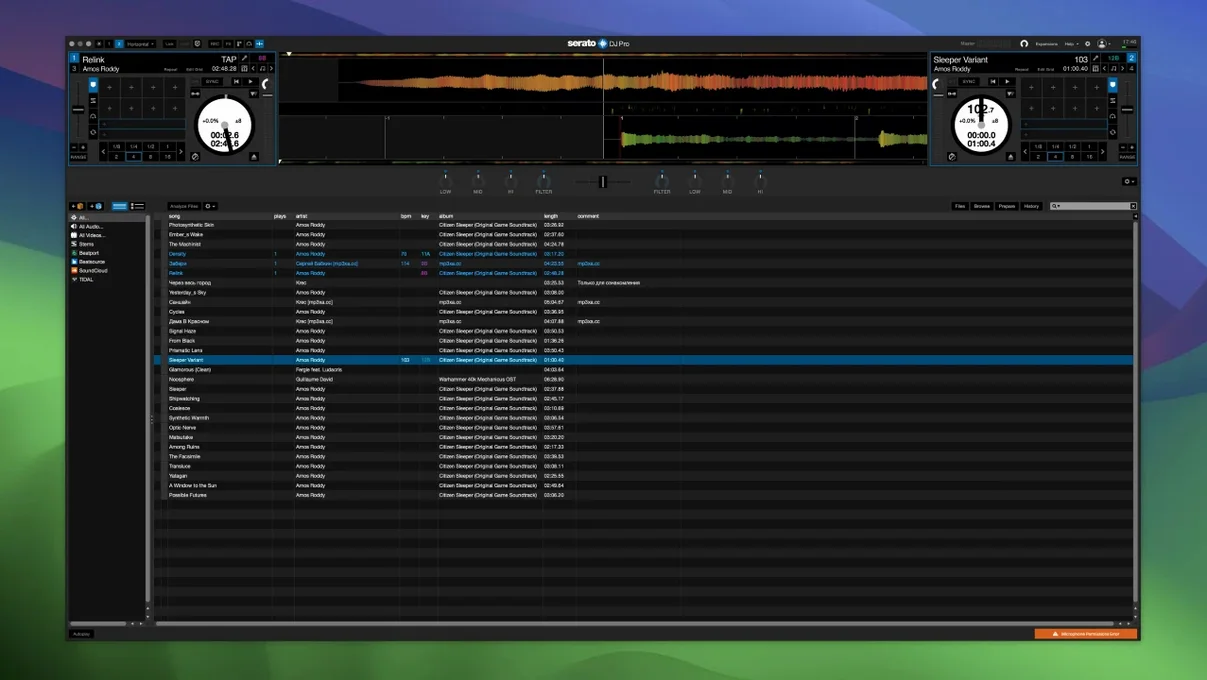
More than 90 hardware devices from industry manufacturers are officially supported by Serato DJ Pro 4.0.5. That range means you can plug in almost any controller and start mixing without mapping or configuration. The software includes built-in FX and Stems Pad FX like Echoes and Brakers, so you can add texture and transitions directly from the interface. Serato Stems isolates vocals, melody, bass, or drums on the fly, which is useful for live remixing or separating elements during a set. The app runs on both ARM and 64-bit Intel Macs, which covers the current hardware lineup without requiring a separate version. It works as the professional tier in Serato’s DJ line, with the entry-level Serato DJ Lite available for simpler setups. Reliable performance and broad hardware support make it the standard choice for working DJs.
90+ Plug-and-Play Controllers
Does Serato DJ Pro work with my controller without extra drivers? Yes, if the device is among the more than 90 officially supported models. Plug in via USB, launch the app, and the software recognizes the controller. No mapping or midi assignment is needed for supported hardware.
Can I run it on an older Mac that is still on macOS 11? No. Version 4.0.5 requires macOS 12 Monterey or later. It will not install on earlier systems. Both Intel and Apple Silicon Macs are supported once the OS minimum is met.
Is the interface available in other languages? English only. There is no language selector in the preferences. Menus, labels and help text are all in English.
What happens with my existing library from an older Serato version? The software reads the standard Serato library database. If you are moving from a previous release, the library should carry over. Backing up your library folder beforehand is a safe habit.
Do I need an internet connection to use the Stems features? No. Serato Stems works offline. The processing happens on your machine, not on a remote server. That matters when you are in a venue without reliable Wi-Fi.
Customizable Slip Release on First Launch
Some useful details are easy to overlook on first launch. They are worth knowing about.
- Customizable hardware Slip Release — This setting adjusts how the platter behaves when you release a track. It is not a global default. You can set it per hardware device, which matters if you switch between turntables and controllers during a set.
- Stems Pad FX — Echoes and Brakers are not just added as an afterthought. They are mapped to pad controls so you can trigger them with one finger while you keep the other hand on the mixer. No menu diving.
- Built-in FX — These are not hidden in a submenu. They sit on the mixer panel, ready to use. You can assign different effects to different decks.
- One-button acapella or instrumental — The Stems feature includes a button to mute selected stems. A single press turns a full track into an acapella or instrumental. The button is visible on the waveform display, not buried in a context menu.
USB Driver Fix for Unrecognized Controller
A few things catch people new to the software. Here is what to watch for and what to do about it.
Controller not recognized after first connection. The usual cause is a USB driver conflict or a power state issue. Unplug the device, restart the app, then reconnect. If that does not work, check that the controller is one of the supported models. The software lists them on the hardware support page.
Stems processing takes longer than expected on an Intel Mac. Stems isolation uses real-time analysis. On older Intel Macs with integrated graphics, the initial processing can feel slower than on Apple Silicon. The solution is to let the analysis complete before you start mixing. Pre-analyze your tracks before the gig, not during it.
Sound crackles or drops out during a set. This is usually a buffer setting issue. Each hardware device handles buffer size differently. Lower the sample buffer in the audio preferences. If the crackling persists, check that no other app is using the same audio interface. Close unnecessary background apps.
Stems Pad FX do not trigger. The pads need to be assigned to a deck. Open the layout settings and confirm the Stems Pad is visible on the screen. If the pad is hidden, the FX buttons do nothing. Drag the pad into view using the layout editor.
Installing the patch after the main package. The installation is two steps: run Serato DJ Pro 4.0.5.pkg first, then run Serato DJ Pro Suite 4.0.5 patch. If you skip the patch, the app may not launch correctly. Always run both in order.
Workflow: Prep a Track for Live Remixing Using Serato Stems
Here is a start-to-finish workflow for taking a single mixed track and turning it into a live remix tool during a set.
- Load the track into a deck. Drag a song from the library to Deck A. The waveform appears on the screen.
- Activate Stems. Click the Stems button on the deck panel. The software analyzes the track and separates vocals, melody, bass and drums. Wait until the stems labels appear below the waveform before touching any controls.
- Assign Stems to pads. Open the Stems Pad. Each pad can be set to mute or solo a stem. Map vocals to pad 1, drums to pad 2, bass to pad 3 and melody to pad 4.
- Add an FX touch. On the same pad, assign an Echo effect to pad 5 or a Braker to pad 6. These are triggered by pressing the pad, not held down.
- Test the setup. Press play. Tap pad 1 to mute the vocals. Tap it again to bring them back. Repeat for each stem. All changes happen in real time without stopping the track.
- Perform the remix. During your set, drop this track when the energy needs a change. Use pad 1 to strip the vocals for a breakdown, then bring them back on the beat. Use the Braker pad to glitch the transition into the next track.
This workflow keeps both hands on the hardware controller and the pads. You never touch the mouse once the setup is done.
Standard .pkg Install, No Background Service
The software installs from a standard .pkg file. The installer places the app in the Applications folder. Launch it from Launchpad or the Applications folder. There is no secondary installer or background service.
Once running, the interface uses the standard macOS window chrome. Menus follow the conventions you know from other professional audio software. The app uses the English locale regardless of your system language setting.
On Apple Silicon Macs, the app runs natively. On Intel Macs, it runs as a 64-bit binary. Both architectures use the same installer. The system requirements are macOS 12 Monterey or later. No third-party drivers are needed for audio or MIDI unless your specific controller requires them.
The app is activated by a patch from Team V.R. After installation, run the patch once. No further activation steps are needed. The app opens directly from Launchpad after that.
No release notes filed for 5.0.0. They are added here when a build changes how the program behaves.
| macOS | macOS 12 or later |
|---|---|
| Processor | Apple Silicon, Intel 64-bit |
| Download | 1 GB |
- macOS 12 Monterey or later
- Intel or Apple Silicon (ARM) processor
- Interface languages: English
How to install, in order
- Run the standard installation package: Serato DJ Pro 4.0.5.pkg.
- Run the standard installation package: Serato DJ Pro Suite 4.0.5 patch.
- After installation, launch the app from Launchpad.
Comments and corrections 0
Sign in or open a free account to leave a comment.
No comments or corrections yet.