Sound Siphon 3.8.4 — download for Mac
Mac Apps Intel processors only Updated
Captures system audio as a standard input device for any app to record.
Screenshots
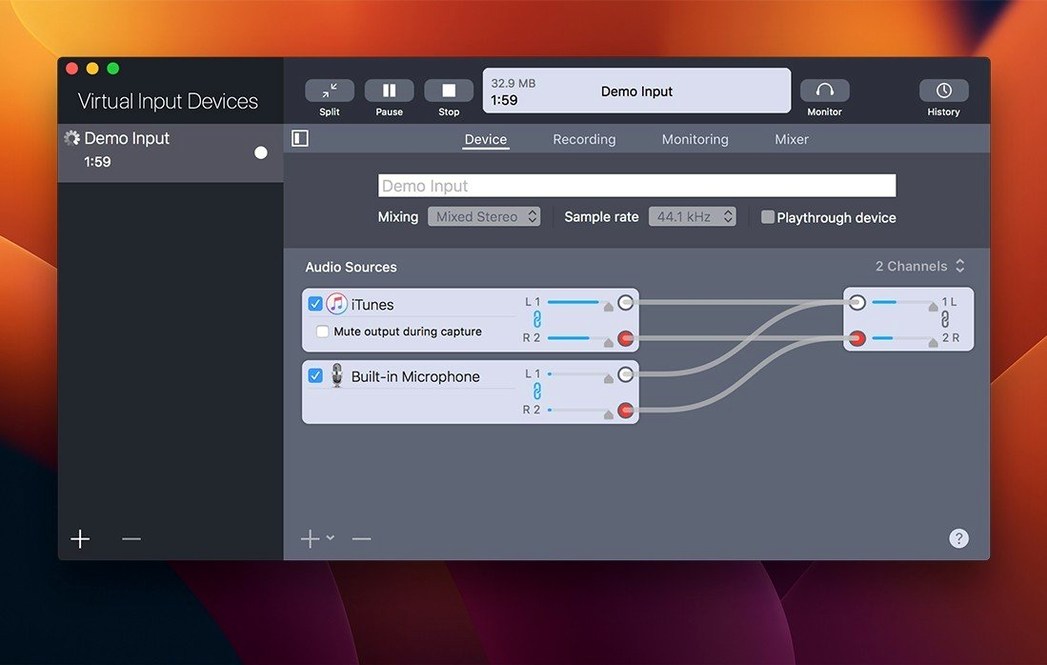
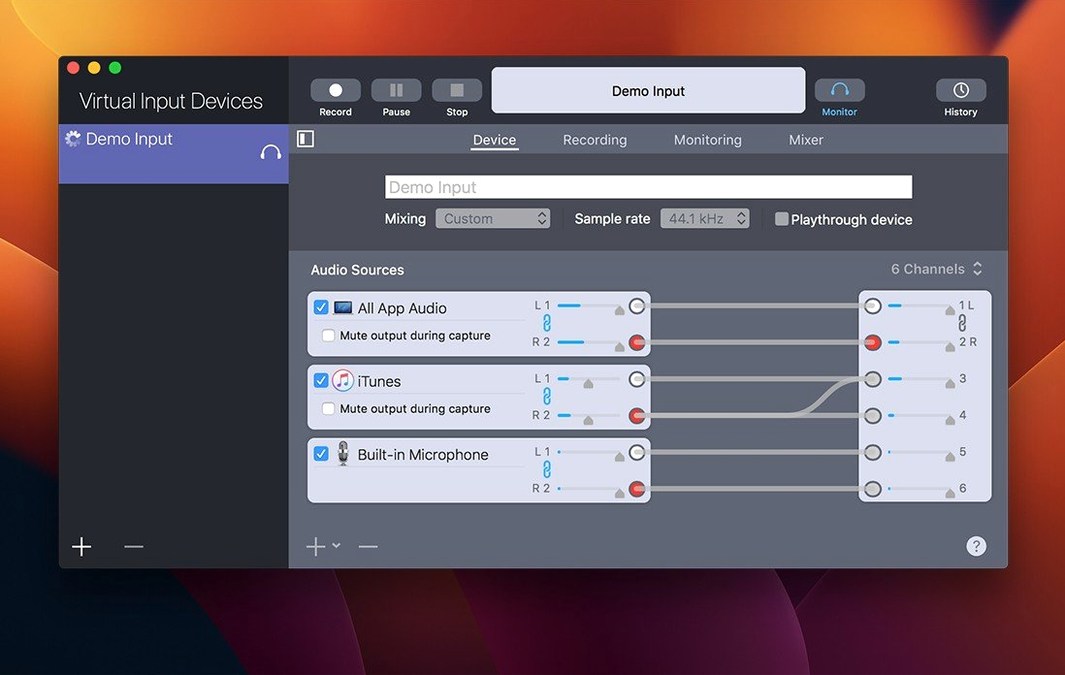
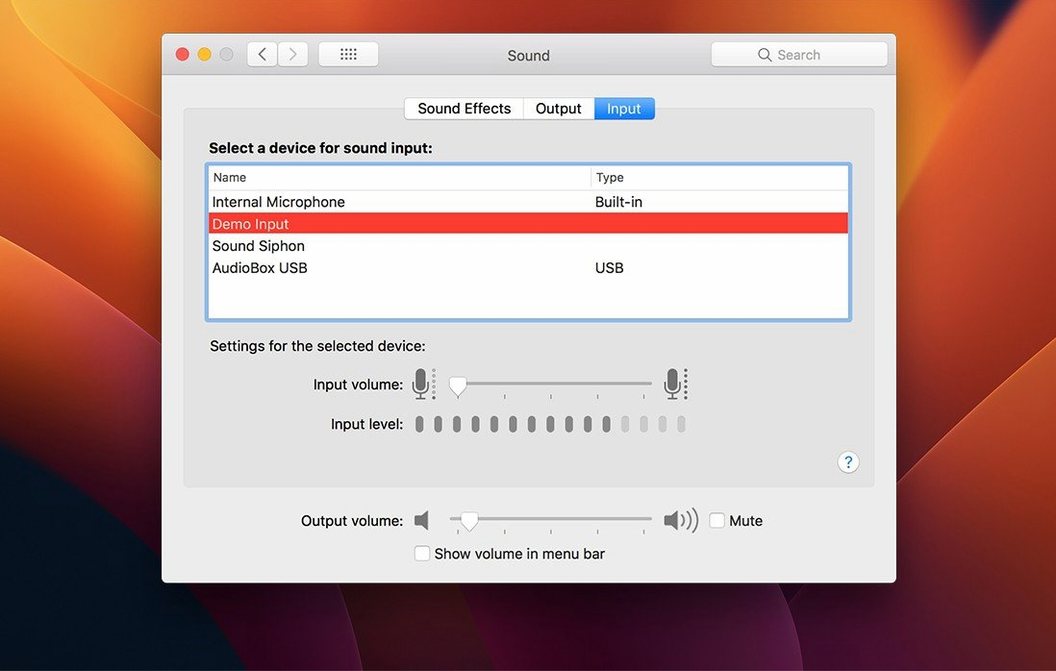
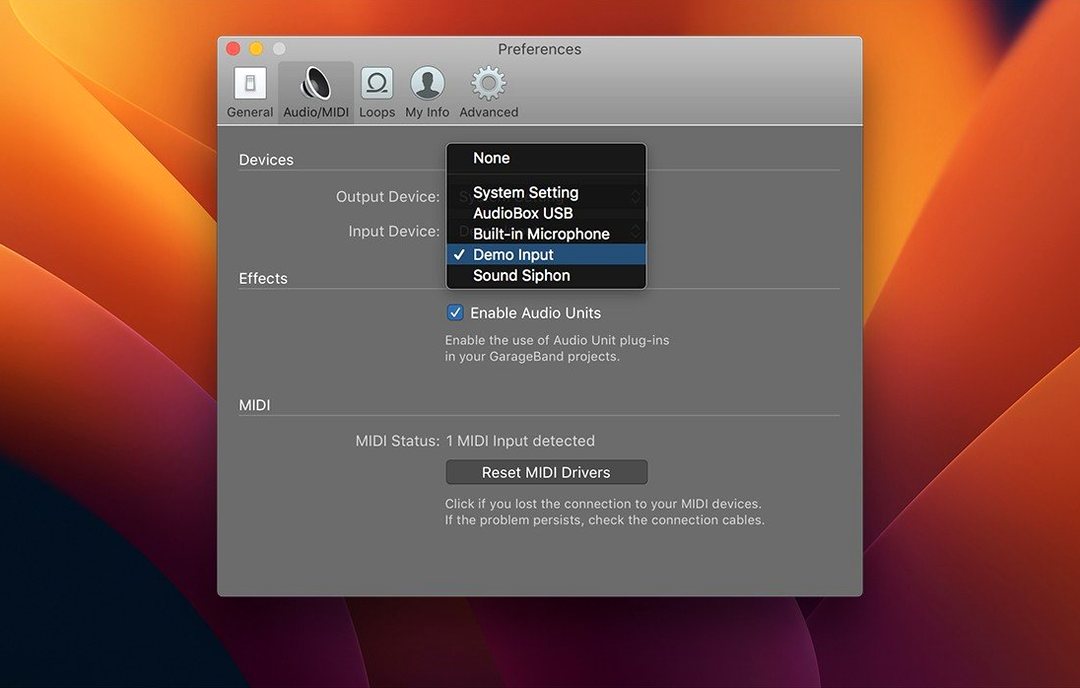
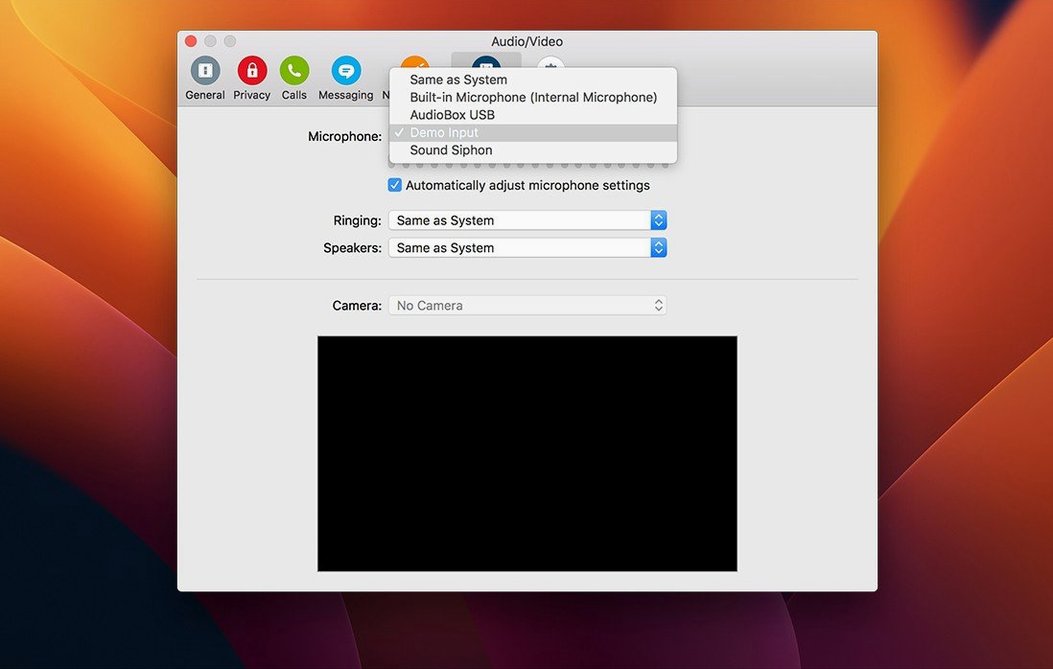
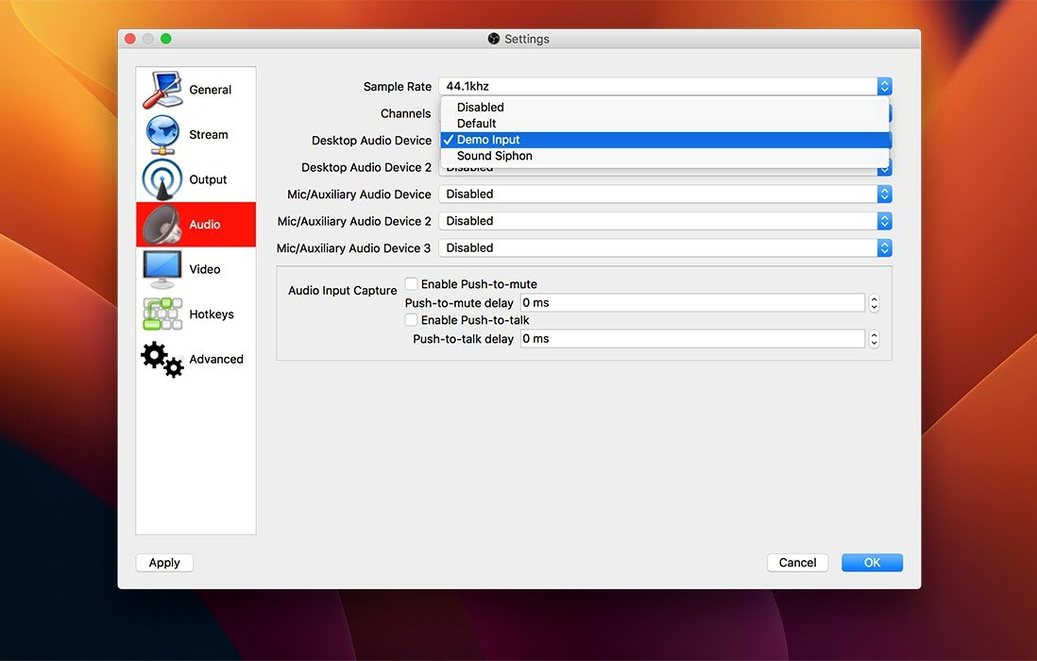
Capturing system audio on a Mac has always been a hassle — you need a loopback cable, extra software, or a virtual audio device that doesn't always work. Sound Siphon solves that directly: it makes your Mac's audio output available as a standard audio input device. Any app that sees a microphone can now grab whatever your Mac is playing.
Version 3.8.4, released September 17, 2025, brings one key update: macOS 26 compatibility. Nothing else changes in the workflow. You still get per-app level control, the ability to mute captured apps during recording, and Core Audio support that works with DAWs, streaming tools, and screen recorders. The app stays in English and runs on Intel Macs from macOS 10.15 onward.
What matters is the simplicity. You install it, select Sound Siphon as your input device, and route audio from a browser, a media player, or a video call directly into your recording software. No routing matrices, no virtual cables. For anyone who records tutorials, interviews, or system sounds, it removes an unnecessary step.
Restart the App to Fix Missing Input Device
Most issues with Sound Siphon come down to permissions or app selection. Here is what to check first:
- App does not show up as an input device. Restart the app you want to capture from. Sound Siphon registers as a Core Audio device, but some programs scan for inputs only at launch. Closing and reopening the target app usually makes it visible.
- No sound captured from a specific app. Open Sound Siphon and confirm that app is listed and the level slider is not at zero. If the app is not listed, it may not be outputting audio yet — play something in it, then check again.
- Captured audio sounds distorted or clipped. Lower the per-app level in Sound Siphon before adjusting your recording software’s input gain. The app mixes all sources into a stereo signal, so a hot level from one app can push the whole mix into distortion.
- Recording software shows no signal. Verify that Sound Siphon is selected as the input device in your recording app, not as the output. It behaves as a microphone — look in the input section of your DAW, screencaster, or streaming program.
- Multiple apps captured, but you only want one. In Sound Siphon, mute or zero the level for every app except the one you need. You can also mute captured apps entirely during recording, so they stay audible in your headphones but silent in the capture.
Runs on Intel 64-bit with Core Audio, No Drivers
Sound Siphon 3.8.4 runs on Intel 64-bit Macs with macOS 10.15 or later, including macOS 26. It is a native English-language application. It uses Core Audio, so there are no kernel extensions or custom drivers to manage. The installer follows a standard mount-and-drag workflow: mount the disk image, run Open Gatekeeper friendly, press Enter in the Terminal window to bypass Gatekeeper, then drag the app to the Applications folder. Open it when the copy finishes.
Because it works at the system audio level, Sound Siphon adds virtual audio inputs without changing how your usual output devices behave. Your speakers or headphones continue working normally. The app sits quietly in the background until you need to adjust levels or choose which applications to include in the capture.
Route Only Zoom Output into Your DAW, Muting System Sounds
A podcast editor records interviews over Zoom. The guest audio arrives already mixed with the editor’s own system sounds — notifications, browser ads, email pings. With Sound Siphon, the editor routes only the Zoom output into the recording DAW, mutes every other app in Sound Siphon’s list, and keeps a separate microphone input for their own voice. The result is a clean two-track recording: one for the guest audio from Zoom, one for the editor’s mic. No post-production cleanup of stray system sounds needed.
- macOS 26 compatibility added.
| macOS | macOS 10.15 or later |
|---|---|
| Processor | Intel 64-bit |
| Download | 17 MB |
- macOS 10.15 or later
- Intel processor
Questions about Sound Siphon
Does Sound Siphon capture audio from all applications at once?
Yes. Sound Siphon can capture all audio from the Mac, or you can set separate levels for each app. You can also mute specific apps during capture.
How to install, in order
- Mount the disk image and run Open Gatekeeper Friendly.
- Press Enter in the Terminal window to bypass Gatekeeper.
- Drag the app to the Applications folder.
- Open the app when installation finishes.
Comments and corrections 0
Sign in or open a free account to leave a comment.
No comments or corrections yet.