TablePlus 27.3.2 — download for Mac
Mac Apps Updated
Handles PostgreSQL, MySQL, SQLite, and Microsoft SQL Server from one client.
Screenshots
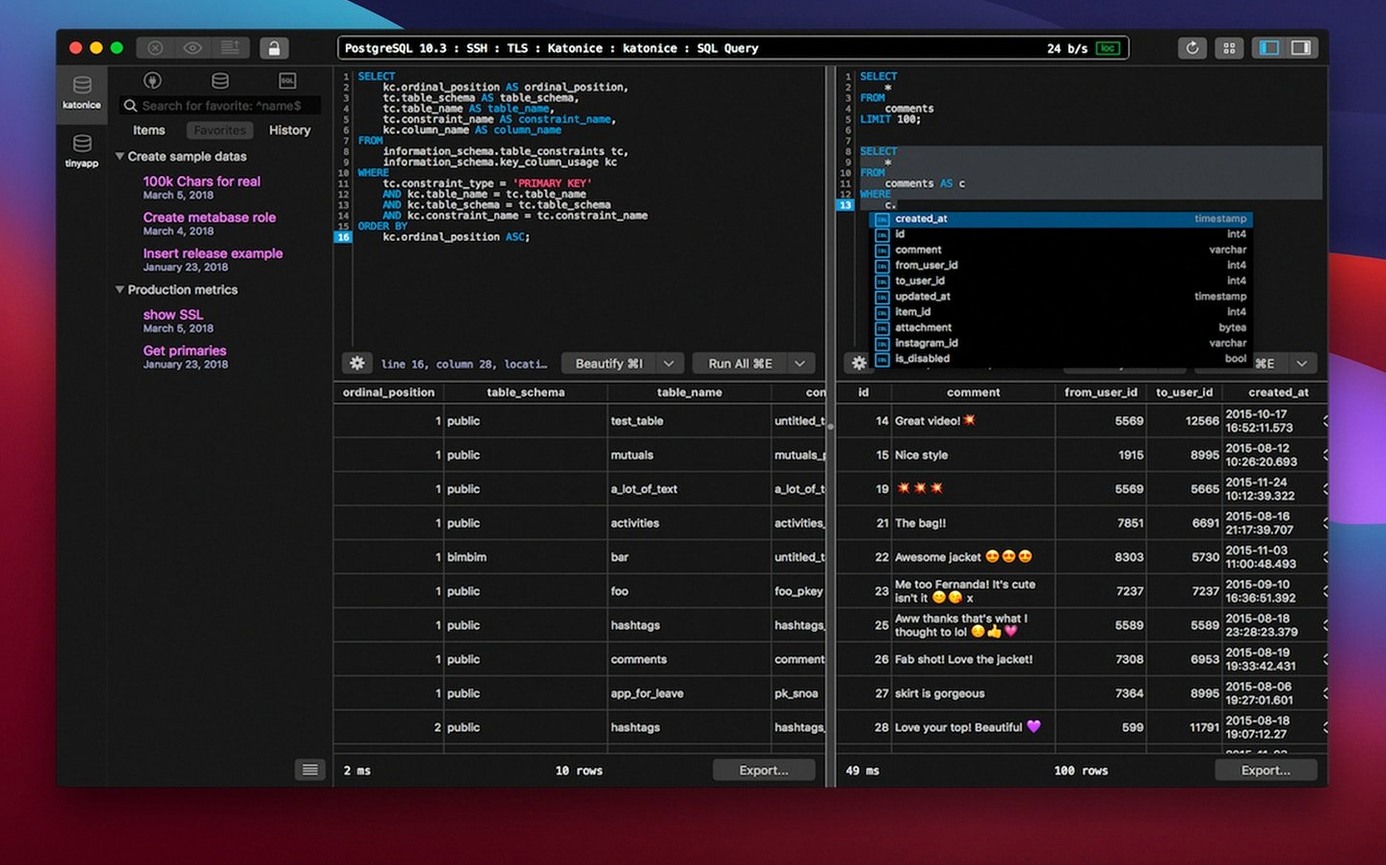
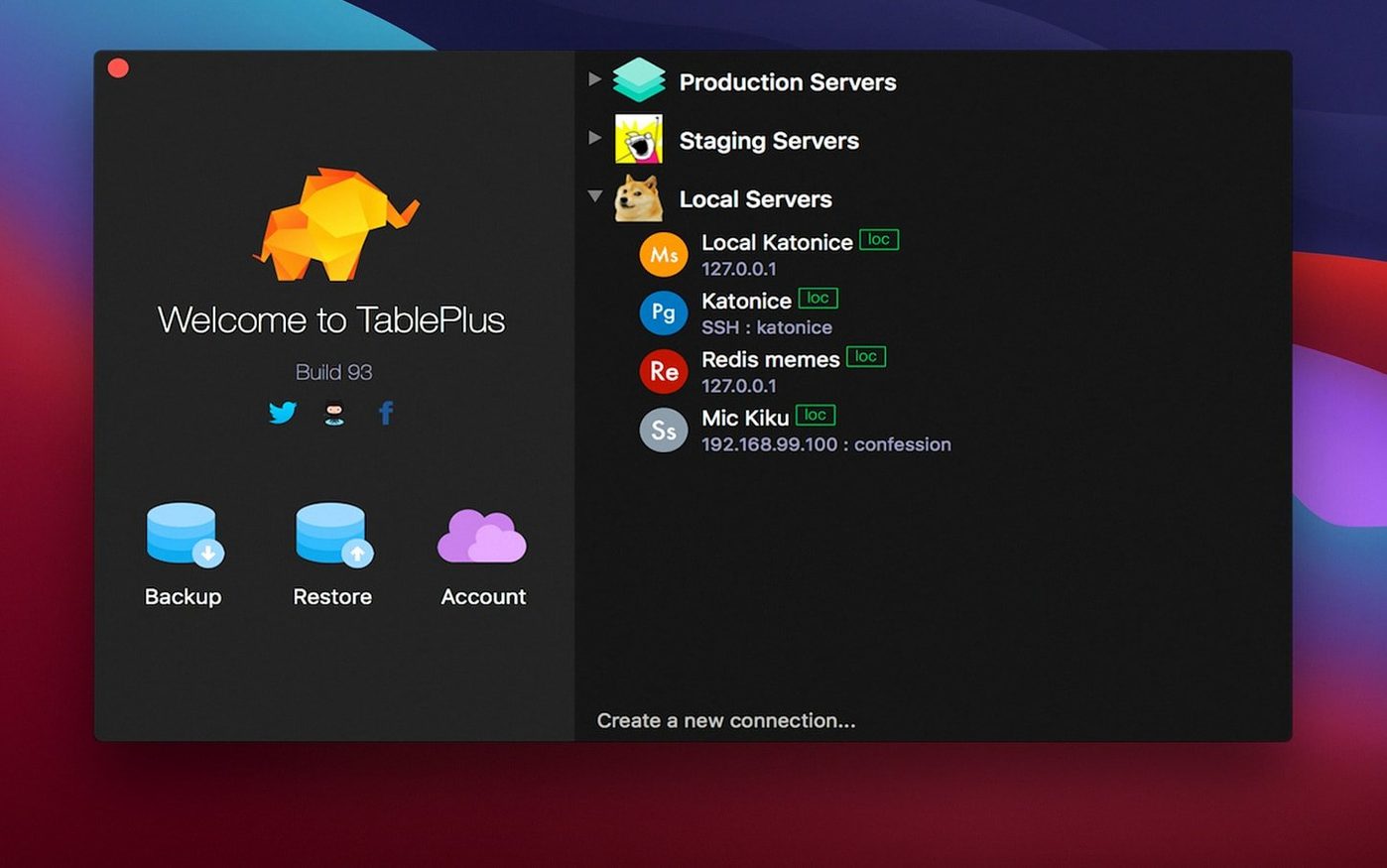
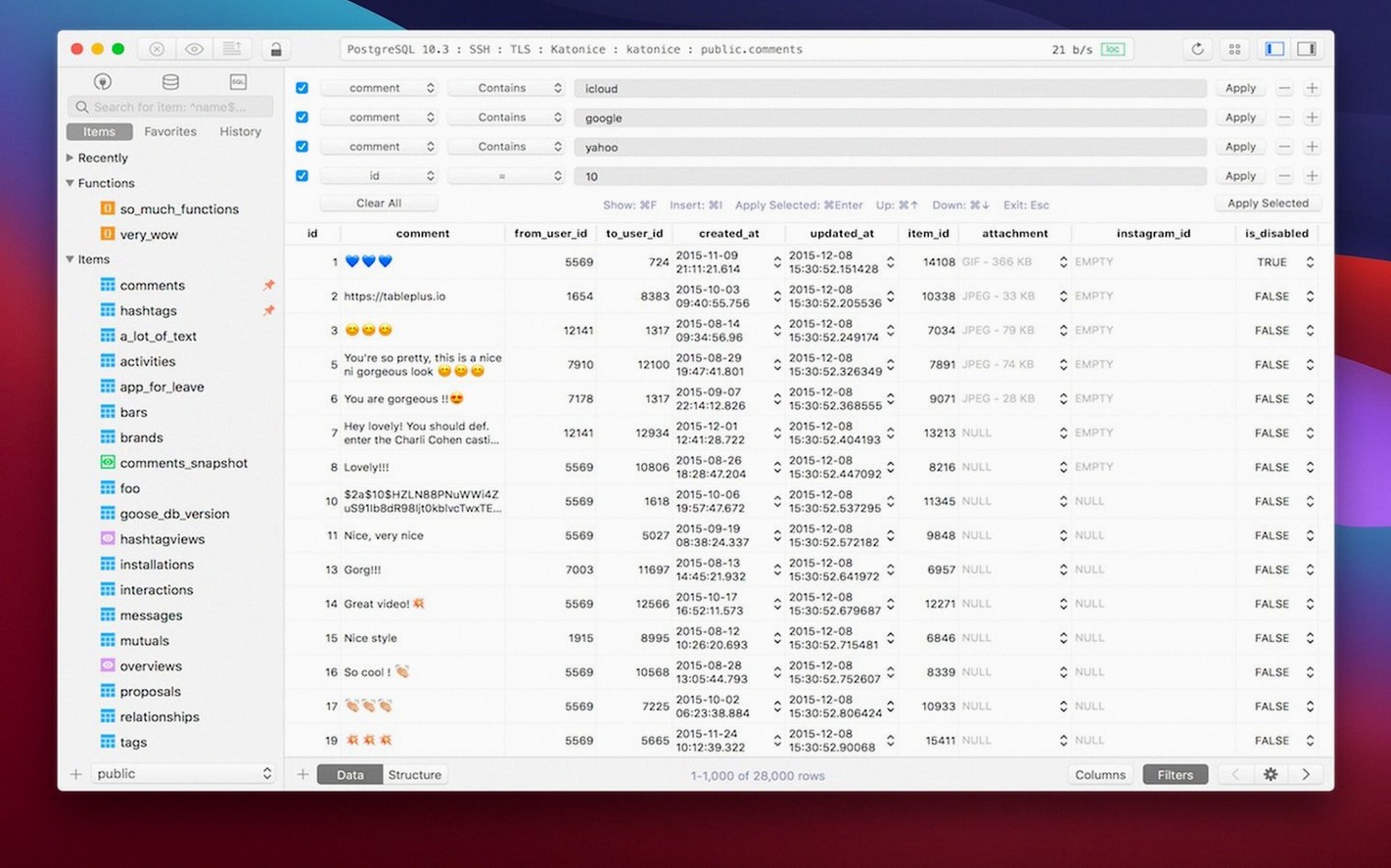
TablePlus handles PostgreSQL, MySQL, SQLite, and Microsoft SQL Server — four relational databases from one native macOS client. Version 6.8.0, built March 2026, keeps the interface clean and the features practical for daily work.
Compatibility and Safe Mode for Production Data
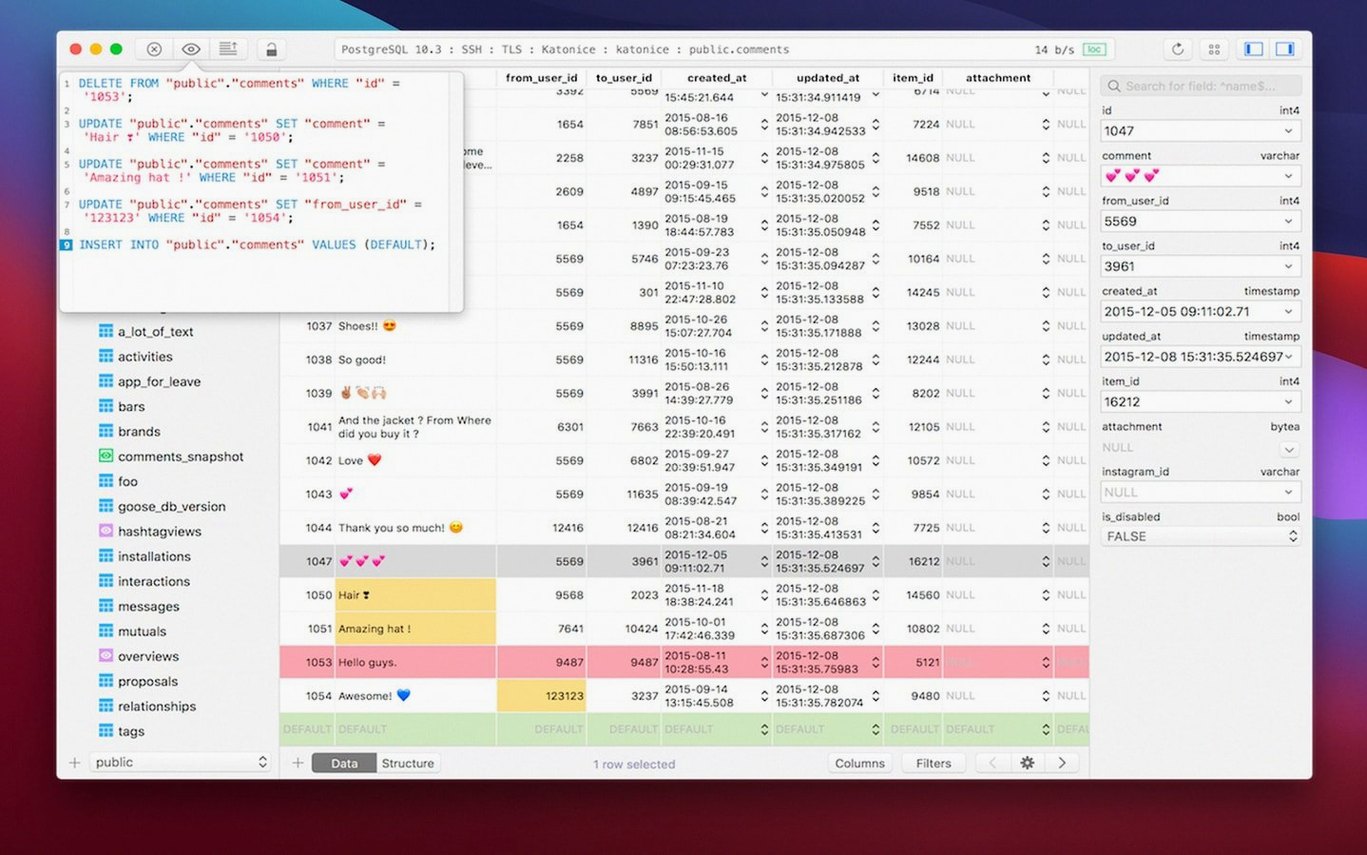
Most questions center on compatibility and safety. TablePlus runs on macOS 10.13 and later, supports both Intel and Apple Silicon, and includes a safe mode that prevents accidental writes to production data. The code preview lets you review a query before it executes — a small step that saves time when you are moving between databases.
Keyboard shortcuts and an optional dark mode round out the workspace. The app does not require a constant connection; you connect, run queries, and disconnect. For anyone managing several database types from one seat, that simplicity matters.
A Practical Workflow: Migrating a Table Between MySQL and PostgreSQL
Suppose you need to move a customer table from a MySQL development instance to a PostgreSQL staging server. In TablePlus, you start by opening two tabs — one connected to the MySQL source, the other to the PostgreSQL target. The script editor, with its syntax highlighting, helps you write the CREATE TABLE statement for PostgreSQL manually, adapting data types as needed. Use the code preview to check the statement before running it on the target. Once the table structure exists, switch back to the MySQL tab, run a SELECT * query, and copy the results. Paste those into an INSERT statement in the PostgreSQL tab. The error reporting in the editor flags mismatched columns or type issues immediately. After the data lands, run a quick SELECT COUNT on both sides to confirm row counts match. The whole operation stays inside one application — no switching between separate database clients.
Answers to Frequent Pre-Install Questions
People new to TablePlus often ask whether it works with older macOS versions. The developer states macOS 10.13 as the minimum, so a 2017 machine running High Sierra or later is fine. Both Intel and Apple Silicon models are supported — no special build needed for M-series chips.
Another common question is about driver management. TablePlus ships with drivers for PostgreSQL, MySQL, SQLite, and Microsoft SQL Server out of the box. If you need support for a less common database, you can add plugins and drivers through the app’s built-in manager. No separate installers to hunt down.
People also wonder about connection security. TablePlus uses native libraries and TLS for encryption when connecting to databases. The safe mode, which blocks write queries, is a separate safeguard — you can toggle it on when working against production servers and off when you need to make schema changes.
Finally, some ask whether the app slows down with many tabs open. TablePlus uses multiple tabs and windows natively, not in a web wrapper. The app is built as a native macOS client, so performance depends mostly on your database server response times, not on the interface itself.
Dark Mode and Keyboard Shortcuts on Day One
- Turn on dark mode from the preferences panel if you work late hours. It’s an optional setting and easy to toggle.
- Spend ten minutes learning the default keyboard shortcuts. The app supports them for common actions like running a query, opening a new tab, or closing a connection. Knowing two or three cuts out menu hunting.
- Keep safe mode enabled for the first week. It prevents accidental updates or deletes while you get used to the interface. You can disable it later when you are confident about which database is which.
- Set up a connection to a local SQLite file first. It requires no server credentials, so it is a fast way to confirm the app launches and runs queries without network overhead.
- Use the code preview every time before executing a write query. It shows you the exact SQL that will run — especially useful when you are editing data across multiple tables.
- Organize your connections by environment: label each saved connection as “dev,” “staging,” or “production.” The connection list stays visible, so a clear naming scheme prevents mistakes.
These habits take little time to establish and make the first days with TablePlus more about getting work done than about learning the tool.
Version 27.3.2 addresses a handful of stability issues reported in the previous release. The update is available now.
| macOS | macOS 12 or later |
|---|---|
| Processor | Apple Silicon, Intel 64-bit |
| Download | 200 MB |
- macOS 12 (Monterey) or later
- Apple Silicon or Intel 64-bit processor
Questions about TablePlus
Does TablePlus support both Intel and Apple Silicon Macs?
Yes. Version 6.8.0 runs on both architectures under macOS 10.13 and later.
What databases can I manage with TablePlus?
It supports PostgreSQL, MySQL, SQLite, and Microsoft SQL Server among others.
How to install, in order
The download weighs about 200 MB and runs on Intel and Apple Silicon Macs with macOS 12 or later. Three steps finish the setup.
- Open the downloaded disk image and drag the TablePlus app to your Applications folder.
- Launch the app once, then close it completely.
- Follow the activation steps included in the download package.
Comments and corrections 0
Sign in or open a free account to leave a comment.
No comments or corrections yet.