Typeface 4.5.3 — download for Mac
Mac Apps Updated
Manages fonts on your Mac for quick selection and brand matching.
Screenshots
I work with type every day—scheduling notes, checking specs, and keeping project files consistent. For the times I need to pick a font for a client presentation or match a brand voice, I turn to Typeface. It's a standalone macOS font manager that makes the job quick.
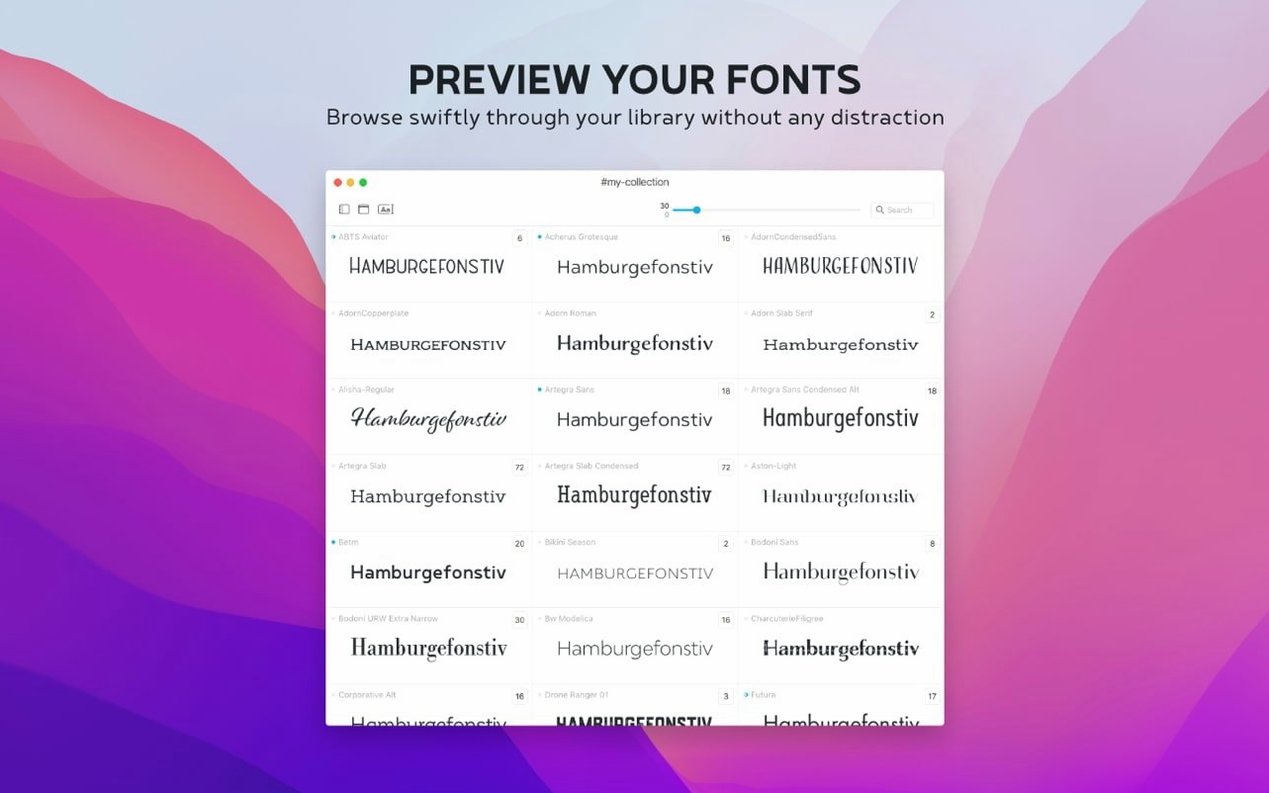
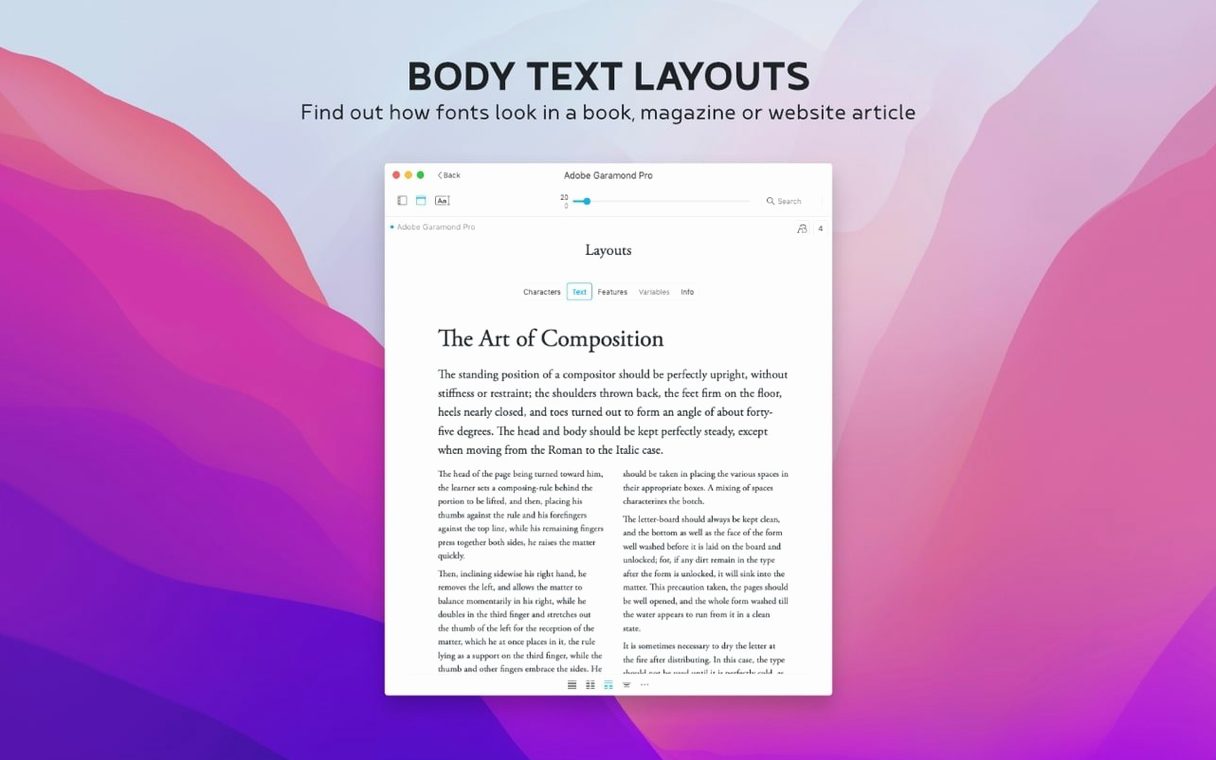
I start by downloading the disk image and dragging the app to Applications. Launch it from Launchpad, and I'm looking at all my installed Mac fonts plus any custom ones I've added. For a new proposal, I preview the font in different sizes and text samples. The side-by-side compare view helps me decide between two similar sans-serifs. When I settle on one, I check its Info tab for the designer notes I added—version 4.5 now lets me search those notes across all fonts.
I sort by the new Last Activated column to see which fonts I used most recently, then activate only what the project needs. Grouping by families keeps everything tidy. The whole workflow takes maybe two minutes, and I'm back to planning the schedule.
Scanning Your Full Font List
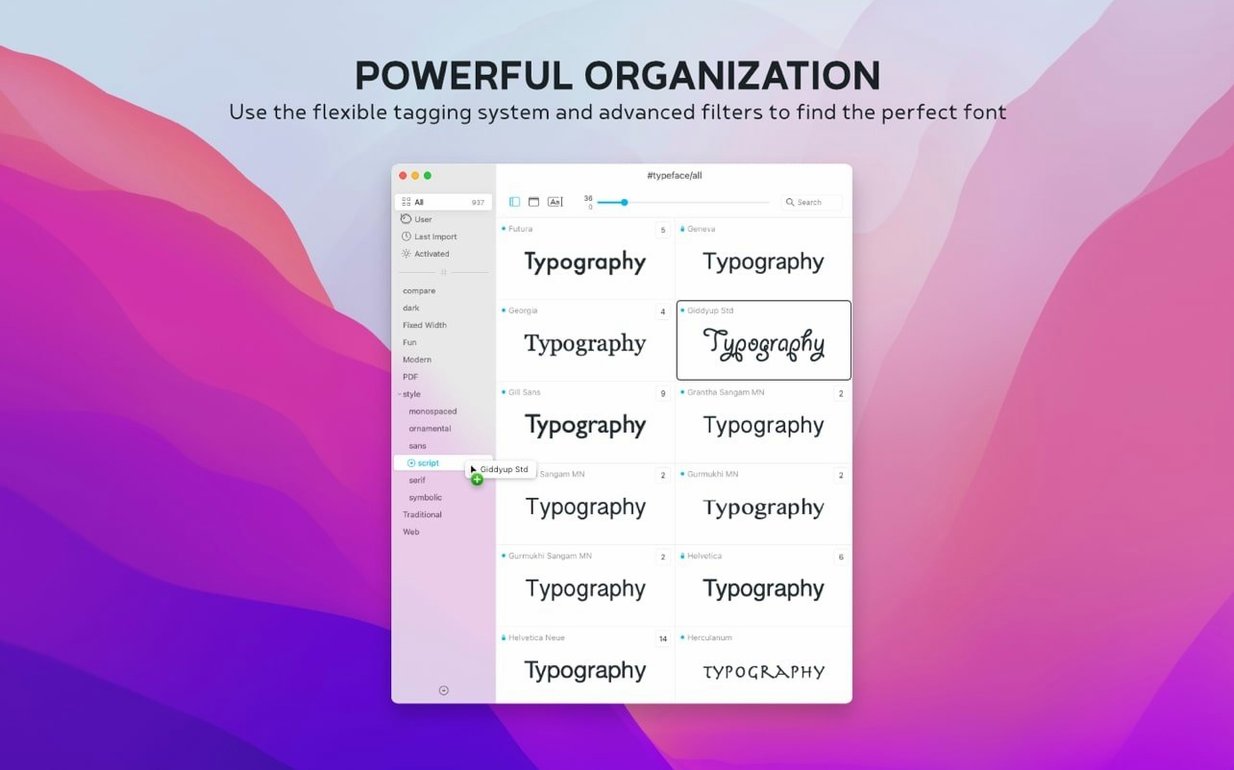
The first few days with Typeface are about setting up a system that matches how you actually work. After dragging the app to Applications and launching it, take a moment to scan the full list of fonts. You will see every font macOS has installed plus any custom ones you have added over the years. This overview alone can reveal duplicates or old typefaces you forgot you had.
Create a handful of custom collections right away. I name mine by project type—client presentations, internal documents, web mockups. A font can belong to more than one collection using tags, so a workhorse like Inter can sit in both "presentations" and "web." This grouping saves time when you are under a deadline and do not want to scroll through hundreds of faces.
Add a short note in the Info tab for each font you use regularly. Write what project it was last used for or why you picked it. With version 4.5, you can search those notes later from the overview, which means you do not have to remember which font you used for that client report six months ago.
Standalone Manager for macOS 12+
Typeface runs on macOS 12 or later and works on both Apple Silicon and Intel Macs. The app is a standalone font manager—it does not install background services or change your system fonts. After you drag the disk image and copy the app to Applications, it appears in Launchpad like any other program.
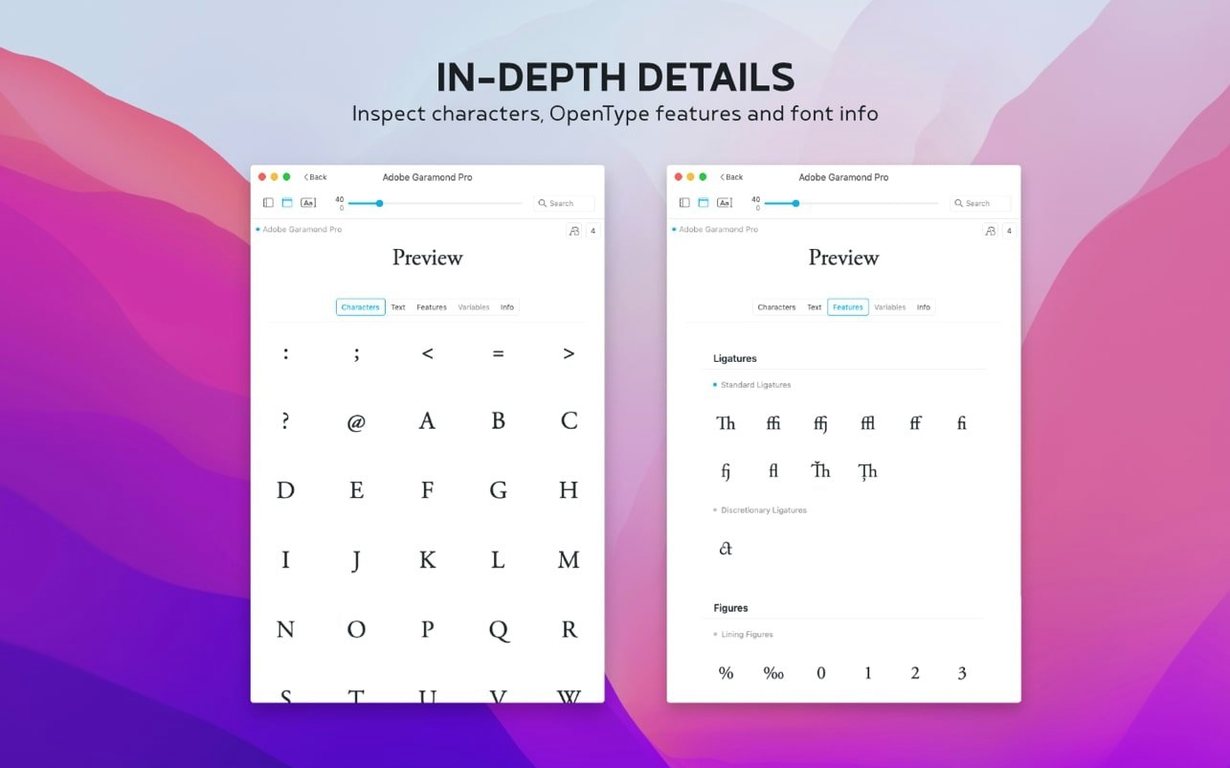
The interface is available in English, German, Dutch, French, Czech, and Japanese. Font previews show glyph sets, uppercase and lowercase letters, numbers, and special characters. The preview settings let you adjust size, sample text, weight, and other effects without opening another tool. For metadata, the Info tab displays copyright history, tags, and groups alongside your own notes.
Notes Field and Search Additions
The latest version brings four practical additions:
- Notes field in the Info tab — You can now attach a note to any font. I use this for reminders about licensing or why I chose a particular weight.
- Search for notes in the overview — Instead of clicking through every font, you can search the text you wrote. This works across the entire library.
- Last Activated column and sorting — A new column shows when you last used each font. Sorting by this date brings recently activated faces to the top, which helps when you are cycling through project-specific sets.
- Support for .otc font files — OpenType Collection files now open directly. If you work with font bundles that deliver multiple weights in a single .otc file, Typeface reads them without extra steps.
These changes do not alter the core workflow, but they remove small frictions. The Notes field and its search are especially useful if you manage fonts for multiple clients and need to track which license covers each face. The Last Activated column is a subtle time-saver when you rotate fonts between projects and want to see what you have touched recently.
Importing Fonts and Expanding Your Library
Typeface supports importing more than 2,000 free Google Fonts directly. You can also bring in fonts from the internet or from other font managers. If you have a typeface torrent with collections you want to organize, the process is the same—import the files, tag them, and add notes as needed. The app handles .otc files now, so any collection file you have will open without conversion.
For an office setting, this means the person managing the font library can set up collections, tag fonts by project, and add notes for the rest of the team. Everyone else just opens the app, searches the notes if they need context, and activates what they need.
Version 4.5.3 has landed. The update list for this release can be read over on the Typeface site.
| macOS | macOS 12 or later |
|---|---|
| Processor | Apple Silicon, Intel 64-bit |
| Download | 23 MB |
- macOS 12 or later
- Apple Silicon and Intel 64-bit processors
Questions about Typeface
Does Typeface work with custom fonts I download elsewhere?
Yes, it works with both installed Mac fonts and custom fonts you add yourself.
What file formats does version 4.5 support?
Version 4.5 adds support for .otc font files alongside standard formats.
How to install, in order
- Open the downloaded disk image.
- Drag the app to the Applications folder.
- Launch the app from Launchpad after copying finishes.
Comments and corrections 0
Sign in or open a free account to leave a comment.
No comments or corrections yet.