Vector Magic 1.20 — download for Mac
Mac Apps Intel processors only Updated
Converts raster logos and sketches into scalable vector files.
Screenshots
| Item | Detail |
|---|---|
| Version | 1.20 |
| Developer | Cedar Lake Ventures Inc. |
| macOS | OS X 10.7 or later |
| Architecture | Intel 64-bit |
| Max file size | 10.0 MB |
| Max image size | 10.0 megapixels |
| Output formats | EPS, SVG, PDF, AI, DXF, EMF, PNG |
Runs Completely Offline
People often ask whether Vector Magic works offline. It does. The desktop edition runs completely on your Mac, no internet connection required once it is installed. That matters if you work in a production environment with restricted network access or on a laptop between job sites.
Another frequent question is whether Vector Magic replaces Adobe Illustrator. It does not. Vector Magic handles one specific task — converting raster images to vectors — and it does that well. You still bring the results into Illustrator or CorelDRAW for further refinement, layout work, or color adjustments. The two apps complement each other through copy-and-paste and drag-and-drop.
Users also wonder if the app handles PSD files with layers. It opens PSD files, but it converts the flattened composite of the file, not individual layers. If you need to vectorize a specific layer, flatten or export that layer as a separate image first. The same applies to files with transparency: the app preserves transparent areas in the output, but it processes the image as a single raster layer.
Some ask about batch processing limits. The maximum file size per image is 10.0 MB, and the pixel limit is 10.0 megapixels. If your source exceeds either limit, resize or crop the image before loading it. Batch mode processes multiple files in sequence, respecting the same limits per file.
Drag-and-Drop File Opening
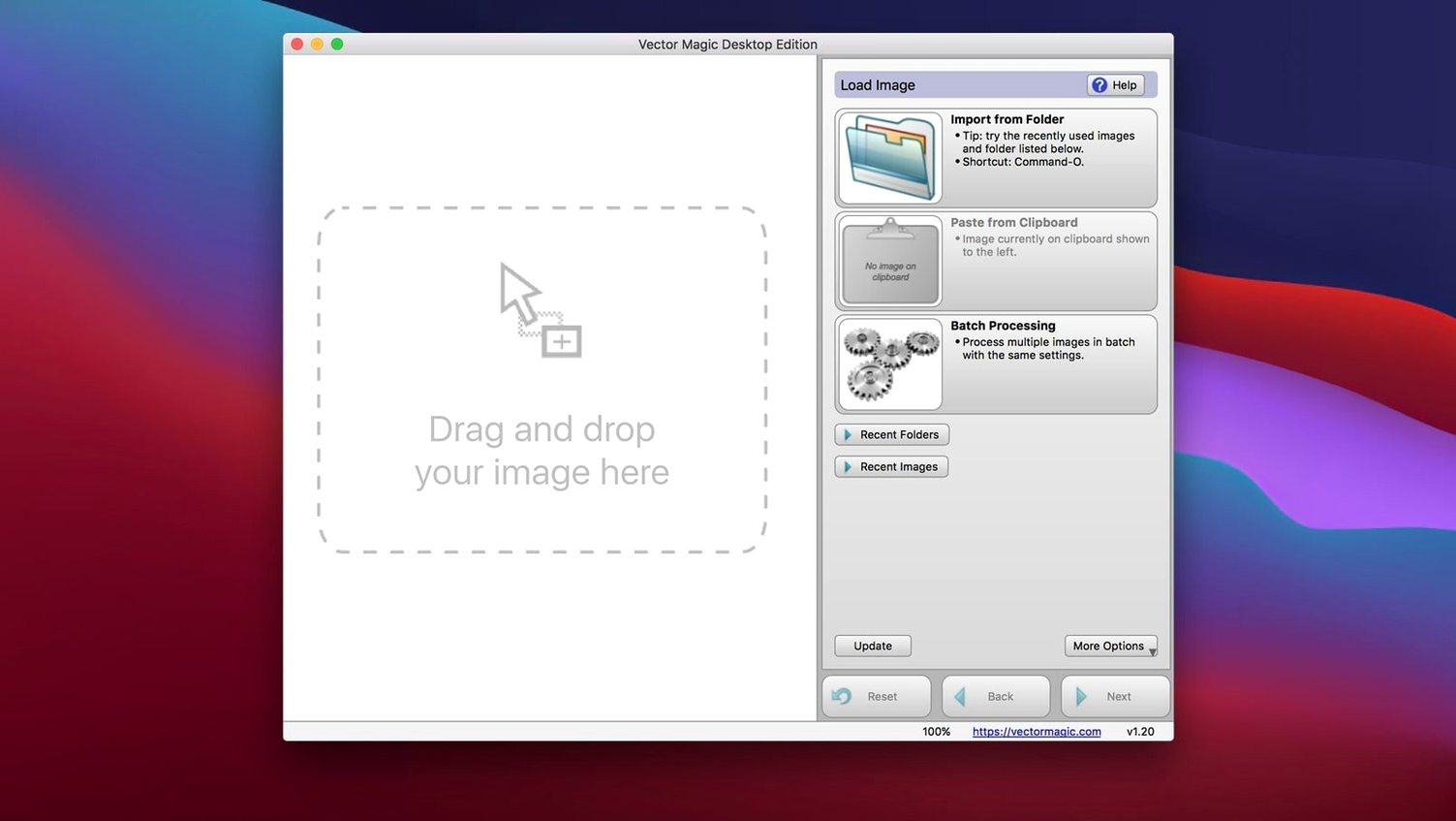
Vector Magic includes a few practical touches that are not obvious at first glance. Drag-and-drop file opening works from Finder or from your desktop, so you can skip the file menu entirely. If you have a folder of JPEGs to convert, select them all and drop them onto the app window. It accepts them and queues them for batch conversion.
Copy and paste operations work with major vector editors. You can copy a vector result from Vector Magic and paste it directly into an open Illustrator document. The paste preserves the vector paths and layers. That saves the export-and-import step when you only need a single converted shape.
The built-in help section is worth a look even for experienced users. It explains each parameter in the advanced vectorization modes with examples of how changes affect the output. That is useful when you are adjusting settings for a specific type of source image, like a scanned logo with uneven edges or a low-resolution PNG icon.
Set Output Format to AI, EPS, or DXF First
Before converting your first image, open the settings panel and set the output format to match your workflow. If you work in Illustrator, choose AI or EPS. If you send files to a laser cutter or engraver, DXF is the right choice. PDF is a safe default if you are unsure, because most vector editors import PDF cleanly.
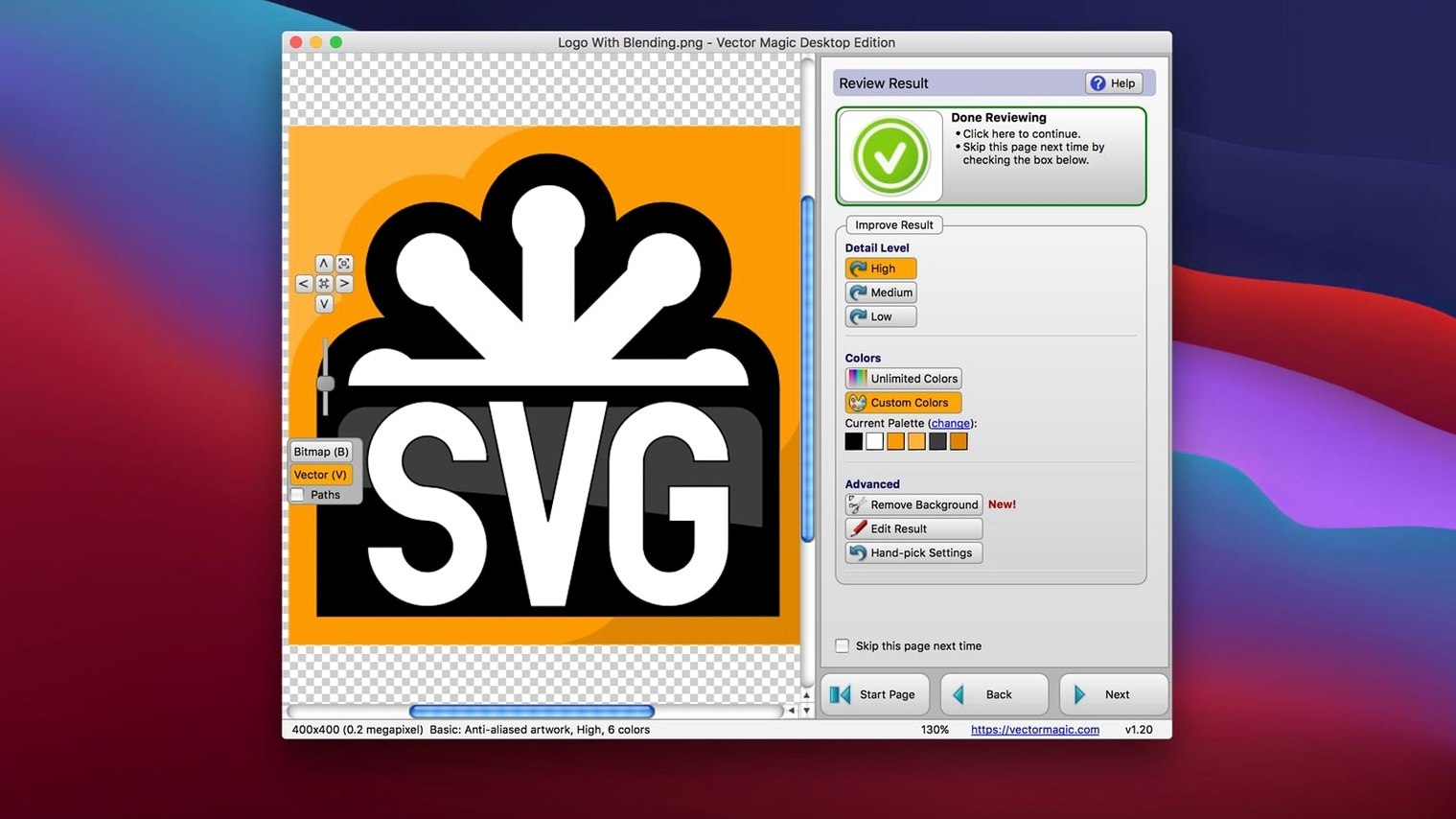
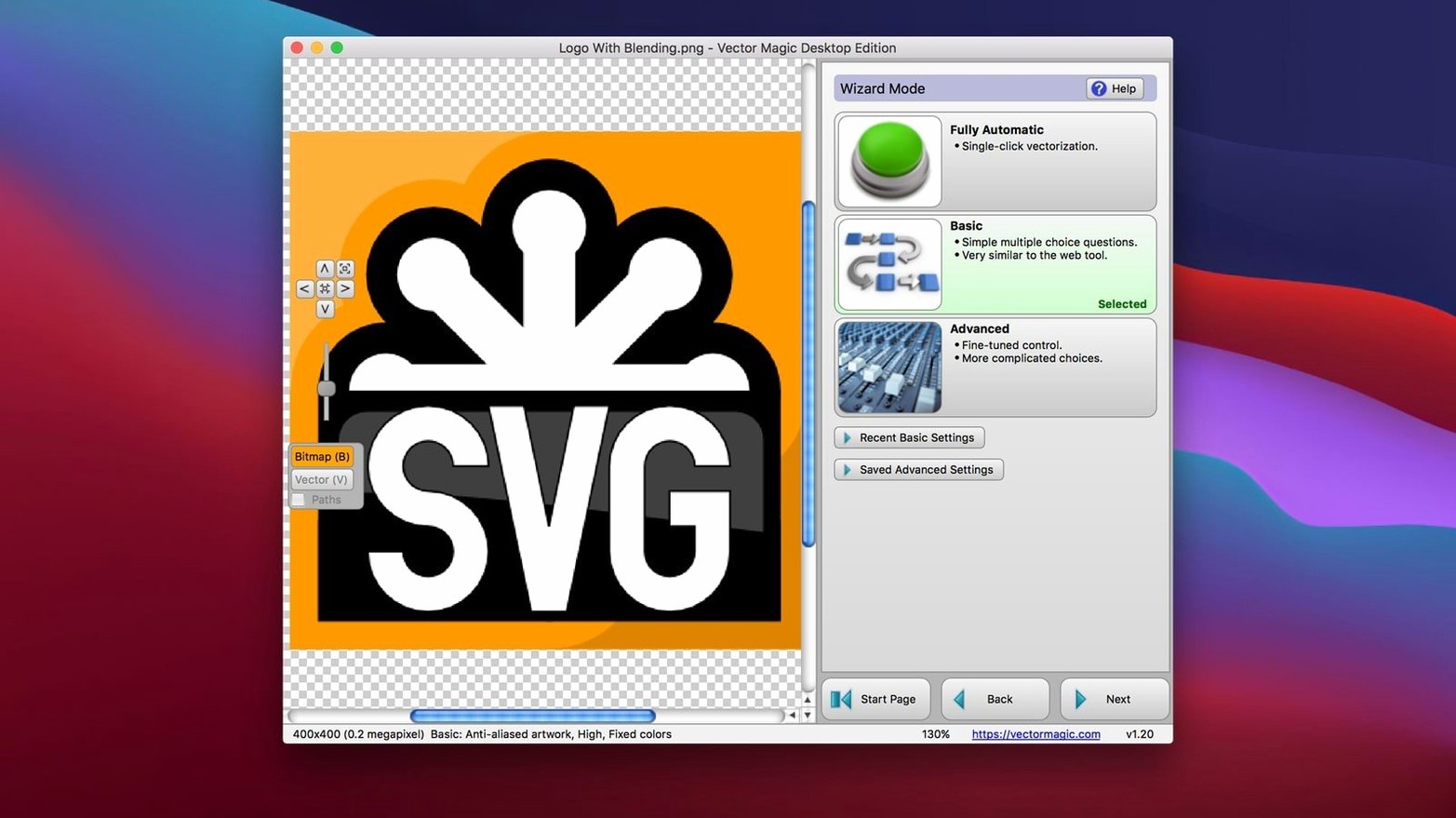
For most logo and flat-graphic work, start with the automatic mode. Run the conversion and review the preview. If the result needs adjustment, switch to basic mode and tweak the detail level. Move the slider until the preview matches the original image closely without adding unnecessary nodes. For complex images with varying line weights or gradients, manual mode gives you individual control over each parameter. Adjust them one at a time and watch the instant preview update.
If the source image has a solid background, use the background removal tool before converting. That step eliminates the background color entirely, so the vector output has clean edges around the foreground subject. It is especially useful for logos on white or colored backgrounds.
Real-World Scenario: A Print Shop Prepress Operator
Consider a prepress operator at a small print shop. A repeat customer emails a JPEG of a client logo for a business card job. The JPEG is 800 pixels wide, saved at screen resolution, and surrounded by a white background. The operator drags the JPEG onto Vector Magic, removes the white background with the improvement tool, runs the automatic conversion, and exports an AI file. The whole process takes under a minute. Opening that AI file in Illustrator shows clean paths with no jagged edges, ready to scale to business card size. The operator does not need to trace the logo by hand or ask the customer for a vector source. That same workflow repeats several times a week, covering common scenarios like converting vector magic for mac to vector formats.
For larger jobs, such as converting a set of product label scans from PDF to EPS for a print run, the operator uses batch processing. All files drop in at once, conversion runs unattended, and the EPS files are ready for the RIP software when the operator returns to the desk.
No release notes filed for 1.20. They are added here when a build changes how the program behaves.
| macOS | OS X 10.7 or later |
|---|---|
| Processor | Intel 64-bit |
| Download | 17 MB |
- macOS OS X 10.7 or later
- Intel 64-bit processor
- Maximum file size: 10.0 MB
- Maximum image size: 10.0 megapixels
- Interface language: English
Questions about Vector Magic
Does Vector Magic work with Adobe Illustrator?
Yes. Copy and paste or drag and drop between Vector Magic and Illustrator, CorelDRAW, and other graphics applications.
How to install, in order
- Mount the disk image.
- Move the app to the Applications folder.
Comments and corrections 0
Sign in or open a free account to leave a comment.
No comments or corrections yet.