Darwinia 2.4.1 — download for Mac
Games Updated
Commands nomadic sprites in a 3D real-time strategy battle for survival.
Screenshots
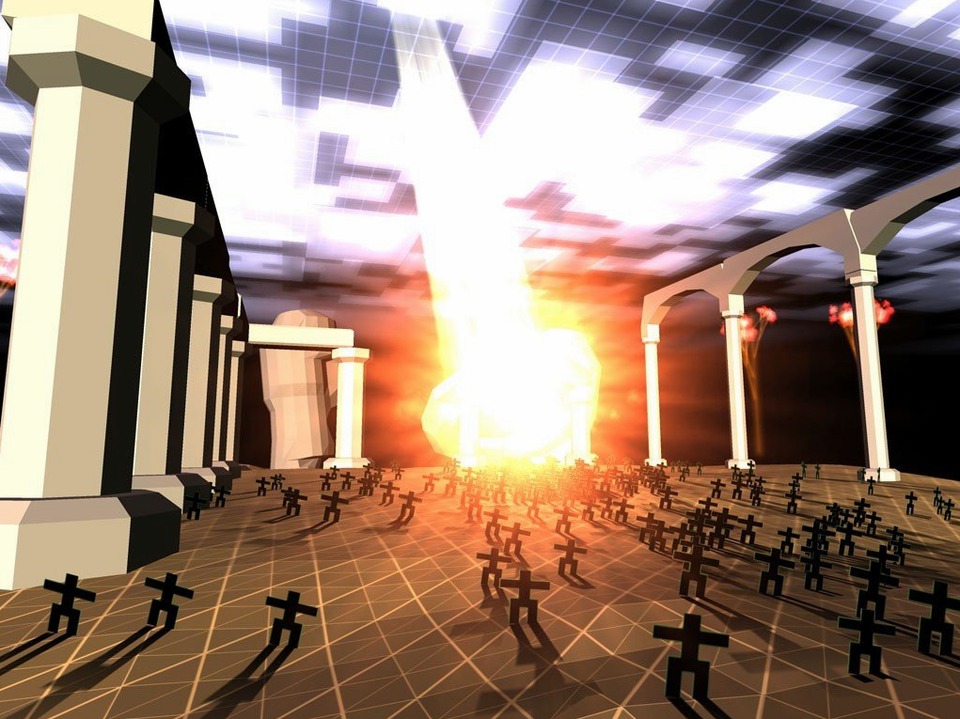
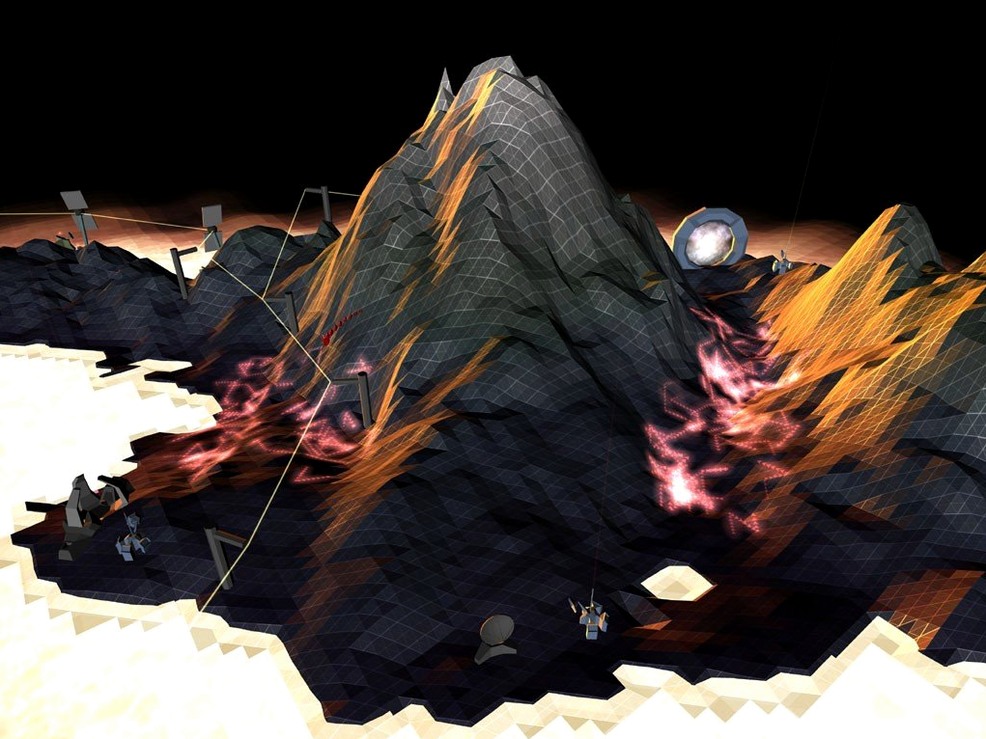
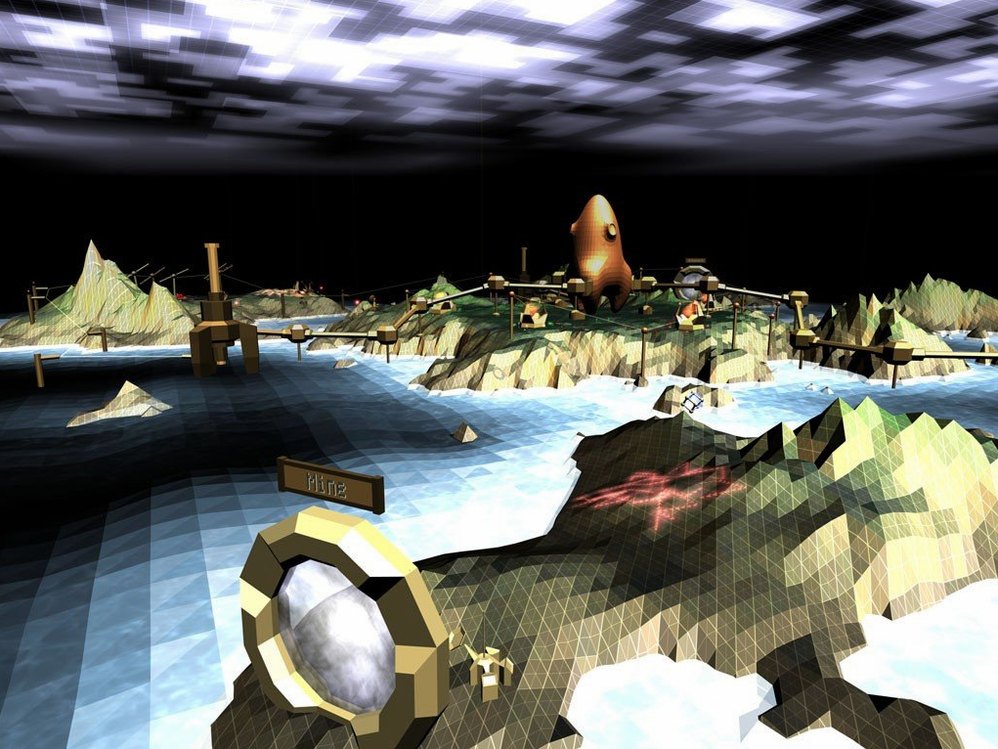
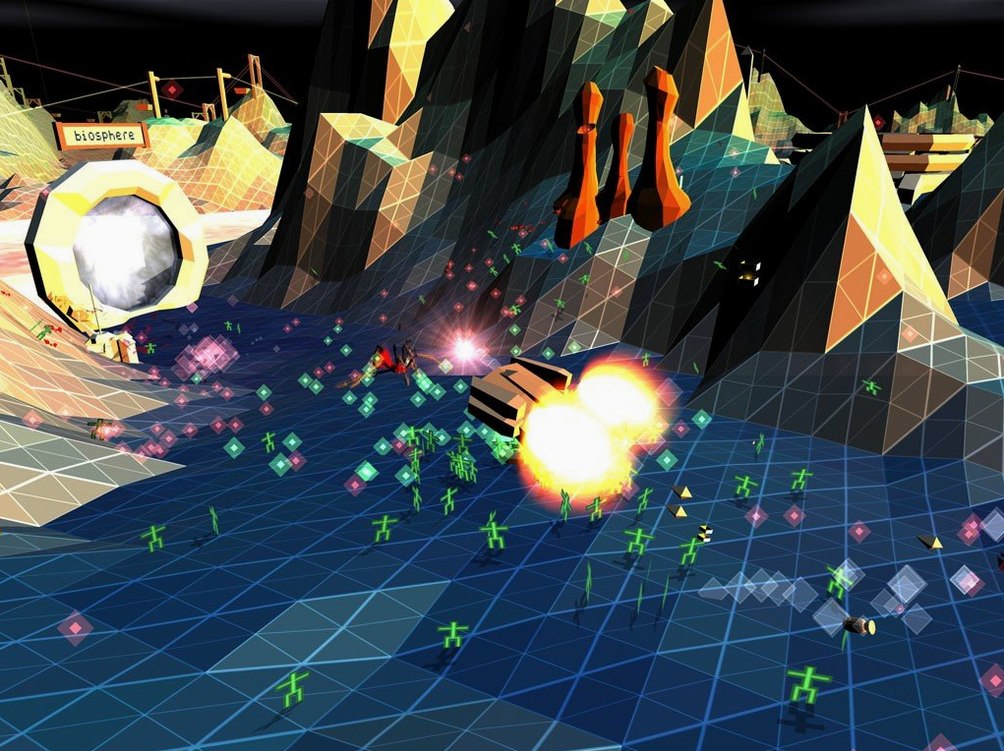
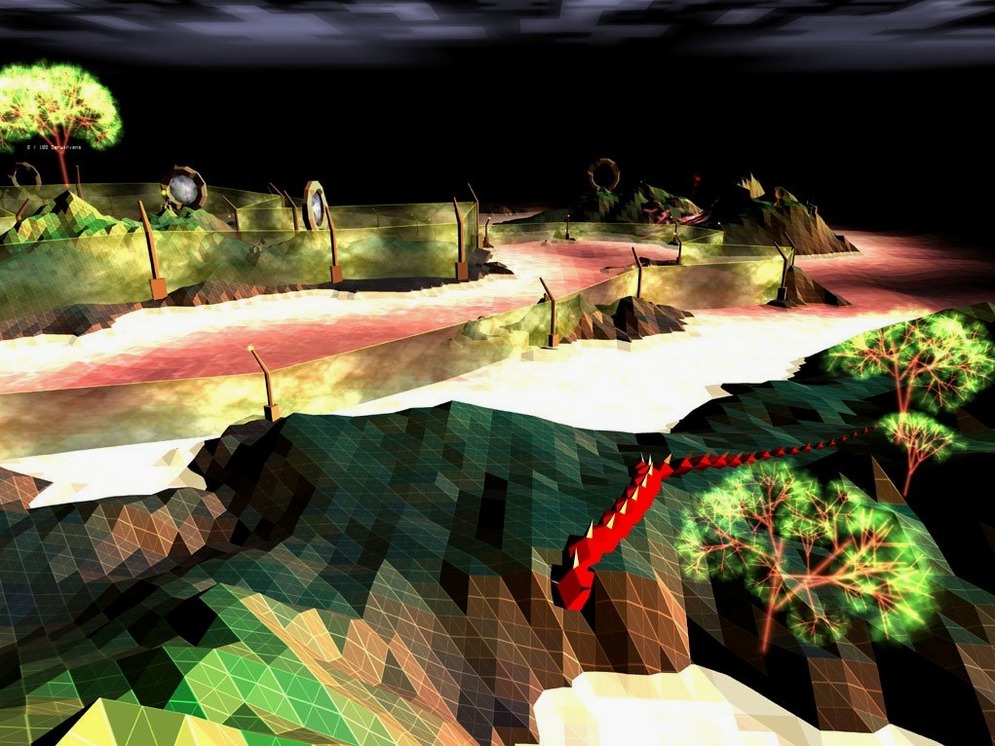
Darwinia appeals to strategy gamers who remember the arcade era and want a modern twist. It’s an RTS where nomadic sprites fight for survival in a 3D world, with a visual style inspired by Tron and Defender. The story and minimalist presentation set it apart from typical military-themed strategy titles.
Running Darwinia on a Mac
- Check that your Mac meets the basic requirements — the game supports both Intel and Apple Silicon architectures, so most modern systems will run it.
- Install the game using the standard installer. At the end of setup, choose a destination folder; the Applications folder is a sensible default.
- Launch the game and adjust the resolution and graphics options to match your Mac’s performance. The game is from 2005, so even modest hardware should handle it well.
- Controls are straightforward: mouse for selection and commands, keyboard shortcuts for groups. Expect a learning curve for managing multiple units.
- Performance is generally smooth on current Macs, though you may see occasional slowdowns during large battles. Lowering the resolution solves this.
The game includes music only for audio, keeping the experience clean and focused. Interface languages include English, German, Spanish, Italian, and French, so a wider team can play without language barriers.
Fitting Darwinia into Your Workflow
Strategy games like this one don't interrupt your day. Darwinia is DRM-free, so you install it once and it stays put — no launcher, no online check, no background service. On a MacBook used for project management, that means the game sits in the Applications folder alongside LibreOffice, PDF readers, and planning tools, taking up space only when you run it.
The game also integrates well with macOS file management. Save files are small and easy to back up or copy between machines. If you switch between a desktop and a laptop, just copy the game folder and your save data — no activation, no re-registration. That kind of portability matters when you manage projects from different desks.
Because Darwinia supports both ARM and x86 architectures, it runs natively on Apple Silicon Macs without emulation overhead. You don't need to switch to a Windows partition or keep an older Mac around to play it.
Ignoring the Box-Select Controls
- Ignoring the control system. Darwinia uses a unique mouse-based interface that differs from traditional RTS games. Clicking directly on sprites to select them works, but beginners often miss that you can draw a box to select groups. Take ten minutes in the first level to practice selection and movement commands before jumping into combat.
- Neglecting unit preservation. Sprites are your workforce and your army. Losing them early in a mission means fewer units for later waves. New players treat them like disposable soldiers, then run out of numbers when the real fight starts. Relying on Darwinian units to reproduce takes time — keep your initial sprites alive.
- Overlooking the pause feature. The game lets you pause and issue orders. Many beginners rush through thinking it's pure real-time. Pausing to survey the map, assign targets, and plan movement turns chaotic battles into manageable operations.
- Skipping the tutorial. The opening level introduces the core mechanics. Players who skip it miss how to manage research points, deploy engineers, and upgrade sprites. These mechanics are essential for later missions, especially when defending against virus outbreaks.
No release notes filed for 2.4.1.14.g0e49fa892. They are added here when a build changes how the program behaves.
| Processor | Apple Silicon, Intel 64-bit |
|---|---|
| Download | 53 MB |
- macOS: version not specified
- Architecture: Intel and Apple Silicon
- Other: none specified
Questions about Darwinia
Does Darwinia run on Apple Silicon Macs?
Yes, the current version supports both Intel and Apple Silicon architectures, so it runs on M1 and M2 Macs.
What languages does Darwinia support?
The game supports English, German, Spanish, Italian, and French.
How to install, in order
- Run the installer and follow the standard setup steps.
- When prompted, choose where to install the game.
- Select the Applications folder if possible.
Comments and corrections 0
Sign in or open a free account to leave a comment.
No comments or corrections yet.