GoodNotes 5.9.8 — download for Mac
Office Updated
Takes handwritten notes that you can mark up, rearrange, and share.
Screenshots
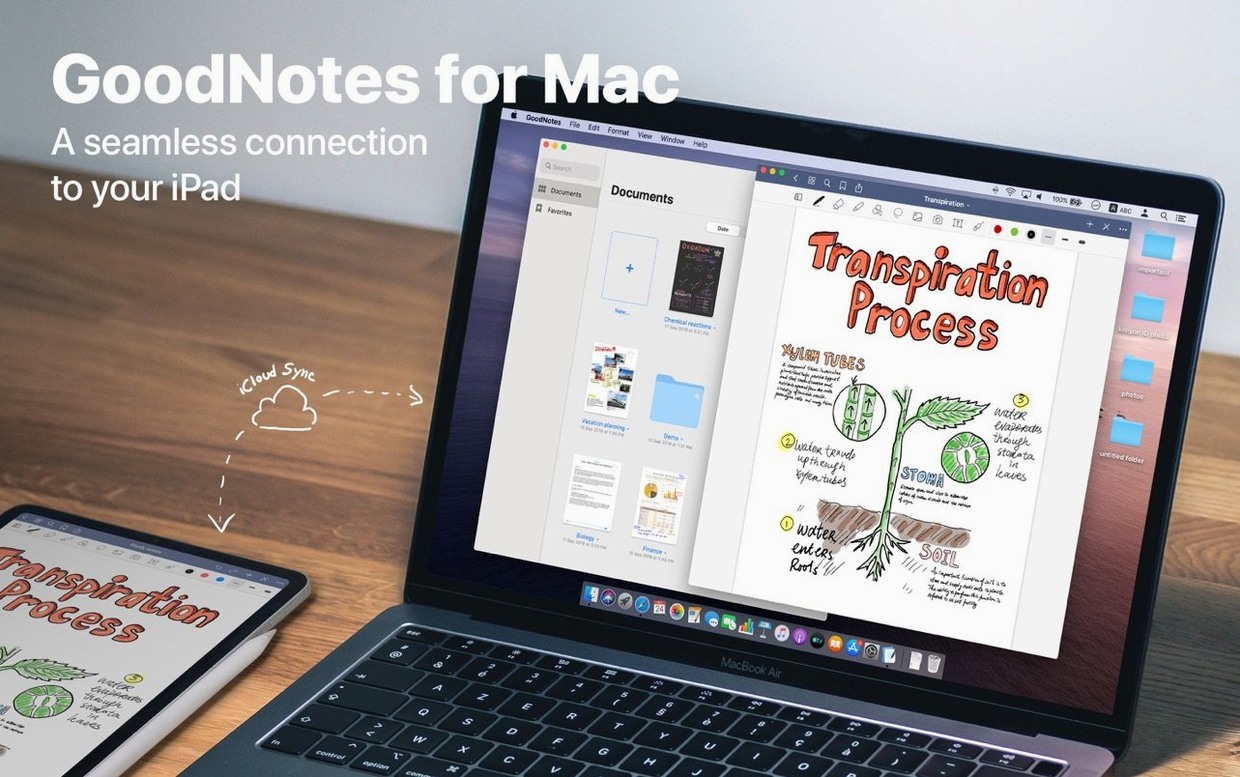
Note-taking apps often feel like digital filing cabinets: they store things, but they don't help you work. GoodNotes 5 for Mac is different. It treats your notes like paper you can mark up, rearrange, and share. If you just installed it, here's a sensible workflow to get value out of it in the first ten minutes.
First Steps in GoodNotes 5
- Import a PDF. Drag a contract or a spec sheet into the library. GoodNotes imports PDFs and images, and it keeps live hyperlinks in the PDF working.
- Annotate. Pick the pen and start marking. When you make a mistake, the eraser can remove just the highlighter ink or an entire stroke — useful when you're circling clauses.
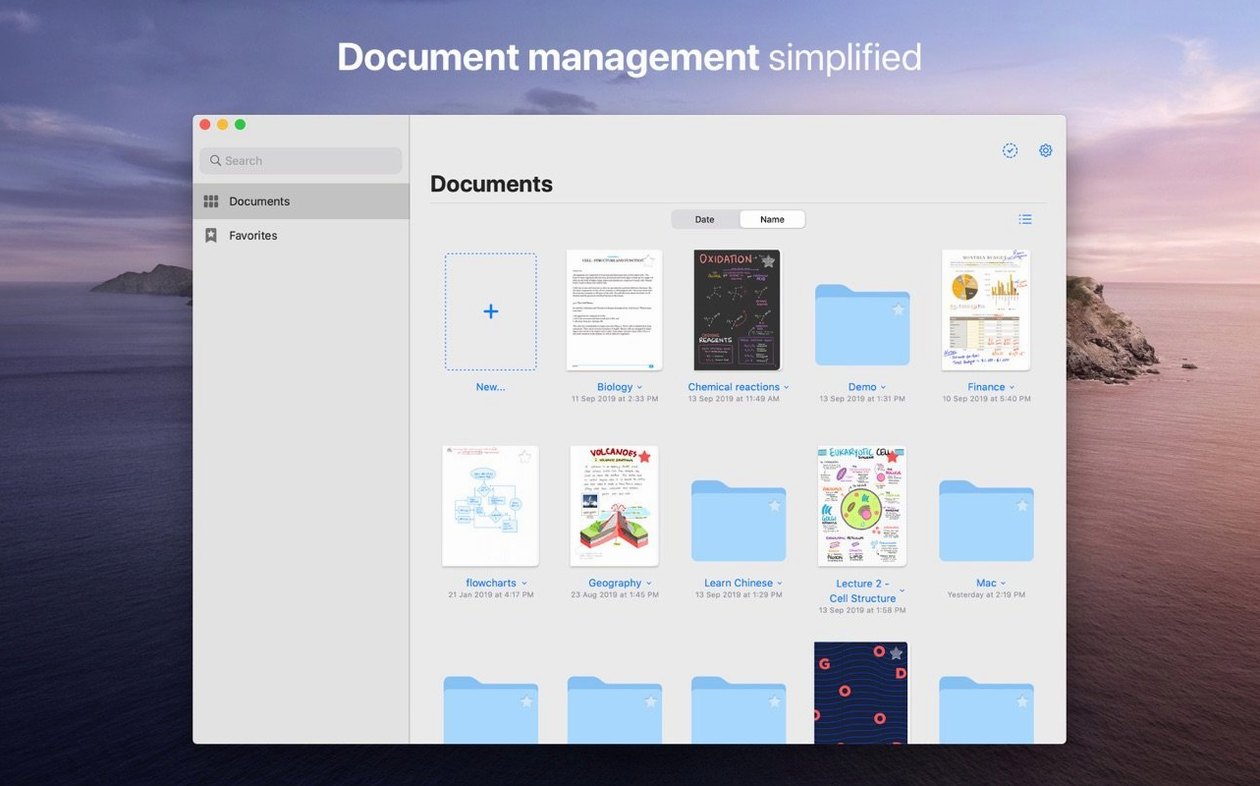
- Organize. Create folders and subfolders before you add more documents. A project folder with subfolders per client keeps the library tidy from day one.
- Sync via iCloud. Turn on iCloud sync so the same notebook appears on your iPhone and iPad. Changes you make on the Mac show up on the other devices shortly after.
- Export. Drag a page or the whole document out of GoodNotes — it becomes a PDF file, ready to send or archive.
That's the loop: bring something in, work on it, put it away, and get it out when needed. Most of what you'll do in GoodNotes sits inside those five actions, and they all work the same way on the Mac as they do on the iPad.
Syncing Notebooks via iCloud
It isn't. That matters if you switch between a laptop and a tablet during the day.
Another common question is whether documents transfer easily. They do, but not by cable or USB. GoodNotes uses iCloud to sync notebooks between devices. You install the app on each device, sign in to the same iCloud account, and the notebooks appear. The sync is not real-time — it happens in the background after you make changes. A PDF you annotate on the Mac will be on your iPad the next time you open GoodNotes there.
Some users ask whether the Mac version supports handwriting as well as the iPad version. Yes, it does. The same pen tools, shape tool, and eraser options are available. The difference is input: on Mac you use a trackpad or mouse unless you have a graphics tablet. The app does not require a touchscreen, so handwriting with a mouse is possible but less natural than on an iPad with a stylus.
People also ask about file formats. GoodNotes reads and writes its own notebook format. It imports PDFs and common image files. It exports pages or whole documents as PDFs by dragging them out of the app. There is no export to Word, text files, or image formats other than PDF. If you need plain text, you'll need to copy it manually.
How GoodNotes Compares with Similar Mac Apps
GoodNotes vs. Apple Notes
Apple Notes is free and built into macOS. It handles typed text, checklists, and basic formatting. It does not import PDFs for annotation, and it has no handwriting support. GoodNotes adds those two things plus a folder structure that mirrors a paper notebook system. If you only type short notes and lists, Apple Notes is enough. If you work with PDF contracts, handwritten meeting notes, or annotated drawings, GoodNotes fills the gap.
GoodNotes vs. Notability
Notability is popular on iPad but less common on Mac. Its macOS version is a separate app with similar features: PDF import, handwriting, and audio recording. Notability's audio recording syncs with your notes — you tap a word and hear what was said at that moment. GoodNotes does not record audio. On the other hand, GoodNotes has a cleaner folder-based organization and a simpler export workflow. You drag a page out and it becomes a PDF file. Notability requires a share or export menu for the same action. For project managers who move documents between apps often, GoodNotes drag-and-drop export saves a step.
GoodNotes vs. OneNote
OneNote is free and cross-platform. It syncs through Microsoft's cloud, not iCloud. Its strength is nested notebooks, sections, and pages that work across Windows, Mac, and mobile. It imports PDFs for annotation only in the Windows version — the Mac version is limited. GoodNotes handles PDF annotation on Mac natively and keeps hyperlinks alive. OneNote is better if you share notebooks with a team on Windows. GoodNotes is better if you work alone and your devices are Apple.
Runs on Intel and Apple Silicon Macs
GoodNotes 5.9.8 runs on macOS 10.15 and later. It supports both Intel (x86) and Apple Silicon (ARM) processors, so it works on a 2019 iMac as well as a 2024 MacBook Pro. The installer comes as a disk image. You open it, drag the app to the Applications folder, and launch it from Launchpad. No extra installers or dependencies.
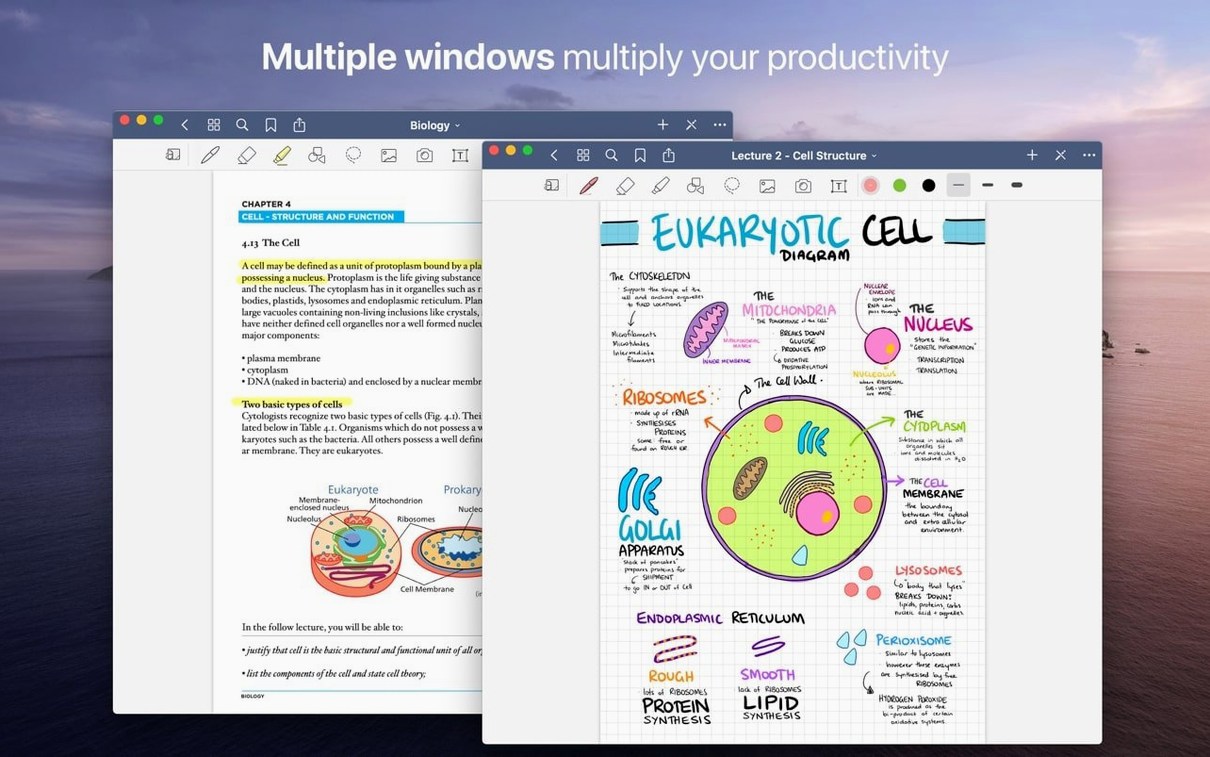
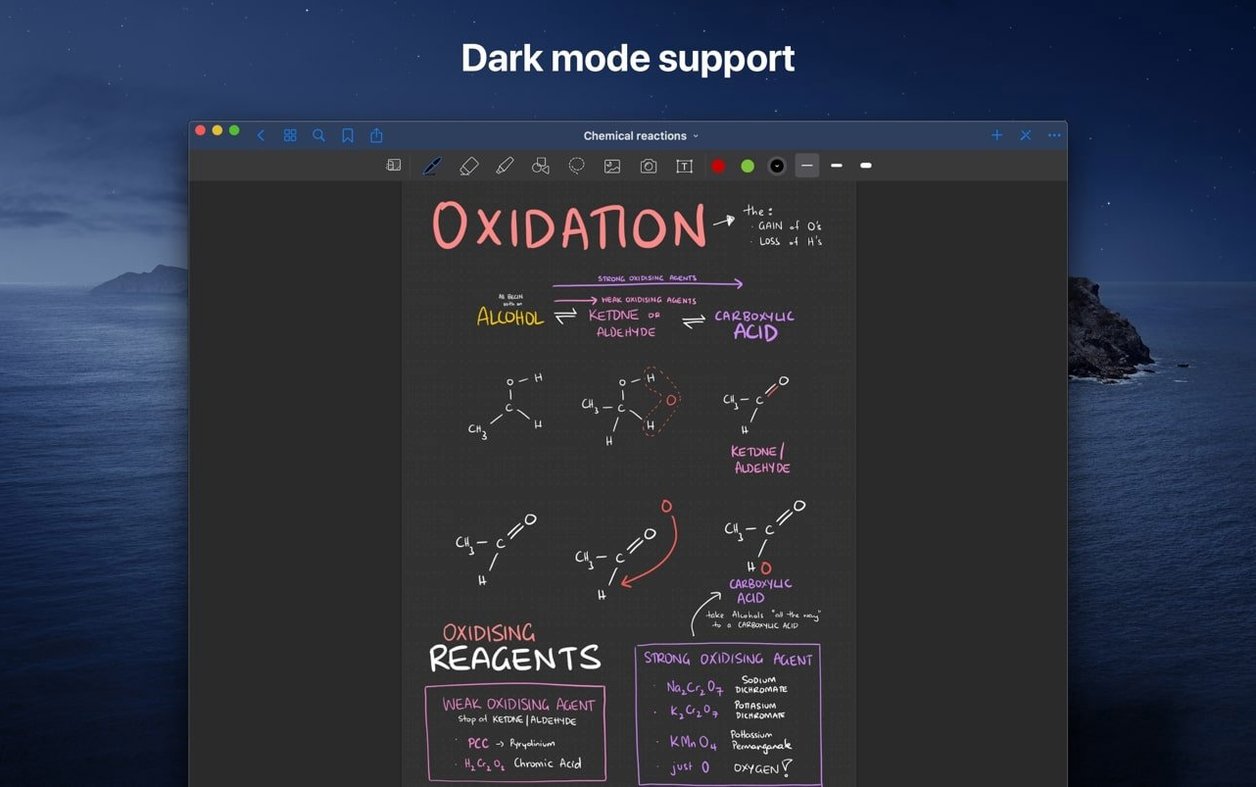
The app interface is clean: a library view on the left with folders and notebooks, and a document view on the right when you open a notebook. Toolbars for pen, highlighter, eraser, and shapes appear at the top. There is no clutter, no floating panels. The app stays out of the way while you work.
GoodNotes ships with fourteen languages, including English, German, Spanish, French, Japanese, Korean, and Chinese. If your macOS language is one of them, the app picks it up automatically. You can also switch languages inside the app if needed.
For storage, notebooks live in the app's library. They sync through iCloud, so the space used on your Mac depends on how many notebooks you keep locally. You can delete a notebook from the device after syncing and still keep it on iCloud. The app itself is a standard macOS application — it does not install background services, browser extensions, or system fonts. What you see is what you get.
No release notes filed for 5.9.8. They are added here when a build changes how the program behaves.
| macOS | macOS 10.15 or later |
|---|---|
| Processor | Apple Silicon, Intel 64-bit |
| Download | 442 MB |
- macOS 10.15 or later
- Intel or Apple Silicon
Questions about GoodNotes
Can I erase only the highlighter ink in GoodNotes?
Yes. The eraser tool has an option that removes only marker ink, leaving pen strokes intact.
How to install, in order
- Open the downloaded disk image.
- Drag the app to the Applications folder alias.
- After copying finishes, launch the app from Launchpad.
Comments and corrections 0
Sign in or open a free account to leave a comment.
No comments or corrections yet.