Microsoft Outlook 16.93 — download for Mac
Office Updated
Manages over 20 email accounts alongside a calendar, tasks, and notes.
Screenshots
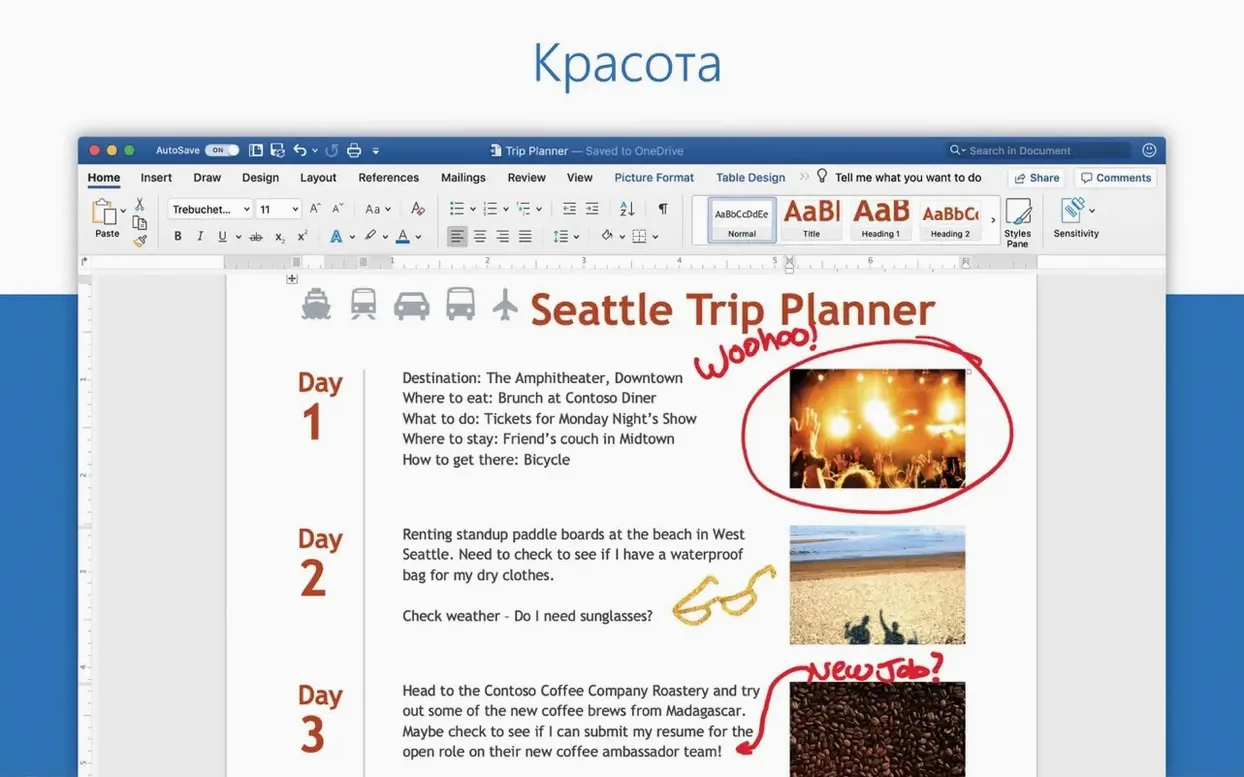
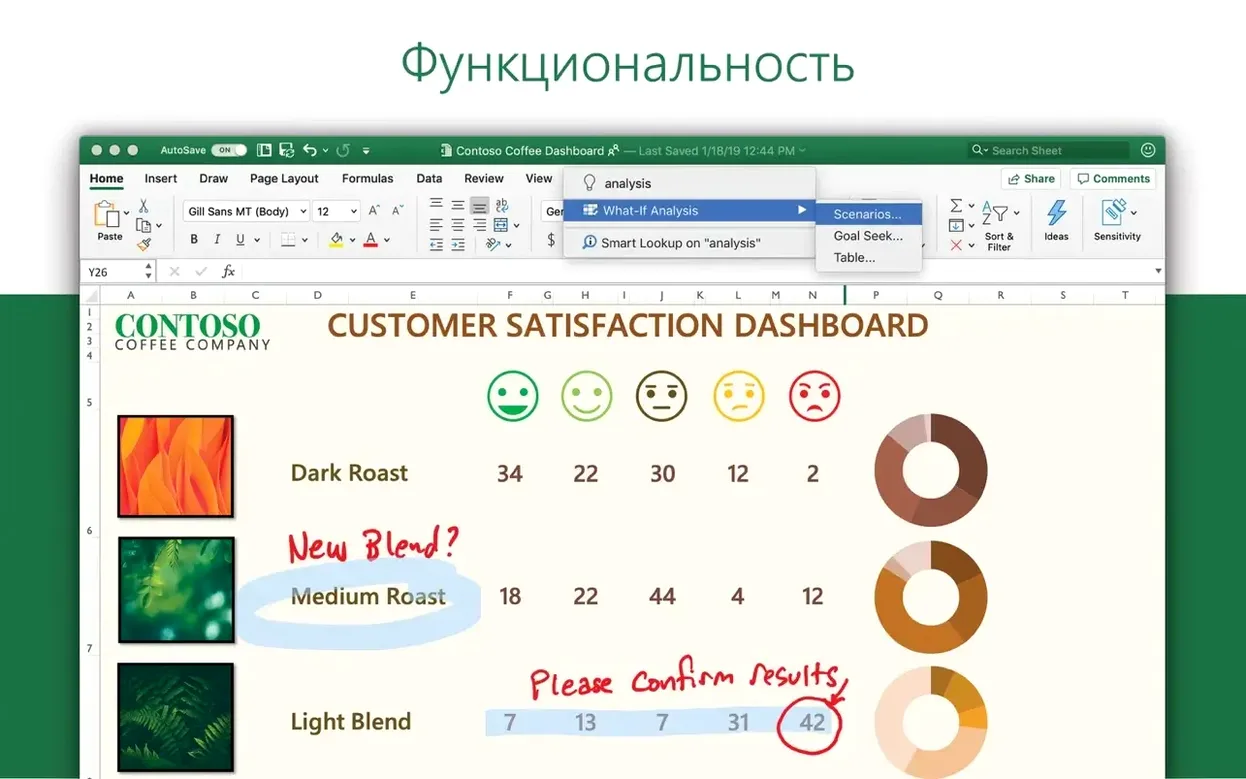
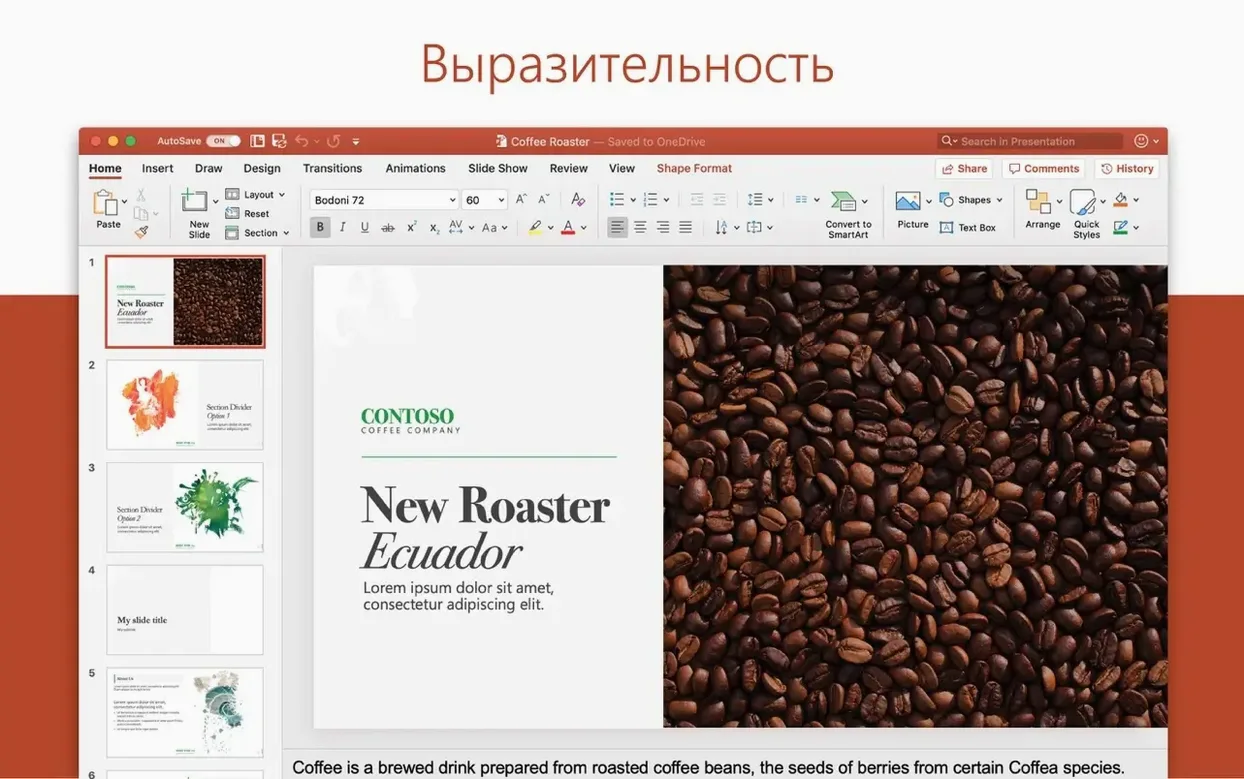
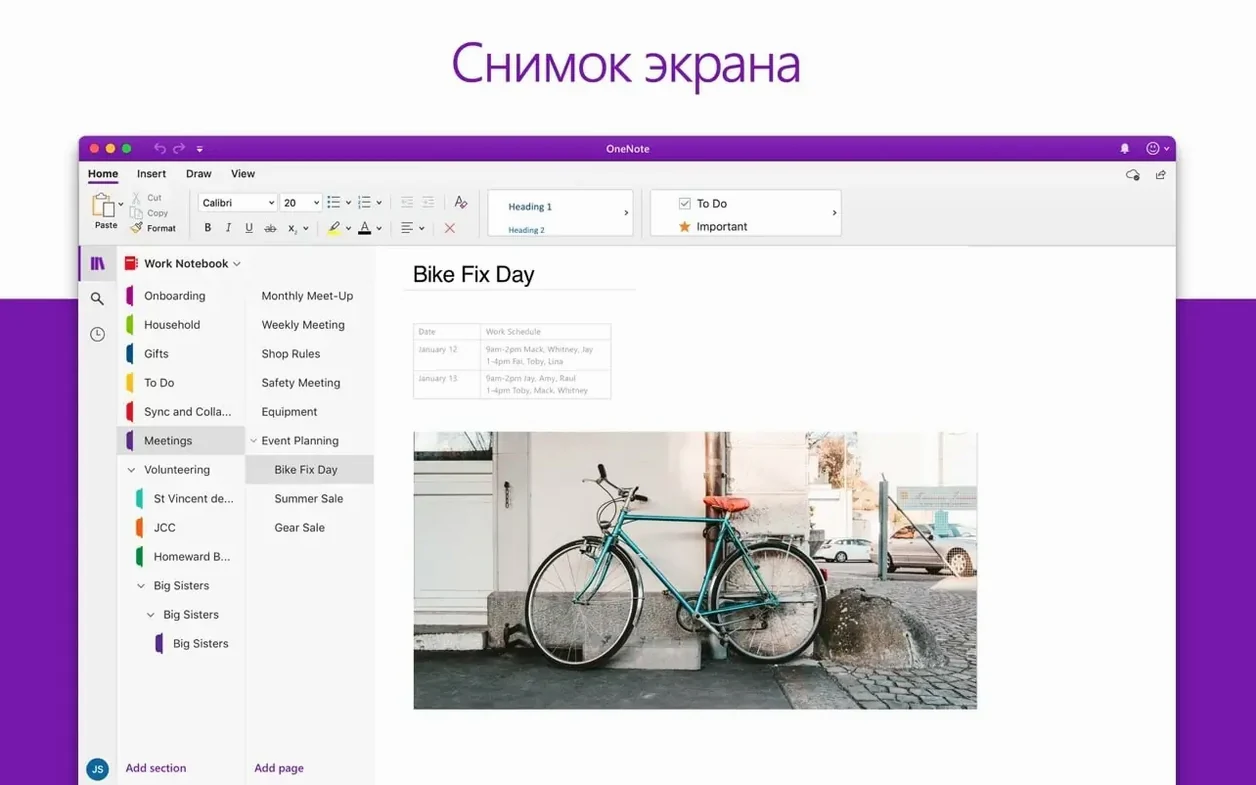
Outlook for Mac manages 20+ email accounts in one view and combines a calendar, tasks, and notes in a single window. The 16.93 release ships with Office LTSC Standard for Mac 2024 and supports both Apple Silicon and 64-bit Intel Macs natively.
- Does it work with non-Microsoft accounts? — Outlook supports Outlook.com and Microsoft 365 accounts directly. For Gmail or other IMAP providers, you’ll need to add them manually via account settings.
- Can I use it without Office? — Outlook is bundled with Word, Excel, PowerPoint, OneNote, and OneDrive in the suite. A standalone download is not available; you install the full Office package and activate it.
- What languages are included? — 21 languages, including English, Spanish, French, German, Italian, Portuguese, Russian, and Japanese.
- How do updates work? — Microsoft AutoUpdate handles future patches. After installing Office, run the updater to stay current with bug fixes and security patches.
The setup is straightforward: download the Office packages, run the installer, and activate with a valid key. The app itself feels native on macOS — no emulation, no sluggishness.
Small Features That Make a Difference
Outlook for Mac includes a few touches that are easy to overlook but save time once you know them.
- Profiles integration — macOS Profiles let you keep work and personal accounts separate without logging out. Switch accounts from the macOS menu bar; each profile loads its own mail, calendar, and account settings.
- Shared content from other Office apps — When working in Word or PowerPoint, you can send documents directly to an Outlook email without saving and attaching separately. The 16.93.2 update addressed a fix for this exact flow, so it works reliably now.
- Account types in one place — POP, IMAP, and Exchange accounts all sit in the same left-hand folder pane. You don’t need to toggle between separate inboxes or reconfigure views per provider.
- Language picker during install — The installer offers 21 languages upfront. Switch between them later in Preferences without reinstalling.
For Microsoft 365 Subscribers and Exchange Users
Outlook for Mac is a practical fit for three kinds of users.
Microsoft 365 subscribers — If your employer or school uses Exchange or Outlook.com, the native sync for calendars, contacts, and tasks works without third-party bridges. Calendar invites sent from colleagues appear in your inbox and the calendar pane simultaneously.
Anyone running multiple email accounts — Freelancers and contractors who manage a personal Gmail, a client’s IMAP mailbox, and a Microsoft 365 work account can see them all in one unified inbox. The unified view aggregates messages by date, not by account, so you don’t miss replies buried in a secondary inbox.
Office suite users — If you already use Word and Excel, Outlook becomes the hub for attaching files and scheduling around deadlines. The envelope icon in the macOS dock replaces two or three separate apps for mail, calendar, and tasks.
Fixing Gmail and Yahoo Sync Issues
A few hiccups show up regularly when people set up Outlook on a new Mac. Here’s what they are and how to fix them.
- Gmail or Yahoo accounts don’t sync — Outlook supports these accounts but requires an app password, not your regular login. Go to your Google or Yahoo account security settings, generate an app-specific password, and enter that in Outlook’s account setup. Once entered, mail and calendar sync without further prompts.
- Calendar invites go missing — If an invite shows up in your inbox but not on your calendar, check that the calendar associated with that account is set to visible in the calendar pane. Click the calendar icon in the lower-left corner, then toggle the checkmark next to the account name.
- AutoUpdate doesn’t run — Microsoft AutoUpdate may not launch automatically after install. Open it from the Office folder in Applications, check for updates manually once, and it will schedule future checks on its own.
- Profiles don’t appear in macOS — Outlook supports Profiles only when your Mac is logged into a user account that allows multiple Profiles. Make sure you’re not in a guest or restricted session. If Profiles still don’t show, restart Outlook and check the File menu under Profiles.
- Attachments from Office apps fail to share — The 16.93.2 fix addressed this. If you still see issues, update to the latest version through AutoUpdate, then restart both Outlook and the Office app you’re sharing from.
For anyone who runs a mixed-account setup or needs a single place for mail and calendar on macOS, Outlook 16.93 covers the basics without extra configuration. The native Apple Silicon support means it opens fast on newer machines, and the bundled updates keep it aligned with Microsoft’s server-side changes for Exchange and Outlook.com accounts.
- Outlook included in Office suite release 16.93.
- January 28, 2025 update 16.93.2 included Outlook.
- January 21, 2025 update 16.93.1 included Outlook.
| macOS | macOS 13 or later |
|---|---|
| Processor | Apple Silicon, Intel 64-bit |
| Download | 2.4 GB |
- macOS: macOS 13 (Ventura) or later
- Architecture: ARM (Apple Silicon) and 64-bit Intel
- Interface languages: 21 languages including English, Spanish, French, German, Italian, Portuguese, Russian, Japanese
Questions about Microsoft Outlook
Does Outlook for Mac run on Apple Silicon Macs?
Yes. Version 16.93 supports both ARM (Apple Silicon) and 64-bit Intel Macs natively.
Is Outlook available as a standalone download?
No. Outlook is part of the Office LTSC Standard for Mac 2024 suite and must be installed together with Word, Excel, PowerPoint, and OneNote.
How to install, in order
- Install Office 2024 using the standard procedure.
- Alternatively, download the required packages using the provided links for Word, Excel, PowerPoint, Outlook, and OneNote.
- The packages are downloaded from Microsoft’s official servers and require activation.
- Install Microsoft AutoUpdate to receive updates.
Comments and corrections 0
Sign in or open a free account to leave a comment.
No comments or corrections yet.