Microsoft Word 16.93 — download for Mac
Office Updated
Creates, edits, and shares text documents for status reports and contracts.
Screenshots
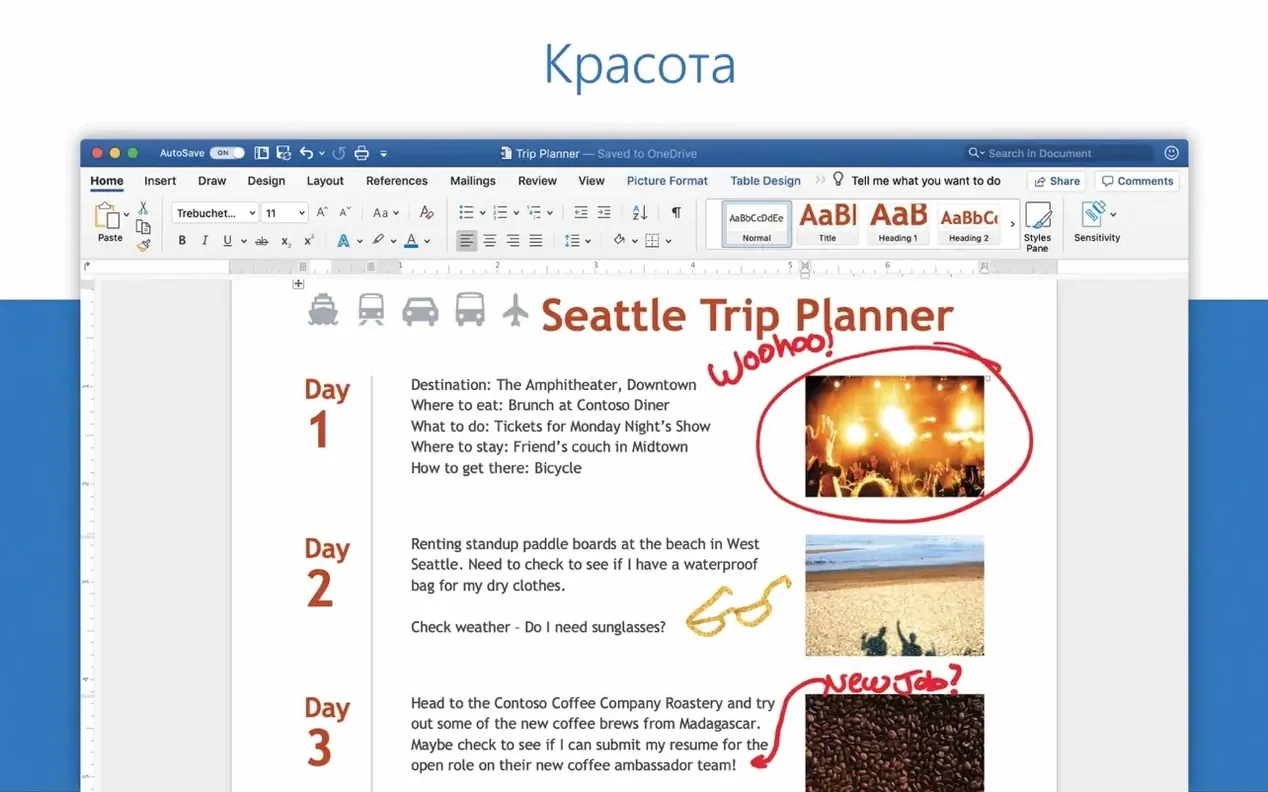
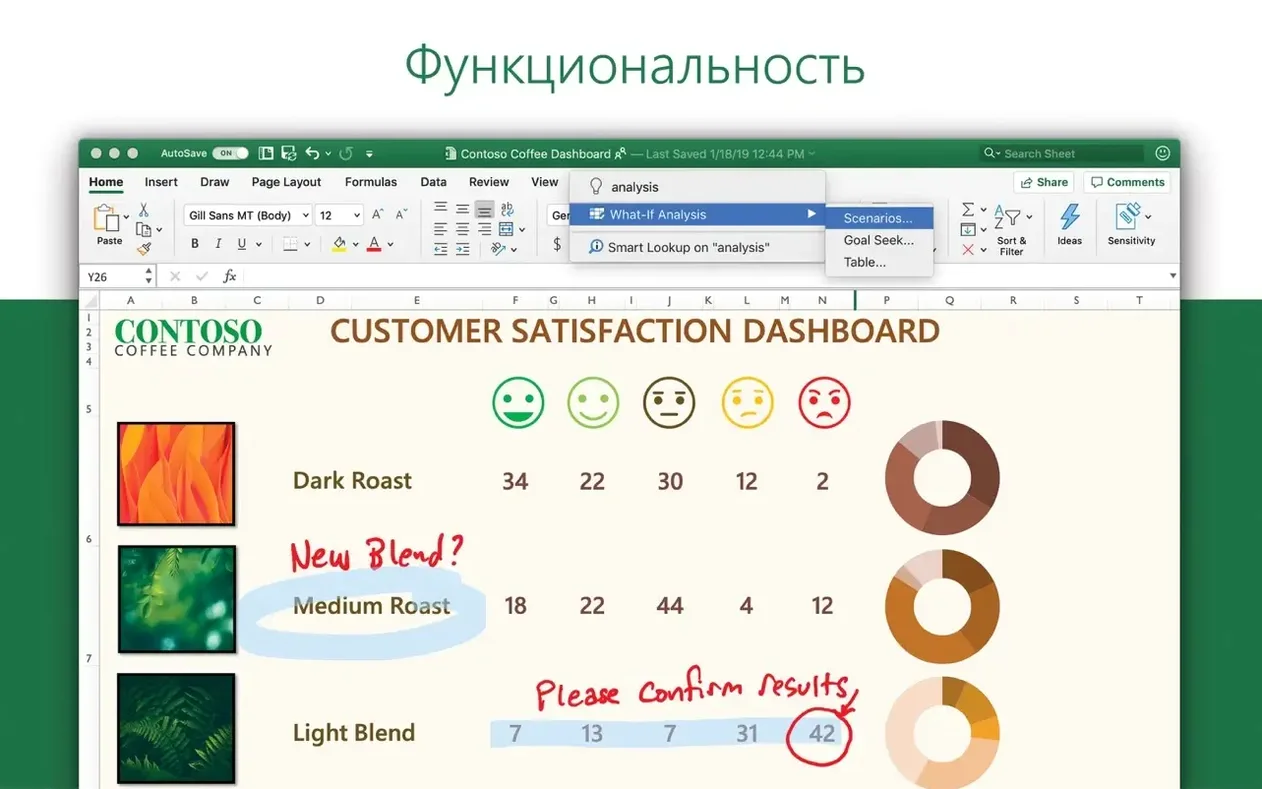
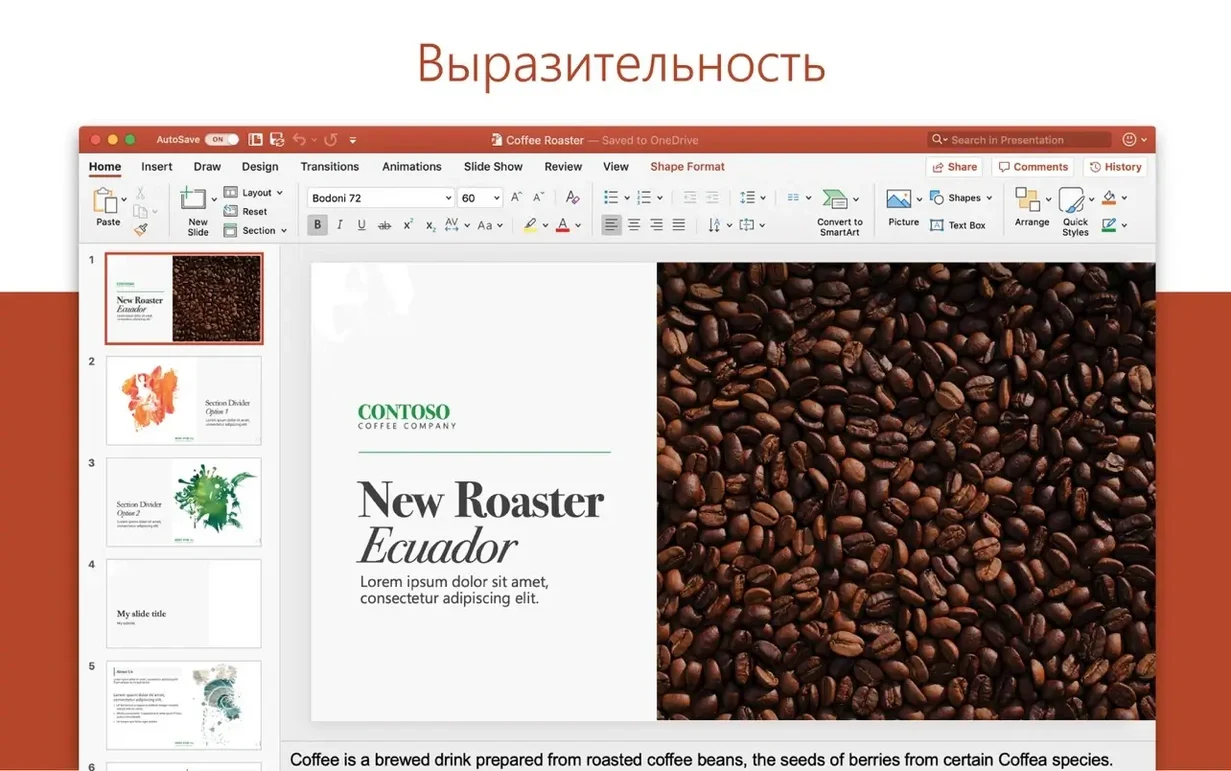
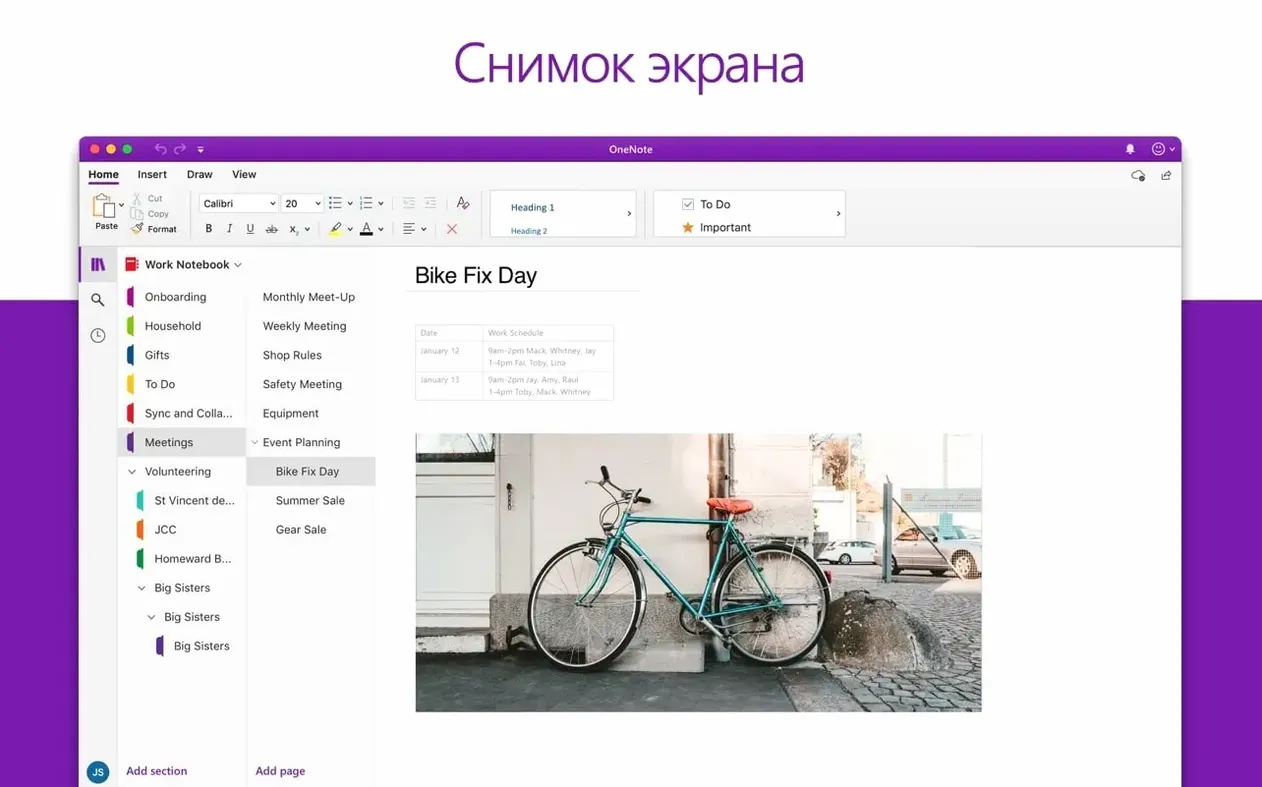
A project manager drafts a status report, a coordinator writes meeting minutes, and an executive reviews a contract — all in the same app. Microsoft Word for Mac handles those tasks and more.
Word — Creates, edits, views, and shares text documents. It is the core word processor in Microsoft 365 for Mac, bundled with Excel, PowerPoint, Outlook, OneNote, and OneDrive.
Version 16.93 — Released January 14, 2025, with a subsequent update (16.93.2) on January 28. This version fixes an issue where editing equations did not work as expected and includes general quality and performance improvements.
Interface languages — 19 languages including English, Russian, German, Spanish, French, Japanese, Korean, and Portuguese.
Office-Format Choice Over Apple and Other Apps
If you work in an office that runs on Microsoft formats, Word is the straightforward choice. But it is not the only word processor on macOS. Here is how it sits next to two common alternatives and one more specialized application.
Apple Pages
Pages comes free with every Mac and opens basic .docx files without trouble. For quick notes, personal letters, or a simple résumé, it works. But when a client sends a template with multilevel numbered headings, tracked changes from three reviewers, or a table of contents linked to section breaks, Pages starts to struggle. Word reads every .docx element the way the author intended — styles, cross-references, embedded fonts, and all.
LibreOffice Writer
Writer is a free, open-source alternative that handles .docx files reasonably well. It offers a familiar ribbon-like toolbar and supports styles, tables, and mail merge. The catch is compatibility with complex formatting. A 50-page technical specification that uses nested list styles, custom tab stops, and text boxes often looks different after a round-trip through LibreOffice. Word preserves that formatting because it is the native format. If you collaborate with people who use Word on Windows, Writer adds an extra step of checking and fixing. Word removes that step entirely.
Google Docs (Browser)
Docs is excellent for live collaboration — multiple people typing in the same document, seeing each other's cursors, and chatting in the sidebar. For a team drafting a meeting agenda together, it is hard to beat. But Docs has limits: no proper mail merge, no serious bibliography tool, and no offline access to full formatting. Word on the Mac handles all of those, and its real-time co-authoring (via OneDrive) works well enough for most office scenarios. The choice often comes down to whether you need the advanced features of Word or just basic shared editing.
Which One Belongs in Your Dock
Stick with Word if you receive and send .docx files daily, need full compatibility with Windows colleagues, or produce long documents with sections, citations, and a table of contents. Use Pages or Docs for quick internal drafts. Keep LibreOffice Writer as a backup if you work with open formats, but do not rely on it for client-facing documents.
Default Save Format Fix from Windows Habits
These are things I wish someone had told me when I first set up Word on a Mac after years on Windows.
- Check your default save format. Go into Preferences and confirm the default file format is set to .docx. Word for Mac can save in older .doc format, but that strips some modern features. Stick with .docx unless a client specifically asks for the older version.
- Turn on AutoSave to OneDrive. If you use OneDrive, enable AutoSave. It saves every few seconds and keeps version history.
- Learn the keyboard shortcuts for styles.
Cmd+Option+1throughCmd+Option+4apply Heading 1 through Heading 4. This alone saves minutes per document once you memorize it. - Disable the Start screen if you prefer a blank document. In Preferences, under General, uncheck "Show start screen on launch." Word then opens directly to a new blank document, which is faster when you are in the middle of a workday.
- Test equation editing. The 16.93.2 update fixed an issue where editing equations did not work. Open a document with a simple equation and try to modify it. If it works, you are on the right build.
Tuesday Afternoon: Progress Reports and Draft Contracts
Let me walk you through a Tuesday afternoon in my role as a project manager.
I open Word at 2:00 PM. The start screen shows recent documents — last week's progress report, a meeting agenda template, and a draft contract from legal. I click the progress report. The document opens in two seconds. It has tracked changes from three different reviewers: the site supervisor, the client, and the procurement officer. I switch to the Reviewing pane and accept or reject each change one by one. For a comment that asks for a cost breakdown, I type a reply directly in the comment bubble.
At 2:30, I need to write an action item list for tomorrow's site meeting. I start a new document from the template I saved last month. It already has the company logo in the header, a table for tasks, and a footer with the document number. I fill in the table, apply Heading 2 to each section title, and insert a page break after the first page. The Navigation Pane on the left lets me jump between sections without scrolling.
At 3:00, the client emails a 30-page specification in .docx format. I open it and see that the table of contents is broken — the page numbers are wrong. I right-click the table of contents and choose "Update Field." Word recalculates all page numbers. I then add a new section with an appendix, insert a section break, and set the page numbering to restart at i, ii, iii. The whole fix takes four minutes.
At 3:45, I export the final document as a PDF. I choose File > Export > PDF, pick "Best for print" quality, and send it off. The client replies ten minutes later with no formatting complaints. That is the sign of a good afternoon with Word.
No-Conversion .docx Opening from Windows Users
Can I open .docx files from Windows users without issues?
Yes, that is the main reason to use Word on a Mac. Documents created in Word for Windows open identically — same fonts, same margins, same styles. No conversion step, no surprise layout shifts.
Does it work offline?
Yes. Once installed, Word works without an internet connection. You can edit, save, and print. Features that need the cloud, like real-time co-authoring or OneDrive sync, require a connection, but the core word processor runs locally.
Can I collaborate with multiple people at the same time?
Yes, through OneDrive. Multiple authors can edit a document simultaneously. You see their cursors and changes in real time. It is not as fast as Google Docs for very large teams, but for two or three people on a report it works well.
Does it support Apple Silicon Macs?
Yes. The installer includes native support for both ARM (Apple Silicon) and x86 (Intel) architectures. It runs as a native app on M-series Macs, not through emulation.
Will it slow down my MacBook?
Word is a full-featured desktop application, so it uses some resources, but it is not unusually heavy. On a modern Mac with 8 GB of RAM or more, it runs without noticeable impact during normal document work. If you open a 200-page document with dozens of embedded images and tracked changes, you will see a pause when you first load it. That is true of any word processor handling that much data.
macOS 13 Requirement and ARM Support
From the requirements and specifications, here is what you need to know before installing.
- macOS version: macOS 13 or later. If you are running macOS 12 or older, you cannot install this version.
- Processor architecture: Both ARM (Apple Silicon) and x86 (64-bit Intel) are supported. The same installer works on an M2 MacBook Air and an older Intel iMac.
- Installation method: Word is installed as part of the Office 2024 package. You can also download individual packages for Word, Excel, PowerPoint, Outlook, or OneNote using the provided links. The packages download from Microsoft servers.
- Activation: The package uses a corporate license (Office LTSC Standard for Mac 2024). After installation, you run the Office LTSC 2024 VL Serializer for activation, then install Microsoft AutoUpdate to receive future updates.
- Language options: 19 languages are available. You can switch the interface to English, Russian, German, Spanish, French, Japanese, Korean, Portuguese, and others, depending on your preference.
- It activates with a corporate license.
Once installed, Word behaves like any standard Mac application. It appears in your Dock, has a normal window with a ribbon toolbar, and integrates with macOS features like the system font book and the standard Print dialog. There is no web wrapper or emulation layer — it is a native macOS application.
- Quality and performance improvements.
- Fixed an issue where editing equations may not work as expected.
| macOS | macOS 13 or later |
|---|---|
| Processor | Apple Silicon, Intel 64-bit |
| Download | 2.4 GB |
- macOS 13 or later
- Intel or Apple Silicon
Questions about Microsoft Word
Does Microsoft Word for Mac work on both Intel and Apple Silicon Macs?
Yes, version 16.93 supports both Intel and Apple Silicon architectures. The minimum macOS version required is macOS 13 (Ventura).
How to install, in order
- Install the standard Office 2024 package.
- Or download the needed package for Word, Excel, PowerPoint, Outlook, or OneNote using the provided links.
- Packages are downloaded from Microsoft servers.
- Install Microsoft Office LTSC 2024 VL Serializer for activation.
- Install Microsoft AutoUpdate (MAU) to receive updates.
Comments and corrections 0
Sign in or open a free account to leave a comment.
No comments or corrections yet.