
Microsoft PowerPoint 16.93 — download for Mac
Office Updated
Builds slides from templates or auto-arranges content with Design Ideas.
Screenshots
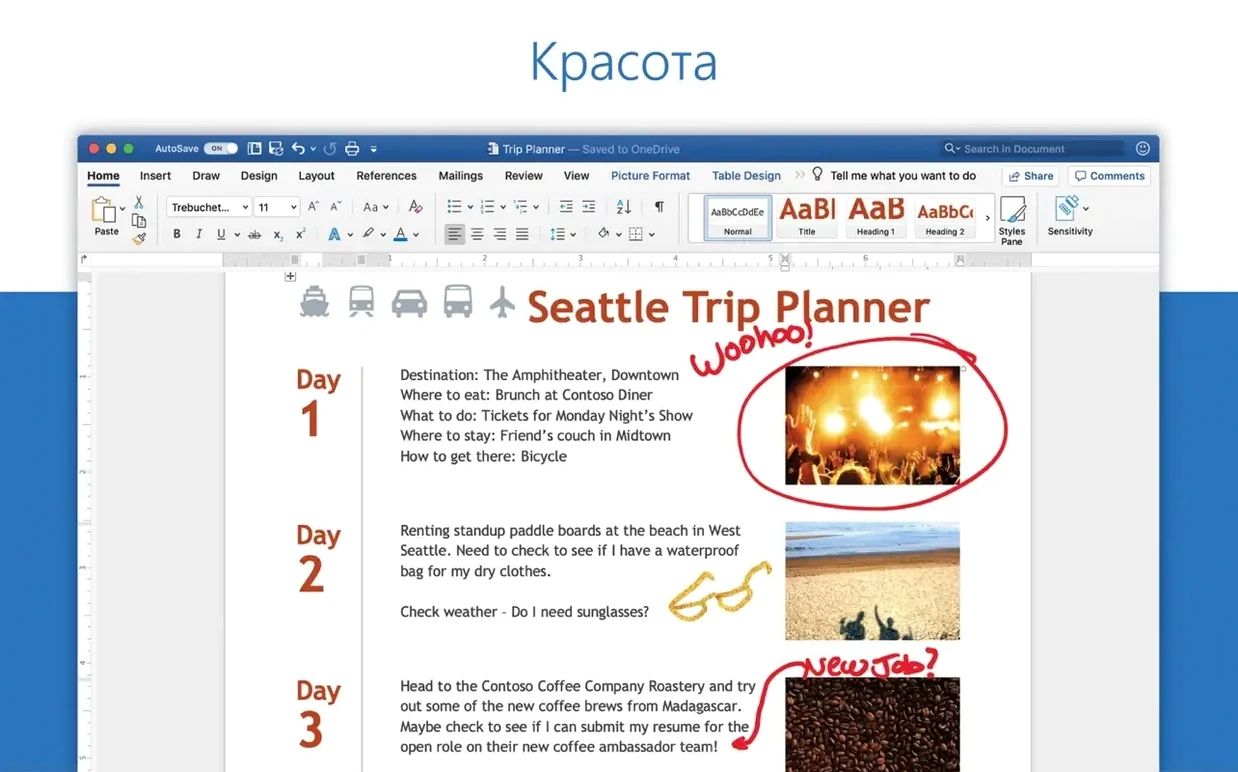
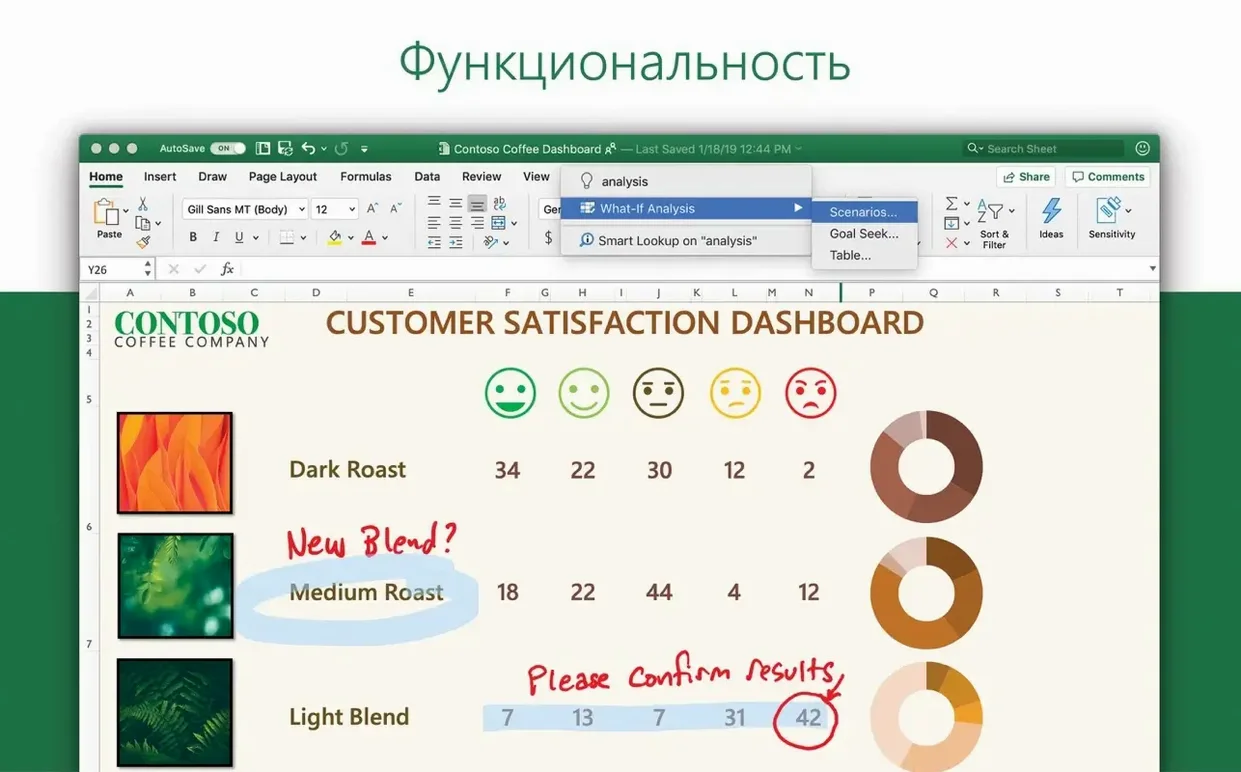
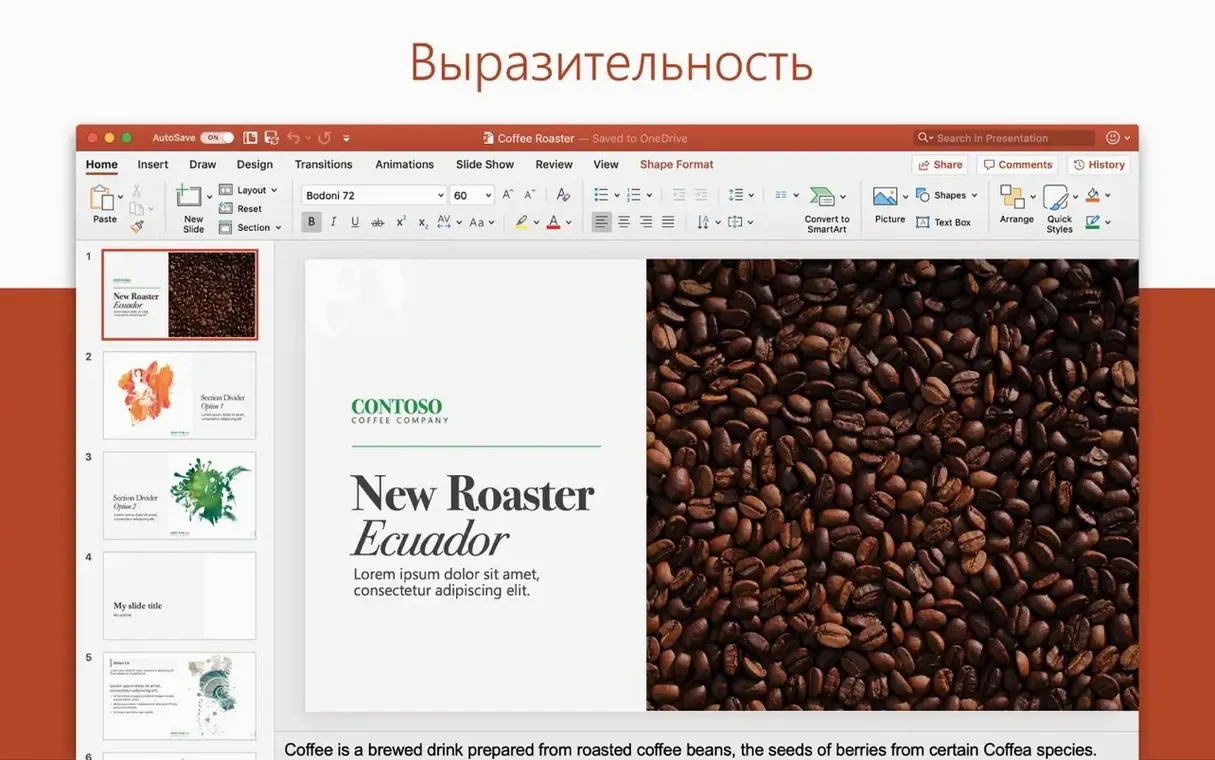
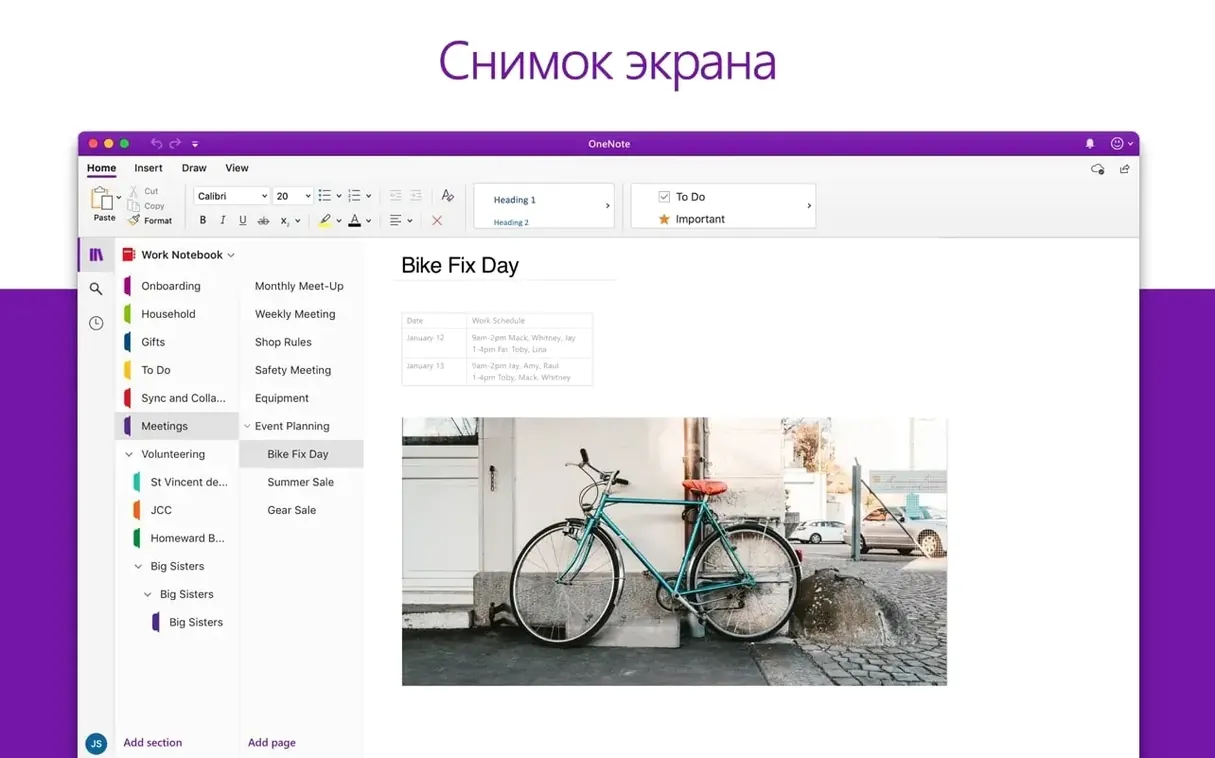
If you already use Word or Excel on a Mac, PowerPoint follows the same ribbon layout and menu structure. That means less hunting for commands and more time building slides.
Pick a Template or Auto-Arrange with Design Ideas
- Pick a template from the gallery — it sets fonts, colors, and layouts in one click.
- Use the Design Ideas panel (it appears when you add an image) to rearrange slide content automatically.
- Add motion path animations to an object: select it, go to the Animations tab, choose a motion path, then drag the endpoints to set the route.
- Insert a 3D model from the Insert tab and rotate it live during a slide show.
- Work with a colleague by sharing a presentation through OneDrive — changes sync in real time.
The Layout and Animation Tools
PowerPoint for Mac gives you the same slide masters and transition options as the Windows version. For a newcomer, the most useful habit is learning the animation pane: it shows every element on the slide in a timeline, so you can reorder or time each entrance and exit without guesswork. The built-in icon library and vector shapes mean you rarely need to open a separate graphics app for a quick diagram.
Why Blank Canvas Slides Waste Time on Mac
New users tend to treat every slide as a blank canvas, adding text boxes and images one by one. That works, but it wastes time. The faster approach is using slide masters: set your title font, body text, and background once, and every new slide follows the same structure. Beginners who skip this end up reformatting each slide manually.
Another common slip is overloading slides with text. PowerPoint is a visual medium — long paragraphs belong in a document or an email. Experienced users keep bullet points short and use the Notes section below the slide for speaker details. The same goes for animations: applying a separate entrance effect to every element on a slide creates a busy, distracting presentation. A single fade-in per slide, or a simple wipe transition between slides, keeps the audience focused on the message.
Beginners also forget to check their slides in Slide Sorter view before a presentation. That view shows the entire deck at once, making it easy to spot slides that are out of order or visually inconsistent. Taking thirty seconds to rearrange or delete slides there prevents onstage fumbling.
How PowerPoint for Mac Compares with Similar Apps
For Mac users, the main alternatives are Apple Keynote, Google Slides, and LibreOffice Impress. Each has strengths, but PowerPoint remains the standard in most offices because of its compatibility and depth of features.
Apple Keynote
Keynote comes free with every Mac and syncs with iCloud. The main limitation is file compatibility: if you share a .key file with a Windows colleague, they may not be able to open it without conversion. Exporting to PowerPoint format sometimes shifts text boxes or breaks transitions. For presentations that never leave the Apple ecosystem, Keynote is fine. For team projects that cross platforms, PowerPoint is the safer choice.
Browser-Based Slides Lack Motion Paths and 3D Models
Google Slides lives entirely in a browser, which makes collaboration simple — multiple people can edit the same slide at the same time. The tradeoff is fewer design tools: no motion path animations, no 3D models, and limited icon libraries. For a quick internal update or a student group project, it gets the job done. For a client-facing presentation that needs fine control over layout and animation, PowerPoint offers more.
LibreOffice Impress
Impress is free and open-source. It handles basic slides well and supports the PPTX format, but the rendering is not pixel-perfect. Animations from PowerPoint often behave differently or disappear entirely. For someone on a tight budget who only needs simple slides, Impress works. For anyone who regularly receives or sends PowerPoint files, sticking with the original avoids rework.
Workflow: Building a Client Pitch Deck from Start to Finish
This is how I put together a presentation for a construction project proposal. The same steps apply to any pitch deck.
- Start with a template. Open PowerPoint, pick a template from the gallery that matches the company colors. This sets the font scheme, background, and accent colors in one step.
- Set up slide masters. Go to View > Slide Master. Edit the title slide layout, the content layout, and the section divider. Adjust the placeholder positions and font sizes. Close the master view — every new slide now uses these defaults.
- Outline the deck in Slide Sorter. Create a slide for each section: cover, problem, solution, timeline, budget, team, next steps. Add only headings at this stage. This gives you a map before you worry about visuals.
- Add content to each slide. Paste in short bullet points, key figures, and a single image or chart per slide. Resist the urge to fill every inch. Leave white space around the text.
- Apply transitions and animations. Select all slides, apply a subtle slide transition like a dissolve or a push. On slides with multiple points, set a fade-in animation on the first bullet and apply the same effect to the rest.
- Insert a 3D model. If the project involves a building or product, go to the Insert tab, choose 3D Model, and place it on the relevant slide. Rotate it during the presentation to show different angles.
- Review and rehearse. Switch to Slide Show mode and run through the entire deck. Check that animations play in the right order. Use the Notes section to write a short script for each slide.
- Share through OneDrive. Save the file, then share the link with the client. They can leave comments, and you can update the file — changes sync automatically.
Office Workers in Mixed-Platform Teams Benefit Most
PowerPoint for Mac is not for everyone. If you only present once a quarter, a simpler tool might cover your needs. But three kinds of users benefit most.
- Office workers in mixed-platform teams. If your company uses Windows PCs for accounting and Macs for design, PowerPoint is the common language. A file created on a Mac opens identically on a Windows machine, which is not guaranteed with Keynote or Google Slides.
- Project managers and consultants. These roles produce weekly status decks, client proposals, and quarterly reviews. The template gallery, slide masters, and animation pane turn a two-hour task into a forty-minute one. The built-in icon library and 3D models add polish without needing a graphic designer.
- Educators and trainers. When you need to guide a class through a complex topic step by step, the animation timeline lets you control exactly when each piece of information appears. The same deck can be reused and updated each semester.
Design Ideas Panel Appears When You Insert an Image
PowerPoint for Mac has several features that do not advertise themselves but save time once you know them.
- The Design Ideas panel appears automatically when you insert an image onto a slide. It offers several layout suggestions that rearrange the existing content around the new element. One click, and the slide looks better without manual tweaking.
- Motion path animations let you define a custom route for any object. Select the object, choose a motion path from the Animations tab, and then drag the green and red endpoints on the slide to shape the path. This is useful for diagrams that build step by step.
- 3D models from the Insert tab can be rotated during a slide show by clicking and dragging. No extra controls or settings — just click and rotate. This works for product mockups, architectural models, or anatomical diagrams.
- The slide master view applies changes globally. Adjust the footer or the title font there, and every slide updates at once. That is faster than changing each slide individually.
- Real-time collaboration through OneDrive works without leaving PowerPoint. Share a link, and multiple people can edit or comment at the same time. The file stays on OneDrive, so there is no confusion about which version is current.
For anyone who has ever hunted for a missing slide or reformatted a bullet list for the tenth time, these small conveniences add up over a work week.
- Office suite release 16.93 includes PowerPoint.
| macOS | macOS 13 or later |
|---|---|
| Processor | Apple Silicon, Intel 64-bit |
| Download | 2.4 GB |
- macOS 13 or later
- Compatible with Intel and Apple Silicon Macs
How to install, in order
- Install the standard Office 2024 package.
- Or download the required package using the provided links for Word, Excel, PowerPoint, Outlook, and OneNote.
- Activate by installing Microsoft Office LTSC 2024 VL Serializer.
- To receive updates, install Microsoft AutoUpdate (MAU).
Comments and corrections 0
Sign in or open a free account to leave a comment.
No comments or corrections yet.