OmniReader Pro 3.4.4 — download for Mac
Office Updated
Manages and reads books and documents with search and distraction-free controls.
Screenshots
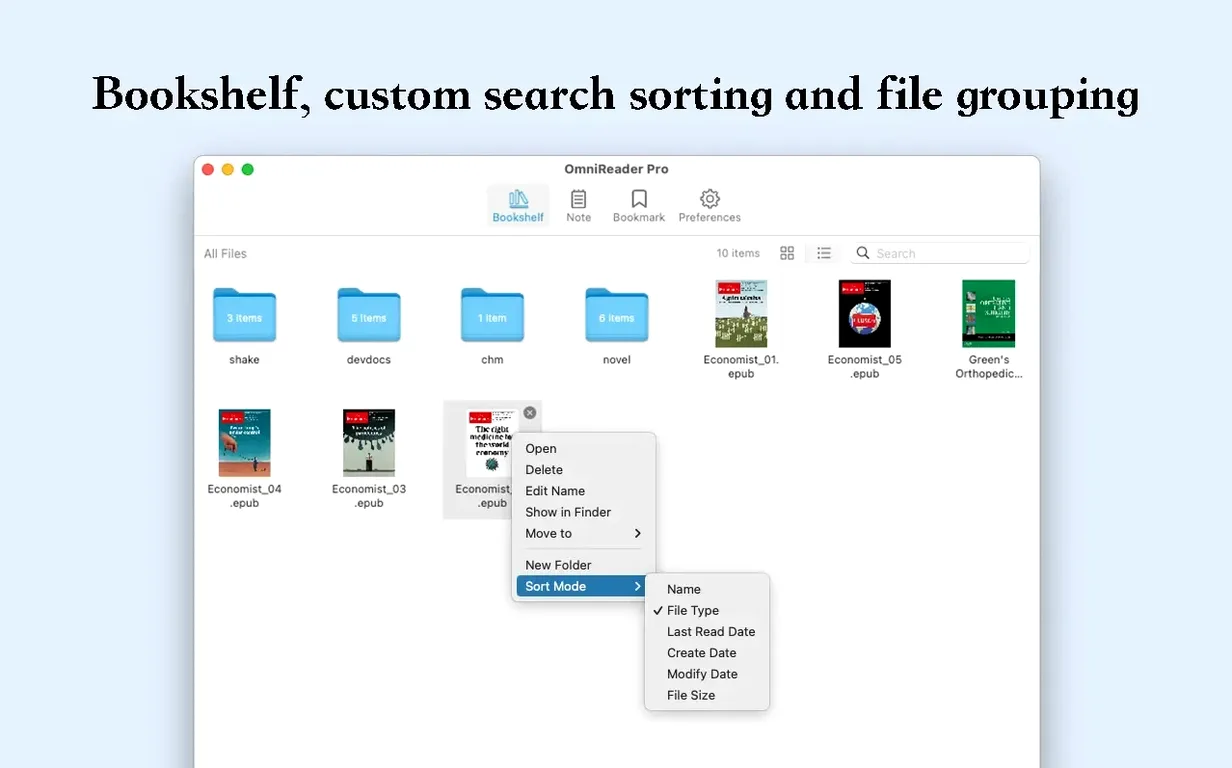
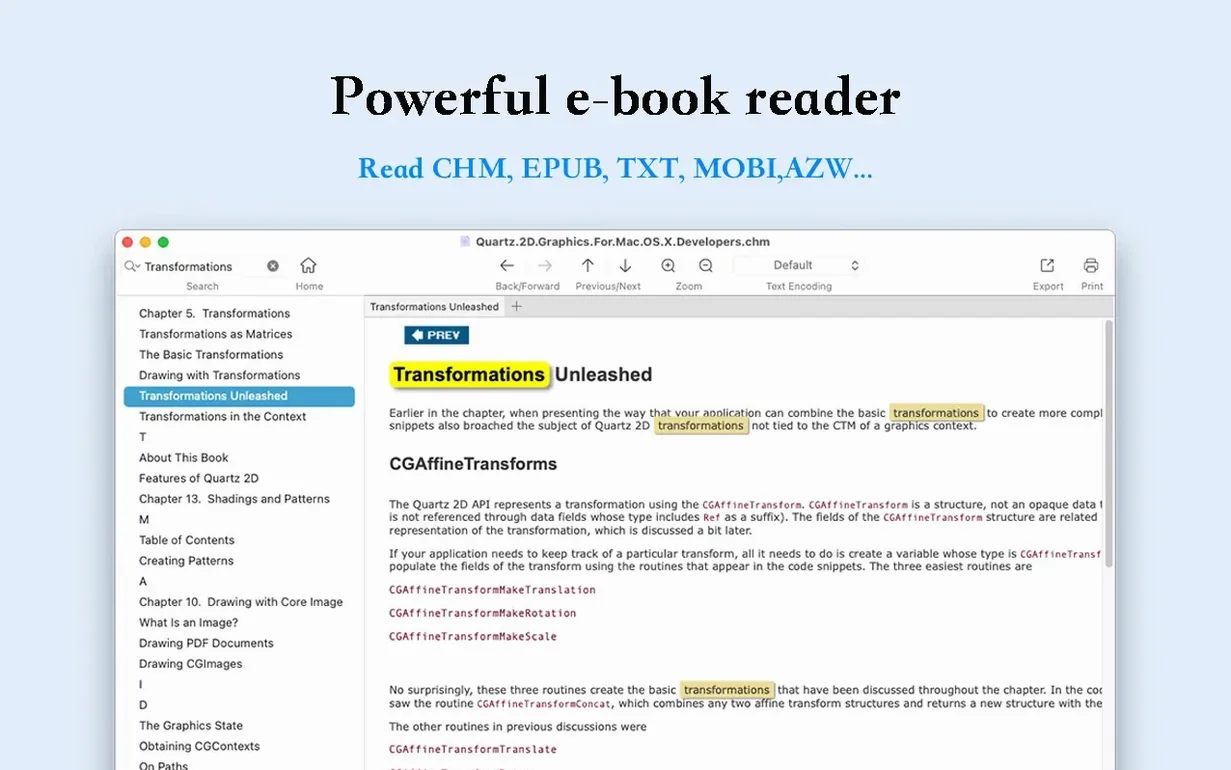
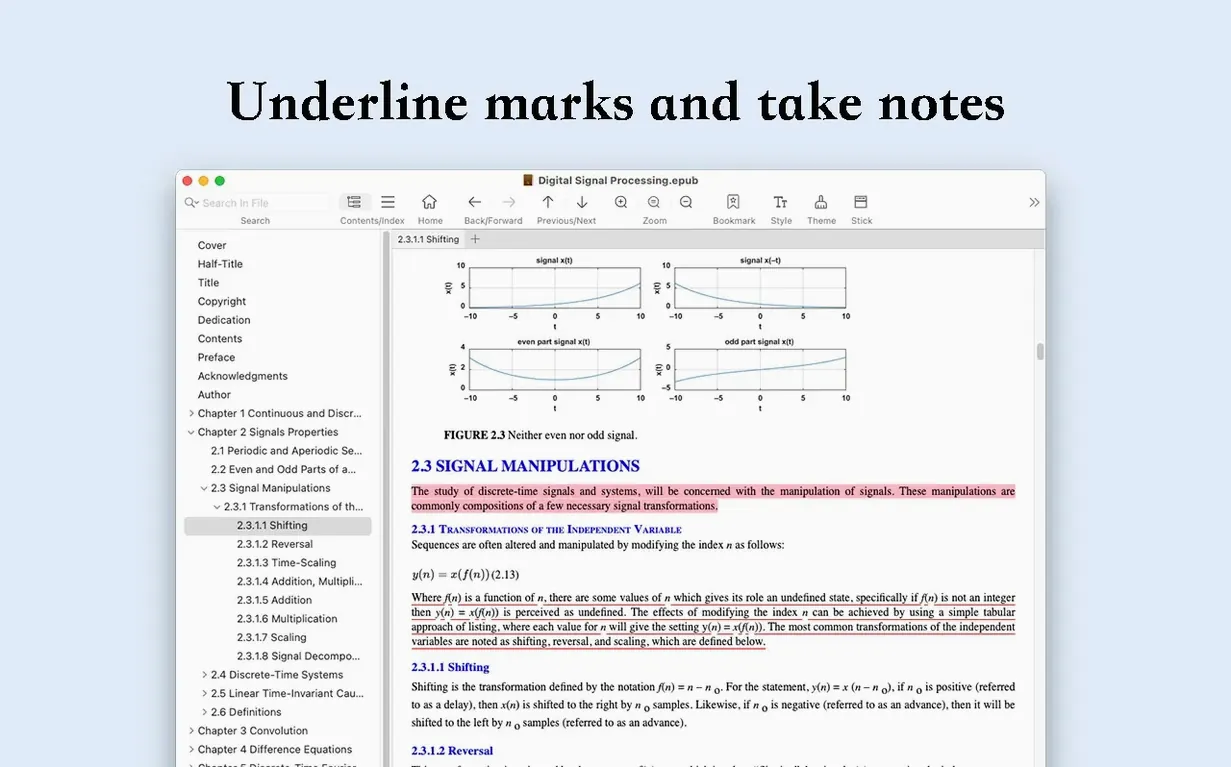
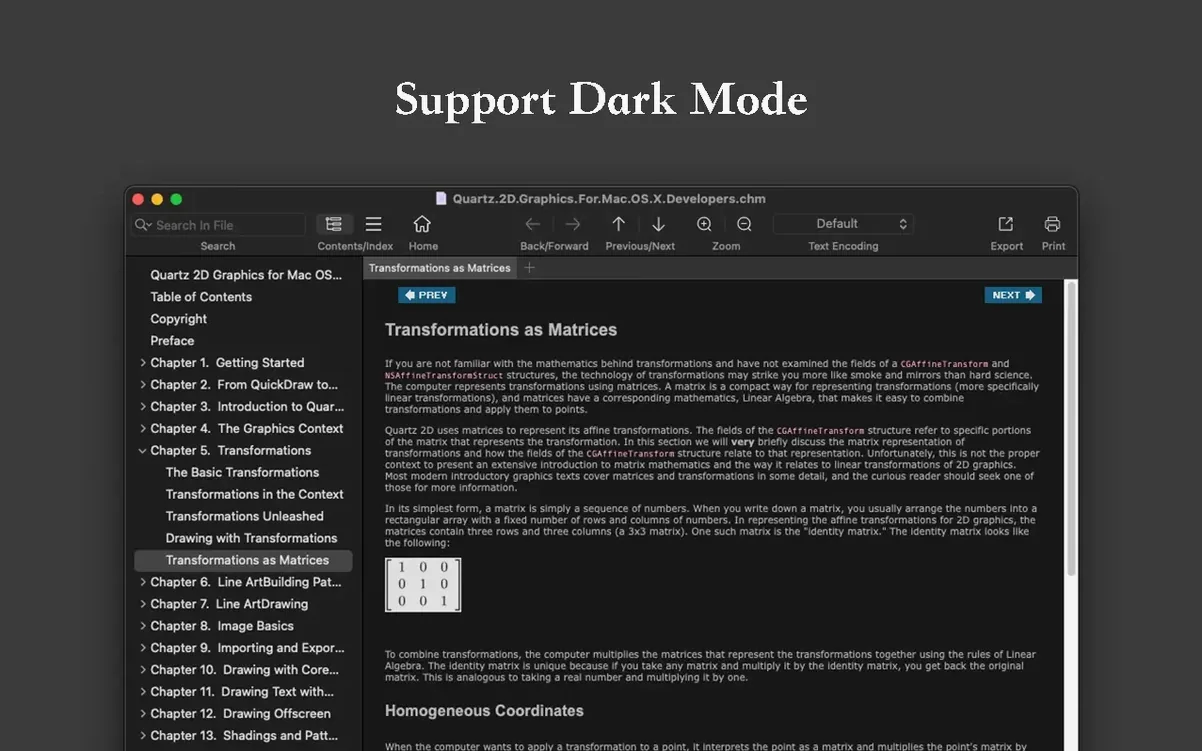
OmniReader Pro is a Mac application built for reading and managing books and documents without distraction. It supports EPUB, CHM, and Kindle files, and includes tools an experienced reader will use daily: page turning, zoom controls, a collapsible sidebar, and both page-level and full-text search with highlighted results. The app automatically adjusts image sizes and keeps a forward and back reading history so you never lose your place. Page printing is also available.
| Detail | Specification |
|---|---|
| Version | 3.4.4 |
| Developer | 惠源 赵 |
| macOS | 10.13 or later |
| Architecture | Intel & Apple Silicon |
| Languages | English, Chinese (Simplified) |
For anyone who works with technical manuals, long-form articles, or Kindle books on a Mac, OmniReader Pro gives you the search, layout, and history tools to move fast through documents without switching apps.
For Technical Writers and Students With Document Stacks
The app fits a few specific reader profiles. Technical writers and engineers who keep a stack of CHM help files or EPUB references will appreciate the full-text search across an entire folder of documents. The same goes for students in law or medicine, where page-level search and highlighted results mean less time scanning and more time cross-referencing. Mac users who migrated from Windows and still have a library of CHM files will find OmniReader Pro is one of the few macOS apps that opens them without conversion.
Kindle power users who switch between an e-reader and a Mac for note-taking will like the forward and back history — it works like a web browser’s back button for books, so jumping between a footnote and the main text doesn’t lose context. The export to EPUB or PDF also matters for anyone who needs to share excerpts with colleagues who don’t read Kindle files.
It’s not a library manager or a PDF annotator. If your daily work involves heavy PDF markup, stick with dedicated PDF tools. OmniReader Pro is a reader first, and its strength is in the straightforward opening, searching, and exporting of common ebook and document formats.
Real-World Scenario: A Technical Writer Working With CHM Help Files
João maintains the internal documentation for a civil engineering firm. The firm’s legacy system exports procedures as CHM files, one per department. Before using OmniReader Pro, he had to open each CHM in a separate viewer or convert them to PDF, losing hyperlinks along the way.
Now he opens a CHM file directly, uses the full-text search to find every mention of “load-bearing calculation” across the document, and exports the matched sections to a single PDF for the review meeting. The highlighted results let him scan quickly, and he doesn’t switch windows. The workflow takes him about two minutes instead of ten.
Workflow: Export a Highlighted Section to PDF
- Open OmniReader Pro and load the EPUB or CHM file you need to work with.
- Use the full-text search from the toolbar. Type your search term. Results appear highlighted in the document body.
- Browse the results using the forward and back history. This lets you check each occurrence without losing the last one you looked at.
- When you have the relevant pages on screen, go to the export menu and choose PDF as the output format.
- The app exports the entire document. Open the exported PDF in any reader and use the search terms you already know to jump directly to the sections you marked.
This avoids any manual copy-paste between apps. The entire task stays inside OmniReader Pro until the final file is written.
Test EPUB, CHM, and Kindle Files on Day One
- Test your file types first. Open one EPUB, one CHM, and one Kindle file to confirm the app handles all three on your setup. Most files open without issues, but checking on day one saves troubleshooting later.
- Use the collapsible sidebar to tidy your workspace. The sidebar shows the table of contents or file list. Collapse it when you’re deep into a chapter, expand it only when you need to jump between sections.
- Adjust zoom for dense pages. Technical manuals with small type benefit from zooming in. The app remembers the zoom level per session, so set it once and read through.
- Try the export to EPUB as a restore step. If you have a Kindle file that looks garbled, export it to EPUB and reopen it. The encoding handling in OmniReader Pro often cleans up formatting that the original Kindle renderer left broken.
- Use page printing only for short extracts. Long books print without issue, but you’ll get cleaner results by exporting to PDF first and printing from there.
No release notes filed for 3.4.4. They are added here when a build changes how the program behaves.
| macOS | macOS 10.13 or later |
|---|---|
| Processor | Apple Silicon, Intel 64-bit |
| Download | 33 MB |
- macOS 10.13 or later
- Intel or Apple Silicon processor
Questions about OmniReader Pro
Can OmniReader Pro search inside EPUB files?
Yes, it supports both page search and full-text search across EPUB, CHM, and Kindle files. Search results are highlighted.
Does OmniReader Pro save my reading position?
Yes, it keeps a forward and back reading history so you can return to previously viewed sections.
How to install, in order
- Mount the disk image and open Gatekeeper Friendly.
- Press Enter in Terminal to bypass Gatekeeper.
- Drag the app to the Applications folder.
- Open the app when installation is complete.
Comments and corrections 0
Sign in or open a free account to leave a comment.
No comments or corrections yet.