Receipts 1.15 — download for Mac
Office Intel processors only Updated
Extracts amount, date, taxes, and bank data from receipts, PDFs, and emails locally.
Screenshots
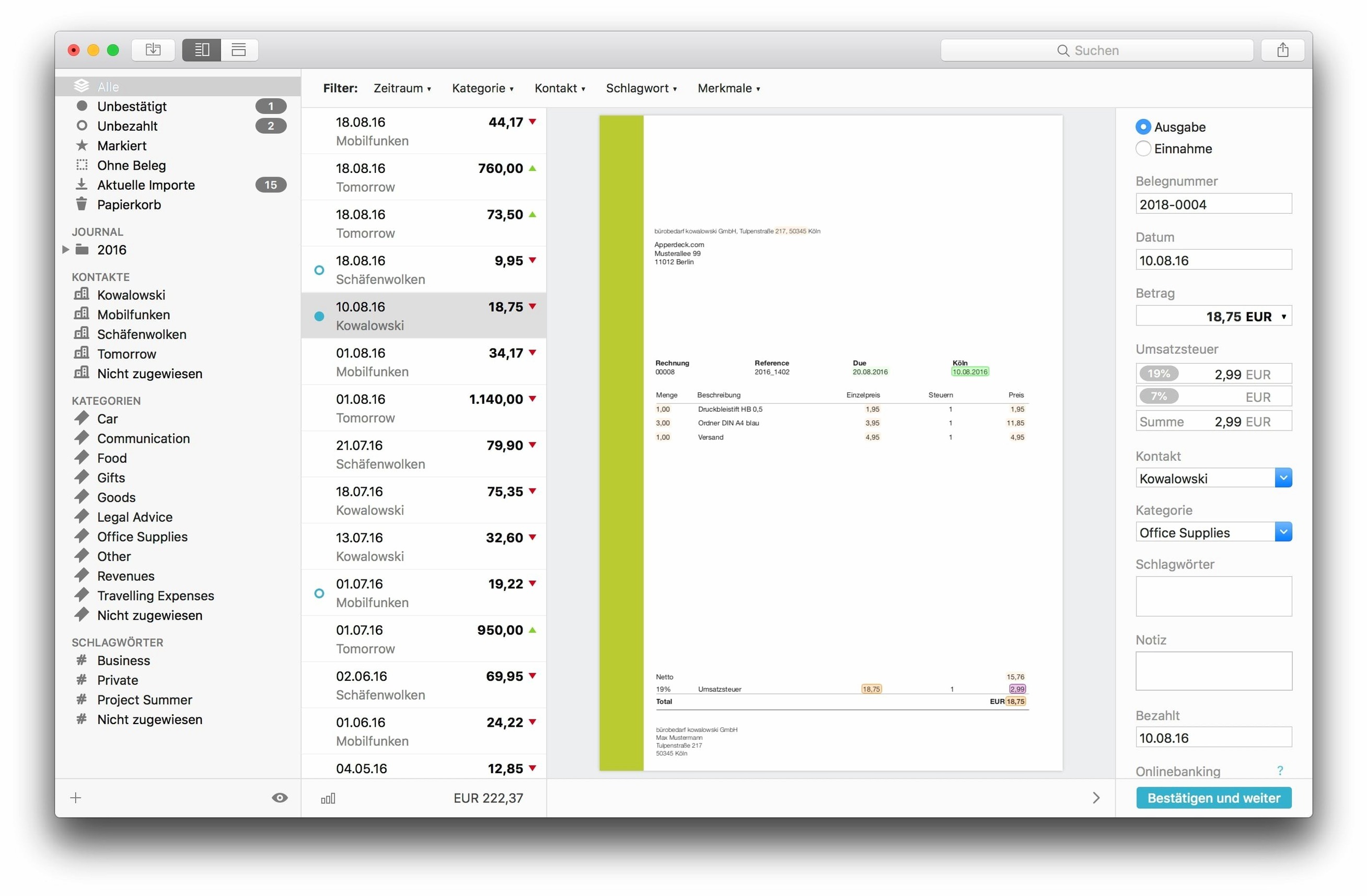
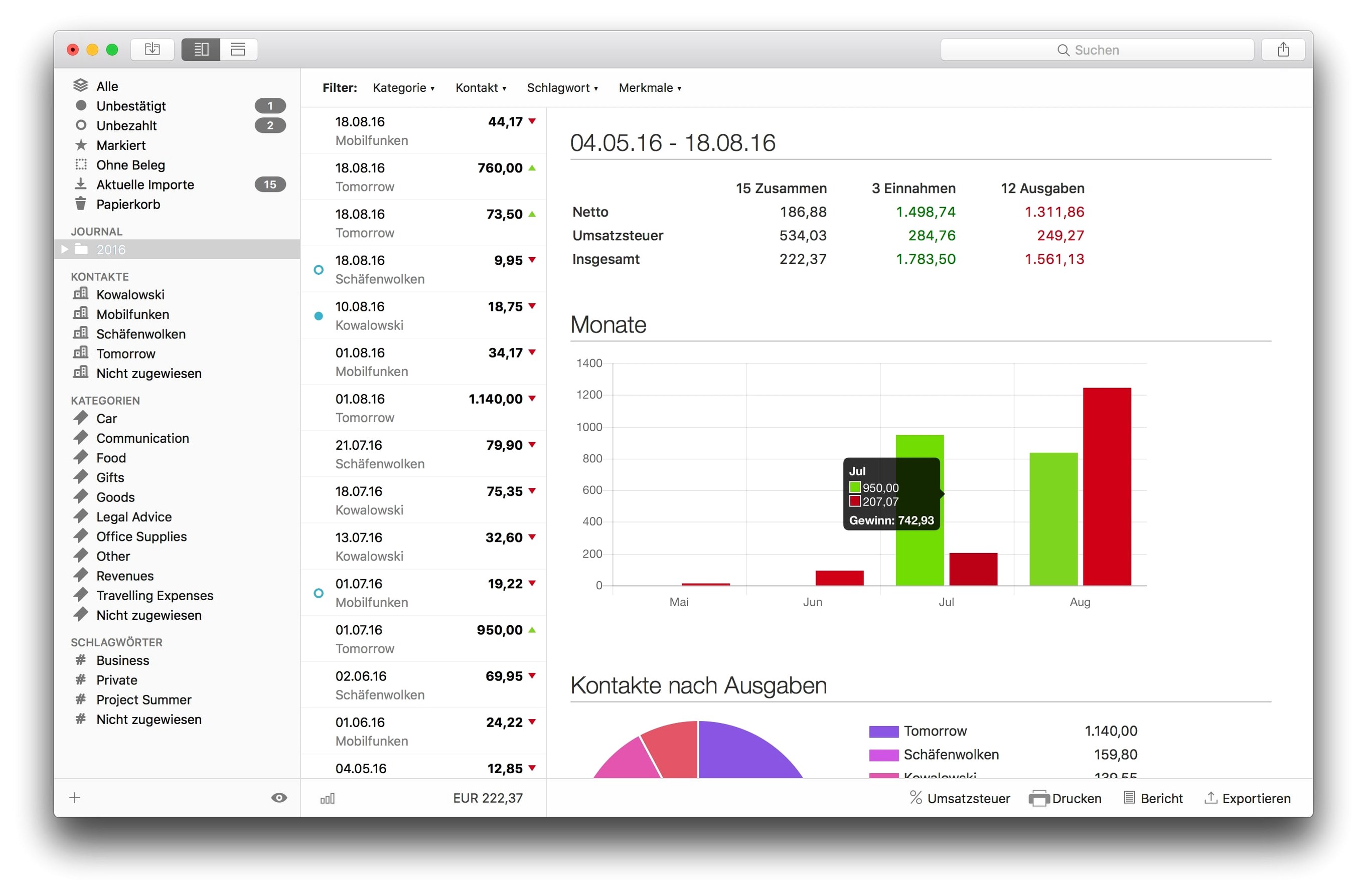
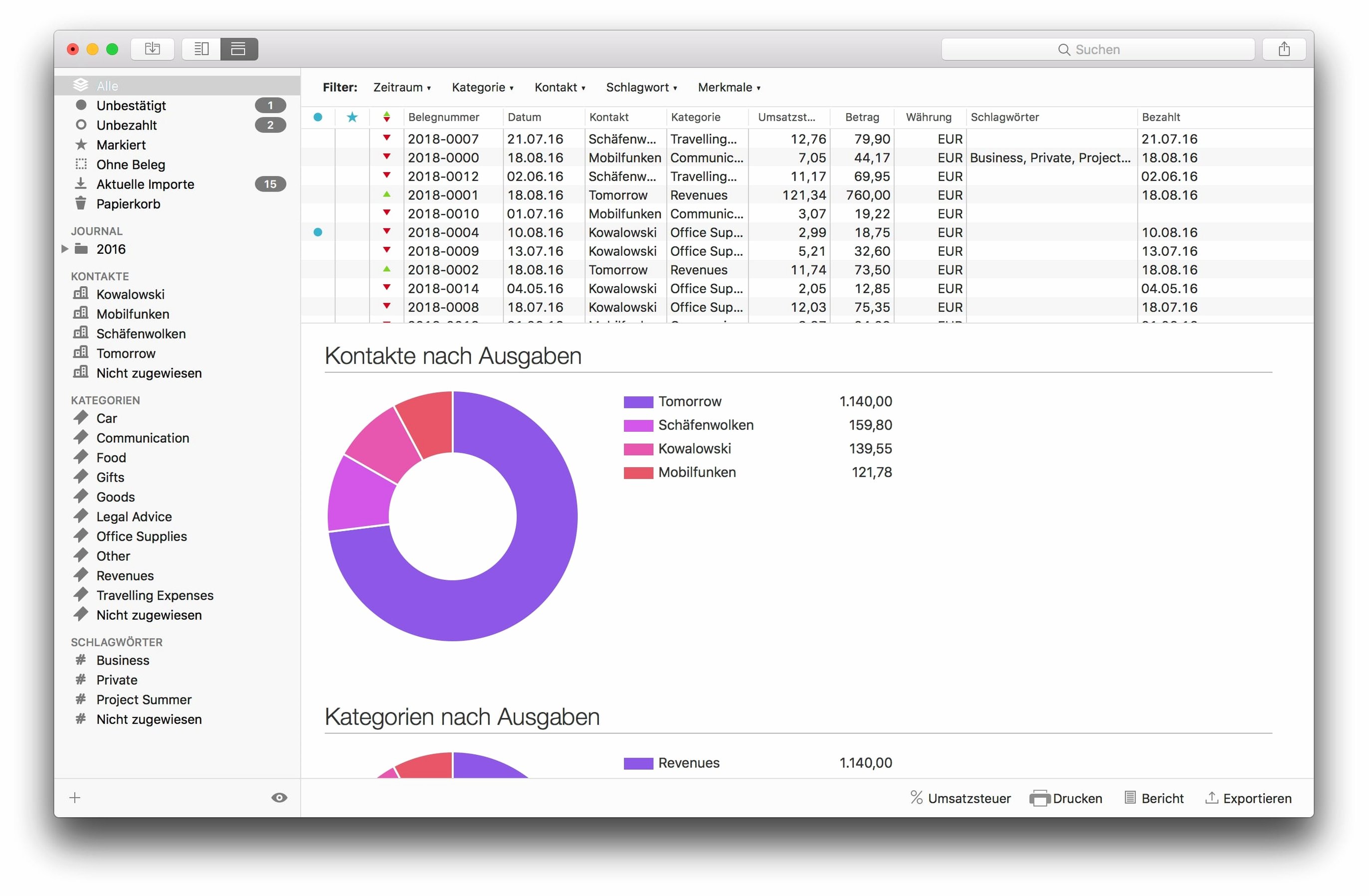
Receipts runs on any Mac with OS X 10.11 or later, Intel architecture only. It is a local-first app for collecting, recognizing, and managing receipts and related documents. The software extracts amount, date, taxes, and bank data from PDFs, images, emails, websites, and scanner input. All processing stays on your machine — nothing leaves your computer. You can search, filter, pay bills directly, and export data to popular formats for taxes or bookkeeping. It is the predecessor to Receipts Space.
| Detail | Info |
|---|---|
| Version | 1.15 |
| Developer | Dirk Holtwick |
| Language | English |
| Requirements | macOS 10.11+, Intel |
Receipts suits anyone who needs to keep receipts organized for taxes, expenses, or household bookkeeping. Its local storage and broad file support make it a practical tool for small offices and self-employed users.
100+ Language OCR Built In
Receipts 1.15 has a few features buried in the workflow that you might not notice on first launch but that save time once you find them. The built-in OCR covers over 100 languages, so if you handle receipts from suppliers abroad, the app will still extract amounts, dates, and tax figures without you swapping language profiles. The automatic foreign-currency conversion works in the same pass — no need to look up exchange rates manually before entering an expense.
The app also remembers recurring receipts. Once you assign a regular bill to a category and a contact, subsequent documents with the same sender get sorted the same way. That means monthly invoices from the same vendor land in the right folder without you touching a filter. The search and filter options let you drill down by date range, amount, category, or payment status, which keeps a year's worth of scanned receipts manageable.
Another detail: Receipts keeps both the original file and a PDF version of every document. If you scan a paper receipt as a JPEG, the app stores the image and also generates a PDF for export. That way you always have the raw scan for proof and a standard format for sending to an accountant.
Scenario: A Freelance Stage Technician
Consider someone who does lighting work on short contracts. They buy cables, gels, and hardware from different suppliers each week, pay some in euros and some in pounds, and need to report expenses quarterly. With Receipts, they drop emailed PDF invoices straight into the app, let OCR pull the amounts and dates, and let the currency converter handle the rest. Recurring rental fees for equipment show up under the same category automatically. At quarter end, they export everything to a CSV for their tax preparer. No spreadsheet, no manual reconciliation of exchange rates.
Bypassing Gatekeeper on First Run
- Gatekeeper blocks the app on first run — The installer includes a step to bypass macOS security. After mounting the disk image, open the Terminal window that appears and press Enter when prompted. Then drag the app into your Applications folder. Without that step, the system may refuse to open Receipts.
- Scans from a multifunction printer don't show up — Receipts works with desktop scanners that macOS itself supports, including ScanSnap. If your scanner is listed in macOS but the app does not see it, check that the scanner's own software is closed. Two apps competing for the same device can cause the scan to fail.
- OCR misses text on blurry images — The app reads typed text well, but photographs of crumpled or glossy receipts may produce partial results. Reshoot the receipt flat on a dark background with even lighting. If the text still comes through garbled, you can edit the fields manually — the data is not locked.
Stays Local While Shoeboxed Goes Cloud
Receipts sits among a few other local receipt management tools. Shoeboxed also does OCR and categorization, but it pushes data to its own cloud service for processing, which means your information travels off your machine. Receipts keeps everything local, which appeals to users who do not want third-party servers touching their tax documents. Shoeboxed supports mobile capture more broadly, though.
Wave (the receipt scanning part of Wave's accounting suite) is free and handles basic expense tracking, but it requires an internet connection and stores data on Wave's servers. Its OCR is less configurable than Receipts, and it does not offer offline scanning or foreign-currency conversion out of the box.
Neat is a heavier option that bundles receipt scanning with invoicing and contact management. It does the same local storage promise, but its interface is busier and its setup leans toward multi-user companies. For a single person or a small office that wants receipts handled without extra CRM features, Receipts keeps the scope narrower and the screen less cluttered.
All three alternatives work with Intel Macs, but none of them cover the same combination of local processing, broad file input, and automatic currency conversion that Receipts 1.15 provides.
No release notes filed for 1.15. They are added here when a build changes how the program behaves.
| macOS | OS X 10.11 or later |
|---|---|
| Processor | Intel 64-bit |
| Download | 15 MB |
- macOS 10.11 or later
- Intel processor
Questions about Receipts
Does Receipts store my data online?
No. The developer states all data and processing remain local to your computer.
How to install, in order
- Mount the disk image and open Gatekeeper friendly.
- Press Enter to bypass Gatekeeper in the Terminal window.
- Drag the app into the Applications folder.
- Open the app from Applications when installation is complete.
Comments and corrections 0
Sign in or open a free account to leave a comment.
No comments or corrections yet.