
4K YouTube to MP3 26.4.0 — download for Mac
Utilities Intel processors only Updated
Strips audio from online sources and saves it locally without keeping a browser tab open.
Screenshots
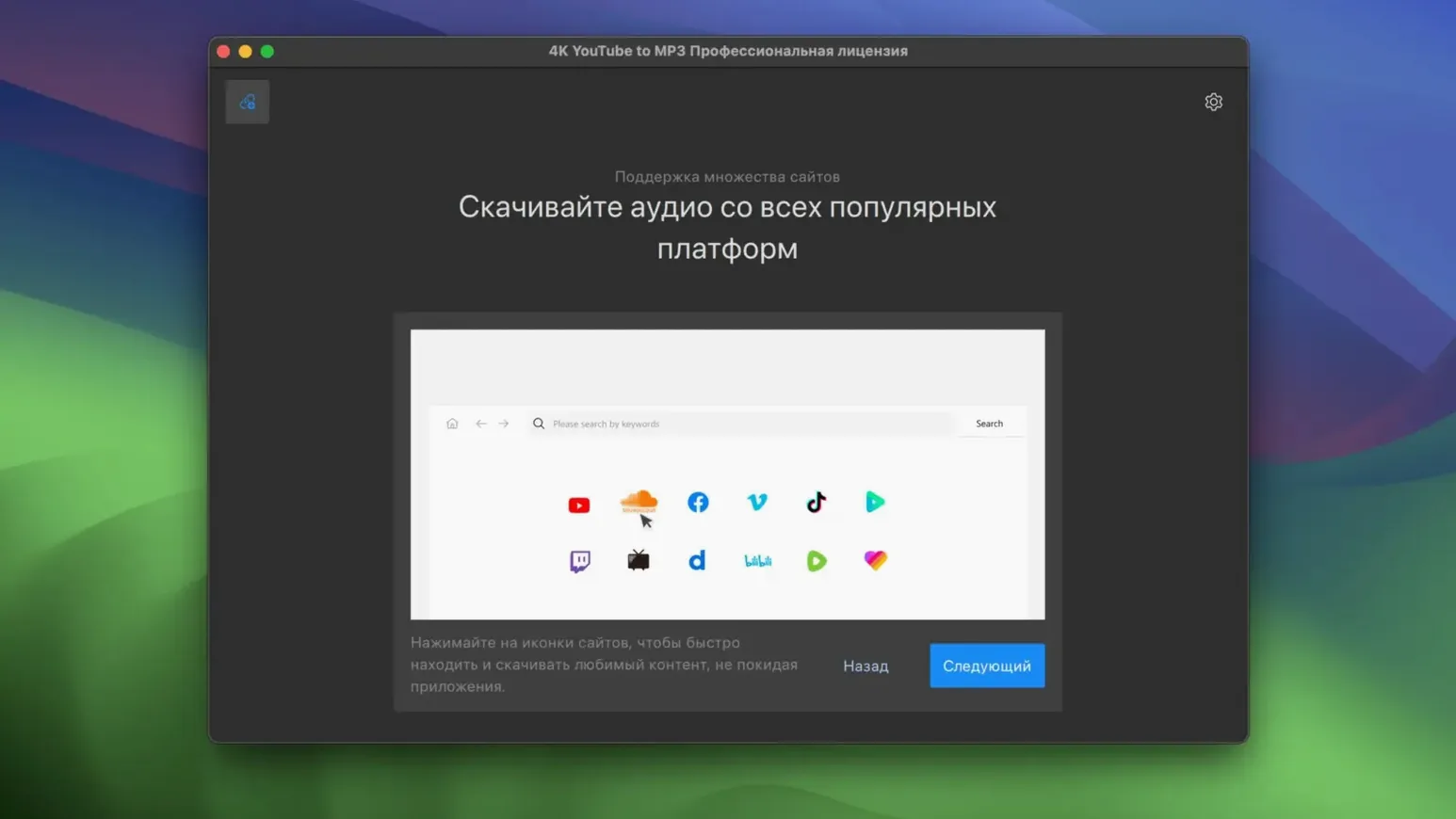
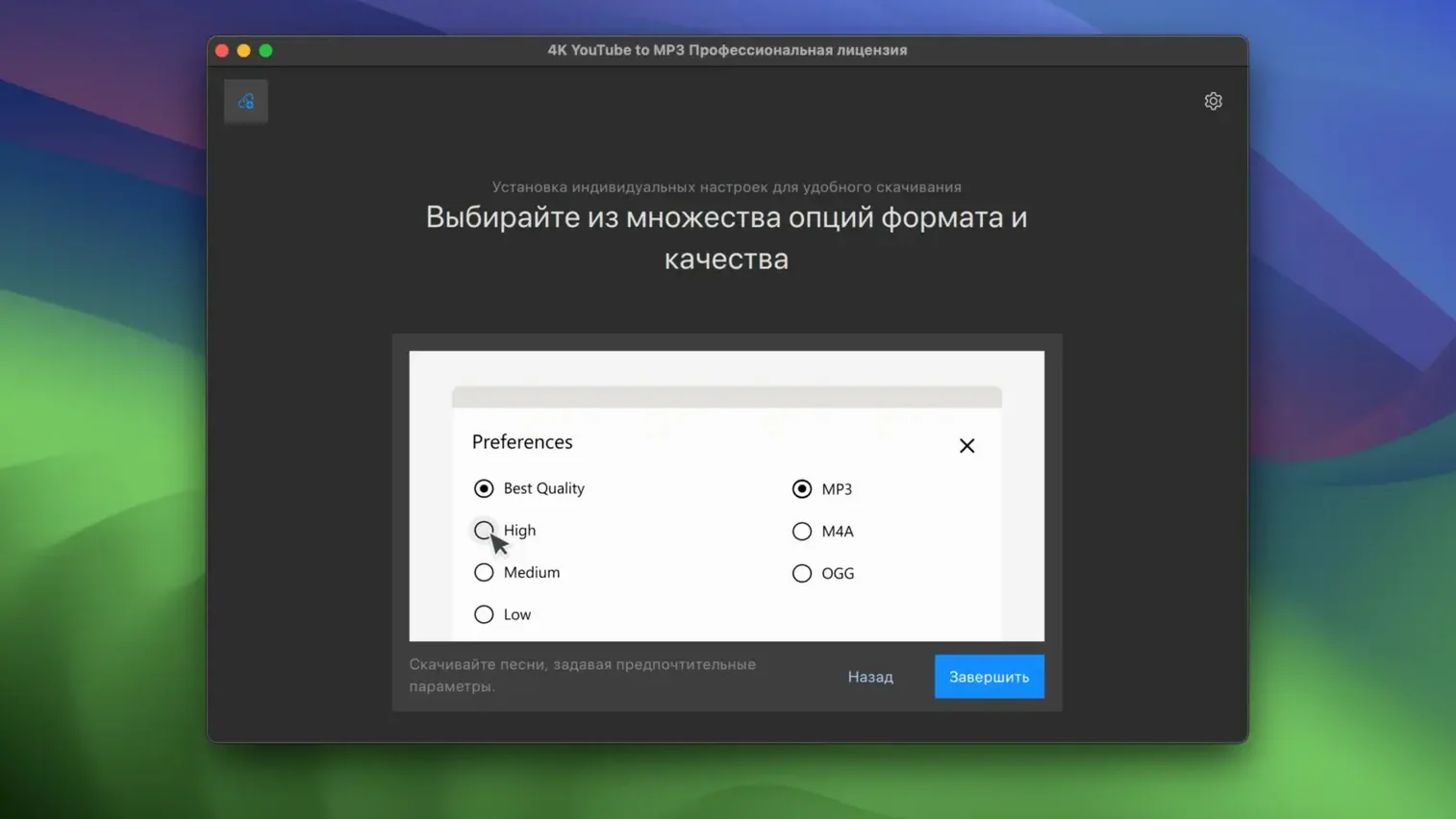
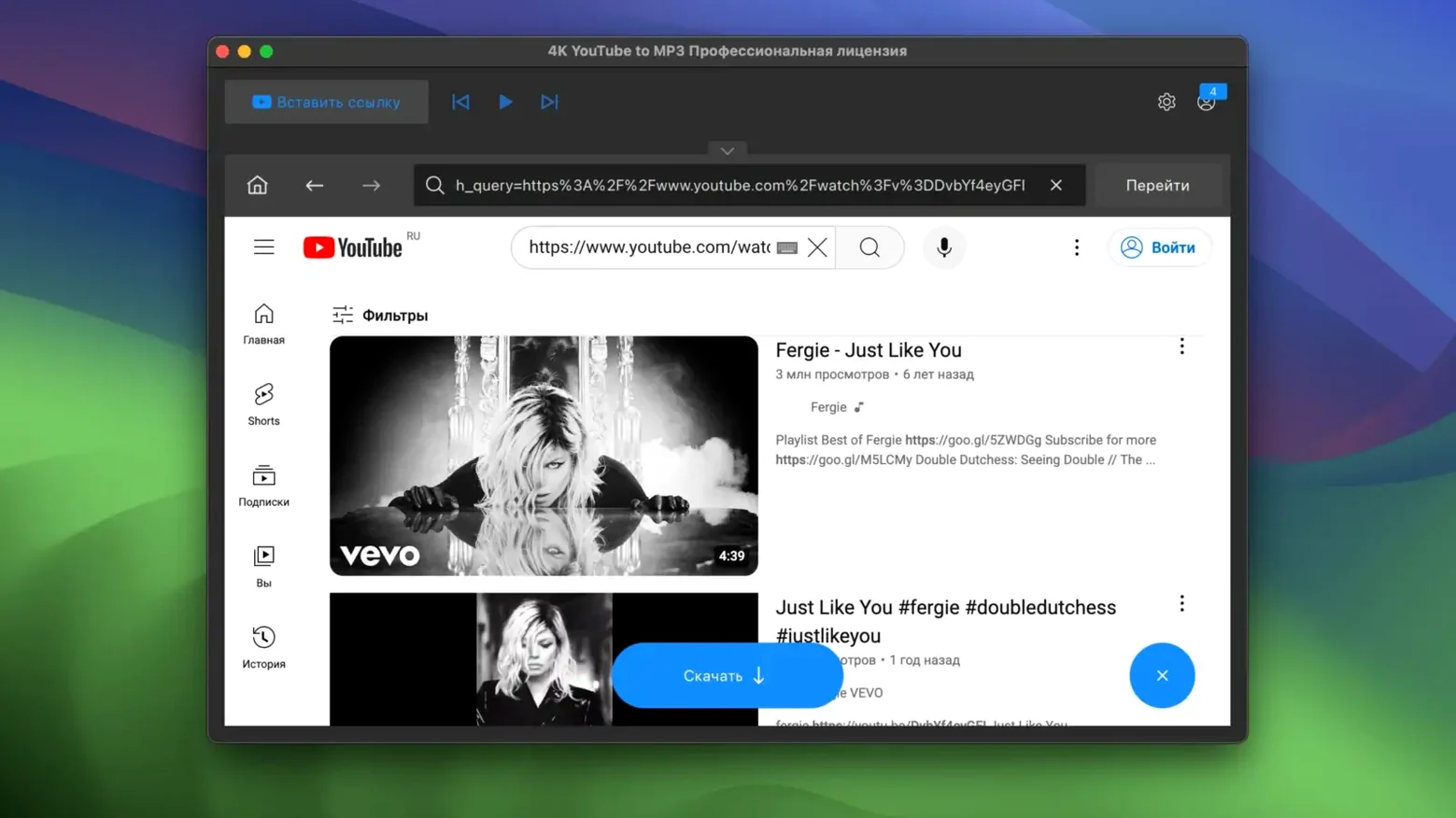
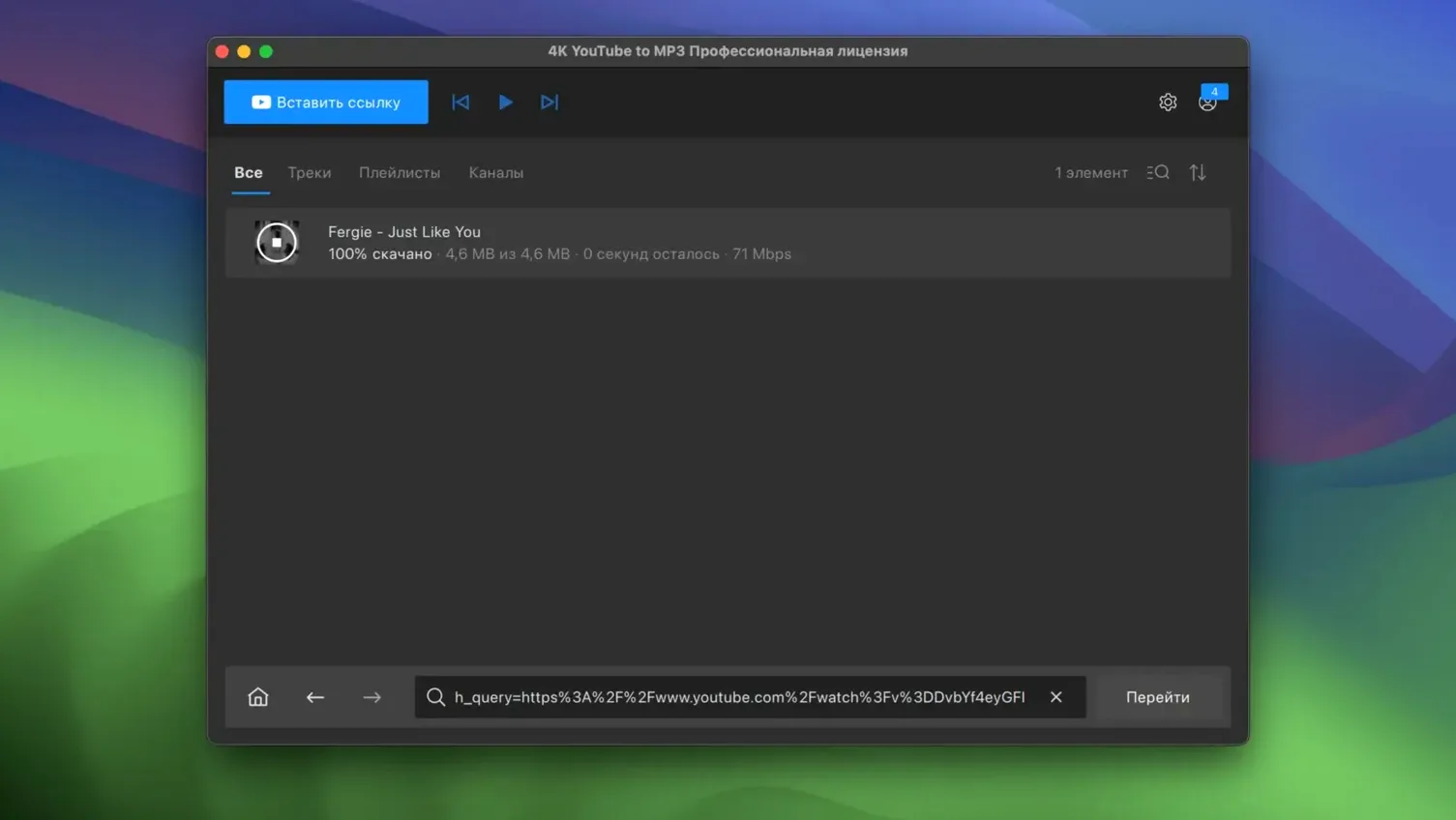
Anyone who already runs 4K Video Downloader to grab reference clips for a presentation will find the logic familiar here. This is the audio-only sibling from OpenMedia LLC, built to strip sound from online sources and save it locally without a browser tab staying open.
Pull Audio from a Playlist
The app can process an entire playlist in one go. Set it to MP3, point it at a list of tracks on YouTube, and walk away while it extracts each item.
Grab a Voice Memo from a Video
A Facebook clip or a VEVO interview often holds the only clean recording of a statement. Dragging its URL into the window and selecting M4A gives you a small, sharp file to attach in a note or drop into a board pack.
Save a SoundCloud Set as OGG
SoundCloud links resolve just as quickly as YouTube. Choosing OGG keeps file sizes down when all you need is background ambience for a site walkthrough video.
Lighter Interface than YTD Downloader
Three other tools sit in the same space as 4K YouTube to MP3. YTD Downloader handles the same YouTube-to-MP3 job but its macOS version has a heavier interface and often lags behind Windows updates. It covers YouTube only, so SoundCloud or VEVO links need a separate step. MediaHuman Audio Converter converts local files well but does not fetch anything from the web — you must download videos first, then convert them. It works for batch work but adds an extra download-and-drag step that the 4K tool skips entirely. Downie from another developer supports many sites and lets you extract audio from a broad range of sources, but its playlist handling is less reliable than 4K YouTube to MP3 when a list has more than forty items. Downie also costs money upfront, while the 4K tool runs after a single setup.
Switch to M4A for Voice Notes
- Choosing the wrong format for the task. New users often pick MP3 by default even when they need a voice-only file for a quick note. M4A gives smaller files at the same bitrate for speech, so switching to it saves disk space over a week of regular use.
- Dropping a full playlist link when only one track is needed. The app will happily queue all items. A twenty-song playlist takes several minutes to process for nothing if the goal was a single track. Copy the individual video URL instead of the playlist link.
- Forgetting to check the destination folder before starting. By default files land in the Downloads directory. After a few sessions the folder fills up with MP3s mixed in with PDFs and screenshots, making cleanup slower. Set a dedicated audio folder once and avoid the mess.
- Using the app while the browser is streaming the same video. The tool pulls the source from YouTube servers. Running a stream of the same video in another tab can trigger rate limits or slow both operations. Close the browser tab or pause playback before starting the extraction.
Workflow: Build a Playlist for a Site Walkthrough Voiceover
- Open YouTube in a browser and search for the background tracks or ambient sounds you want for a construction site walkthrough video. Copy the URL of each track individually — five tracks is a reasonable start.
- Launch 4K YouTube to MP3. Click the Paste Link button or use Cmd+V in the URL field. The app reads each link and shows the track title and duration in the queue.
- Set the output format to MP3 and the bitrate to 128 kbps. This keeps file sizes under 5 MB per track while preserving enough quality for narration background.
- Click the Download button. The app processes the five tracks in sequence, showing progress per item. Estimated time for five four-minute tracks: under two minutes on a standard connection.
- Once finished, open Finder and navigate to your audio folder. Rename each file with a prefix like "walkthrough_bg_01" so they sort properly in your video editor. Drag them into your timeline and adjust volume to sit behind the spoken commentary.
Set a Dedicated Output Folder on First Launch
- Set a dedicated output folder on the first launch. Go to Preferences, choose a folder named something like "4K_Audio_Exports" inside your Documents folder. This keeps downloads separate from everyday files.
- Test one URL from each supported source (YouTube, SoundCloud, VEVO, Facebook) on day one. This confirms all sites resolve correctly and you know which format each source works best with — VEVO clips often sound cleaner as M4A at 192 kbps, for example.
- Right-click a finished file in the list and choose "Show in Finder" to verify the app writes metadata correctly. The track title and artist tag should appear in the file info panel of your music player. If tags are missing, tweak the settings in Preferences > Advanced before your next batch.
- Keep the app window small and docked at the bottom-right corner of the screen. It is a one-queue tool: paste, click, wait, done. A full-screen window is unnecessary and wastes monitor space.
- Create a quick automation: write a simple AppleScript or use Keyboard Maestro to paste a copied URL directly into the app's input field and trigger the download. This saves two clicks per URL when you grab multiple tracks in a row.
Version 26.4.0 is a maintenance release that refreshes the app's compatibility with recent YouTube changes.
| macOS | macOS 12 or later |
|---|---|
| Processor | Intel 64-bit |
| Download | 218 MB |
- macOS 12 or later
- Intel 64-bit processor
Questions about 4K YouTube to MP3
Which audio formats can this app save?
It saves extracted audio as MP3, M4A, or OGG files.
Does it work with sites other than YouTube?
Yes, it supports extracting audio from VEVO, SoundCloud, and Facebook as well.
How to install, in order
A 218 MB download for Intel Macs still on macOS 12 or later. In four install steps the tool is ready to pull MP3s straight from video.
- Mount the disk image and launch Open Gatekeeper friendly.
- Press Enter in the Terminal window that appears to bypass Gatekeeper.
- Drag the application icon into your Applications folder.
- The app is ready to use.
Comments and corrections 0
Sign in or open a free account to leave a comment.
No comments or corrections yet.