AirBuddy 3.0 — download for Mac
Utilities Updated
Displays AirPods battery levels and device controls directly on the Mac screen.
Screenshots
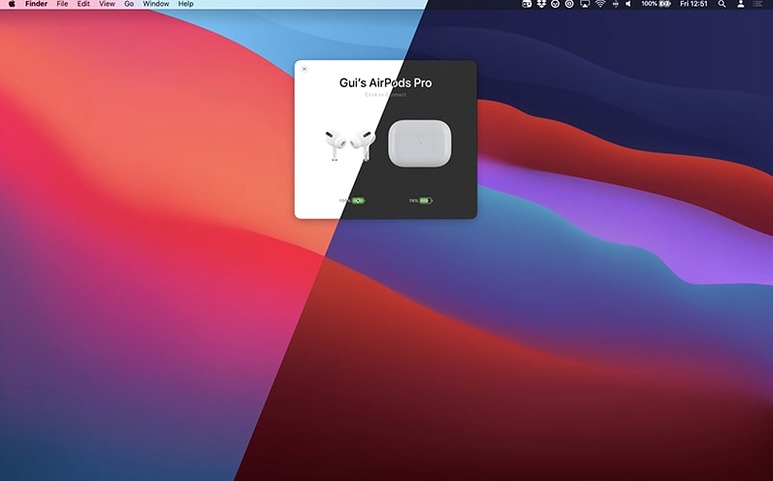
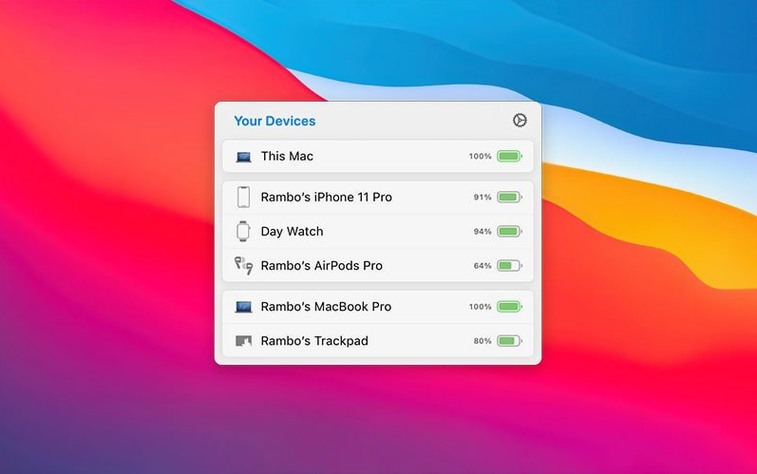
Checking your AirPods charge usually means squinting at a tiny pop-up or grabbing your iPhone. AirBuddy puts that information directly on your Mac, alongside controls for nearby headphones and other devices.
| Detail | Value |
|---|---|
| Current version | 3.0-890 |
| Developer | Guilherme Rambo |
| macOS required | 14 or later |
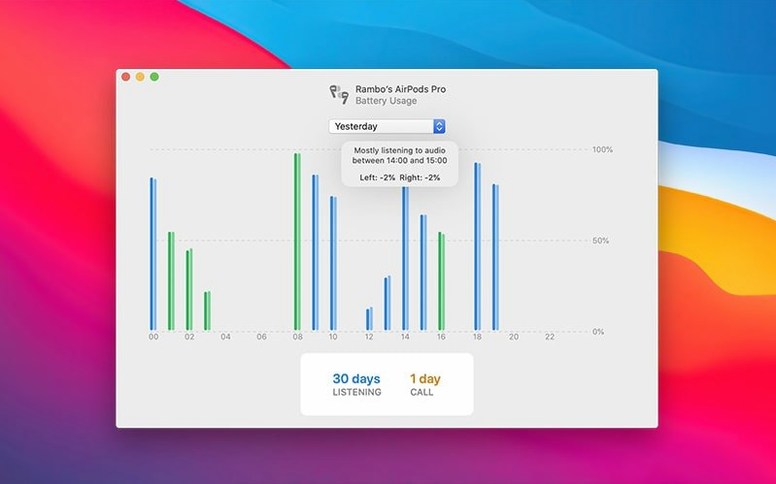
A click connects a pair of AirPods and sets the listening mode—transparency, noise cancellation, or off—without opening Bluetooth settings. Custom connection modes let you define exactly what happens at connection time: volume level, microphone state, and playback behavior can all be set per device. The usage history pane tracks listening time and talk time over the previous 12 hours, 24 hours, or full day, which helps if you want to keep an eye on daily headset use.
AirPods Pro Noise Cancellation Switching
AirBuddy is aimed at anyone who uses wireless headphones with a Mac regularly, but some users get noticeably more out of it than others.
- AirPods Pro owners. The ability to switch between noise cancellation and transparency mode from the menu bar or a trackpad gesture saves a trip to System Preferences every time you move between a quiet office and a noisy open plan. Custom connection modes can even set the listening mode automatically when you connect.
- People with multiple device pairs. If you swap between AirPods for calls and Beats for music, the grouped device view keeps everything visible without digging through Bluetooth menus. One-click connection lets you jump from one pair to the other in seconds.
- Anyone who shares peripherals between Macs. Magic Handoff moves a Magic Mouse, trackpad, or keyboard across machines. That is useful if you work on both a desktop iMac and a MacBook at the same desk and do not want to keep pairing the same mouse.
- Users who want usage insights. The history view shows total listening and talk time, plus which earbud is draining faster — useful for people who rely on a headset all day and want to know when to charge or replace it.
Custom Connection Mode: Volume, Cancellation, Mic Off
Monday morning, you sit down at your desk.
You put the AirPods in your ears. AirBuddy connects them automatically — you defined a custom connection mode that sets volume to 60 percent, enables noise cancellation, and leaves the microphone off. Within seconds you are in a call.
Halfway through the call the conference room gets busy, so you use the trackpad gesture to switch your AirPods to transparency mode. The change is instant, and you can hear the person speaking without removing the earbuds.
After lunch you switch to a pair of Beats for music. You click the AirBuddy menu bar icon, see the Beats listed next to your AirPods, and click to connect. The custom mode for the Beats sets a higher volume and leaves noise cancellation off. You start working on a design file while music plays.
Later, you walk over to a colleague’s desk to discuss a project. Magic Handoff moves your Magic Mouse and keyboard to that Mac — you do not need to pair anything. When you return to your own Mac, the input devices follow you back.
At the end of the day you check the usage history. You see 4 hours of listening time, 1 hour of talk time, and that the left AirPod drained 12 percent faster than the right.
macOS 14+ Required, ARM and Intel Support
AirBuddy 3.0-890 requires macOS 14 or later. It runs on both ARM and x86 64-bit Macs — that covers Apple Silicon machines (M1, M2, M3) and Intel models alike. The interface is in English.
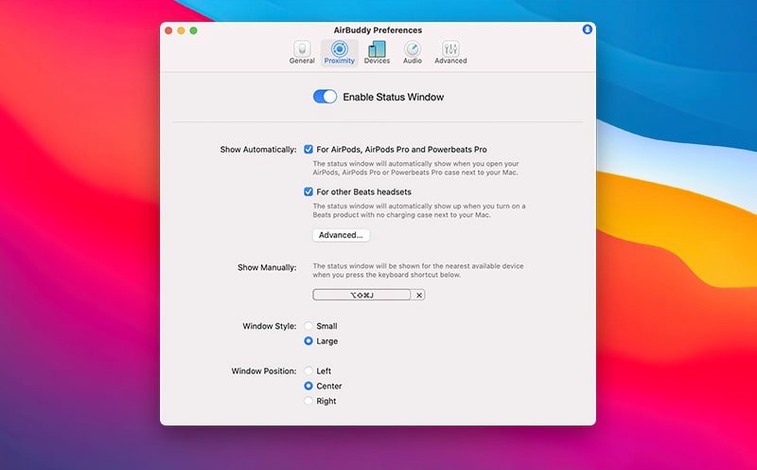
The small and large status window designs let you choose how much information is visible at a glance.
Install the app using the included instructions, then follow the activation steps. That is all that is needed to get started.
How AirBuddy Fits with Other Apps and macOS Features
AirBuddy works alongside the standard macOS Bluetooth stack rather than replacing it. The on-click connection feature bypasses the Bluetooth settings panel, but all paired devices remain visible in System Preferences if you need to troubleshoot or remove a device. The custom connection modes do not interfere with macOS volume controls — they just set a starting state when a device connects.
Magic Handoff uses the same trackpad, mouse, or keyboard that macOS recognises, so there is no conflict with third-party input managers or KVM software. The device status view groups iPhones, iPads, and other Macs together based on their relationships — for example, showing your phone and your MacBook under the same group if they are signed into the same Apple ID. This can help you see at a glance which devices are nearby and charged.
Because AirBuddy lives entirely in the menu bar and does not add a dock icon or background service that competes with system processes, it stays out of the way during normal work. It fits naturally into a workflow that already includes a browser, a PDF reader, and a project management app.
- Menu bar icon can now show the app icon, a battery indicator, or nothing at all.
- Release notes for AirBuddy 3 detail the full scope of the update.
| macOS | macOS 14 or later |
|---|---|
| Processor | Apple Silicon, Intel 64-bit |
| Download | 49 MB |
- macOS 14 or later
- Intel or Apple Silicon Mac
How to install, in order
- Open the disk image and drag AirBuddy to your Applications folder.
- Launch the app once, then follow the activation steps shown on screen.
Comments and corrections 0
Sign in or open a free account to leave a comment.
No comments or corrections yet.